
Many Amazon Prime Video users encounter the frustrating issue of subtitles not aligning with the audio or on-screen action. This can result in captions appearing too early or too late, sometimes by several minutes. Such timing issues can disrupt the viewing experience, making it difficult to follow the story. In this guidepost, we will explore best practices for fixing out-of-sync Amazon Prime subtitles. Whether the issue is common or caused by device-specific problems, we've got you covered. We will help you restore your subtitles timing and ensure a smooth, enjoyable viewing experience.
Watching movies, shows, or originals with subtitles ahead of audio in Prime Video is frustrating. Instead of enhancing understanding, this mismatch actually makes conversations harder to follow. Such issues are common and can be caused by several factors, including common errors and device-specific issues. Understanding the common causes can help you troubleshoot and ensure a smoother viewing experience.
• Subtitles for different regions or languages may not sync perfectly.
• Subtitle files may have incorrect timestamps due to upload or conversion issues.
• Outdated Prime Video apps or glitches following updates can disrupt subtitle timing.
• Slow internet connections can cause video and subtitle streams to load asynchronously.
• Outdated browsers or conflicting extensions can cause subtitles to load late or out of sync.
• Older Smart TV/streaming device models lag when rendering subtitles, especially at higher resolutions.
• Phones or tablets with lower processing power experience subtitle drift during high-bitrate streams.
• Using VPNs, browser extensions, or modifying playback speed interferes with Prime Video’s subtitle synchronization.
Now that we know the common causes behind out-of-sync Amazon Prime Video subtitles, let’s move forward to the practical solutions to fix Amazon Prime subtitles. Applying these fixes can restore a smooth viewing experience, ensuring captions match dialogue and on-screen action perfectly.
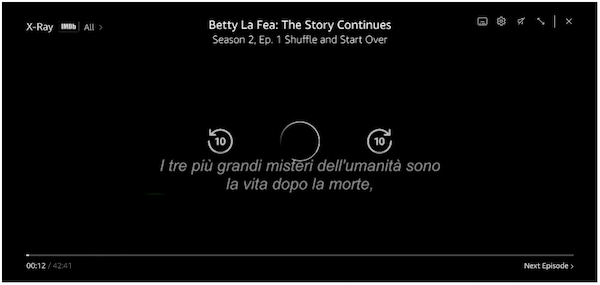
1. Click the Pause button to pause playback and stop processing the current subtitle stream. Close the tab entirely and reopen Amazon Prime Video in a fresh tab.
2. After restarting, open the same movie or show again. Use the 10-second forward or 10-second backward buttons to force Prime Video to reload both the video and subtitles.
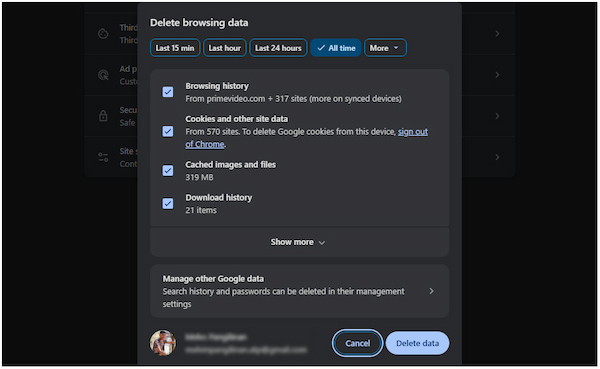
1. Click the three dots in the upper-right corner and select Delete browsing data. In the Delete browsing data section, check the Check Cookies and other site data box.
2. Also, don’t forget to check the Cached images and files box. Then, click the Delete Data button and wait a few seconds for the process to complete.
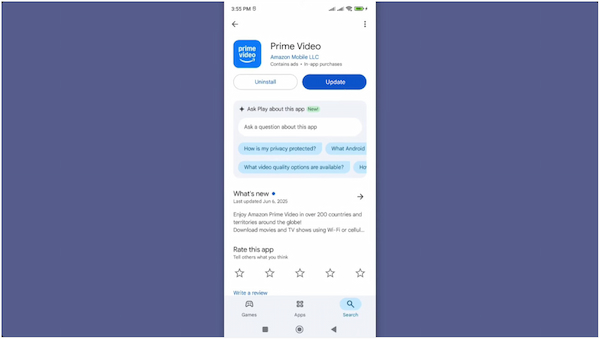
1. Open your device’s built-in app marketplace (Google Play Store or App Store). Search for Amazon Prime Video and check if an update is available.
2. If a new version is available, you’ll see an Update button. Install the update and wait for the installation to complete. Some updates are designed to fix the Prime Video subtitle delay.
If all built-in fixes fail, using an external subtitle sync tool can help you manually adjust the timing of subtitles. External subtitle editors allow you to add subtitles to a video, adjust subtitle delays, or shift timestamps. This approach is useful when the subtitle file itself is misaligned.
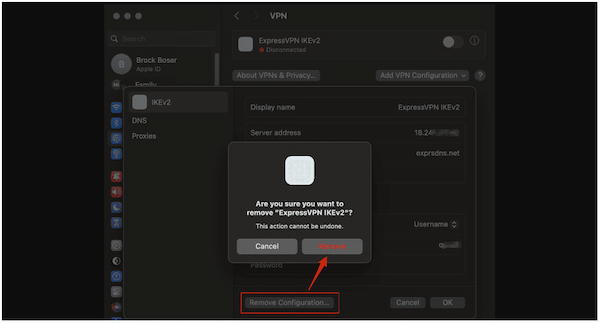
1. Open your System Settings and navigate to the Network Settings. In the Network section, locate and click on your VPN profile.
2. On the VPN profile page, click the lowercase i button to open the connection details. Click Remove Configuration to delete the saved VPN setup, and then click Remove to confirm.
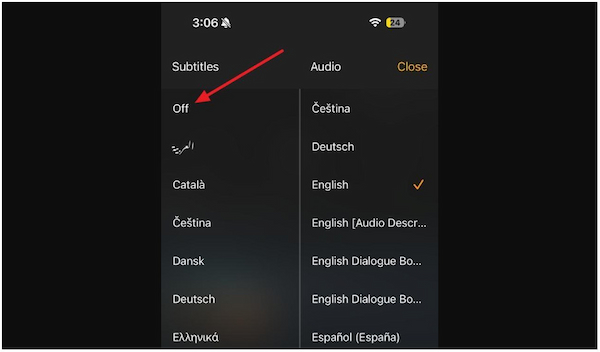
1. Launch the app and start playing the movie or show where you noticed the subtitle issue. While streaming, tap the Chat-Like button to open Subtitles and Audio settings.
2. Under the Subtitles section, select Off to temporarily disable them. After a moment, turn it on, then select your preferred subtitle language again.
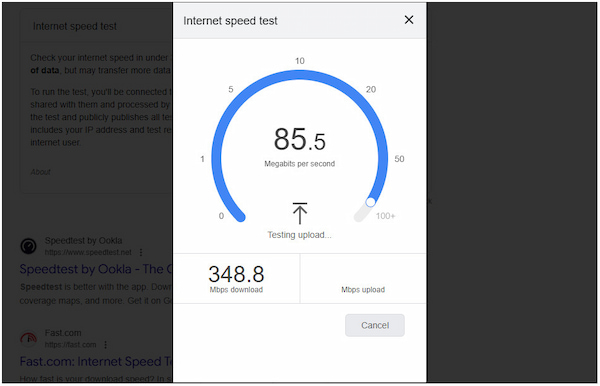
1. Before running a speed test, pause your movie or show. This is to prevent the video from using bandwidth during the test
2. On your browser, visit a reliable speed test site to check your current speed. Perform a speed test to determine whether your current speed is sufficient.
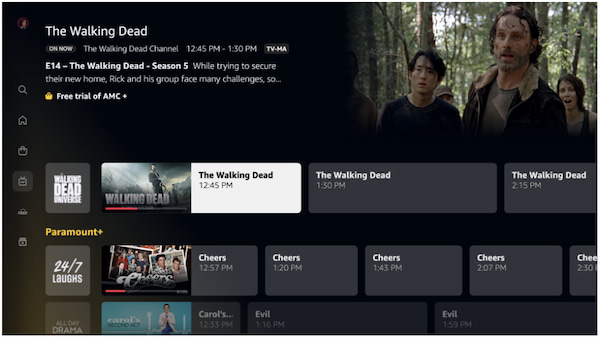
If there are no subtitles on Amazon Prime Video, determine whether the problem is widespread or limited to a single title. Sometimes, a specific movie or episode may have regional subtitle errors. By checking multiple shows or movies, you can quickly identify whether the subtitle problem is content-specific or system-wide.
When Amazon Prime subtitles are out of sync, AnyMP4 Video Converter Ultimate stands as the top-performing tool. It features direct subtitle sync adjustments, allowing you to manually shift the timing of the subtitle track. It supports nearly all subtitle formats, including SRT, ASS, SSA, and others. For inputs, it has full compatibility with Prime-downloaded videos. Just be sure that they are saved in MP4, MKV, MOV, AVI, WebM, and 500+ other formats. Remarkably, you can change the font style, size, color, outline, position, opacity/visibility, among other settings.
Here’s how to fix lag subtitles using AnyMP4 Video Converter Ultimate:
1. Start by obtaining the free download of AnyMP4 Video Converter Ultimate. Install the external subtitle editor and complete the installation process. Once the setup is finished, open the software on your system to access the main dashboard.
Secure Download
Secure Download
2. The dashboard will open on the Converter tab by default. Click +Add Files to upload the downloaded Prime Video clips for which you want to add subtitles. Remember, you can import various formats, including MP4, MOV, WMV, AVI, MKV, and more.
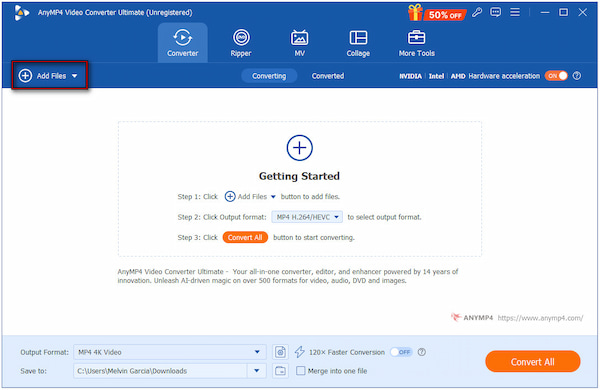
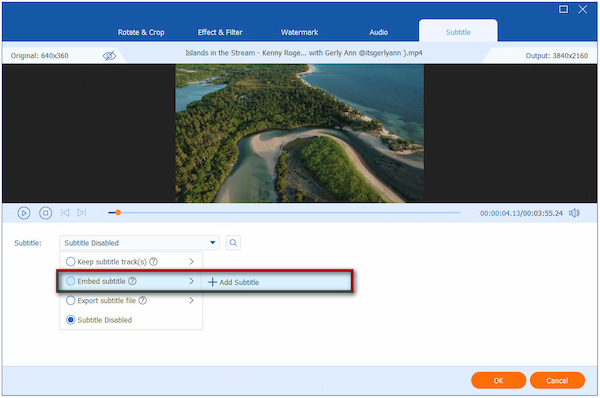
3. Click the Edit (Magic Wand) next to the video thumbnail to access the editing window. Navigate to the Subtitle tab and open the Subtitle pulldown field. Then, choose Embed Subtitle and click + Add Subtitle to import your subtitle file.
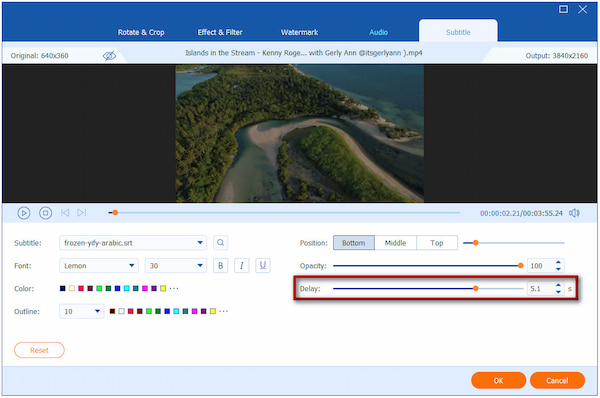
Use the Delay slider to shift subtitles forward or backward in milliseconds until perfectly synced. Optionally, configure the font style, size, color, outline, position, and opacity/visibility. Click OK to save any adjustments made.
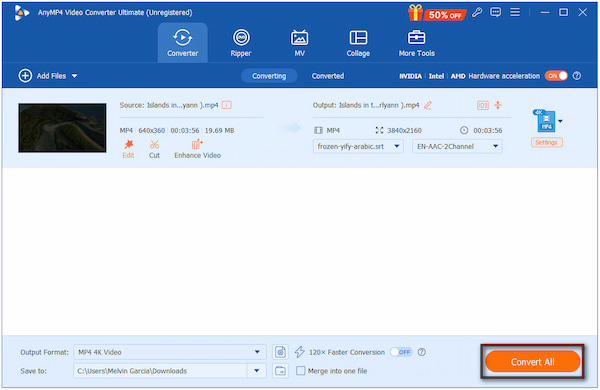
4. Preview the video to check subtitle timing and appearance. If satisfied, specify your preferred output format and adjust the video settings, such as resolution, encoder, and quality, as needed. Click Convert All to permanently embed the synced subtitles into your video.
AnyMP4 Video Converter Ultimate is a powerful tool that perfectly aligns subtitles with the audio. Besides Prime-downloaded videos, you can also use it to add subtitles to MP4 files. Regardless of the format of your downloaded Amazon Prime Video content, it ensures that your subtitles can be corrected and permanently embedded.
Q: Can I adjust subtitle delay directly on Amazon Prime Video?
A: No, Amazon Prime Video does not offer a built-in feature to manually adjust subtitle delay. If subtitles are consistently out of sync, you would need to use AnyMP4 Video Converter Ultimate. This tool allows you to adjust the timing and permanently sync the captions with your video.
Q: Why do my subtitles only go out of sync after an ad break or a jump?
A: Ads often load separately and can temporarily pause or reset the subtitle track. Similarly, using the seek bar to jump ahead can cause the video to buffer while the subtitles lag behind. Toggling subtitles on and off, or restarting playback, usually helps resynchronize them.
Q: Do subtitles being out of sync mean my internet is too slow?
A: Not always, but a slow internet connection can contribute to subtitle desynchronization. If your bandwidth is insufficient or fluctuates, video frames may load faster or slower than subtitle packets. This causes captions to appear early, late, or drift over time.
Q: Does video quality affect subtitle timing?
A: Yes, higher video quality can affect subtitle synchronization, especially on older or less powerful devices. Streaming higher-quality content requires more processing power and bandwidth. As a result, subtitle rendering is delayed if the device struggles to keep up.
Subtitle desynchronization can be frustrating, but the good news is that Amazon Prime subtitles out of sync are fixable. From basic troubleshooting to using external tools, there are multiple methods to realign captions with the video. We encourage you to try different fixes to find the one that works best for your situation. For a reliable, all-in-one solution, AnyMP4 Video Converter Ultimate makes it easy to sync subtitles perfectly. Secure a free download today, and we ensure your Amazon Prime Video experience is seamless, with captions always appearing exactly when they should.
Secure Download
Secure Download
 Updated by Mark Cristobal to Edit Video
More readings
 Best Way to Add Subtitles to MP4 Video Fastly
Have you ever be upset that there are no subtitles on your MP4 video? This passage will give you a detailed guide about how to add subtitles to MP4.
 How to Fix Subtitle Not Showing in VLC and Other Problems
Learn how to delay subtitles in VLC Media Player and different ways to adjust them, including extracting subtitles, syncing subtitles, and delaying subtitles.
 How to Add/Remove/Extract HandBrake Subtitle
Check our post and explore various ways to use HandBrake Subtitle for managing your video’s subtitle. Discover the easy-going solutions with our complete guide.
 3 Best Ways to Rip DVD with Subtitles (Forced and Soft)
Do you want to know how to rip a DVD with subtitles? The three best ways to do it will be introduced in this article! Read on for more information about it.
 Add your comments to join the discussion here