
Free Download100% Clear & Secure
Free Download100% Clear & Secure
Subtitles are essential in making video content accessible and engaging for everyone. Without them, people who are deaf, hard of hearing, or who speak a different language may miss out on your message. Extracting subtitles allows you to reuse, edit, translate, or embed them in other videos. This turns existing content into a versatile resource. In this post, we will show you four effective ways to extract subtitles from YouTube videos. We will provide you with step-by-step methods to easily obtain subtitles for various use cases. This ensures your videos reach and benefit as many people as possible.
| AnyMP4 Video Converter Ultimate | YouTube’s Built‑in Transcript | DownSub | Subtitle Edit | |
|---|---|---|---|---|
| Type | All-in-one desktop software (Windows and Mac) | Built-in/Browser-based | Browser-based | Desktop software (Windows) |
| Price | Free and Paid | Free | Free | Free |
| Supported Subtitle Formats | SRT, SSA, ASS, SCC, etc | Plain transcript text | SRT, TXT, and VTT | SRT, WebVTT, ASS, etc. |
| Requires Download/Installation |  |
 |
|
|
| Best For | Extract subtitles from downloaded videos, embed subtitles (hard-coded), re-encode video with subtitles, and more | Fast raw transcript extractions | Grab subtitles quickly | Editing and fine-tuning subtitles |
| Overall Ratings |
Subtitles were originally created to help viewers follow dialogue, but their value goes far beyond that. Many people now extract subtitles from YouTube for purposes such as improving accessibility, language learning, and personal use. Here’s why:
Accessibility: Subtitles are crucial for viewers who are deaf or hard of hearing. It ensures they can engage with video content just as fully as hearing audiences.
Language Learning: Subtitles support language learners by providing written text they can study, translate, or review at their own pace.
Personal Use: Subtitle extraction enables anyone to efficiently repurpose video material. Some use it for blog posts, study notes, translations, SEO-optimized articles, or social media captions.
Now that you understand why extracting YouTube subtitles matters, let’s move on to the practical side, how to actually do it. In this section, we’ll cover four effective methods you can use to save YouTube captions. These methods range from using YouTube’s built-in subtitle tools to third-party websites, browser extensions, and professional software.
AnyMP4 Video Converter Ultimate is a feature-rich media software bundle that goes far beyond conversion. This software also functions as a YouTube subtitle extractor, supporting the extraction of subtitles from downloaded YouTube videos. It accepts any video input, provided it is saved in M4, MKV, MOV, AVI, WMV, and over 500 other formats. Additionally, it makes subtitle extraction easy and efficient, whether you’re working with SRT, ASS, SSA, SCC, or other formats. Batch processing is also supported, enabling you to extract subtitles from multiple YouTube videos simultaneously. The processing speed? It can deliver speeds up to 120× faster.
Here’s how to download SRT file using AnyMP4 Video Converter Ultimate:
1. Beforehand, obtain the free download of AnyMP4 Video Converter Ultimate. Install the subtitle extractor and complete the setup process. Once the installation is finished, open the software on your system to access the main dashboard.
Secure Download
Secure Download
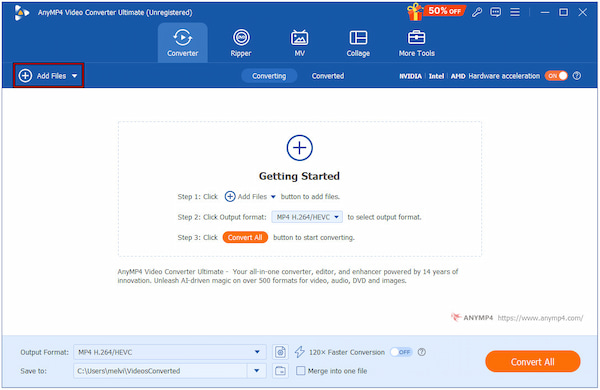
2. As soon as it opens, the dashboard will open on the Converter tab by default. Click +Add Files to import the downloaded YouTube video from which you want to extract subtitles. Remember, be sure your YouTube videos are saved in MP4, MKV, MOV, AVI, WebM, etc.
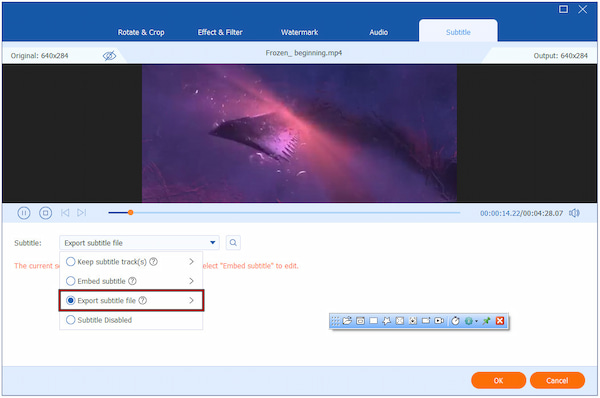
3. After the video is added, click the Edit (Magic Wand) button beside the video preview. Navigate to the Subtitle section, open the Subtitle selector, and choose Export Subtitle File. This option will extract the subtitle from the YouTube video. Click OK to appl
4. In the main dashboard, move to the Output Format selector to specify your target format and quality. Toggle the 120× Faster Conversion option ON to enable fast processing speed. After finalizing the settings, click Convert All to extract the subtitles from your videos.
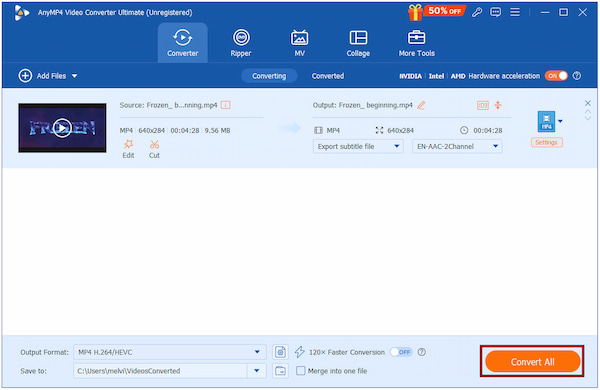
AnyMP4 Video Converter Ultimate makes subtitle extraction fast and easy. This software handles everything cleanly, and it’s useful once you understand the difference between hard subs vs soft subs. Learning their distinction determines what you can actually extract.
YouTube’s Built-in Transcript feature lets you extract subtitles directly from a video’s page. It automatically generates transcripts for most public videos, making it the fastest option. However, formatting may require cleanup, especially if you plan to repurpose the text.
Here’s how to extract the subtitles from a YouTube video:
1. Open the YouTube video directly from your browser and click Play to play the video. Scroll to the description area and click the More option to expand the full description box.
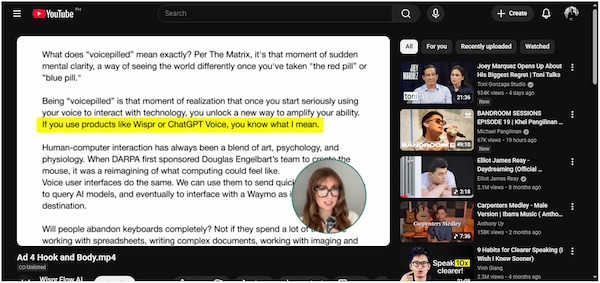
2. If transcripts are available, you will see the Show transcript button. Click it to open a transcript panel containing the entire auto-generated text.
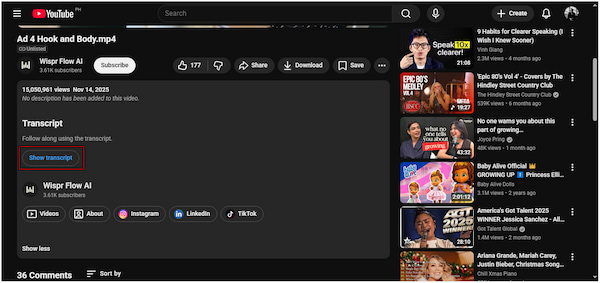
Note: If the Show transcript button does not appear, the creator has disabled transcripts. This means YouTube will not display one.
3. Highlight any portion or the entire transcript using your mouse. Right-click and select Copy. Then, paste it into your preferred text editor.
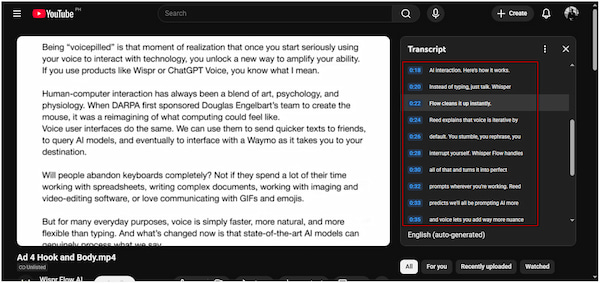
The Show Transcript feature helps you generate YouTube transcripts to text easily. It offers a fast solution without requiring the installation of extra tools. While this method is quick and convenient, it may require corrections due to YouTube’s auto-generated limitations.
DownSub is a free, browser-based subtitle extractor to save YouTube subtitles. It supports public videos on platforms like YouTube and other sites. Additionally, it can retrieve either manually uploaded subtitles or auto-generated captions.
Here’s how to extract subtitles from a YouTube video:
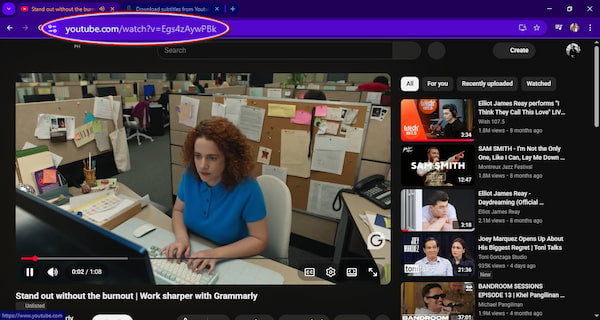
1. Open the YouTube video whose subtitles you want and copy the URL from the address bar. Then, open a new tab and go to the official DownSub site.
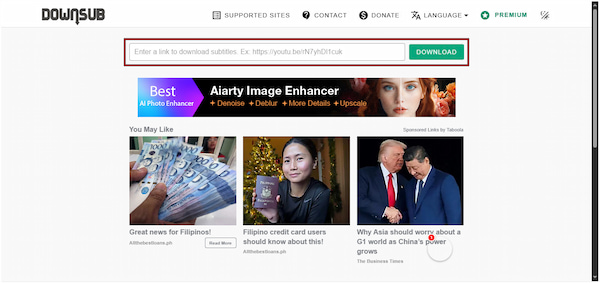
2. On DownSub’s home page, paste the copied YouTube URL into the input field. Click Download to allow the tool to locate available captions attached to the video.
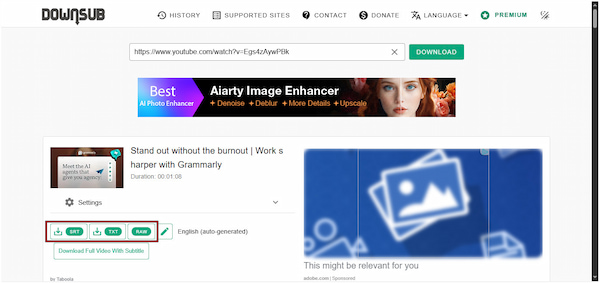
3. If the video has multiple subtitle languages/tracks, choose the one you want. Click your preferred subtitle format, and it will be automatically downloaded and saved locally.
DownSub is a must-have tool for quickly creating subtitles or transcripts without installing software. However, it only works for publicly available videos. Private or member-only videos usually won’t work. Additionally, the accuracy depends on the source, as auto-generated captions may contain errors.
After extracting the subtitles, feel free to edit, translate, or add subtitles to video projects.
Subtitle Edit is an open-source subtitle downloader that runs on Windows operating systems. It lets you create, edit, synchronize, and export subtitles for video files. This includes generating subtitles automatically from a video’s audio or editing existing subtitle tracks.
Here’s how to extract subtitles from YouTube videos:
1. In the Subtitle Edit, click the Video option from the menu and select Open Video File. This will allow you to load the video from which you want subtitles.
2. After the video loads, go to Video and select Audio to text (Whisper). This action allows the software to generate subtitles based on the video’s audio.
3. To export the extracted subtitle, click File, select Save, and choose a standard subtitle format. You now have an external subtitle file you can use with the video.
Subtitle Edit is a free and open-source software, supports many languages and subtitle formats. It is perfect for editing, translating, syncing, or re‑timing subtitles with precision. However, if your video has hard-coded subtitles, it cannot be reliably extracted as editable text.
In addition to YouTube videos, you can also extract subtitles from MKV in Subtitle Edit.
Can I extract subtitles from any YouTube video?
Not all YouTube videos allow subtitle extraction. Subtitles can only be extracted if the video has captions available. Private videos or videos where subtitles are disabled will not allow extraction.
Is it legal to download YouTube subtitles?
Yes, downloading YouTube subtitles is legal for personal use, educational purposes, or fair use. However, using them in commercial projects without permission could violate YouTube’s Terms of Service.
What format should I save subtitles in?
The most common subtitle formats are SRT and VTT, both of which are widely supported by media players and video editors. You can also save subtitles in ASS/SSA formats if you need advanced styling options.
Can I extract subtitles in other languages?
Yes, you can extract subtitles in multiple languages if the video offers them. YouTube often provides auto-translated captions or captions uploaded by creators in various languages.
What is the difference between an SRT and a VTT file?
SRT is simple, lightweight, and contains only basic text and timing information. Meanwhile, VTT is designed for the web, supporting additional features like text styling, positioning, and metadata for HTML5 video playback.
Now that you know how to extract subtitles from YouTube, you can make your video content more accessible, reusable, and versatile. To get the most professional and efficient results, use AnyMP4 Video Converter Ultimate. This software allows you to extract, edit, and export subtitles in multiple formats with precise timing and high-speed processing. Explore the different methods, try them out, and find the one that best fits your workflow.
Secure Download
Secure Download
 Updated by Mark Cristobal to Edit Video
More readings
 Best Way to Add Subtitles to MP4 Video Fastly
Have you ever be upset that there are no subtitles on your MP4 video? This passage will give you a detailed guide about how to add subtitles to MP4.
 2 Methods to Extract Subtitles from MKV [Soft and Hard]
If you want to extract a subtitle track from the MKV movie, we share 2 ways to meet your needs without interrupting video quality.
 How to Add Subtitles to MKV Quickly on Desktop
Add new subtitles or replace current subtitles on your MKV movies? This tutorial shares the best ways to add subtitles to MKV without losing video quality.
 How to Add Subtitles to Instagram Stories, Reels, and Posts
Learn how to add captions to your Instagram Stories and Reels using the built-in sticker or third-party apps. Make your videos more engaging and accessible.
 Add your comments to join the discussion here