
A subtitle editor is more than just a simple text editor. It’s a specialized tool designed for precise timing, styling, and synchronization of subtitles. Subtitles editing software helps you edit subtitles, adjust appearance, sync dialogue with audio, and export in the formats you need. If you’ve been searching for reliable subtitle software or a powerful SRT editor, understanding the right tool can make all the difference in your workflow. Subtitle editors generally fall into three main categories: desktop, online, and all-in-one tools. In this post, we’ll highlight the best subtitle editors available today. We will compare their strengths and ideal use cases to help you quickly find the best subtitle tool for your needs.
A premium video captioning software must support a wide range of subtitle and video file formats. Look for captioning tools that can import and export all common formats, including those with embedded subtitle tracks. Comprehensive format support ensures consistent formatting and the convenience of handling all subtitle tasks within a single application.
Hard subs vs. soft subs? Hard subs permanently embed captions into your video, while soft subs stay as separate, editable files. That’s why comprehensive file format support matters. This way, you can export your video exactly the way you need it, in any subtitle style you prefer.
The best subtitle editing software should offer a live video preview. This feature enables you to view your captions in real-time as the video plays. It helps you instantly check timing accuracy, line breaks, readability, and sync. Without it, you're forced into a trial-and-error cycle that requires repeatedly exporting and re-importing your subtitles just to check for mistakes.
A professional subtitle software must offer robust styling and customization tools, including font type, size, color, line spacing, background opacity, outline/stroke, and on-screen positioning. Strong customization options turn basic captions into more readable and visually appealing subtitles. Being able to customize these elements also ensures your subtitles match your video’s aesthetic.
Best For: All-in-one subtitle integration and media conversion
Price: $18.75 starting price
System Requirements: Windows and Mac
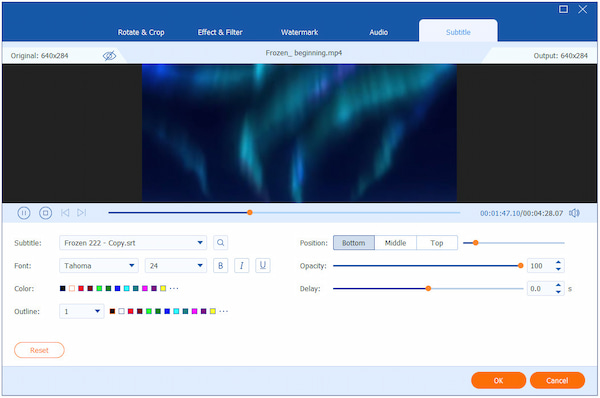
AnyMP4 Video Converter Ultimate is a one-stop media software bundle compatible with Windows and Mac. Beyond converting media files, it also operates as a highly customizable subtitle editor. It offers seamless subtitle integration, enabling you to import subtitle files and embed them directly into your videos.
Secure Download
Secure Download
For added convenience, it supports various formats, including SRT, ASS, SSA, and others. In addition to importing simple, text-based subtitles, it also allows for customization to enhance visualization. You can freely adjust the font style, size, color, outline, position, opacity/visibility, among other settings. It also features precise synchronization and delay settings, making it easy to correct subtitles that are out of sync.
PROS
CONS
After using AnyMP4 to add subtitles to MP4 and other formats, I found it to be an efficient tool. The built-in subtitle delay feature helped me quickly fix timing issues without difficulties. I never had to worry about compatibility issues when exporting, as it supports a wide range of video formats.
Best For: Precise timing and professional subtitle refinement
Price: Free
System Requirement: Windows
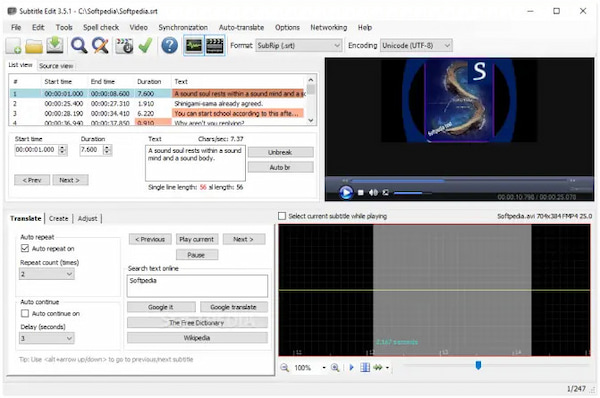
Subtitle Edit is a free subtitle editor that can create, adjust, sync, and translate subtitle lines. It allows the conversion of over 300 subtitle formats to Advanced Sub Station Alpha, Sub Station Alpha, and more. It also allows ripping subtitles from a decrypted DVD. This subtitle editor displays a waveform and spectrogram, allowing you to visually sync subtitles with the audio.
PROS
CONS
Best For: Advanced styling and creative subtitles
Price: Free
System Requirements: Mac and Windows
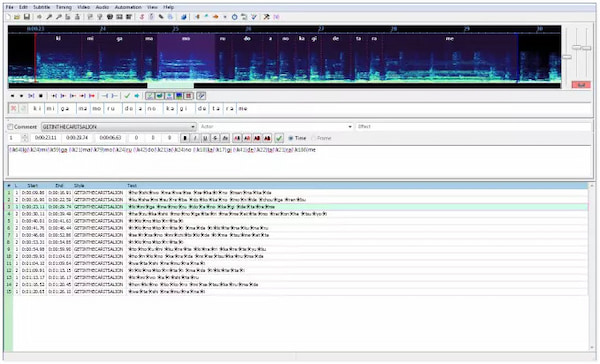
Aegisub is an advanced subtitle edit software for Mac and Windows systems. It specializes in ASS subtitles, which support highly customizable formatting, such as colors, gradients, precise positioning, karaoke effects, rotations, and motion tracking. It includes visual timing tools, audio spectrogram editing, and a real-time preview to fine-tune subtitles with accuracy.
PROS
CONS
Aegisub gave me unmatched control and precision, especially for creative subtitles. However, it requires patience to fully take advantage of everything it has to offer.
Best For: Quick, effortless auto-subtitles for social media videos
Price: $24 for 1,000 credits per month
System Requirement: Online
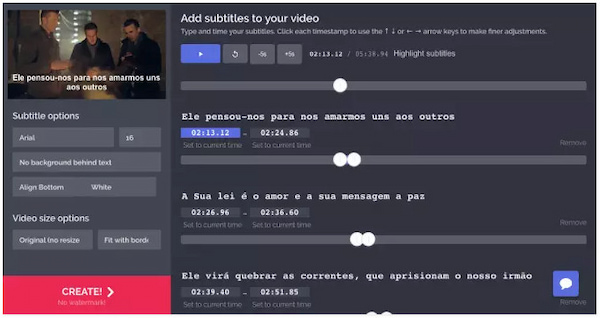
Kapwing Automatic Subtitle Generator is one of the well-known tools to edit subtitles online. Its AI-powered automatic subtitles transcribe speech effortlessly, allowing you to add subtitles to videos quickly. It supports common video formats, including MP4, MOV, and WMV, as well as SRT subtitle file import. It also provides simple styling tools for social-media-ready subtitles.
PROS
CONS
Kapwing's Automatic Subtitle Generator is great for quick and straightforward subtitle tasks. But for more demanding or polished subtitle projects, I’d treat it as a fast first pass.
Best For: Simple captions for short branded or social content
Price: $9.99 starting price
System Requirements: Online

Adobe Express is a modern video editor for subtitles built for smooth captioning. This SRT editor allows you to add captions manually or import SRT files with ease. It provides straightforward styling options, including font control, size, alignment, background colors, and text placement. It supports common media formats like MP4 and MOV.
PROS
CONS
Adobe Express worked well for fast subtitles, but felt limited when I needed more flexibility. For anything more advanced, I’d still rely on more specialized subtitle editing tools.
AnyMP4 Video Converter Ultimate enables you to easily edit subtitles on Mac and Windows systems. If you're preparing content for personal or social media projects, this software lets you embed subtitles effortlessly. Additionally, you can adjust styling, sync timing, and export your video in high-quality formats. Follow the steps below to learn how to add subtitles quickly:
1 Get started by securing a free download of AnyMP4 Video Converter Ultimate. Install the video captioning software and finish the setup process. Once the installation is complete, open the software on your system to access the main dashboard.
Secure Download
Secure Download
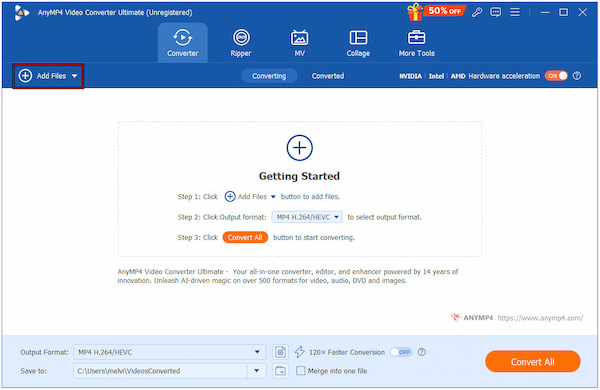
2 When the program opens, you will be automatically directed to the Converter tab. Click the + Add Files button to load the video to which you want to add subtitles. Remember, it supports a wide range of formats, including MP4, MOV, WMV, AVI, MKV, and more.
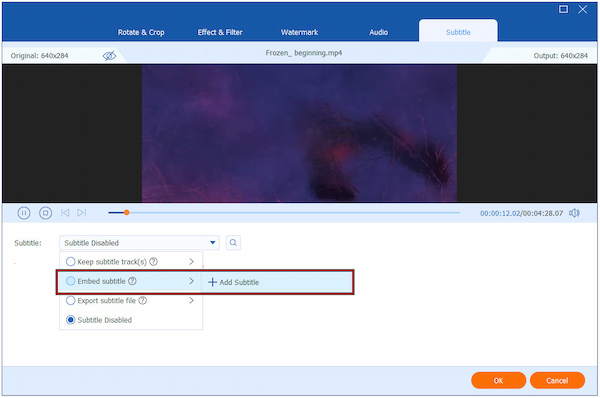
3 Click the Edit (Magic Wand) next to the video thumbnail to open the editing window. Inside the editor, go to the Subtitle tab. Click the Subtitle pulldown field, select Embed Subtitle, and click + Add Subtitle to import your subtitle file.
Once imported, customize your subtitles for the best visual result. You can adjust font style, size, color, outline, position, opacity/visibility, and subtitle delay. These controls help ensure that your subtitles remain readable across different backgrounds or fast-moving scenes. Click OK to apply the changes.
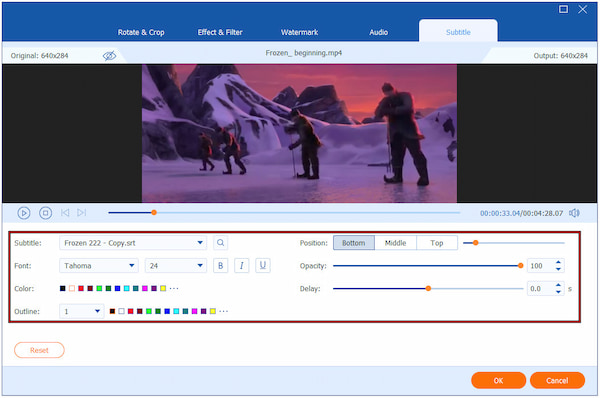
4 Play the preview to verify that the subtitle timing, style, and positioning are correct. Then, select your desired output format and adjust settings such as video quality, resolution, and encoder. Finally, click Convert All to embed the subtitles permanently and export the final video.
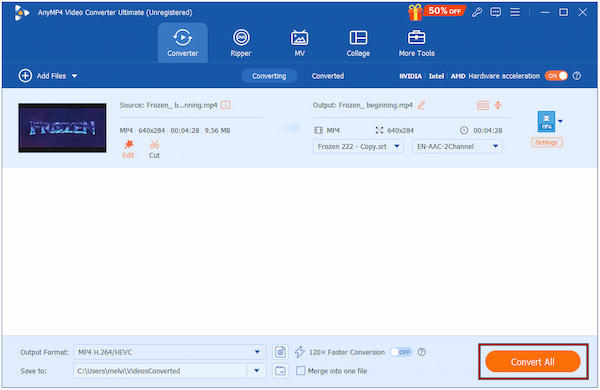
AnyMP4 Video Converter Ultimate is a versatile tool for adding subtitles in English or any other language of your choice. Beyond subtitling, it also serves as a full video editor, offering more than 20 additional tools. Some of which are Video Enhancer, Video Compressor, MV Maker, and more.
Q: What is the difference between hardcoded and soft-coded subtitles?
A: Hardcoded subtitles are permanently burned into the video. This means they cannot be turned off, removed, or edited once exported. Meanwhile, soft-coded subtitles are separate subtitle tracks that can be enabled or disabled in a media player.
Q: What is an SRT file, and can I edit it with a simple text editor?
A: An SRT file is a plain-text subtitle format that contains a series of numbered caption entries with timestamps and dialogue. Each entry defines when the subtitle appears and disappears. Because it’s just text, you can edit an SRT file using any simple text editor.
Q: Do subtitles help with YouTube SEO?
A: Yes, subtitles can improve YouTube SEO. YouTube can read and index the text, helping the algorithm understand your video’s content better. This can increase your chances of appearing in relevant search results and recommended sections.
Q: What does subtitle synchronization mean?
A: Subtitle synchronization is the process of matching the timing of subtitles with the actual speech or sounds in the video. It ensures that each subtitle appears at the exact moment the dialogue is spoken and disappears when that line ends.
Subtitles editing software makes your videos more accessible, engaging, and professional. Now that you’re familiar with the top subtitle editing solutions, start using the tool that best suits your current project. And if you want the smoothest, most flexible experience, go ahead and download AnyMP4 Video Converter Ultimate to begin enhancing your videos with clean, polished subtitles. It is an excellent all-in-one tool that makes adding, styling, and embedding subtitles incredibly easy.
Secure Download
Secure Download
 Updated by Mark Cristobal to Edit Video
More readings
 Best Way to Add Subtitles to MP4 Video Fastly
Have you ever be upset that there are no subtitles on your MP4 video? This passage will give you a detailed guide about how to add subtitles to MP4.
 2 Methods to Extract Subtitles from MKV [Soft and Hard]
If you want to extract a subtitle track from the MKV movie, we share 2 ways to meet your needs without interrupting video quality.
 How to Add Subtitles to MKV Quickly on Desktop
Add new subtitles or replace current subtitles on your MKV movies? This tutorial shares the best ways to add subtitles to MKV without losing video quality.
 How to Add Subtitles in iMovie on Mac and iPhone
Want to learn how to make subtitles on iMovie? This article is made for you since we will discuss five simple steps to learn how to use iMovie to add subtitles.
 Add your comments to join the discussion here