
Hulu is among the leading subscription-based streaming services, offering thousands of movies, TV shows, and originals. As one of the biggest platforms, it reached millions of paid subscribers. But with such a massive user base, technical issues are bound to surface. One of the most persistent complaints is subtitles falling out of sync. The issue gained attention, and Hulu eventually acknowledged the problem. Yet even today, many users still encounter subtitle issues. So why are Hulu subtitles out of sync? More importantly, how do you fix them? This post will provide quick and practical solutions to correct out-of-sync Hulu subtitles. We will help you identify the cause of this issue and guide you through simple fixes.

Why are Hulu subtitles out of sync? When Hulu’s closed captions are not syncing, it can spoil your stream. But what exactly causes these frustrating delays and mismatches? Several technical, device-related, and app-specific factors can be responsible.
• Login session glitches can cause playback and subtitle problems.
• Background processes or memory issues on your streaming device.
• Older or problematic devices may struggle with smooth subtitle syncing.
• The Hulu app may experience internal glitches or playback interruptions.
• Temporary subtitle glitches or bugs can cause captions to fall out of sync.
• Outdated apps or firmware can create issues that affect subtitle synchronization.
• An outdated or corrupted Hulu app cache can cause issues with how subtitles load and sync.
• Slow or fluctuating internet speeds can cause buffering and delayed subtitle rendering.
Important Note: To effectively troubleshoot Hulu subtitles out of sync, you must first understand the distinction between hard sub vs soft sub.
Now that you know what causes subtitles to fall out of sync, let's look at the practical solutions to fix Hulu subtitle delay. We've compiled quick fixes that will instantly get your subtitles back on track. Check out the troubleshooting tips below to restore your viewing experience.
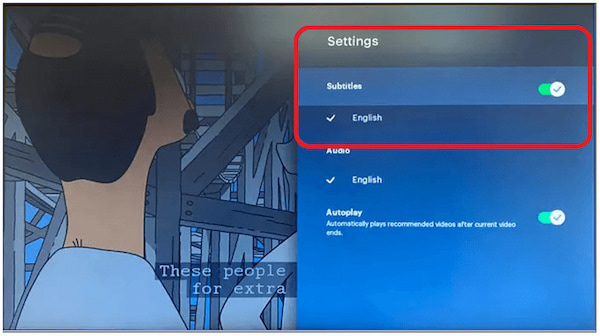
1. Open the Hulu video player on your device and click the Settings button. Access the Captions & Subtitles options and switch the Subtitles option to OFF.
2. Wait a few seconds, then turn it back ON in your preferred language. Resume your video and check whether it adds subtitles to a video.
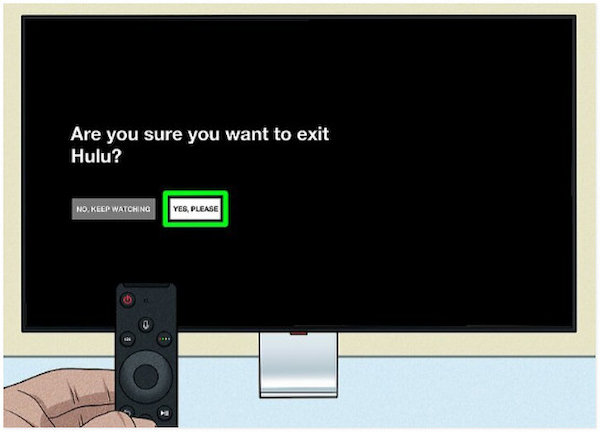
1. If Hulu subtitles are not working, close the app or browser window you’re using to watch. If you’re using a computer, phone, or tablet, also close any other apps that are running in the background.
2. Reopen the Hulu app (or reload Hulu in your browser). Restart the stream and check if the subtitles are now aligned.
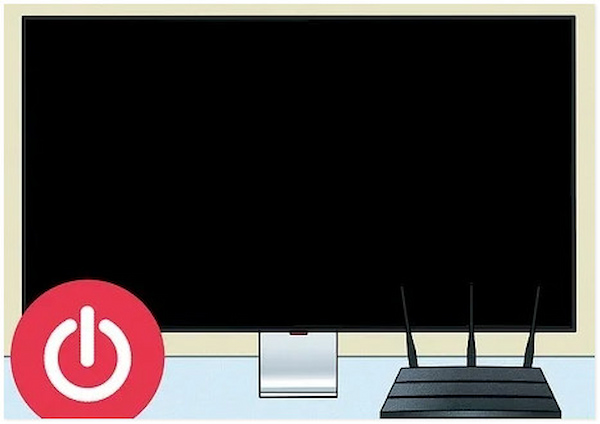
1. Press the power button on your remote to fully turn off your streaming device. Turn off the modem and router, then unplug them from the power source.
2. Wait at least 1-2 minutes to ensure that everything has fully powered down. Plug your router and modem back in, let them fully restart, and then turn your streaming device back on. Open Hulu again and check if the Hulu subtitle lag issues are resolved.
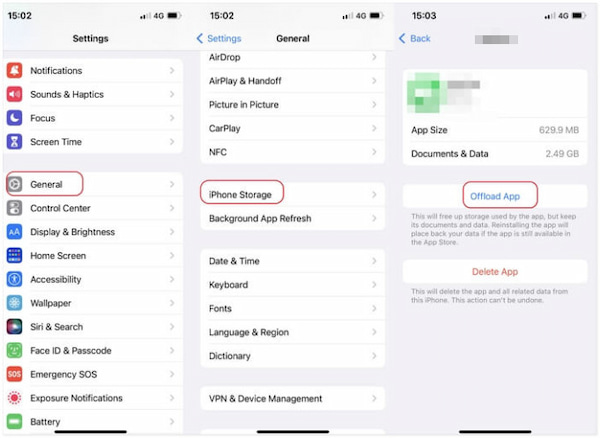
On iOS
1. On your iPhone, navigate to Settings, select General, and tap iPhone Storage.
2. Scroll to find Hulu and select Offload App to clear app data while keeping your settings.
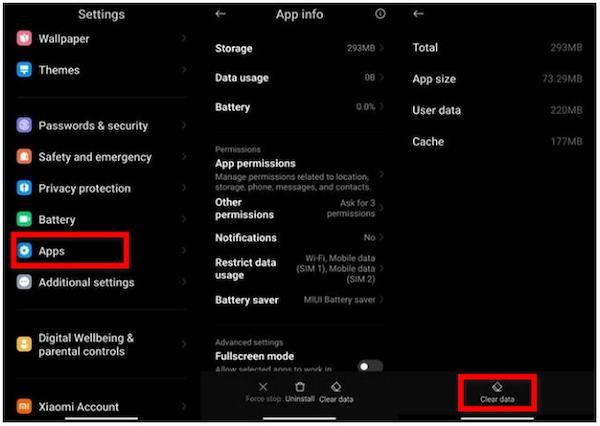
On Android
1. Open the Settings app on your Android, proceed to the Apps option, and locate Hulu.
2. Tap Storage and select Clear Data to resolve the issue with anime subtitles not available on Hulu.
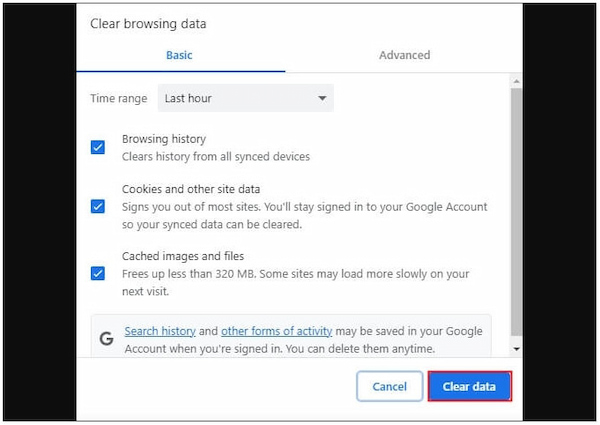
On Web Browser
1. In the upper-right corner of Chrome, click the three dots button and select More Tools.
2. Select Clear Browsing Data, check the recommended options, then click Clear data.
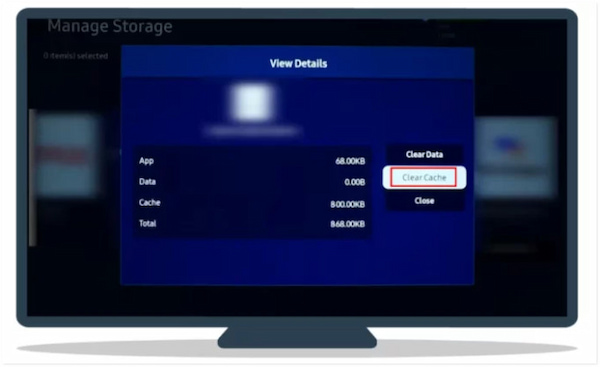
On Smart TV/Roku
1. Press Settings on your TV remote, navigate to the Apps option, and select Hulu.
2. Select Clear Cache to remove temporary app files. Reopen Hulu and verify subtitle timing.
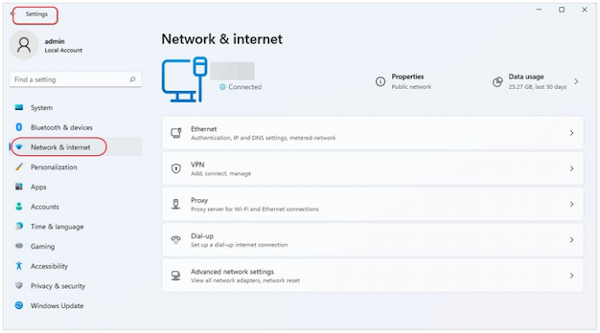
1. Turn off your WiFi and reconnect to ensure a stable connection. On a Windows PC, click the Start button, type Settings, and navigate to Network & Internet to verify connectivity.
2. Optionally, perform a speed test to determine whether your current speed is sufficient. On Google, type internet speed test and click RUN SPEED TEST to check your current speed.
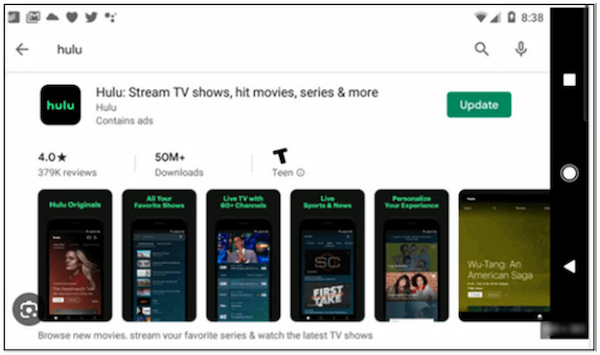
1. On your device, open the designated app for downloading applications. Search for Hulu and check if an update is available.
2. Install the update if offered, then allow the app to restart automatically. Check for device software updates as well to fix Hulu closed captions issues.
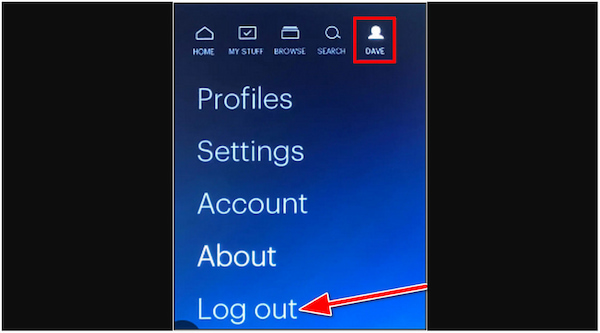
1. Open the Hulu app, navigate to your profile, then select Settings. From there, select Log Out. Finally, close the app completely to ensure all background processes are stopped.
2. Reopen Hulu and log back into your account. Play your video and check whether the subtitles are now properly synced.
If none of the previous fixes work, the issue may be related to the device you’re using. Testing Hulu on a different device can help determine whether the problem is device-specific. You can use another TV, smartphone, tablet, or computer to restore properly synced captions.
Hopefully, we have answered your question, Why are my subtitles not working on Hulu?. Delayed or out-of-sync subtitles are caused by several factors. The good news is that most of these problems can be fixed quickly with some simple troubleshooting. By following these solutions, you can ensure that your Hulu captions are properly synced.
If you’ve tried every quick fix and your Hulu subtitles are still delayed, it’s now time for a long-term solution. AnyMP4 Video Converter Ultimate is a multipurpose media software bundle that extends beyond basic conversion. It includes a dedicated subtitle editing tool that allows you to permanently realign subtitles. It accepts various subtitle formats, including SRT, ASS, SSA, and others. In terms of video inputs, it has full compatibility with Hulu-downloaded videos and over 500 other media formats. Notably, you can freely adjust the font style, size, color, outline, position, opacity/visibility, among other settings.
Here’s how to adjust Hulu captions using AnyMP4 Video Converter Ultimate:
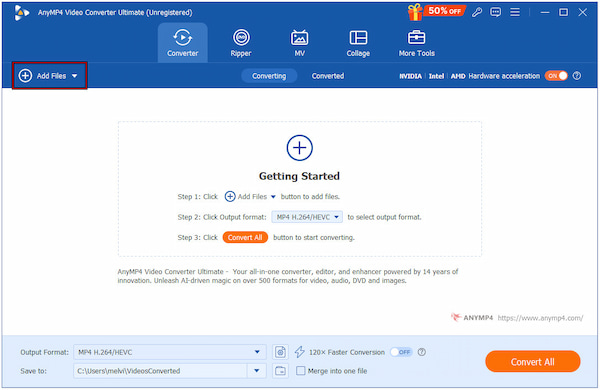
1. Begin by securing the free download of AnyMP4 Video Converter Ultimate. Install the subtitle editing tool and complete the setup process. Once the installation is finished, launch the software on your system to access the main dashboard.
Secure Download
Secure Download
2. You will be automatically directed to the Converter tab. Click the + Add Files button to upload the Hulu-downloaded videos to which you want to add subtitles. The software supports MP4, MOV, WMV, AVI, MKV, and more, ensuring compatibility with various video formats.
3. Click the Edit (Magic Wand) next to the video thumbnail to access the editing window. Inside the editor, navigate to the Subtitle tab. Open the Subtitle pulldown field, choose Embed Subtitle, then click +Add Subtitle to import your subtitle file.
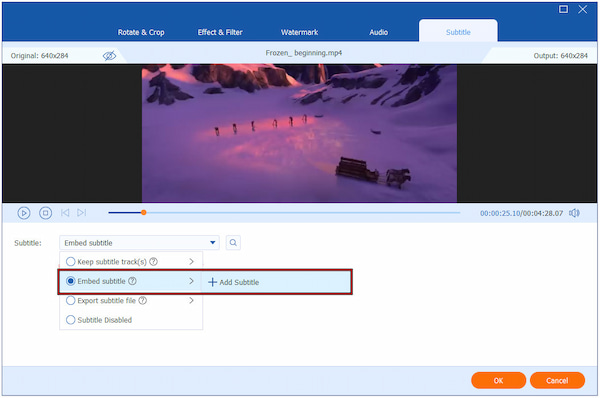
Once added, adjust the Delay slider to add or subtract milliseconds until syncing is perfect. Optionally, customize the font style, size, color, outline, position, and opacity/visibility. Click OK to save any adjustments made.
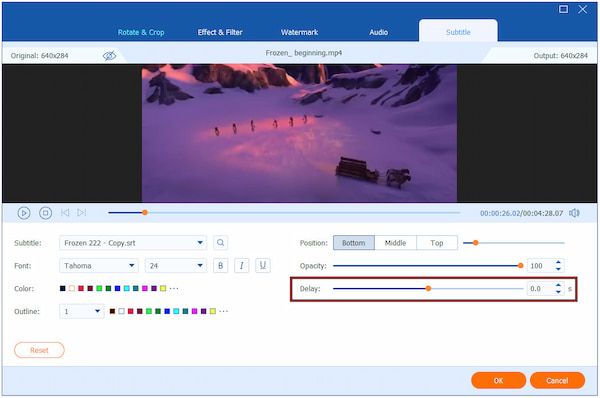
4. Use the built-in Preview window to test your subtitle timing and appearance. Next, select your preferred output format and adjust the video settings, such as resolution, encoder, and quality. Click Convert All to permanently embed your subtitles into the Hulu-downloaded video.
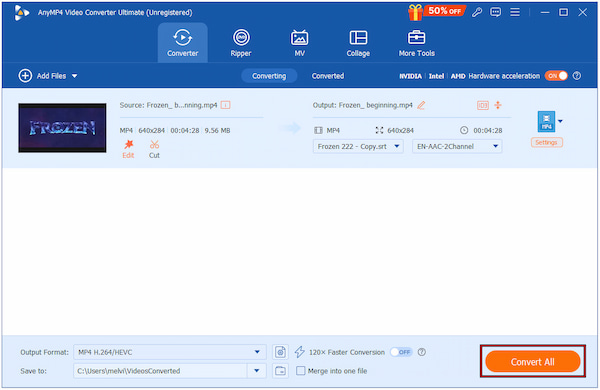
AnyMP4 Video Converter Ultimate ensures that your captions remain perfectly synced, regardless of where or how you play your video. In addition to Hulu-downloaded videos, you can also use it to add subtitles to MP4 files. It’s your best option for achieving flawless, customized, and permanently synced subtitles for any video.
Q: How do I reset subtitles on Hulu?
A: You can reset subtitles on Hulu by toggling them off and on. This forces Hulu to reload the subtitle file, resolving timing glitches or display errors quickly.
Q: Why are my Hulu subtitles delayed only after ads?
A: Subtitles commonly fall out of sync after ads because ad transitions temporarily disrupt the video timeline. This is caused by buffering, connection instability, or a temporary Hulu glitch.
Q: Does clearing the cache fix Hulu subtitle sync issues?
A: Yes, clearing your Hulu app cache can fix subtitle sync problems. This process removes corrupted temporary files that interfere with playback.
Q: Is there a way to permanently fix subtitle sync?
A: Yes, for downloaded videos, you can permanently fix subtitle sync by using AnyMP4 Video Converter Ultimate. It lets you manually adjust timing, preview changes, and embed subtitles directly into the video.
By now, you should have a clear understanding of why Hulu subtitles are out of sync and how to resolve the issue. If one method doesn’t work right away, don’t hesitate to try another. If you frequently watch downloaded content or want more control over subtitles offline, consider using AnyMP4 Video Converter Ultimate. It offers powerful tools for editing, syncing, converting, and customizing subtitles with precision and accuracy.
Secure Download
Secure Download
 Updated by Mark Cristobal to Edit Video
More readings
 Best Way to Add Subtitles to MP4 Video Fastly
Have you ever be upset that there are no subtitles on your MP4 video? This passage will give you a detailed guide about how to add subtitles to MP4.
 How to Add Subtitles to Instagram Stories, Reels, and Posts
Learn how to add captions to your Instagram Stories and Reels using the built-in sticker or third-party apps. Make your videos more engaging and accessible.
 How to Fix Subtitle Not Showing in VLC and Other Problems
Learn how to delay subtitles in VLC Media Player and different ways to adjust them, including extracting subtitles, syncing subtitles, and delaying subtitles.
 How to Add/Remove/Extract HandBrake Subtitle
Check our post and explore various ways to use HandBrake Subtitle for managing your video’s subtitle. Discover the easy-going solutions with our complete guide.
 Add your comments to join the discussion here