
Have you ever wanted to add subtitles to a picture to make your visuals easier to understand? Overlaying text on images can transform ordinary photos into engaging content that tells a story. Using a caption generator or simple editing tools makes photos more engaging and improves accessibility. This helps viewers understand your message even without sound. In this post, we’ll show you how to add subtitles to images in various ways. We will provide practical, easy-to-follow methods for enhancing your images with text overlays. By the end of this post, you will learn the best tools and how to overlay subtitles on images efficiently.
AnyMP4 Video Converter Ultimate is a multifunctional media software that lets you add subtitles to pictures. Beyond media conversion, it includes a powerful MV Maker that lets you overlay text on photos or videos. With it, you can insert text into pictures and export them as a video or slideshow. In addition, you can freely customize the font, size, color, outline, position, opacity/visibility, and delay. It works 100% offline, so internet connectivity isn’t required.
1. Start by obtaining the free download below to secure AnyMP4 Video Converter Ultimate. Install the subtitle editor for pictures and finish the installation process. Once the setup process is completed, run the software to access the main dashboard.
Secure Download
Secure Download
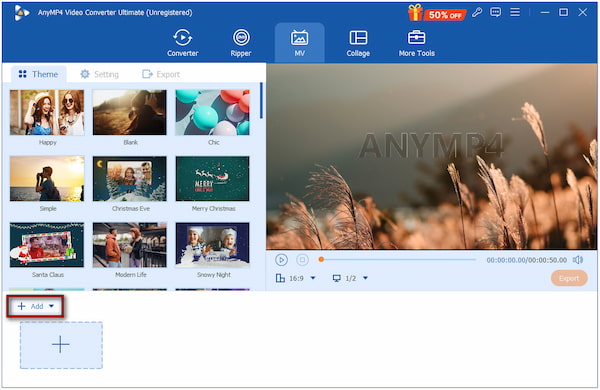
2. Immediately after opening it, you will land on the Converter tab by default. Switch to the MV tab and click + Add to upload the picture(s) you want to apply subtitles to. If using multiple images, they will appear in sequence inside the MV Maker.
3. After loading your image(s), click the Edit (Magic Wand) button to access the text editor. This opens a panel where you can crop, rotate, adjust colors, apply filters, and more. Navigate to the Watermark section, then select the Text option.
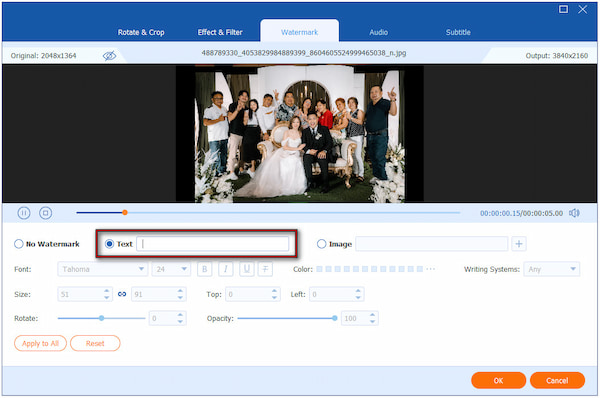
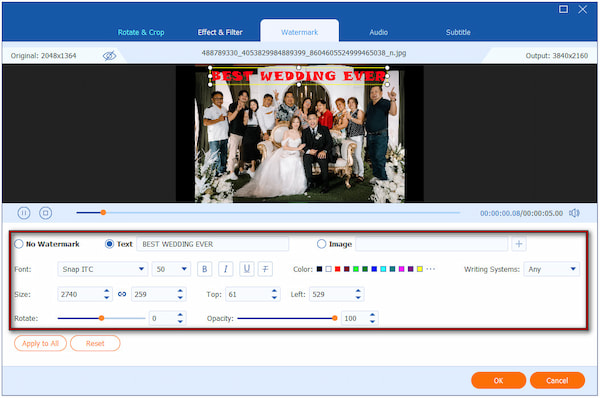
4. Inside the Text field, type the words you want to appear on your picture. To make it more readable and appealing, you can adjust its appearance as you see fit. You can change the font, size, color, outline, position, opacity/visibility, and delay.
5. Once you’re satisfied, click OK to save the text overlay. Back in the MV Maker interface and proceed to the Export section. Name your file and adjust other output settings, such as format, quality, and resolution. Then, click Start Export to save it as a video or slideshow.
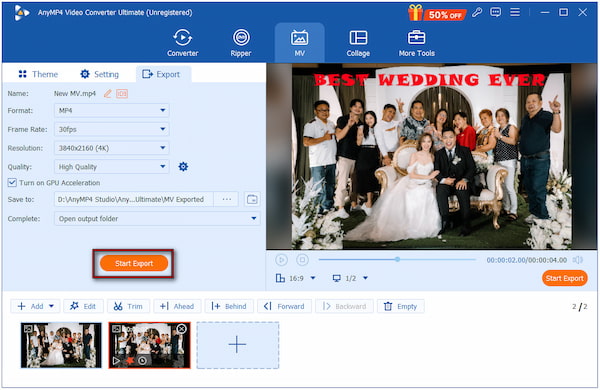
I use AnyMP4 Video Converter Ultimate’s MV Maker to add permanent subtitles to my pictures. The editing tools, especially the Text/Watermark section, make inserting subtitles or captions a simple click-and-type task. I also tried using it to add text to GIF memes, and it works.
Photoshop is among the most powerful desktop software for adding permanent captions to pictures. You can insert text anywhere on an image with a simple click and customize it. Additionally, it allows you to resize, rotate, or transform text to fit your design.
Here’s add subtitles to an image using Photoshop:
1. In Photoshop’s tools panel, select the Horizontal Type Tool, which is represented by the letter T. Alternatively, press the T key on your keyboard to activate the tool. Click anywhere on your image to allow you to start typing your text.
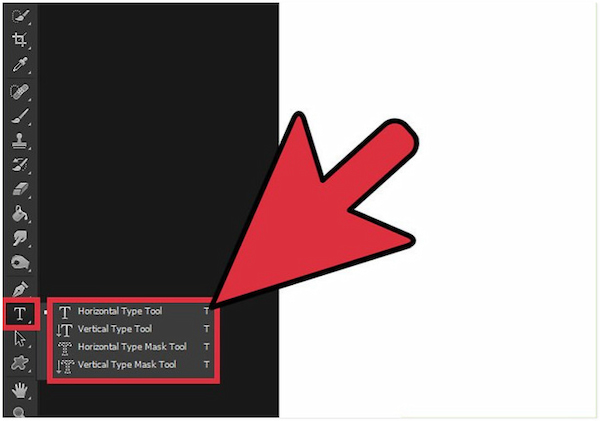
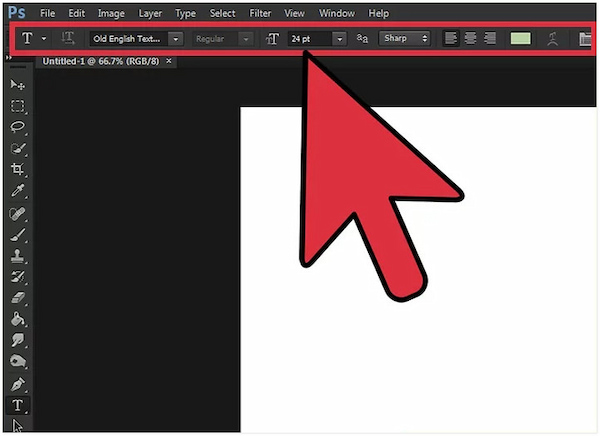
2. Once activated, adjust your text using the menu at the top of Photoshop. Choose any installed font, adjust your text size, align your text, and pick a color. Click anywhere to place the text.
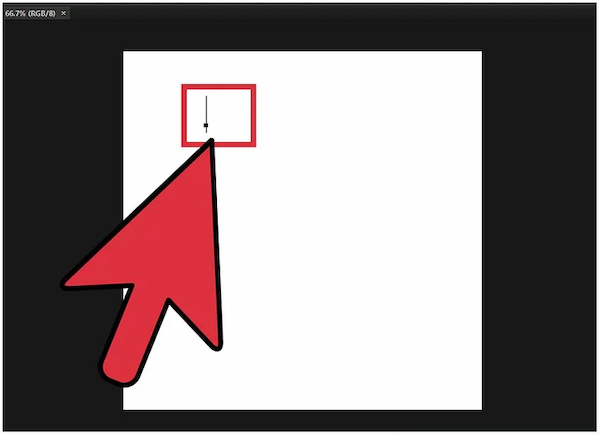
3. Click and drag before typing to define a text box. The text will now be confined to this area, and any overflow will require resizing the font. This is useful for creating neatly aligned subtitles or captions on images.
4. Click outside the text box or press Ctrl/Cmd + Enter to apply the text. To make further adjustments, select the Move tool or double-click the text layer. Resize or transform the text using Ctrl/Cmd + T without changing the font size manually.
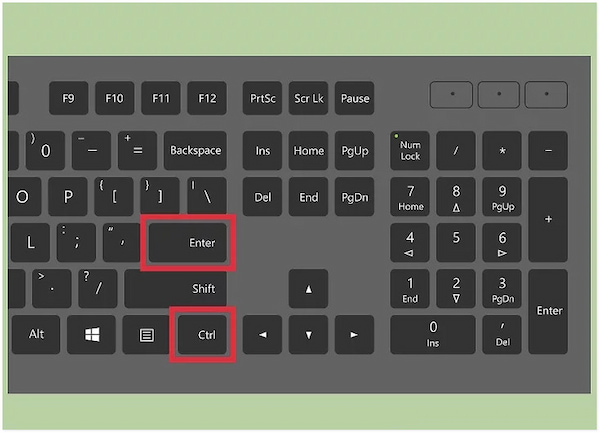
Using Photoshop to add text to photos is a powerful and precise method. You can fully change font style, size, color, alignment, spacing, and even apply effects. However, it can be overwhelming for those unfamiliar with professional editing software.
Canva is an internet-based tool that lets you create visually appealing images with customized text. With it, you can easily add social media subtitles to images. You can choose from more than 100 font styles and even move, resize, and rotate text boxes freely.
Here’s how to add subtitle text to a photo in Canva:
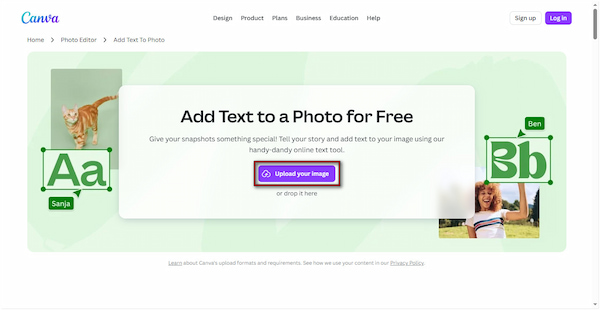
1. On the Canva subtitle editor homepage, click the Upload Your Image button to add the picture. The image will appear on your design canvas, ready for subtitle insertion.
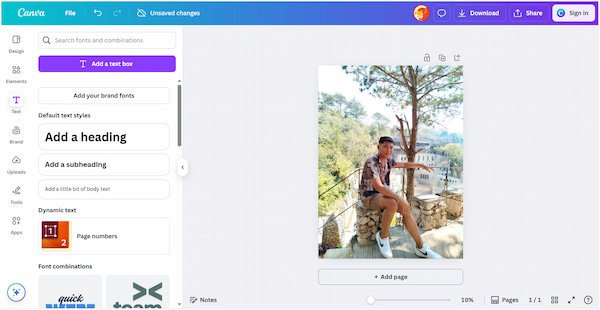
2. In the Text panel, you can choose Add a text box, heading, subheading, or body text. A text box will appear on your image; click inside it to type your subtitles or captions.
3. Move the text box to your preferred location on the picture. Adjust the font style, size, color, spacing, and alignment to fit your design. If needed, rotate or resize the text box as needed to make it visually appealing.
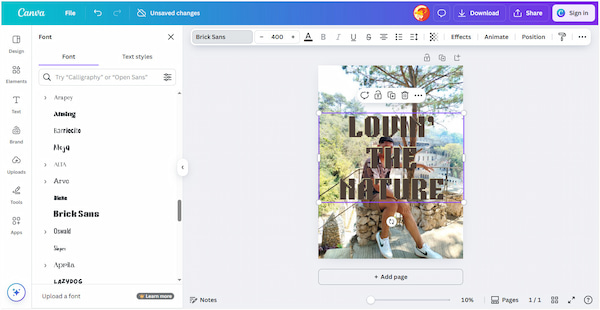
Using Canva to add subtitles is quick and allows you to create attractive text without manual formatting. It can also be used to add subtitles to a video. However, some fonts, templates, or export options may require a Canva Pro subscription.
Kapwing is an online platform that makes it easy to add movie subtitles to images. It allows you to quickly overlay text, customize its style, and export your images in high quality. This online tool supports customization of font size, color, style, and effects.
Here’s how to perform photo editing with subtitles with Kapwing:
1. From the Kapwing site, click the Upload Image button to load the photo. You can also paste a link from an online image as your source.
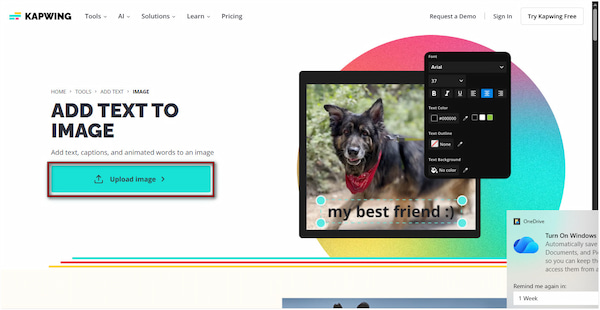
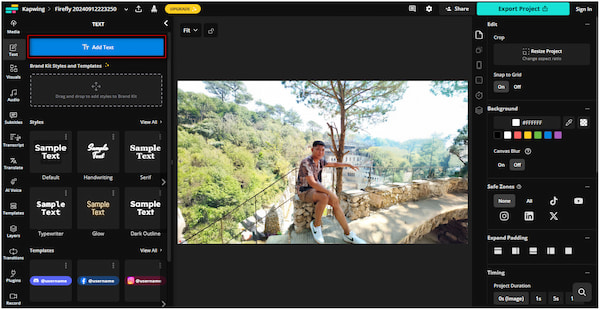
2. Select the Text tab and click Add Text to add a text box. Enter your subtitles or captions and customize your text using the toolbar.
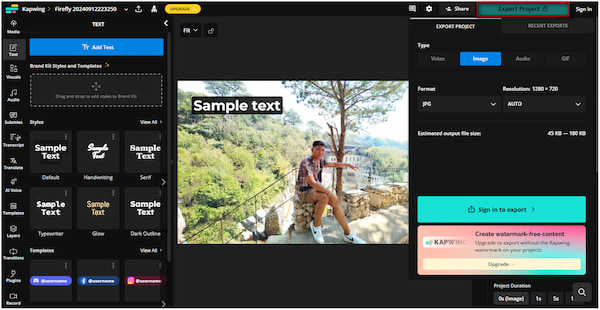
3. Once you’re satisfied with your text, click the Export Project button. Kapwing will process your image and generate a final version with the text permanently applied.
Kapwing is another easy-to-use tool to add subtitles or text to images. You can also add shadows, outlines, or subtle motion to make text stand out. However, adding text to multiple images still requires manual effort.
Can I add subtitles to pictures for free?
Yes, you can add subtitles to pictures for free using several tools. Canva and Kapwing both offer free versions that allow you to overlay text on images. However, free options only include basic fonts, color choices, and text positioning.
What’s the difference between captions and subtitles on images?
Captions provide descriptive or explanatory text that gives context to the image. Subtitles, on the other hand, are more like dialogue or spoken content. It is often used when a picture is part of a video or slideshow to convey speech or narration.
Which tool is best for beginners?
For beginners, Canva and Kapwing are the most user-friendly options. Both tools have pre-designed text styles that make adding subtitles fast and easy. However, AnyMP4 Video Converter Ultimate offers more advanced options.
Can I add subtitles to pictures on my phone?
Yes, you can add subtitles to pictures directly on your phone. Canva offers mobile apps and mobile-friendly websites that let you add text. This makes it convenient to create captioned images on the go for social media, stories, or messaging.
Do subtitles affect SEO for images?
Subtitles themselves do not directly affect SEO in the way metadata or alt text does. However, adding descriptive text or captions can improve user engagement. To make things clear, including descriptive captions in image alt text actually boosts SEO.
Mastering how to add subtitles to pictures is a great way to make your images more engaging. Whether you want to highlight important information or add captions for presentations, overlaying text enhances both clarity and appeal. While there are many tools available, the easiest and most versatile solution is AnyMP4 Video Converter Ultimate. With its MV Maker, you can quickly add text to pictures and videos, customize subtitles’ appearance, and export high-quality results.
Secure Download
Secure Download
 Updated by Mark Cristobal to Edit Photo
More readings
 Best Way to Add Subtitles to MP4 Video Fastly
Have you ever be upset that there are no subtitles on your MP4 video? This passage will give you a detailed guide about how to add subtitles to MP4.
 3 Best Ways to Rip DVD with Subtitles (Forced and Soft)
Do you want to know how to rip a DVD with subtitles? The three best ways to do it will be introduced in this article! Read on for more information about it.
 How to Easily Add Subtitles to a DVD: 2 Ways on Windows/Mac
Adding subtitles to DVDs can give you a better DVD viewing experience and meet your different viewing, learning, and other needs. Follow us to learn the steps.
 Ways to Fix VLC Subtitles Delay Issue on Any Platform
Have you ever faced the VLC subtitle delay issue? This post will offer five ways and a good alternative to solve it. Read on and select one that fits you best.
 Add your comments to join the discussion here