
Free Download100% Clear & Secure
Free Download100% Clear & Secure
Frustrated with Crunchyroll subtitles not matching the audio? If your anime experience is being ruined by out-of-sync subtitles, you’re not alone. Many viewers encounter a Crunchyroll subtitle delay, where captions either appear too early or lag behind the dialogue. The good news is that this issue is fixable. In this post, we’ll provide quick fixes for immediate subtitle syncing issues and device-specific solutions for persistent problems. Here, you’ll find practical steps to fix Crunchyroll subtitles out of sync and get your anime subtitles working perfectly again. The ultimate goal is to ensure that you can enjoy your anime without subtitle delays.
Subtitles not working on Crunchyroll can severely detract from the streaming experience. Subtitles going out of sync is usually not caused by the anime itself, but by technical issues. It can be caused by the device, app, browser, or network you’re using. Understanding the causes helps you quickly fix the Crunchyroll subtitle delay and get back to perfectly timed subtitles.
Now that you understand why Crunchyroll subtitles are so bad, the next step is to apply quick fixes. Most subtitle timing issues can be solved directly within the app or browser you’re using. Below are the quickest in-app and streaming adjustments to restore properly timed subtitles.
1. On your phone (Android), open the Settings app and navigate to Apps or App Management. Select Crunchyroll from the app list and tap the Storage option.
2. Choose Clear Cache to remove temporary files without affecting your login or Clear Data to reset the app completely. Then, relaunch the app and try streaming again.

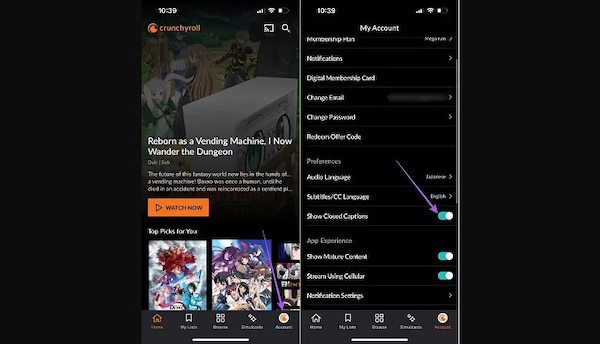
1. Launch the Crunchyroll app on your smartphone and tap the Account button. Scroll down to find the Show Closed Captions option.
2. Toggle it off, wait for a few seconds, then toggle it on again. Next, close the app completely and restart it. Start streaming again to see if the subtitles sync properly.
Tried turning subtitles off and on? When that fails, use reliable software to add external subtitles to a video.
1. When Anime subtitles are not working, pause the video and let it buffer for a few seconds. Test your connection speed using any reliable speed test site or app.
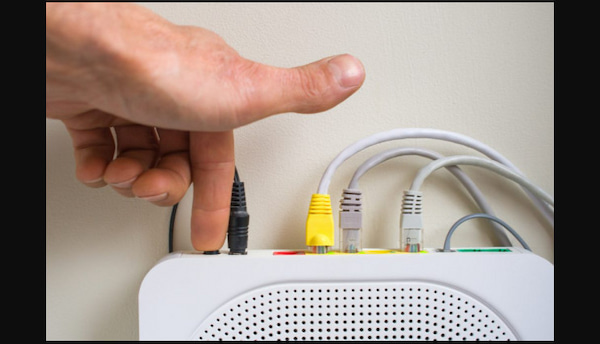
2. If the connection is unstable or fluctuating, restart your Wi-Fi router. Alternatively, switch from Wi-Fi to mobile data and resume the episode to check if subtitles now sync correctly.
After trying the quick fixes, the issue may be tied to the device you’re using. Different platforms handle video playback differently, and certain device-level problems can affect timing. In these cases, applying device-specific solutions can help you correct Crunchyroll subtitles out of sync.
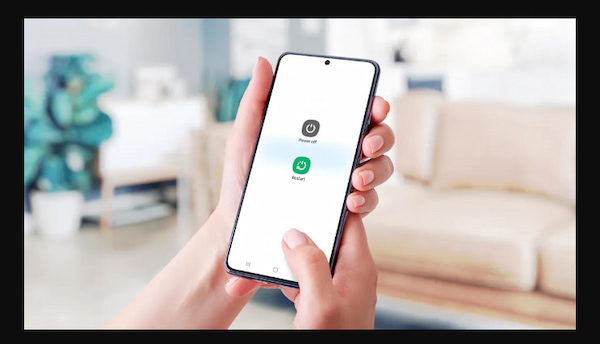
1. Close the Crunchyroll app completely; don’t minimize it. Restart your smartphone to clear temporary system issues, including fix subtitle timing.
2. Once your phone restarts, reopen the Crunchyroll app. Start the episode again and check if the subtitles are now syncing in a timely manner.
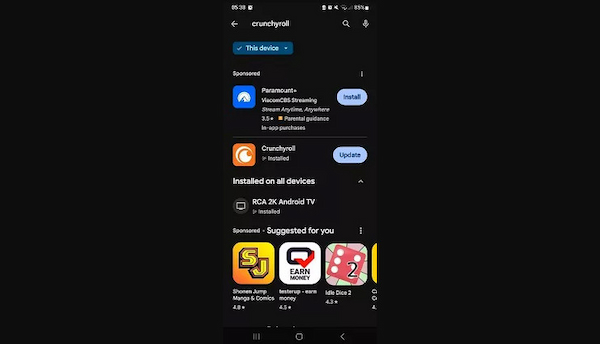
1. Open your mobile device’s app marketplace (Google Play Store or App Store). Search for the Crunchyroll application and check if an update is available.
2. If an update is available, tap Update. Reopen the app and check if subtitles are now properly syncing.
1. If you're watching on your smartphone but still experiencing subtitle problems, try switching to another device. You can use a tablet, smart TV, or another phone.
2. Log in with your account and load the same episode. Observe whether subtitles sync properly on the alternate device or platform.
Even after trying all quick fixes and device-specific solutions, if Crunchyroll subtitles are not working, the issue may be with the subtitle file itself. In this case, the most effective solution is to use a professional subtitle editor, such as AnyMP4 Video Converter Ultimate.
It is a multipurpose media software bundle that goes beyond file conversion. It allows you to fix subtitles permanently by hardcoding them into your video. As a result, timing issues are permanently solved because the video and subtitles are locked together. On the other hand, you can shift subtitles forward or backward in milliseconds to ensure they perfectly align with the audio. This allows you to make precise adjustments to ensure each line of text matches the corresponding dialogue or scene.
Recommendation
Here’s how to fix Crunchyroll subtitles delayed using AnyMP4 Video Converter Ultimate:
1. Get started by obtaining the free download of AnyMP4 Video Converter Ultimate. Install the subtitle editor and finish the installation process. Once the setup is completed, run the software on your system to access the main dashboard.
Secure Download
Secure Download
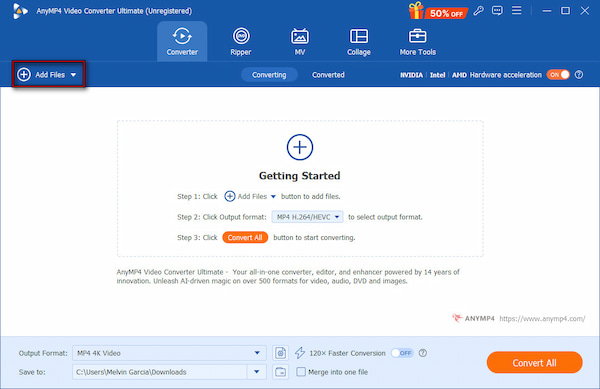
2. As soon as it launches, the dashboard will open on the Converter tab by default. Click +Add Files to add the downloaded Crunchyroll video you want to fix. Remember, it works with downloaded anime episodes, provided they are saved in MP4, MKV, MOV, AVI, WebM, or other compatible formats.
3. Click the Edit (Magic Wand) next to the video thumbnail to access the editing window.
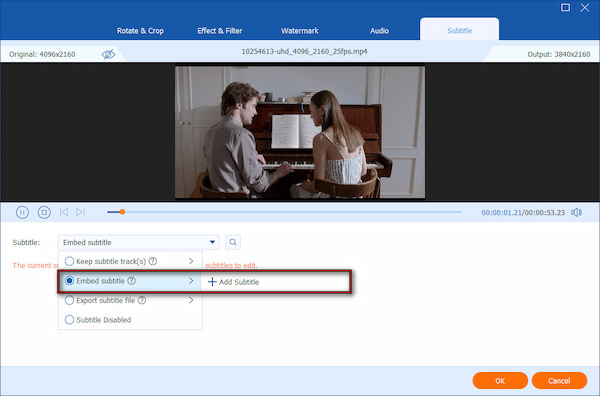
In the Subtitle window, navigate to the Subtitle pulldown field. Select the Embed Subtitle option and click + Add Subtitle to import your subtitle file.
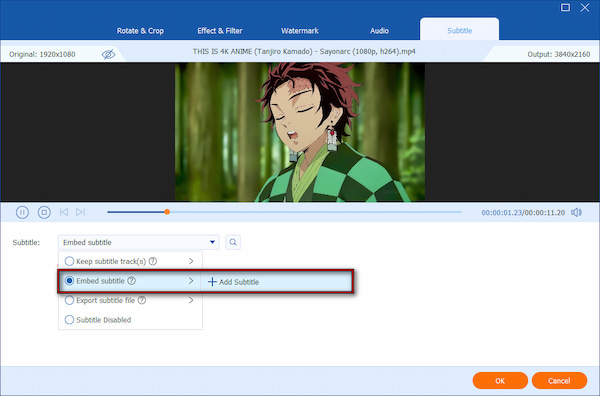
For better subtitle visuals, customize the appearance of subtitles. You can change the default font, size, color, outline, position, and opacity. Click OK to save your changes.
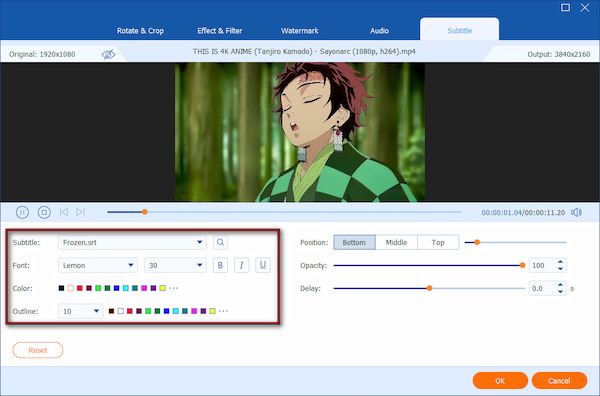
Once your subtitle file is added, you can correct any sync issues using the Delay slider. Move the slider to the right to delay subtitles (appear later) or left to advance subtitles (appear sooner).
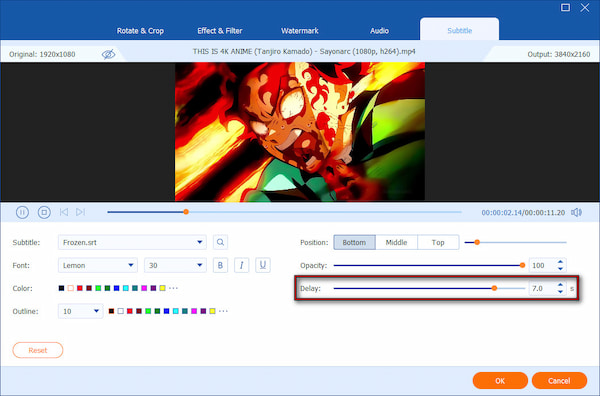
Preview the video to check if the subtitles are now perfectly synchronized with the audio. Click OK to confirm the timing adjustment.
4. If satisfied with the adjustment timing, set your output format. Move to the Output selector and adjust the resolution, encoder, and quality, as needed. Click Convert All to permanently embed the synced subtitles into your video.
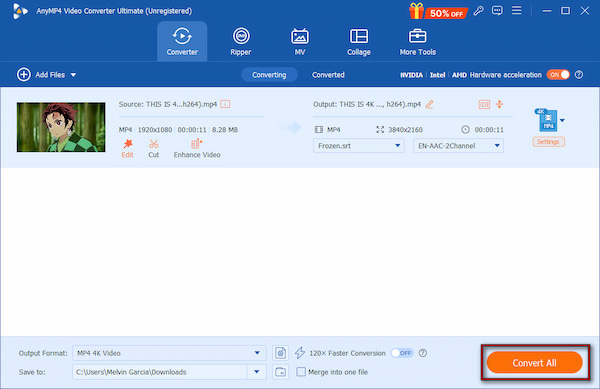
AnyMP4 Video Converter Ultimate offers a comprehensive solution to resolve audio and video out-of-sync issues. Unlike temporary fixes, it ensures subtitles will appear correctly on any device, app, or platform, even if the media player doesn’t support subtitle adjustments.
Q: Why are my Crunchyroll subtitles out of sync all the time?
A: Subtitles on Crunchyroll can go out of sync due to various technical factors. These factors include common causes and device-specific problems that we have previously discussed.
Q: Does clearing the cache fix Crunchyroll subtitle lag?
A: Yes, clearing the cache can resolve subtitle lag because cached data can become corrupted or outdated. This causes the app or browser to misalign subtitles with video playback.
Q: How do I adjust the subtitle delay on my Crunchyroll app?
A: Currently, Crunchyroll’s app does not provide a Subtitle delay feature to adjust subtitle delay. Minor desyncs can sometimes be temporarily corrected by toggling subtitles off and on.
Q: Is the subtitle sync issue a problem with my device or with Crunchyroll?
A: Subtitle sync problems can stem from either your device or Crunchyroll itself. Device-level causes include outdated apps, overloaded RAM, or low-spec hardware. Occasionally, Crunchyroll servers or specific episodes may have errors in the subtitle file.
Q: Can I permanently fix subtitles on a downloaded Crunchyroll episode?
A: Yes, you can permanently fix subtitles on downloaded episodes using AnyMP4 Video Converter Ultimate. This software allows you to import an external subtitle file, adjust its timing, and then hardcode the subtitles into the video.
Experiencing Crunchyroll subtitles out of sync can be frustrating, but most issues are fixable with the right approach. From quick in-app fixes to device-specific solutions, there are practical steps to restore perfectly timed subtitles. However, if you’re seeking a permanent solution, especially for downloaded episodes, AnyMP4 Video Converter Ultimate is the ultimate tool. It allows you to import external subtitle files, adjust delays precisely, and hardcode subtitles directly into your videos.
Secure Download
Secure Download
 Updated by Mark Cristobal to Edit Video
More readings
 Best Way to Add Subtitles to MP4 Video Fastly
Have you ever be upset that there are no subtitles on your MP4 video? This passage will give you a detailed guide about how to add subtitles to MP4.
 How to Add/Remove/Extract HandBrake Subtitle
Check our post and explore various ways to use HandBrake Subtitle for managing your video’s subtitle. Discover the easy-going solutions with our complete guide.
 3 Best Ways to Rip DVD with Subtitles (Forced and Soft)
Do you want to know how to rip a DVD with subtitles? The three best ways to do it will be introduced in this article! Read on for more information about it.
 How to Easily Add Subtitles to a DVD: 2 Ways on Windows/Mac
Adding subtitles to DVDs can give you a better DVD viewing experience and meet your different viewing, learning, and other needs. Follow us to learn the steps.
 Add your comments to join the discussion here