
Free Download100% Clear & Secure
Free Download100% Clear & Secure
Subtitle delay on Plex is a common issue, but the good news is it’s usually fixable. Several factors can cause this problem, including incorrect file naming, mismatched language settings, and client-specific limitations. When subtitles fall behind or appear too early, there’s no need to worry. Plex offers solutions to address these issues, ranging from simple fixes to advanced solutions. This post will break down potential solutions to align Plex subtitles that are out of sync. We’ll cover everything from the easiest adjustments to device-specific tricks. As a bonus, if the provided solutions don’t fully solve the problem, we also include a permanent method to hardcode subtitles. Our goal is to provide you with a comprehensive roadmap to resolve subtitle issues efficiently.

When Plex subtitles are not working, the issue is far simpler than you might expect. Before jumping into advanced troubleshooting, always start with the basics. Focusing on these quick checks can resolve most subtitle sync issues.
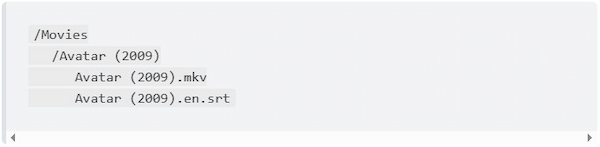
1. Plex subtitle naming convention must match exactly, including spaces, punctuation, and release date. If the subtitle name differs, Plex may treat it as an unrelated file.
2. Next, include a valid ISO-639-1 (2-letter) or ISO-639-2/B (3-letter) language code. For example, en (English), es (Spanish), zho (Chinese), etc.
Want quick, perfect subtitles? Add subtitles to a video easily right here.
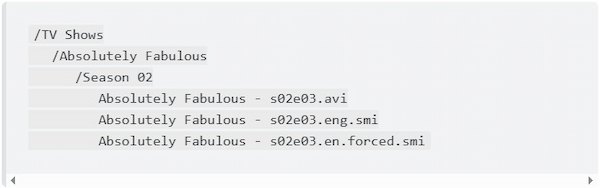
1. The subtitle filename should begin with the exact same show name used for the video file. Make sure to include spaces, capitalization, and punctuation.
2. Always follow the format, as Plex will not recognize subtitles if the episode identifier is wrong. It should beTV Shows/Show_Name/Season XX/Show_Name SxxEyy.[Language_Code].ext.
Sxx:Season number (two digits)
Eyy: Episode number (two digits)
[Language_Code]: Valid ISO-639-1 or ISO-639-2/B language code
ext: Subtitle extension
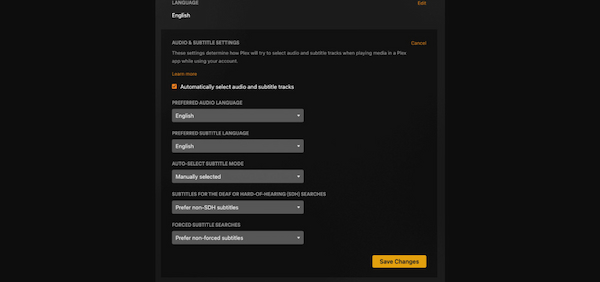
1. If Plex failed to download subtitles, navigate to the Plex server’s address and sign in to your account. On your Profile, select Account Settings, and click Audio & Subtitle Settings.
2. In the Preferred Subtitle Language selector, choose a language that matches your subtitle files. In the same section, look for subtitle mode options and select Always Enabled.
1. Launch the Plex Web App and click Settings. Make sure you are managing the correct Plex Media Server. This area controls how Plex scans and interprets your media library.
2. On the left panel under Settings, select your server name. Navigate to the Agents in the sidebar and choose the library type you want to modify.
3. Inside the chosen library agent, find Local Media Assets and check the box to enable it. Then, drag it to the top of the agent priority list.
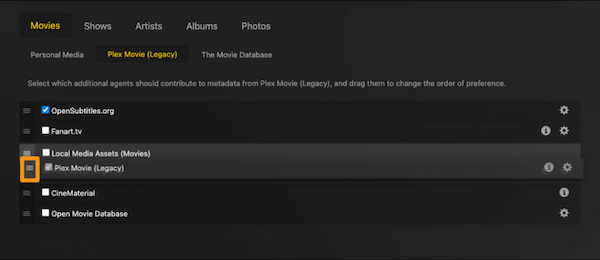
1. Plex matches subtitles based on your global preferences, such as Preferred Subtitle Language, Subtitle Mode, and Preferred Audio Language. For this system to function properly, each audio and subtitle track must contain the correct language metadata.
Note: If Plex encounters an unknown track, it assumes the track doesn’t match any preferences and may ignore it.
2. Open your media file with a tool to check embedded tracks. Look for the Audio and Subtitle sections and confirm that each track lists the correct language. Next, navigate to your Movies/TV Shows library, click More, and select Refresh All Metadata.
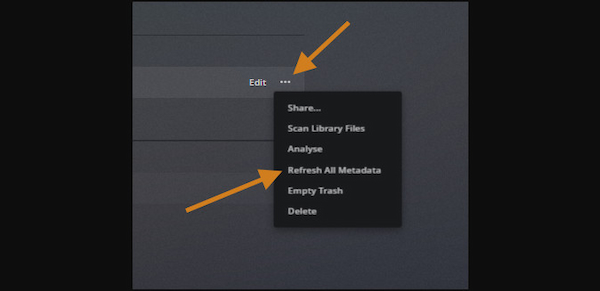
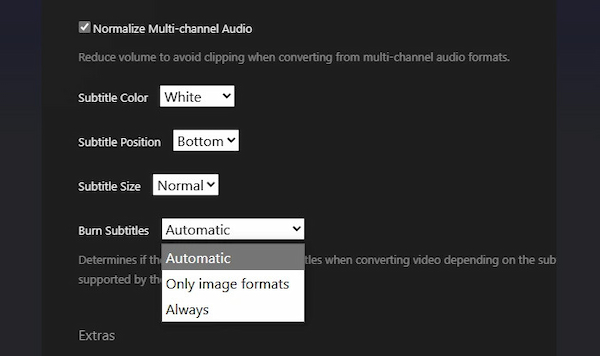
1. Navigate to the Plex Burn Subtitles setting and click the Settings button. In the left sidebar, select your Plex Media Server, expand Settings, and select Transcoder.
2. Under the Transcoder options, look for the "Burn Subtitles" option. For the simplest subtitle fix, select Always to force Plex to burn all subtitles into the video during playback.
Different Plex clients handle subtitles differently. This means a fix that works on your PC may not work the same way on your Roku, Apple TV, or other devices. These platforms have their own subtitle engines, format limitations, and playback behaviors. Below are the most common device-specific fixes to try for resolving Plex subtitle sync issues.
Roku
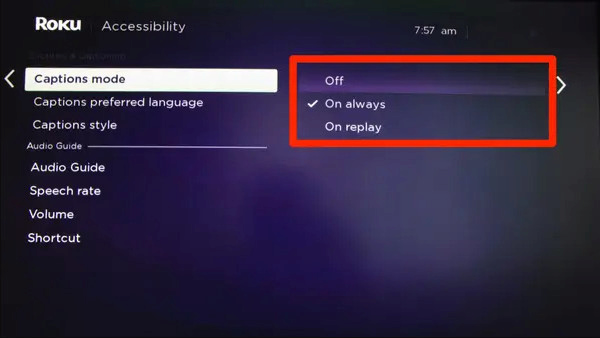
1. Press Home on your Roku remote. Move to Settings, select Accessibility, and open Captions mode. Set it to On always to ensure Roku loads external subtitle files.
2. While the video is playing, press the Star button on your Roku remote to open the options menu. Ensure that Closed Captioning is set to On in this menu.
Does Plex play MKV files? The answer will surprise you.
Apple TV
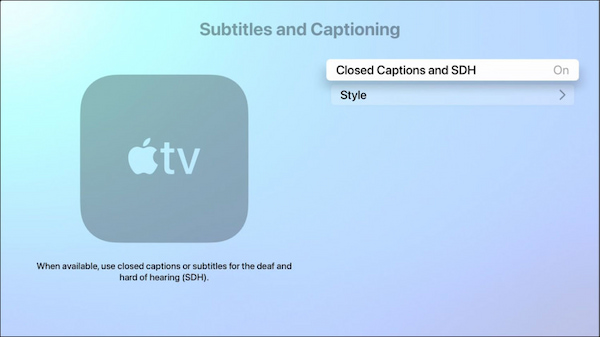
1. Open Settings on your Apple TV, go to Accessibility, and select Subtitles and Captioning. Turn on Closed Captions and SDH. You can also customize the subtitle style here.
2. During playback, bring up the playback controls. Swipe up and select the Subtitles button. Ensure the correct subtitle track is selected.
Plex subtitles not showing can often be traced back to transcoding and codec limitations. Plex must be able to read both the video/audio streams, as well as the subtitle format, in order to play them correctly. If a subtitle requires rendering or the media contains codecs your device cannot decode, Plex automatically initiates transcoding. Any problem in that process can cause subtitles to disappear, fall out of sync, or fail entirely.
If you’ve already tried all the simple and advanced Plex subtitle fixes, and your Plex subtitles are still out of sync, it may be time to use a permanent solution. Hardcoding subtitles directly into the video itself eliminates every client-dependent variable that Plex struggles with. AnyMP4 Video Converter Ultimate can make this process simple and professional. It includes a dedicated, user-friendly subtitle editor that supports external subtitle formats, such as SRT, ASS, SSA, and more. Additionally, it provides precise syncing controls, ensuring your final output is fully optimized for Plex playback.
Here’s how to fix Plex external subtitles not showing:
1. tart by acquiring the free download of AnyMP4 Video Converter Ultimate. Install the subtitle editing tool and finish the installation process. Once the setup is completed, open the software on your system to access the main dashboard.
Secure Download
Secure Download
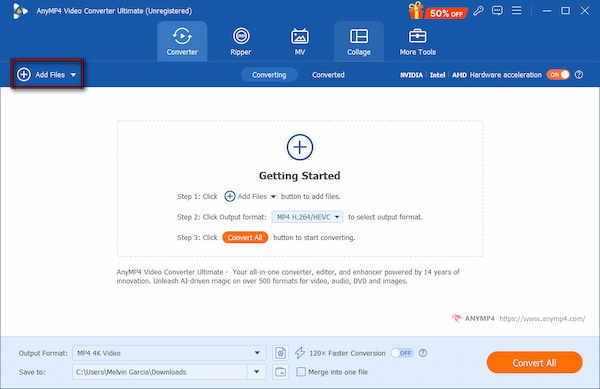
2. Upon launching it, you will be directed to the Converter tab. Click + Add Files to add the Plex-downloaded videos to which you want to add subtitles. You can upload any video, provided it is saved in one of the following formats: MP4, MOV, WMV, AVI, MKV, or over 500 other formats.
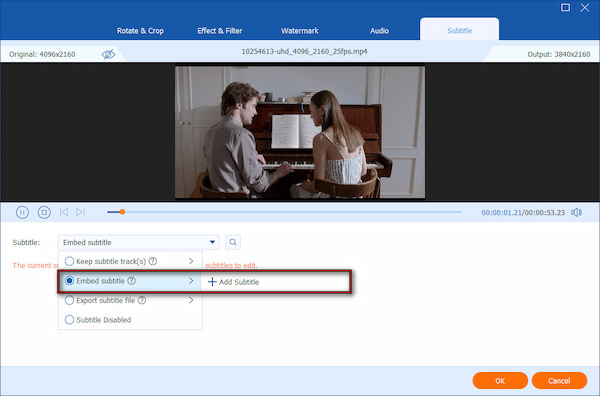
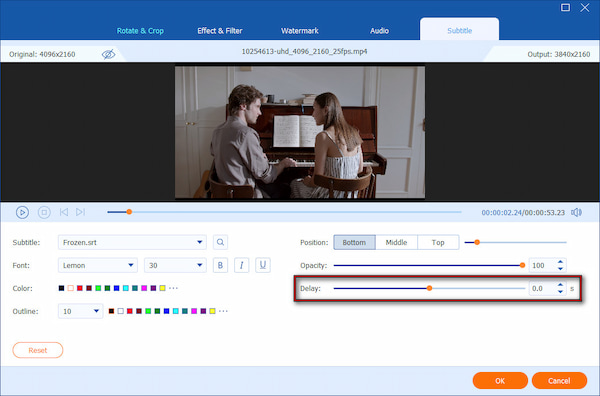
3. Next to your video thumbnail, click the Edit (Magic Wand) button. Inside the editing window, go to the Subtitle tab. In the Subtitle dropdown menu, select Embed Subtitle and click + Add Subtitle to import your external subtitle file.
Use the Delay slider to adjust the timing by adding or subtracting milliseconds until the subtitles align perfectly with the dialogue. If needed, customize the font style, size, color, outline, position, and opacity/visibility. When your adjustments are complete, click OK to save changes.
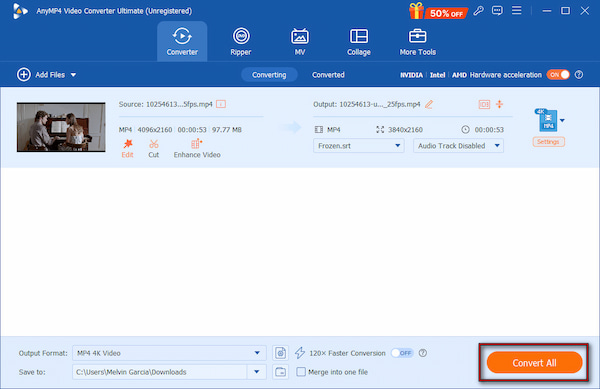
4. Use the Preview window to verify timing accuracy and appearance. Next, specify your target output format and adjust the video settings, such as resolution, encoder, and quality. Click Convert All to permanently embed the subtitles into your video.
AnyMP4 Video Converter Ultimate guarantees perfect subtitle timing across all devices. It has zero dependency on Plex’s playback engines. It provides assurance against any recurrence of subtitle mismatches. But before permanently embedding subtitles, you should familiarize the difference between hard sub and soft sub.
Why do my Plex subtitles look too big or too small?
Subtitle size in Plex can vary depending on the client device, app settings, and the video resolution. Some Plex apps allow you to adjust font size in the Playback or Accessibility settings, but others inherit the default styling from the server or device.
What is the best subtitle format for Plex?
The most universally compatible subtitle format for Plex is SRT. SRT files are plain text with time codes. This makes them easy for Plex to read and display on all clients, including Roku, Smart TVs, iOS, Android, and web browsers.
Does the subtitle file have to be in the same folder as the movie?
Yes, the subtitle file must be in the same folder as the video and have an exact matching filename. Plex relies on this naming convention to associate the subtitle with the correct video.
What does Burn Subtitles: Automatic mean in Plex?
The Burn Subtitles: Automatic setting in Plex tells the server to embed subtitles into the video stream only when necessary. This occurs when the client device cannot natively display certain subtitle formats.
Experiencing Crunchyroll subtitles out of sync can be frustrating, but most issues are fixable with the right approach. From quick in-app fixes to device-specific solutions, there are practical steps to restore perfectly timed subtitles. However, if you’re seeking a permanent solution, especially for downloaded episodes, AnyMP4 Video Converter Ultimate is the ultimate tool. It allows you to import external subtitle files, adjust delays precisely, and hardcode subtitles directly into your videos.
Secure Download
Secure Download
 Updated by Mark Cristobal to Edit Video
More readings
 Best Way to Add Subtitles to MP4 Video Fastly
Have you ever be upset that there are no subtitles on your MP4 video? This passage will give you a detailed guide about how to add subtitles to MP4.
 How to Add/Remove/Extract HandBrake Subtitle
Check our post and explore various ways to use HandBrake Subtitle for managing your video’s subtitle. Discover the easy-going solutions with our complete guide.
 3 Best Ways to Rip DVD with Subtitles (Forced and Soft)
Do you want to know how to rip a DVD with subtitles? The three best ways to do it will be introduced in this article! Read on for more information about it.
 Ways to Fix VLC Subtitles Delay Issue on Any Platform
Have you ever faced the VLC subtitle delay issue? This post will offer five ways and a good alternative to solve it. Read on and select one that fits you best.
 Add your comments to join the discussion here