
Quick Guide: 3 Steps to Change AVI to MP4
Have you ever tried opening old AVI videos on a Mac, iPhone, or Premiere Pro, only to encounter a frustrating "unsupported format" error, or to see a black screen with no audio? You are certainly not alone in this situation. The AVI format has existed since the Windows 95 era; while it was perfectly suited for storing raw video data at that time, it has become a major challenge for modern cross-platform playback and streaming transmission.
Fortunately, nowadays, there are various video converter tools in the market for you to efficiently convert AVI to MP4 to get playback flexibility. Generally, the conversion process is simple and intuitive. Follow this step-by-step guide to learn the 3 easy ways to convert AVI to MP4 and play converted files properly on your device.

AnyMP4 Video Converter Ultimate is a powerful video converter software designed for both beginners and media professionals who need speed, flexibility, and pristine quality. It can efficiently batch convert AVI files to MP4 and bonusly supports over 500+ formats. Even for the MP4 format, you can choose various profiles and customize the encoder, resolution, bitrate, and other parameters. With the full support of NVIDIA, AMD, and Intel hardware acceleration, it handles heavy conversion workloads effortlessly without choking your CPU.
In our latest hands-on testing on Windows 11, it took about 3 minutes to convert a 5GB 4K AVI source file (encoded with older Xvid codecs) to an H.264 MP4 container with GPU acceleration turned on. The exported video maintained 100% visually lossless video quality, preserving crisp textures and color fidelity while shrinking the file size significantly.
Additionally, if you frequently encounter black screens, silent audio, or out-of-sync clips when editing AVI footage in Premiere Pro or DaVinci Resolve, AnyMP4’s optimized profile presets resolve these media compatibility headaches instantly. Beyond conversion, you can easily use its built-in tools if you want to edit MP4 files before exporting.
So, how to use this powerful tool to convert AVI to MP4 losslessly?
1. Click the download buttons below to save it on your Windows or Mac computer. Launch the software and click Add Files under the Converter section to import the AVI files. You can also directly drag the AVI files to the interface, which is quick.
Secure Download
Secure Download

2. Then, to choose MP4 as the output format, click Output Format > Video > MP4 > Same as source to do this. If you need to, you can click the gear icon to set the encoder, bitrate, and other parameters.
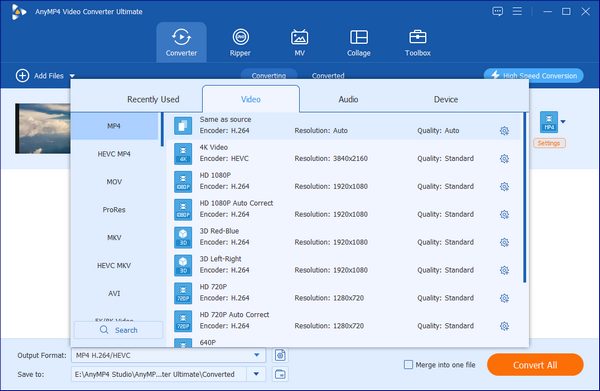
3. Finally, click the folder icon beside the Save to option to browse and set a download folder. Then, click Convert All to convert AVI to MP4.
It has some editing tools for you to optimize your video effects, like filters, watermarks, and others.
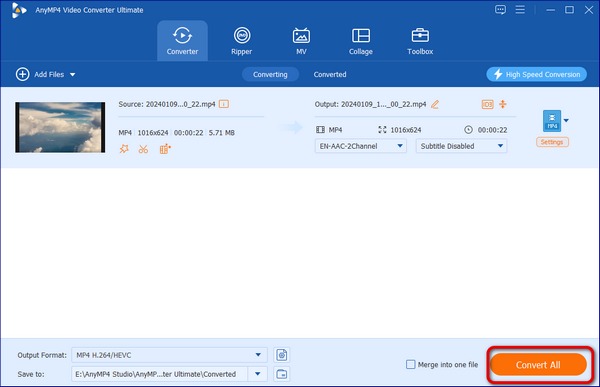
If you want to convert AVI to MP4 in batch, Any`MP4 Video Converter Ultimate is your best choice. With GPU acceleration, it delivers a fast and seamless conversion process. The exported MP4 files played flawlessly on various devices, with zero glitching or audio sync issues.
HandBrake is a legendary open-source video transcoder available across Windows, macOS, and Linux. It is packed with deep encoding controls that give tech-savvy users full authority over framerates, bitrates, and video codecs like H.264, HEVC, and AV1. It is 100% free with zero ads or watermarks and provides extremely deep encoding customization.
When converting an old AVI file in HandBrake, make sure to navigate to the Video tab and set the Framerate (FPS) to PFR (Peak Framerate) or Same as Source to prevent choppy playback.
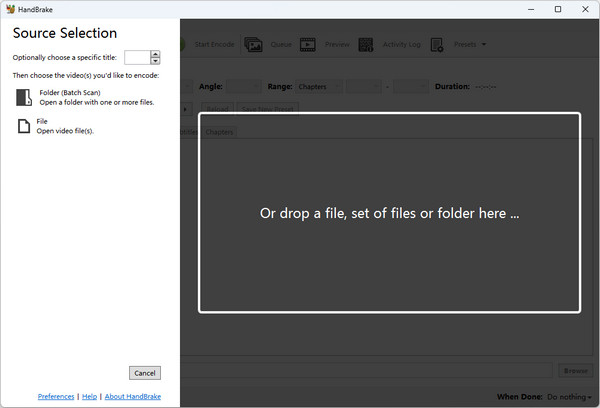
1. Download and install HandBrake via its official website. Open it and under the Source Selection, click File or Folder to import more than one AVI file you want to convert.
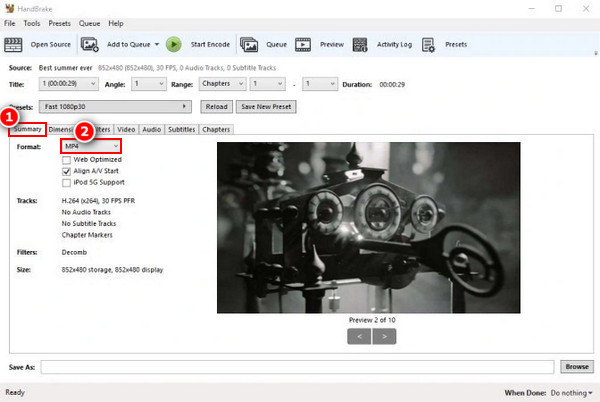
2. Choose MP4 from the Format drop-down options in the Summary section. Then, click the bottom Browse button to set a download folder for the converted files.
You can also explore other settings, like Dimensions, Video, Presets, etc., to fit your needs.
3. If you import multiple AVI files, click Add to Queue and then configure the next AVI file. Repeat this process. Once all done, click Start Encode to batch convert AVI files to MP4.
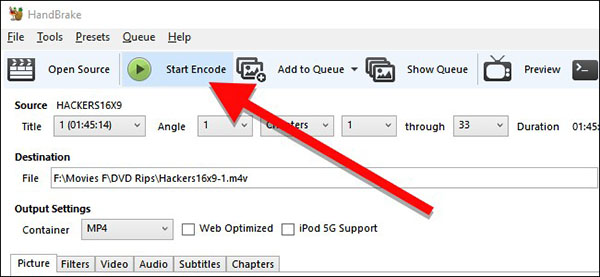
HandBrake is a good tool for converting AVI to MP4 for free. It also provides a batch input feature. However, setting up batch queues takes several tedious clicks compared to a one-click conversion tool like AnyMP4 Video Converter Ultimate.
Zamzar is one of the oldest online file conversion utilities on the web. Its minimal 3-step design makes it effortless for non-technical users to quickly swap file extensions. Free users face a strict file size limit of 50MB and only 2 free conversions every 24 hours, which is enough for occasional small file conversion. It is great for tiny clips, but completely unusable for long movies or full-length home recordings.
So, how to use this online tool for quick video conversion? Let's see the detailed steps.
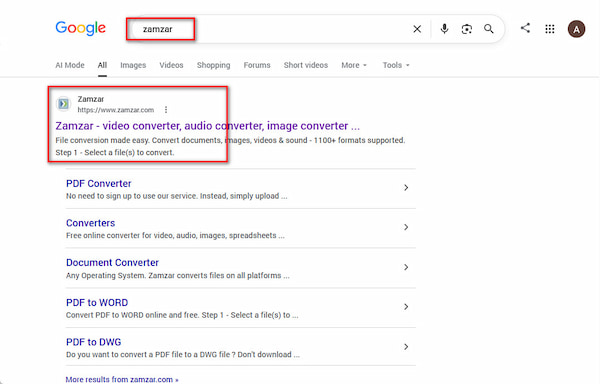
1. Search for Zamzar on your browser and access it. In its main interface, you will see an intuitive 3-step process. Click Choose Files to import the AVI file you want to convert.
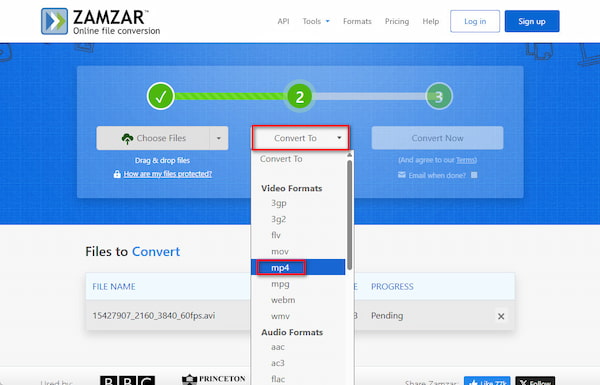
2. Then, go to Step 2, and select mp4 from the Convert To drop-down list.
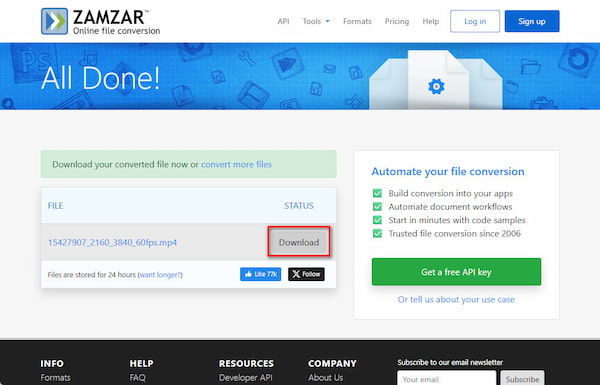
3. Lastly, click Convert Now to start the AVI to MP4 conversion. It will show a progress bar to inform you. Once the process is done, click Download to save it to your computer.
This online tool allows for a convenient conversion process on any device. If your AVI movies or camera footage exceed 1GB, or if you need to batch process dozens of files simultaneously, uploading them to web servers takes forever and wastes bandwidth. In that case, bypass web limits completely and download AnyMP4 Video Converter Ultimate to process your files locally at lightning speed.
Does converting AVI to MP4 lose quality?
Not necessarily. Some advanced converter tools like AnyMP4 Video Converter Ultimate allow you to convert files in a lossless manner with high-bitrate presets.
How can I batch convert multiple AVI files for free?
HandBrake allows you to batch input the AVI files, but you need to add each file to the queue. You can also use AnyMP4 Video Converter Ultimate to get one-click batch conversion.
Can I convert AVI to MP4 on my iPhone or Android directly?
Yes, you can. Online video editors are your best choices for quick conversion, such as Convertio, Zamzar, and others.
Why should I convert AVI files to MP4?
There are many reasons: MP4 is supported by almost all devices; it uses the advanced H.264/HEVC encoder to balance the video effects and file sizes; MP4 is optimized for online video sharing and streaming on various media platforms.
Why is my converted MP4 file playing audio but no video (or vice versa)?
This usually means a codec mismatch. Make sure your converter is encoding the video into H.264 (AVC) and the audio into AAC, which is the standard, universally compatible profile for MP4.
Why is the converted MP4 file larger than the original AVI?
If your converter's bitrate settings are set too high, the output file can end up larger than the original.
With the 3 ways discussed above, you can easily convert AVI to MP4 within seconds. These three ways are unique with their own features: AnyMP4 Video Converter Ultimate supports batch conversion and provides various output settings; HandBrake is free and open-source for casual conversion; Zamzar allows for AVI to MP4 conversion anytime and anywhere. Choose one from them based on your conversion needs, and welcome to share your using experience with us.
 Updated by Alice Thorne to Convert Video
More readings
 5 Ways to Convert MP4 to MP3 Free - Extract Audio from Video
It is easy to extract audio from MP4. Learn about 5 ways from this guide to convert MP4 to MP3 online or offline without quality loss on Windows and Mac.
 MP4 to FLAC 2026 Guide: Extract Audio with Lossless Quality
Read this MP4-to-FLAC post to learn how to extract lossless audio from videos using the 3 best tools. And master the method that suits you best!
 How to Convert AVCHD to MP4 on Mac (4 Easy Methods in 2026)
Need to convert your AVCHD folder to improve compatibility? Find the fastest methods to convert AVCHD to MP4 on Mac using pro tools and efficient converters.
 HEVC to MOV 2026 Guide: 3 Best Solutions to Keep Quality
HEVC to MOV: Read this post to discover the 3 best tools to convert your HEVC videos into MOV (with better compatibility on Mac/Windows) without losing quality.
 Add your comments to join the discussion here