
QUICK SUMMARY:
HandBrake is best for free, preset-based conversion; AnyMP4 is ideal for fast, all-in-one batch processing with editing tools; FFmpeg delivers the highest control and lossless options for advanced users; and Convertio is best for quick, small online conversions without installation.
AVCHD is a high-definition video format commonly used by camcorders. It is stored as a structured folder containing MTS or M2TS video files, organized in directories such as BDMV and STREAM. While these files preserve excellent recording quality, they are not always easy to access or play on all devices, including Macs. It is due to compatibility limitations and complex folder structures. To improve usability and ensure smooth playback and editing, it is recommended to convert AVCHD footage to a universal format such as MP4. This post introduces several methods for converting AVCHD to MP4 on Mac, ranging from free tools to professional converters to online solutions. We will help you choose the most efficient method based on your needs, whether for editing, storage, or everyday playback.
| System Requirements | Ease of Use | Conversion Speed | Output Quality | Batch Processing | Deinterlacing Support | |
|---|---|---|---|---|---|---|
| HandBrake | Mac, Windows, and Linux | Intermediate | Fast | High | Yes | Yes |
| AnyMP4 Video Converter Ultimate | macOS 10.12-15 and Windows 7-11 | Easy | Up to 120× conversion speed | High | Yes | Yes |
| FFmpeg | Mac, Windows, and Linux | Technical | Fast | High | Yes, but complicated | Yes |
| Convertio | Web | Easy | Depends on the server | Good | Yes, but limited to 10 files per day | No |
AVCHD is a video recording format commonly used by camcorders and digital cameras. It uses a structured folder system instead of storing videos as simple standalone clips. When you open an AVCHD folder, you will see the path Private - AVCHD - BDMV - STREAM, where the actual video files are saved. Other folders contain playback data, thumbnails, and recording information. This structure helps camcorders manage HD recordings properly.
MTS and M2TS are nearly identical video formats based on the same MPEG transport stream technology. AVCHD camcorders create MTS files, while M2TS files are linked to Blu-ray content or edited exports. In terms of video quality, codecs, and playback performance, there is almost no difference between them aside from the file extension and intended usage.

Although AVCHD delivers excellent video quality, it is not the most convenient format for daily use on macOS. MP4 is far more flexible and widely supported. It works smoothly across Apple devices like iPhone, iPad, and Apple TV without extra software. It also supports efficient H.265/HEVC compression, reducing file sizes while keeping good quality. In addition, MP4 offers better compatibility with editing tools like Final Cut Pro and iMovie.
Best For: Free, customizable video conversion with preset-based encoding control.
HandBrake is an open-source and free MP4 converter for Mac, Windows, and Linux. It can transcode AVCHD format to MP4 files with H.264 and H.265 support. Additionally, it can reduce file size while preserving video quality, making it ideal for playback, editing, and storage.
1. Upon opening HandBrake, click Open Source, then select your AVCHD folder or M2TS/MTS file. Navigate to the Destination selector and specify your output directory.
2. In the Format selector, choose MP4 as the new output format. After setting up everything, click Start to convert the AVCHD folder or M2TS/MTS file to MP4.
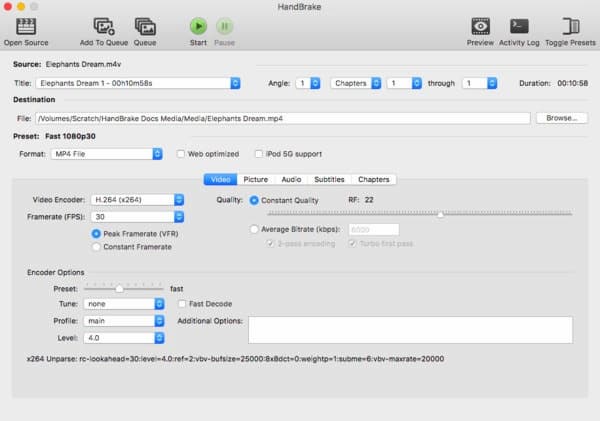
HandBrake provides various built-in presets designed for different devices and playback purposes. These presets adjust video settings to achieve optimized results without manual configuration. However, it only exports videos in MP4, M4V, MKV, and WebM formats.
Best For: All-in-one conversion, editing, and fast batch processing with hardware acceleration.
AnyMP4 Video Converter Ultimate is a professional media conversion software compatible with macOS 10.12 to 15. It supports converting AVCHD to MP4 format in different profiles, including H.264, HEVC/H.265, AV1, and MPEG-4. The software also allows customization of output settings, including encoder, bitrate, frame rate, and resolution. In addition to media conversion, it includes editing tools for cropping, rotating, adding filters, adjusting subtitles/audio tracks, and editing media metadata. Notably, its batch conversion and hardware acceleration support quickly and efficiently process large AVCHD files.
Secure Download
Secure Download
1. As soon as AnyMP4 Video Converter Ultimate starts, it opens the Converter tab by default. Click +Add Files to import individual MTS or M2TS files from your AVCHD folder. To convert multiple recordings, choose Add Folder to load an entire AVCHD directory.
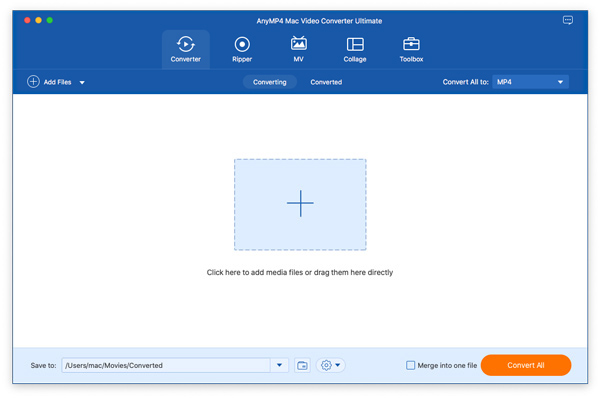
2. Select the Output Format selector, then navigate to the Video category. Choose MP4 4K Video and select your preferred profile, such as H.264 or H.265. You can also click Custom Profile to adjust encoder, resolution, frame rate, bitrate, and audio settings.
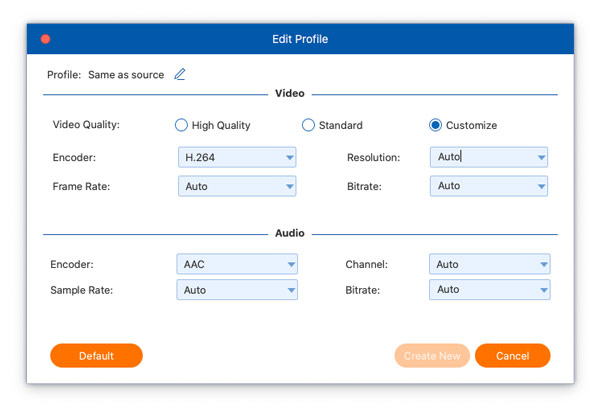
3. Switch to the Save To selector to set your path destination. Before converting, enable Hardware Acceleration to improve processing speed. Finally, click Convert All to batch convert AVCHD to MP4 on Mac.
AnyMP4 Video Converter Ultimate supports a wider range of output formats than many converters. It also provides device-specific presets for Apple devices, gaming consoles, TVs, and social media platforms. These presets optimize video settings for optimal compatibility and quality, without manually adjusting advanced parameters.
Best For: Lossless remuxing and advanced command-line video processing.
FFmpeg is a powerful command-line multimedia framework for video conversion for MP4, transcoding, and stream processing. If the video and audio streams in an MTS file are already compatible with MP4, it can remux the file rather than re-encode it.
Here's how to convert AVCHD to MP4 on Mac using FFmpeg:
1. Install FFmpeg using Homebrew or download it from the official website. After the installation, launch Terminal and navigate to the folder containing your AVCHD MTS files.
2. Use the following FFmpeg command to remux the MTS file into an MP4 container: ffmpeg -i input.mts -c copy output.mp4
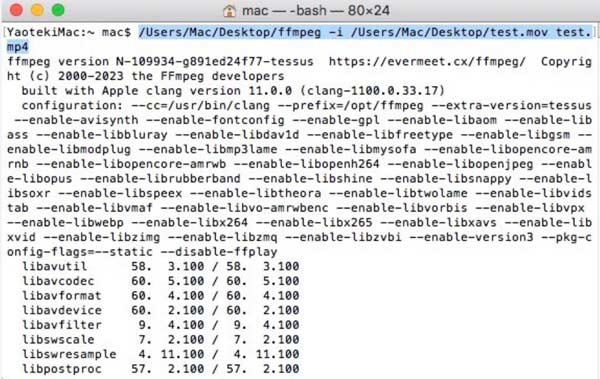
FFmpeg is best suited for users comfortable with Terminal commands and manual troubleshooting. However, the stream copy method does not always work because MP4 containers have strict compatibility requirements. If the source audio codec, subtitles, or video stream is unsupported, the output file may become corrupted.
Best For: Quick, no-install online conversion for small AVCHD files.
Convertio is a browser-based file converter that lets you change AVCHD to MP4. It works entirely online, making it convenient for quick conversions on a Mac. It supports drag-and-drop uploads, cloud storage integration, and basic output customization.
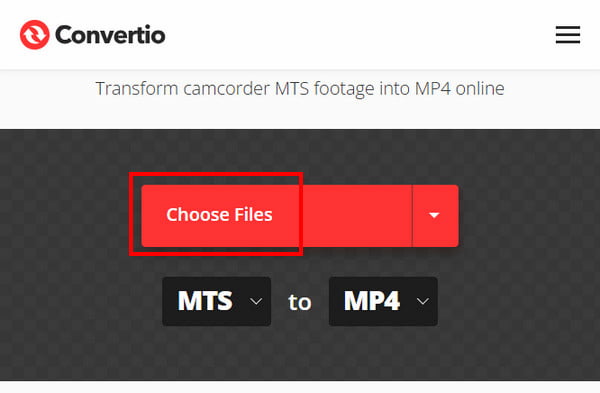
1. On the Convertio homepage, click Choose Files to upload videos directly from your Mac. You can also import M2TS/MTS files from Dropbox and Google Drive.
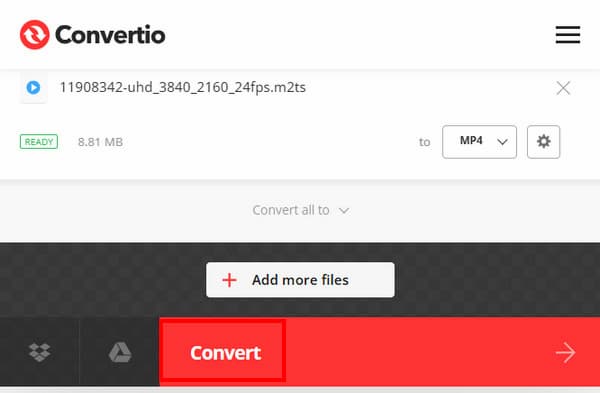
2. Open the output format dropdown and choose MP4 under the video category. Then, click Convert to start processing your file.
Convertio is convenient for quick online conversions, but it comes with usage limitations. The maximum file size is 100 MB per file, and you are limited to 10 conversions per 24 hours. These limits make it suitable for small or occasional AVCHD-to-MP4 conversions.
Learn the differences between AVCHD and MP4, and which format suits your needs better.
Q: Does AVCHD-to-MP4 conversion affect video quality?
A: Yes, it can affect video quality depending on the method used. If you re-encode the video during conversion, there may be some quality loss due to compression. However, using lossless methods like AnyMP4 preserves the original quality because the video and audio streams are not altered.
Q: Can I edit AVCHD directly on a Mac?
A: Yes, but it is not ideal. AVCHD files are stored in a complex folder structure, with MTS/M2TS files that may not import smoothly into editing apps. While software like Final Cut Pro and iMovie can open them, performance and compatibility issues may occur.
Q: Why convert AVCHD to MP4?
A: AVCHD is not very convenient for everyday use on Mac due to its folder structure and limited compatibility. Converting it to MP4 makes the videos easier to play, share, and store across devices. MP4 is also more efficient for editing and offers better compression options.
Converting AVCHD to MP4 on Mac is essential for making camcorder footage easier to play, edit, and share. Since AVCHD relies on MTS/M2TS files stored in complex folder structures, it is not always convenient for Mac users or supported by all devices. By converting to MP4, you ensure smoother performance across Apple devices and editing tools. Among all methods discussed, AnyMP4 Video Converter Ultimate stands out as the most reliable solution. It delivers fast, high-quality, and flexible conversion.
Secure Download
Secure Download
 Updated by Alice Thorne to Convert Video
More readings
 Convert Video to MP3 with The Ultimate Way and Top 10 Online Ways
This article gives you the ideal ways of converting videos to MP3 with the best video to MP3 converter applications for Windows 10/8/7/XP and Mac OS.
 How to Convert MTS and M2TS to AVI Files without Losing Quality
Read and get 2 different ways to quickly convert MTS to AVI online and offline. You can change MTS M2TS to AVI format on your phone or computer.
 WMV to MKV - How to Convert WMV to MKV on Mac, Windows PC and Online
How do I convert WMV to MKV on Mac? Is there any good WMV to MKV converter online? This post tells 3 easy ways to make the conversion between WMV and MKV.
 100% Working Way to Insert a WMV Video File into PowerPoint on Mac
Read and learn how to insert a WMV file into PowerPoint on Mac. You can convert WMV to MOV and other formats for importing into Mac PowerPoint.
 Add your comments to join the discussion here