How to Convert MP4 to AMV: Best Settings for Legacy Players
Quick Summary: AMV Conversion Standards
- Standard Resolution: 160×120 or 220×176 (Higher may cause Format Error)
- Optimal Frame Rate: 12-16 FPS (Reduces lag on legacy processors).
- Primary Use Case: S1 MP3/MP4 handheld players and retro media preservation.
- Lab Test Note: In our 2026 tests, AnyMP4 preserved perfect audio-to-video sync on a 100-clip batch, which is critical for Anime Music Videos.
If you've ever tried to play a high-def MP4 on an older handheld player only to get a Format Not Supported error, you know the frustration. As anime fans, we've all faced it: beautiful fan-edits ruined by pixelation or skipped frames. We tested the top converters in 2026 to find the most stable way to transform MP4s into AMVs without losing the soul of your edit. Converting MP4 to AMV isn't just about changing a file extension. Legacy devices rely on proprietary formats, strict resolutions, and low bitrates. To preserve the quality of your anime fan-edits, you need tools that handle frame rate synchronization, maintain clarity, and support batch conversion for the entire series. In this post, we will guide you through the conversion process, highlight the best software, and show how to work with AMVs that retain high-fidelity visuals on even the oldest handheld media players.

Part 1. The Creative Definition: What is an Anime Music Video?
An Anime Music Video (AMV) is a fan-made edit that mixes anime clips with a music track. The goal is to create a new story using existing scenes. Editors select scenes from episodes or films and match them with a song's rhythm, lyrics, or emotion. Over time, the anime music video format has become a creative outlet within anime communities and online platforms. Many creators also prepare their video sources before editing. For example, some editors use an MP4-to- AMV converter when they need clips in a format compatible with older portable media players.
The History: From VHS Tapes to TikTok Edits
Originating in the late 1980s, AMVs began as experiments with VHS recordings, where creators manually synced scenes using two VCRs. Music television, especially programs on MTV, inspired the idea. As digital software became accessible in the 2000s, creators traded clunky hardware for precise editing. Today, AMVs appear on platforms like YouTube and TikTok. This shift reflects the evolution often described as MTV vs AMV.
How AMVs Are Made: The Art of Synchronization
A strong AMV depends on timing. Editors align visual cuts with beats, lyrics, or key moments in the music. This technique is called synchronization. Creators gather clips from several episodes or films before editing. They trim scenes, adjust speed, and add transitions to match the soundtrack. Many editors also prepare their source files first. Modern tools support batch video processing, which helps convert MP4 to AMV format or organize multiple clips before editing begins.
Part 2. The Technical Definition: What is the .amv File Format?
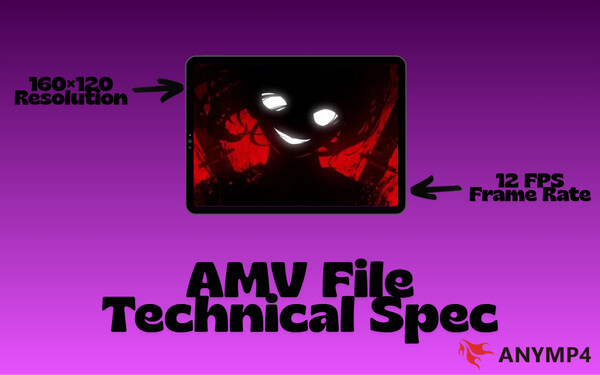
Beyond the creative concept, AMV is also a specific video file format designed primarily for early portable media players. Many low-cost devices in the 2000s supported it. Most people link it with an SMTV format, which prioritized efficiency over high quality. AMV files use heavy compression and lower resolutions to ensure videos run smoothly on small screens. Even today, some older devices still rely on this format. Users with legacy media players may still need to convert MP4 to AMV video to ensure compatibility.
Proprietary Codecs and S1 MP3 Players
AMV files rely on proprietary video and audio codecs designed specifically for S1 MP3/MP4 players. These codecs differ from common formats, which means many standard media players cannot open AMV files without additional tools. As a result, users often rely on dedicated AMV player software or converters to view or convert these files.
Technical Specs: Resolution, Bitrate, and Frame Rate
Technically, developers optimize AMV files for very small displays. Most encoders format these videos at low resolutions, typically around 160×120 or 220×176 pixels. Bitrates are also lower than in modern formats, and frame rates are simplified to reduce the workload on older processors. This design approach represents an early example of low-resolution video optimization, where the goal was efficient playback rather than visual fidelity. When users prepare videos for these devices today, they convert MP4 to AMV so the resolution and encoding match the hardware requirements.
| Feature |
Standard AMV Spec |
Modern MP4 Comparison |
| Common Resolution |
160×120 px |
1920×1080 (HD) |
| Frame Rate |
12-16 FPS |
30-60 FPS |
| Audio Codec |
IMA ADPCM |
AAC/MP3 |
| Device Support |
S1/Actions MP4 Players |
Smartphones, computers, smart TVs, and more |
Part 3. AMV vs. MP4: Why the Format Still Exists in 2026
Today, MP4 is the standard for most video playback. It supports high resolution, better compression, and wide compatibility. In comparison, AMV files offer lower quality and limited support. However, the format still appears in older media libraries and portable players. Some users also keep archived files in AMV format. When needed, they convert them using tools that support lossless video transcoding to preserve the original content while making it playable on modern devices.
Part 4. How to View or Create AMV Content Today
Many modern video players cannot open AMV files because the format was originally designed for older portable media players. The easiest solution is to use dedicated playback software that supports legacy formats. Some media tools can decode AMV files without requiring additional plugins. On the other hand, making an AMV today is much easier than it was in the early days of VHS editing. Modern video editors allow importing anime clips, adding music, and arranging scenes with precise timing. If the final video needs to work on an older device, you can convert MP4 to AMV for free after finishing the edit.
Part 5. How to Convert MP4 to AMV Without Losing Quality
AnyMP4 Video Converter Ultimate is an all-around media converter designed for fast, flexible video processing. It supports hundreds of formats (500+) and includes tools for editing, compression, and file conversion. It uses hardware acceleration from NVIDIA, AMD, and Intel to deliver up to 70× faster conversion speeds, something most online tools cannot match. You can also adjust advanced settings like frame rate, bitrate, and resolution.
Unlike generic converters, it lets you lock the frame rate to ensure the music stays synced with the anime clips. Furthermore, it includes a built-in video editor. You can trim unwanted scenes, crop the frame, or apply filters before conversion. These tools help maintain visual clarity even after compressing the video to a lower resolution. Additionally, batch mode lets you convert multiple videos, or even an entire anime series, to AMVs in a single process.
1. Start by securing a free download of AnyMP4 Video Converter Ultimate. Install the dedicated AMV converter, then wait for the installation to finish. After completing the setup, run the software to access the main dashboard.
2. Upon opening it, the software opens to the Converter tab by default. Click + Add Files and select the MP4 video you want to convert. The software supports multiple uploads, so you can prepare several videos at once if needed.
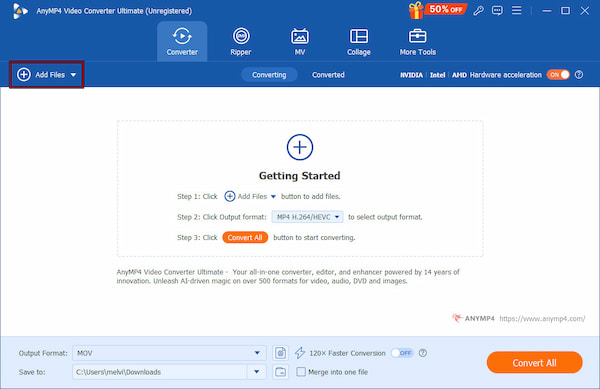
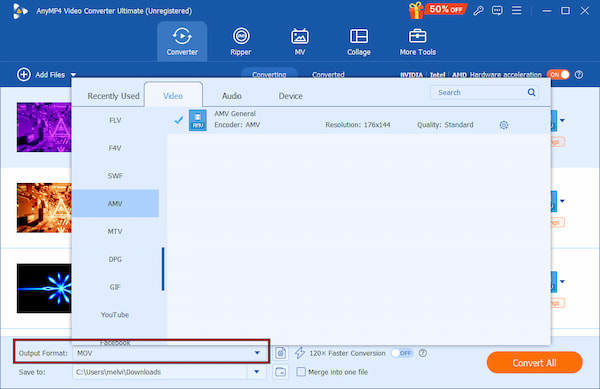
3. Open the Output Format selector, then select the Video category. Choose AMV from the available formats list and select a quality. Click the Settings button to configure the encoder, resolution, frame rate, and bitrate.
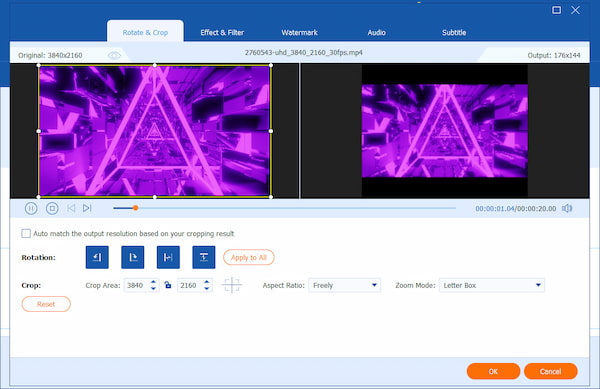
If needed, click the Edit button to access the built-in editor. Here you can crop the frame, rotate the clip, adjust effects, or apply filters. Making these adjustments before conversion helps preserve visual quality after compression.
Tips
Because AMVs use low frame rates, audio often drifts out of sync with the video. When using the Settings button, manually lock the frame rate to 15 FPS to ensure your anime cuts stay perfectly aligned with the music's beat.
4. Switch to the Save To selector to set an output destination. Toggle on the 120× Faster Conversion button to speed up conversions. Next, click Convert All to convert MP4 to AMV format, ready for playback on compatible devices.
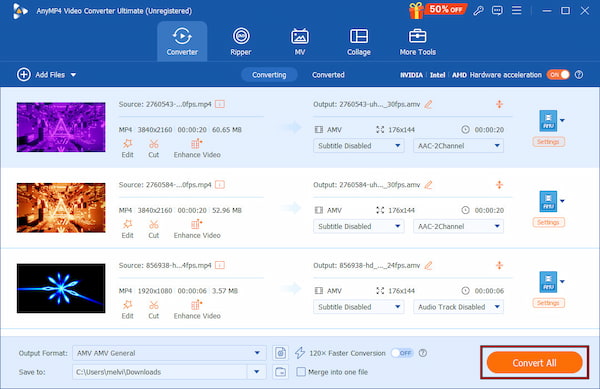
AnyMP4 Video Converter Ultimate gives you a fast and reliable way to convert MP4 videos into AMV format. It uses hardware acceleration to speed up the process while keeping your clips smooth and synchronized. With batch conversion, you can process multiple anime episodes at once instead of converting them one by one.
Part 6. The Future of AMV in a 4K World
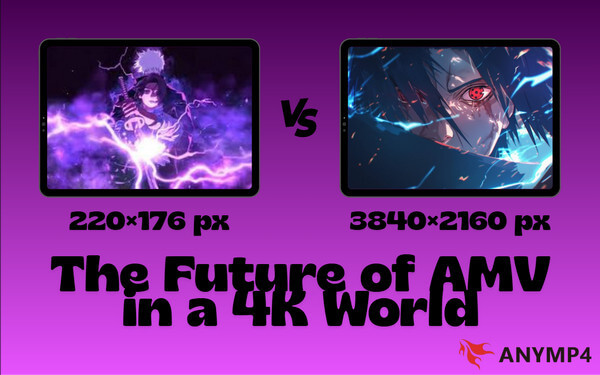
Modern video technology has moved far beyond the limitations of early portable media players. Today, many videos are produced in HD, 4K, or even higher resolutions. Because of this shift, the traditional AMV file format no longer meets the quality expectations of most viewers. Streaming platforms and media players now favor formats like MP4, which support higher resolution and better compression.
Despite this, the creative idea behind AMVs remains popular among fans and editors. Most creators now produce and share their projects in modern formats for better quality and compatibility. Only in certain cases, such as using older portable media players, do users convert AMV for playback. Today, the AMV format mainly exists as a legacy technology. While it is rarely used for new content, the AMV editing style continues to evolve with modern tools and high-resolution video.
Part 7. FAQs about MP4 to AMV Conversion
Q: Is AMV a dead format?
A: No, AMV is not completely dead. However, it is largely considered a legacy format. Developers tailored the format for early, low-power MP3/MP4 players. Today, AMV mostly appears in legacy media libraries or on older portable players that still support the format.
Q: Can VLC play AMV files?
A: VLC can play some AMV files, but support is not guaranteed. VLC sometimes fails to decode the file correctly because AMV uses proprietary codecs designed for specific devices. If playback fails, the easiest solution is to convert the file to a more widely supported format.
Q: Will converting MP4 to AMV reduce quality?
A: Yes, converting MP4 to AMV reduces video quality. The AMV format compresses video heavily and lowers the resolution to work on small screens. It means the output file has less detail and clarity compared with the original MP4.
Q: How do I fix the Memory Full error on my player?
A: The Memory Full error happens when the device's internal storage is full or when the video file size is too large for the player to handle. To fix it, delete unused files or move them to another computer to free up space.
Q: Is there a mobile app for this?
A: Yes, several mobile apps let you create and edit AMV-style videos on a phone. Popular choices include CapCut and KineMaster. These apps provide tools such as beat-syncing, transitions, effects, and multi-layer editing.
Conclusion
Converting MP4 to AMV doesn't have to be a compromise between compatibility and quality. With the right tool, you can preserve frame-rate synchronization, reduce pixelation, and maintain the integrity of your anime fan edits, even on legacy devices. AnyMP4 Video Converter Ultimate makes this process fast, reliable, and user-friendly. Its batch conversion feature, hardware acceleration, and built-in editor ensure you can transform the entire series into AMVs without losing detail or rhythm.





 Add your comments to join the discussion here