
Summary:
Do you have a classic Nokia phone that refuses to play MP4 videos? Although MP4 is the standard video format, 3GP remains necessary for playing videos on older mobile phones and for MMS sharing. While many consider 3GP an outdated format, legacy devices still use it because they cannot decode MP4 codecs or handle high-resolution videos. To preserve videos for use on older devices, such as 3G feature phones, you need to convert MP4s to 3GP. By doing so, you can manage bitrate, maintain backward compatibility, and create files that can play on 3GPP-supported devices. In this guidepost, we will teach you 2 ways to convert your modern videos to older mobile phone formats.
MP4 has become the standard format for storing and distributing media. But there are cases when 3GP files come in handy. When you have to view your videos on older mobile devices or 3G feature phones, converting MP4 to 3GP lets you view them without any trouble. 3GP is an audio/video container format specified by the 3GPP (Third Generation Partnership Project) for 3G mobile phones. It can transmit audio and video over networks with limited bandwidth and processing power.
| 3GP | VS | MP4 |
| 3GPP multimedia container (.3gp) | Container Format | MPEG-4 Part 14 (.mp4) |
| 2-6 MB for a 3-minute video | File Size | 180 MB to 1.5 GB for a 3-minute video |
| Early mobile phones, 2G/3G devices, and Multimedia Messaging Service (MMS) systems | Backward Compatibility | Modern mobile phones, computers, and smart TVs |
| H.263 | Video Codec | H.264 (AVC) |
| AMR | Audio Codec | AAC |
AnyMP4 Video Converter Ultimate is your time machine, bringing modern videos back to their nostalgic era. It can batch convert MP4 to 3GP without a watermark and to 500+ other formats. You can import hundreds of video files and process them at once without lags and crashes. It uses the most advanced hardware-accelerated media processing to deliver 120× conversion speed. In terms of output quality, it guarantees lossless audio and preserves the source quality. As a desktop-based tool, it is 100% clean, safe, and free from adware. All the files you upload are processed locally, ensuring your privacy is protected.
Secure Download
Secure Download
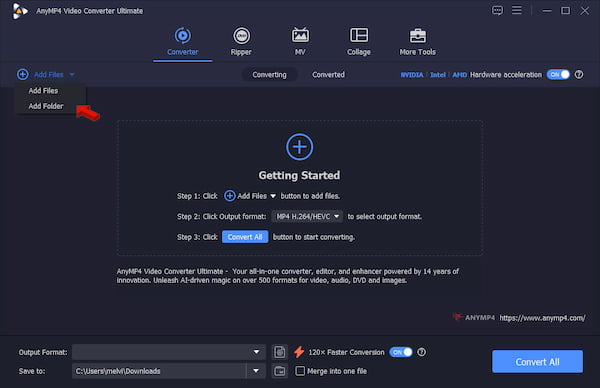
1. Download AnyMP4 Video Converter Ultimate and be sure to finish the setup. After installation, go to the Converter tab and click +Add Files to add the MP4 source. You can choose one or multiple video files for conversion at once.
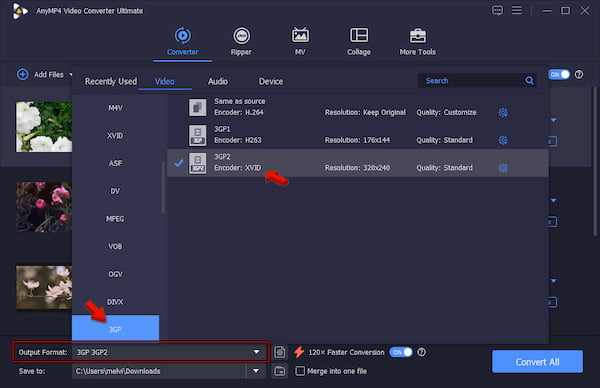
2. Head to the Output Format picker and select 3GP under the Video Category. Next, select a quality preset that matches your intended use. Choose 3GP1 if you’re sending it to an old phone, or select 3GP2 for the best quality-to-size ratio for modern devices.
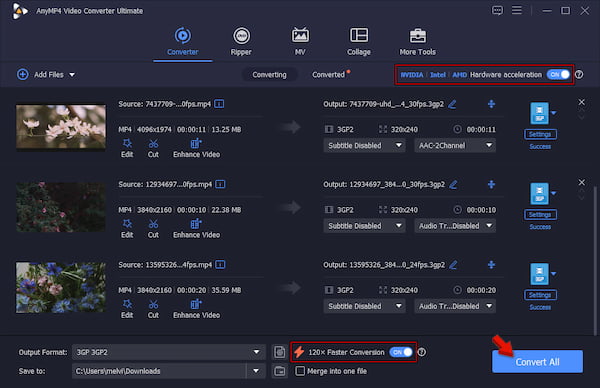
3. Go back to the main interface and activate Hardware Acceleration. Also, turn on the 120× Faster Conversion button to speed up conversions. Right after, set the destination folder, then click Convert All to convert MP4 to 3GP mobile phone format.
To evaluate the tool’s credibility in terms of output quality, batch conversion, and fast processing, we put it to the test. This conversion guide was tested on July 05, 2026, using AnyMP4 version 8.5.98 on Windows 10. In our test, it took only 1 minute and 41 seconds to convert 50 MP4 videos to 3GP with 3GP2 quality preset. If you need to do the reverse, you can use AnyMP4 as a 3GP-to-MP4 converter on your computer.
Sometimes you only need to convert one or two videos, making software installation unnecessary. If this is the case, then FreeConvert can help you convert MP4 to 3GP online in high quality. With it, you can import videos from your computer, through cloud storage, or via a URL. Most online tools cap uploads at 50 MB, but FreeConvert is generous, supporting file sizes up to 1 GB.
To convert: Go to the FreeConvert page and click Choose Files to upload the MP4 video from your computer. To import videos from the cloud, click the arrow dropdown and select a service. In the Output picker, head to the Video category and select 3GP. After selecting the format, click Convert to start the conversion, then download it to save it locally.
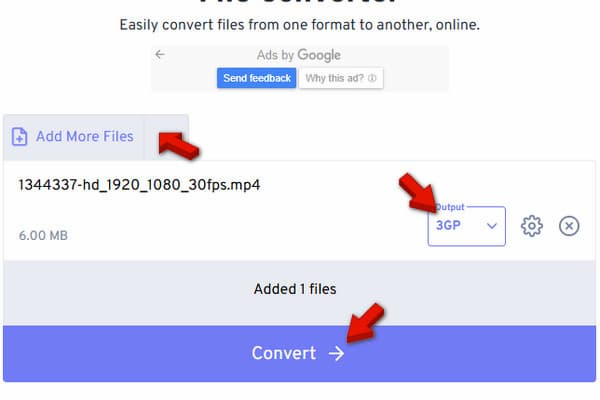
FreeConvert is an MP4-to-3GP converter that can handle nearly all file types with ease and efficiency. However, you should also know that it has a restriction for free users. You are limited to 25 conversion minutes per day. It resets every 24 hours, meaning if you run out, you need to either wait for a day or subscribe to the paid plan. If your files exceed the required limit, compress the video to 1 GB or smaller first.
This problem is caused by selecting an incorrect resolution or aspect ratio. To prevent stretching of the output video, it is advisable to adjust the aspect ratio from its default setting.
Old basic phones and older Androids only understand specific legacy codecs. You must encode 3GP to H.263 or MPEG-4 Simple Profile and set the resolution to 176×144 or 320×240. The audio codec must be AMR-NB or AAC.
3GP files sometimes use older audio codecs that modern devices do not recognize. If you lose audio, you might not notice that you are using an incompatible audio codec. To fix the issue, be sure the audio codec is set to AMR-NB or AAC.
What is the best free MP4-to-3GP converter for Windows 11?
FreeConvert is among the best free MP4-to-3GP converters for Windows 11. However, it restricts the upload file size to 1 GB and allows only 25 conversion minutes per day. For a true, high-quality, and unlimited conversion, AnyMP4 is the best converter for Windows 11.
Is there an online MP4-to-3GP converter that is safe and doesn’t store my data?
Yes, FreeConvert is a safe online converter that uses SSL encryption. Although it temporarily stores data on its server during conversion, it is automatically deleted after 24 hours.
Why does my converted 3GP file have no sound on my mobile device?
The converted 3GP file might have no sound on mobile devices because your device does not support the audio codec used during conversion. Most modern devices do not recognize AMR audio codecs and struggle to read them.
Can I batch convert 50 MP4 files to 3GP at once?
Converting 50+ files, even 100+, from MP4 to 3GP simultaneously is indeed possible with AnyMP4. There will be no lag or crashes when converting large batches of files at once.
What are the best video settings (bitrate/resolution) for the 3GP format?
The optimal video settings for 3GP are 176×144 (QCIF) to 320×240 (QVGA) resolution. As for the bitrate, the recommended range is 200-512 kbps with the H.263 codec.
In this post, you learned 2 easy methods for converting MP4 to 3GP. It will make your video more compatible with the old mobile devices and 3G feature phones. If you want an instant way to do this, AnyMP4 Video Converter Ultimate is our top recommendation. It offers ultra-fast batch processing, hardware acceleration, and customizable output settings.
 Updated by Alice Thorne to Convert Video
Related Articles
 Top 10 Best Free MP4 Cutters to Cut MP4 Files
Split MP4 files and cut a specific portion, you can use the top 10 free MP4 splitters.
 5 Best Free MP4 Joiner to Join Videos into One
The article explains the best free MP4 joiner software that helps you achieve the goal easily.
 Top 10 Music Converter Apps to convert music
There are 10 best Music Converters, which is user-friendly and easy to use.
 6 Best Audio Joiner software to Combine Audios
Learn more details about the 6 best Audio Joiner software to combine them.
 Add your comments to join the discussion here