- Convert video, audio, and DVD over 500 formats.
- GPU acceleration to speed up the conversion process at 70X faster.
- More than 16 editor tools in the toolbox (Updating).
- Create videos for TikTok, YouTube, Facebook, etc.

Free Download100% Clear & Secure
Free Download100% Clear & Secure
MP4 to MPG
Back to main page
Setting
Custom resolution:
| Core Features | Web Version | Pro Desktop |
| Max File Size | 50MB (Login: 100MB) | No Limit |
| Daily Limit | 2 Files (Login: 10 Files) | Unlimited |
| AI Video Upscaling | No | Yes (Up to 4K/8K) |
| GPU Acceleration | No | Yes (70X Faster) |
| Batch Processing | No | Yes |
Failed to upload media file! Please try again, or use AnyMP4 Video Converter Ultimate for Desktop.(Error code: 20015)

The original video resolution is higher than 1080p. If you want to output the original high resolution, you need to download the Pro Version. Or would you like to output the default 1080p resolution?

Quick Answer: What is the Best Way to Convert MP4 to MPG?
MP4 is the undisputed king of web video, but if you try to feed it into a legacy DVD player or an old-school television broadcast system, you will quickly hit a brick wall. Older hardware decks simply cannot decode modern, highly compressed H.264 files. They demand raw, standardized MPEG-2 streams to function. That is exactly why you need a reliable way to convert MP4 to MPG without completely destroying your original footage.
In this guide, we are cutting through the technical jargon to show you exactly 3 easy ways to change MP4 to MPG in a desktop transcoder, a quick web utility, and a completely free open-source tool. You will know exactly which tool fits your specific project size and hardware setup.

| Conversion Speed (FPS) | Max File Size | Privacy Level | AI Enhancement | Price | |
|---|---|---|---|---|---|
| AnyMP4 Video Converter Ultimate | ~450 FPS (Ultra-Fast) | Unlimited | Maximum (Local Offline) | Yes (Upscaling/Denoise) | Free Trial / Paid |
| AnyMP4 Free Online Converter | Dependent on Web (~35 FPS) | 50MB | Medium (Cloud-based) | No | 100% Free |
| VLC Media Player | ~90 FPS (Slow) | Unlimited | Maximum (Local Offline) | No | Free (Open-source) |
Wait, why would anyone take a modern, highly compressed MP4 file (usually encoded with H.264 or H.265) and downgrade it to an older MPG format? It sounds backwards, right?
Well, here is the technical reality. MP4 is great for streaming on your phone or uploading to YouTube, but it uses highly compressed inter-frame structures. The MPG format (specifically using the MPEG-2 codec) is a tank. It is the absolute global gold standard for professional DVD authoring, broadcast television playout systems, and traditional hardware decoders.
If you try to feed a modern MP4 to a broadcast rig or an older standalone DVD player, it will freeze, stutter, or throw a black screen. By executing an MP4 to MPG conversion, you are changing the underlying codec profile so legacy chips can read the video stream natively without choking on heavy compression algorithms.
If you have a mountain of files or massive 4K video footage, you need desktop power. Period. Web utilities simply cannot keep up with high-density data workloads. After running our benchmarks, AnyMP4 Video Converter Ultimate walked away as our top pick for desktop systems. Here is what makes it tick under the hood.
Why This Tool Made Our Top List
Step-by-Step Guide: How to Convert MP4 to MPG Without Losing Quality
1. Import Your Source MP4 Videos
Free download and launch AnyMP4 Video Converter Ultimate on your Windows 11 or Mac machine.
Secure Download
Secure Download
Click the big plus sign (+) in the center of the main dashboard, or simply drag and drop your target MP4 files straight into the interface.
You can drop multiple files at once. The app handles batch MP4 to MPG converter software functions natively without slowing down your system.

2. Select MPG / MPEG-2 Output Profile
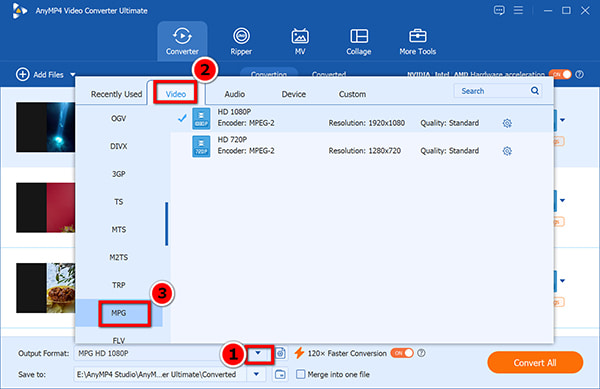
Look at the bottom-left corner and click the Output Format dropdown menu. Head over to the Video tab, scroll down the left sidebar, and select MPG.
Choose your target resolution. For standard DVD format setups, select the highest available profile to preserve your original aspect ratio.
3. Convert MP4 to MPG With on Hardware Acceleration Toggle
Look at the bottom of the main window. Make sure the lightning bolt icon for GPU Acceleration is switched on. This ensures your computer uses its raw GPU power instead of grinding your CPU to a halt.
Choose your destination folder at the bottom left of the panel. Once everything looks good, hit the Convert All button in the bottom-right corner.
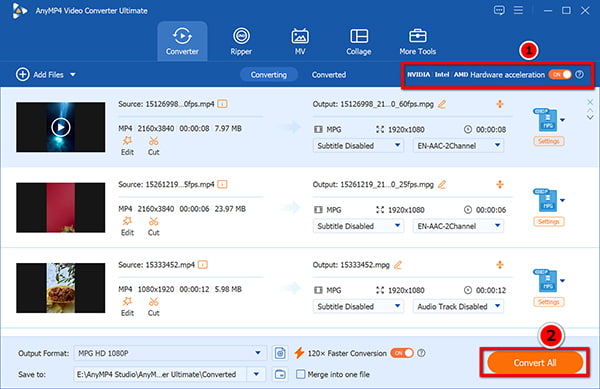
Keep an eye on the progress bar, with high-speed MP4 to MPEG-2 conversion enabled, it will finish before you can even take a sip of your coffee.
What if you are sitting at work, using a locked-down corporate computer, and you just need to convert a tiny, 15MB MP4 clip for an old presentation system? You cannot install desktop software without an IT admin password. That is where an online tool makes sense.
We recommend AnyMP4 Free Online Video Converter for these quick, light tasks. It is fully web-based, runs inside any browser, and does not cost a dime. Online tools run your video files through a remote cloud server. This means your conversion speed is tied directly to your home internet upload speed. If your connection drops, your download fails.
Expert Note on Privacy: We always tell our readers to be incredibly careful with web tools. Never, ever upload sensitive corporate videos, private family footage, or financial clips to a public web converter. This online tool claims to delete the uploaded file within 24 hours.
1. Upload Your MP4 Clip
Open your preferred web browser (Chrome, Edge, or Safari) and head to the AnyMP4 Free Online Video Converter page.
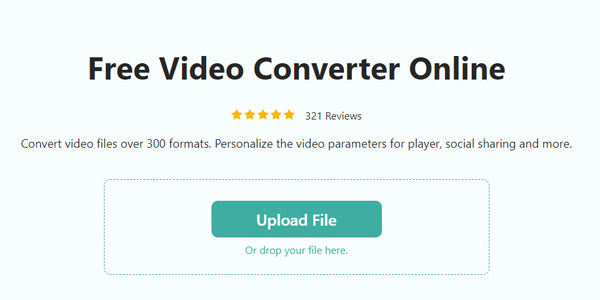
Click the prominent Upload File button. If it is your very first time using the tool, it might prompt you to download a tiny launcher—this is normal and takes two seconds to install. Once ready, select the MP4 file from your local hard drive.
2. Set MPG as the Target Format
Look at the bottom of the interface. You will see a row of format icons. Click the Video tab and select MPG. If you need to tweak the resolution or bitrate, click the small gear icon next to your file to open the settings panel.
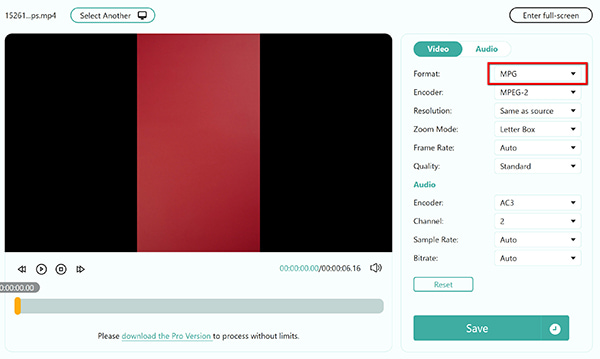
3. Convert and Download
Hit the Save button. The web app will ask you where you want to save the final file on your computer. Pick your download folder, and let the cloud server do the rest.
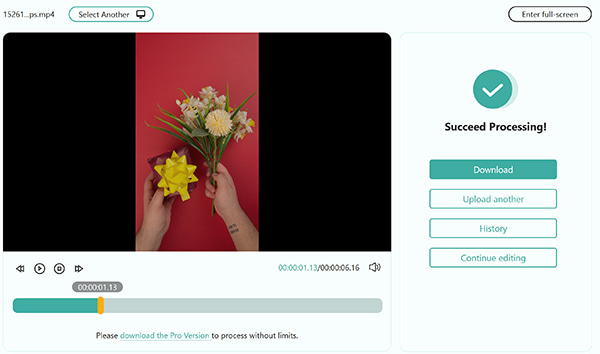
Do not close your browser tab while the conversion is running. If your Wi-Fi drops, the process will fail, and you will have to start over from scratch.
Most people know VLC as that indestructible media player with the orange cone logo that plays literally any file format on earth. But did you know it actually houses a hidden, built-in conversion engine? If you want a 100% free desktop alternative without spending a dollar, VLC is a solid utility.
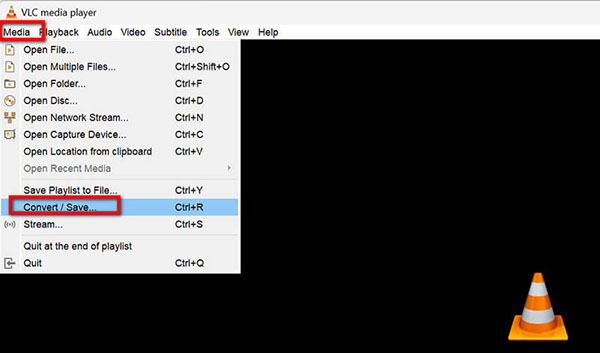
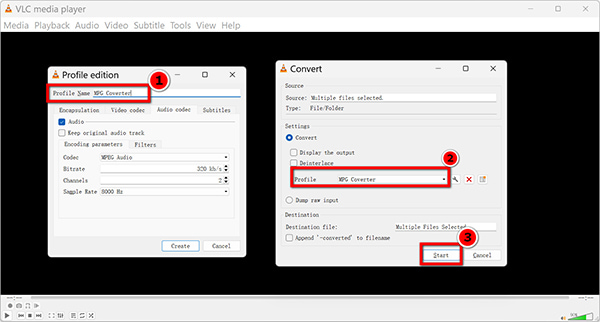
1. Open VLC Media Player on your computer. In the top menu bar, click on Media, then select Convert / Save (or press Ctrl + R).
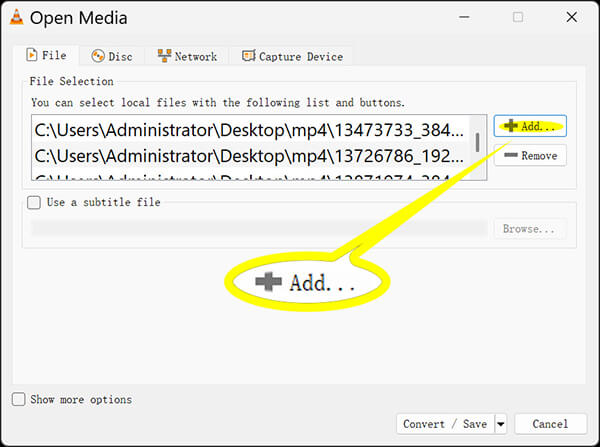
2. Click the Add button to load your source MP4 file into the selection box.
At the bottom of the window, click the Convert / Save button.
3. Create or Edit a Custom Profile
Next to the Profile dropdown menu, click the Create a new profile option to make an MPG profile.
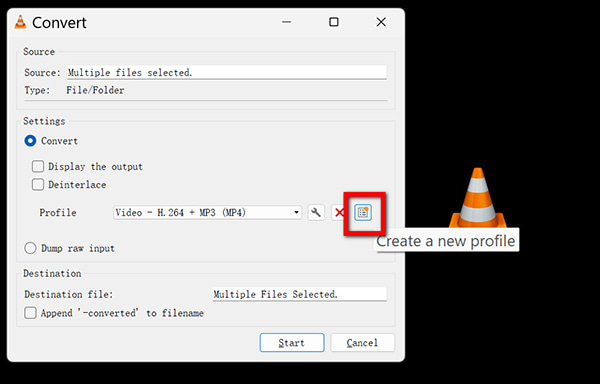
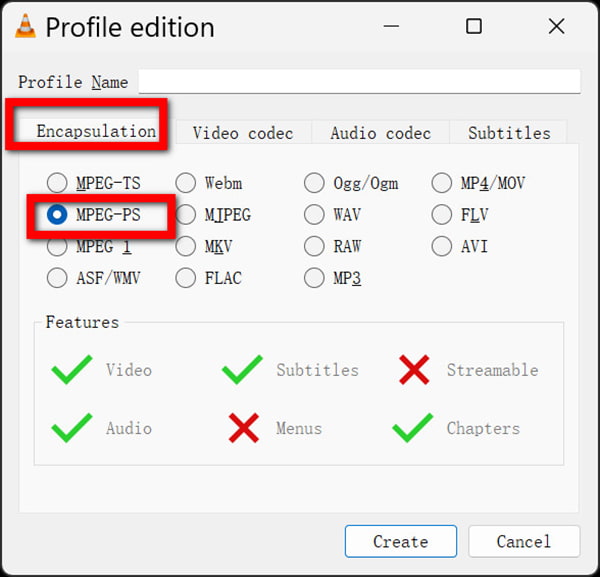
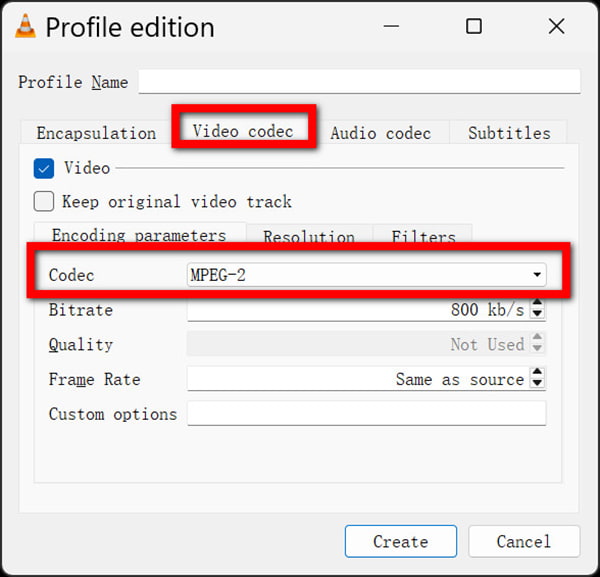
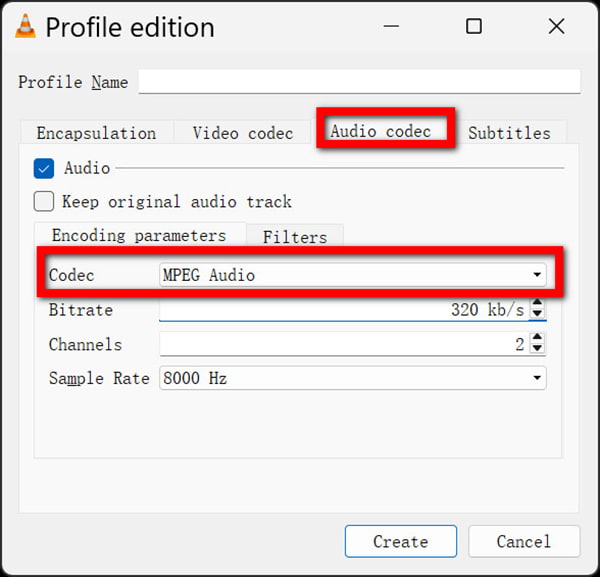
• Click Save.
5. Transcode MP4 to MPG
Give your profile a clear name like MPG Coverter. Choose your destination file path at the bottom, select it as the Output format to start converting MP4 to MPG, and hit Start.
Once the process is done, you can change the file extension in the filename to .mpg manually.
VLC is fantastic because it is free and open-source, but it is not built for speed or convenience. The interface feels like a time capsule from 2008. There is no real batch processing support, if you try to convert twenty files at once, VLC will often crash or overwrite your files. Furthermore, it does not support advanced GPU pipeline optimization, meaning massive files will take quite a while to finish rendering.
If you want your converted files to look crisp, you need to understand the underlying codec parameters. Let's break down the technical settings so your files play flawlessly on any old-school hardware deck.
People use the terms MPG and MPEG interchangeably, but they actually contain two entirely different video standards:
Bitrate is the volume of data processed every second. If your bitrate is too low, your video looks like a blurry mess. If it is too high, your playback device will stutter because its hardware cache cannot read the data fast enough.
For standard DVD playback systems, the absolute legal maximum bitrate is 9.8 Mbps (Megabits per second). When configuring your custom transcoding profile, we highly recommend locking the target video bitrate to 6.0-8.5 Mbps. This sweet spot delivers pristine, master-quality video frames while leaving ample headroom for audio tracks and subtitle layers.
If the bitrate isn't what you want, you can also use a bitrate converter to change it.
Does converting MP4 to MPG lose quality?
Technically, yes. Because MP4 and MPG use lossy compression mechanics, transcoding between them causes a minor drop in raw data integrity. However, if you use a high-end desktop app like AnyMP4 Video Converter Ultimate and lock your video bitrate above 7.0 Mbps with MPEG-2 encoding, the visual difference is completely invisible to the naked human eye.
What is the best MP4 to MPG converter for Windows 11?
For pure performance, system stability, and processing speed on Windows 11 systems, AnyMP4 Video Converter Ultimate is the clear winner. It directly taps into modern Windows graphic subsystems like NVIDIA NVENC and DirectX to maximize processing speeds.
Is MPG better than MP4 for DVD playback?
Yes, absolutely. Standard standalone home DVD players cannot read modern H.264 or H.265 MP4 files. They require raw MPEG-2 streams packed inside a specific directory structure. If you want a disc to play on a traditional TV deck, converting your files to MPG is an absolute requirement.
Can I convert MP4 to MPG for free without a watermark?
Yes, you can use open-source desktop software like VLC Media Player or use specialized free web portals like AnyMP4 Free Online Video Converter. These tools do not stamp ugly branding marks or restrictive watermarks onto your finished output clips.
How do I batch convert multiple MP4 files to MPG simultaneously?
Open AnyMP4 Video Converter Ultimate, drag your entire folder of video clips straight into the main workspace window, set your global output format profile to MPG, and hit the main conversion button. The tool will automatically split the rendering workloads across your available GPU processing cores.
Converting MP4 to MPG is not a difficult task; you can do it easily by selecting the best tool for your specific workload. If you are dealing with tiny, non-sensitive video clips and just need a quick fix without installing anything, a web utility like AnyMP4 Free Online Video Converter is a perfectly fine choice. For those who want a completely free desktop alternative and don't mind messing around with an outdated interface, VLC Media Player will get the job done. If you are handling massive 4K footage packages, running professional broadcast files, or looking for a batch MP4-to-MPG converter that will not burn up your CPU, AnyMP4 Video Converter Ultimate remains the undisputed gold standard. Free download it now and start your batch MP4 to MPG conversion now.
Secure Download
Secure Download
 Updated by Alice Thorne to Convert Video
More readings
 2 Reliable Ways to Convert MOV to MPEG/MPG (2026 Updated)
Learn from this article to get 2 methods of converting MOV to MPEG for DVD burning or old hardware in both free online and professional desktop tools.
 2 Ways to Convert MPG/MPEG to WMV on Windows/Mac/Online (Reversely)
Read and get 2 easy ways to convert MPG to WMV or WMV to MPG on your Windows and Mac computer. You can get both online and desktop MPG converters in this post.
 3 Ways to Rip DVD to MPG on Windows and Mac [2026 Guide]
Come to learn how to rip DVD to MPG files in three simple ways. Follow our step-by-step guide to convert your DVDs to the MPG format easily and efficiently.
 4 Best Methods to Convert MP4 to MPEG in 2026
Want to convert MP4 to MPEG for DVD burning or legacy equipment? Here are the 4 best methods for high-speed, high-quality conversion.
 Add your comments to join the discussion here