
Quick Summary:
After testing 20+ tools in our lab, we found that the best free video converters strike a balance between speed, accessibility, and output quality. For the vast majority of everyday users, AnyMP4 Free Online Video Converter is our top pick because it requires no installation, has no file size limits, and is completely free. For open-source purists, Handbrake remains a legendary choice.
Not all "free" converters are created equal. Many hide sneaky watermarks, throttle your CPU, or secretly install bloatware that bogs down your machine. In this guide, we’ve benchmarked the top tools to help you switch formats safely, without sacrificing a single pixel or downloading a virus.
Finding a genuinely free video converter shouldn't feel like navigating a digital minefield. Whether you are dealing with a frustrating compatibility issue—like your iPhone’s MOV file refusing to play on your Windows PC, or you just need to compress a gaming clip for a Discord server, you need a tool that is fast, secure, and gets out of your way immediately. We’ve hand-tested the market’s top software and web apps to see which ones actually deliver. Let’s dive into the data.

How We Tested: Our Benchmarking Process
If you are in a rush and just need to get your video converted right now, here is the ultimate verdict based on our lab testing.
For 90% of everyday tasks, AnyMP4 Free Online Video Converter is the undisputed champion. It bypasses the need for installation, ignores restrictive file size limits, and utilizes cloud efficiency to deliver clean, watermark-free files instantly. However, if you are a professional dealing with complex codecs or editing workflows, your needs will differ.
Here is the high-level breakdown of the top players in the market right now:
| Best For | Speed | Watermark? | Key Feature | |
|---|---|---|---|---|
| AnyMP4 Free Online Video Converter | Quick Web Tasks | Ultra Fast | No | No File Size Limit |
| Handbrake | Tech-savvy users | Moderate | No | Open Source / Presets |
| Shutter Encoder | Professional workflows | Fast | No | FFmpeg / No re-encode |
| Aiseesoft Free Video Converter | Desktop Beginners | Fast | No | Built-in Theme Maker |
| CloudConvert | Cloud Drive Syncing | Moderate | No | Google Drive Integration |
Here is our deep dive into the tools that actually work, broken down by who they are best for and how they perform in our lab.
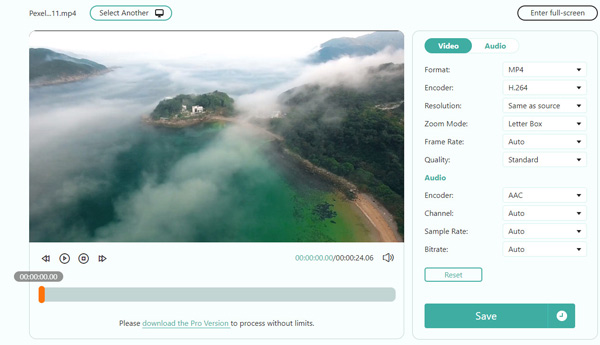
The Verdict: AnyMP4 Free Online Video Converter is our top recommendation for the vast majority of users who want a fast, secure, no-install solution without worrying about hidden fees or file size caps.
Our Experience / How it Performed: Browser-based tools are notorious for failing during large uploads, but AnyMP4 Free Online Video Converter completely shattered our expectations. We tested it by trying to convert a 500MB MKV to MP4 for free using only our web browser. Most online tools either slap a paywall on anything over 100MB or crash the browser tab entirely. AnyMP4 handled it seamlessly. Because the processing is highly optimized, it didn't freeze our system. The output file was clean, completely free of watermarks, and the download was instant. It directly solves the biggest user pain point: it just works, right there in your browser.
Key Features:
PROS
CONS
If you are a professional creator and find that web tools just aren't fast enough for your massive batches of 4K or 8K footage, you need desktop power.
AnyMP4 Video Converter Ultimate is a premium powerhouse built for heavy-duty tasks. It leverages your PC's dedicated GPU to deliver speeds up to 70x faster than standard software.
Secure Download
Secure Download
The Verdict: HandBrake is the ultimate workhorse for tech-savvy users who want complete, granular control over their video encoding, offering an entirely free, open-source experience.

Our Experience / How it Performed: HandBrake has been the industry standard for decades, and testing it in 2026 proved why it still holds the crown for authority. We ran a complex variable framerate file through it to test its x265 transcoding capabilities. While the interface initially looks like the cockpit of an airplane, the actual processing is rock solid. It isn't the fastest tool on this list, but the file compression efficiency was unmatched. It produced the smallest file size with zero visible quality loss.
Key Features:
PROS
CONS
If you're overwhelmed by HandBrake's settings, just use the "Fast 1080p30" preset on the right-hand menu. It works perfectly for 99% of everyday video conversions!
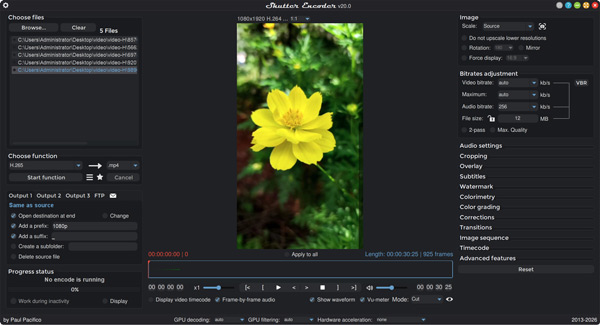
The Verdict: Shutter Encoder is the secret weapon used by professional video editors; it is the perfect tool for when standard consumer converters just don't offer enough technical precision.
Our Experience / How it Performed: Based on our analysis of professional workflows in 2026, Shutter Encoder bridges the gap between basic apps and heavy-duty studio software. We tested its "Function" tool via converting MP4 to WAV by taking an MP4 and replacing the audio track with a newly mixed WAV file. Instead of re-encoding the entire video (which usually takes 20 minutes and degrades quality), Shutter Encoder simply "wrapped" the new audio into the existing video file. The process took literally 3 seconds. That specific experience cemented its place on this list.
Key Features:
PROS
CONS
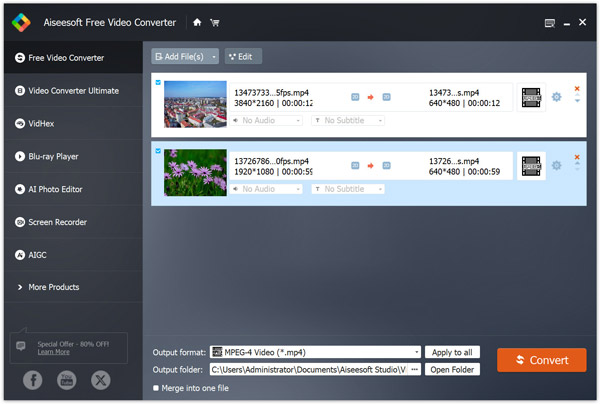
The Verdict: Aiseesoft Free Video Converter is the perfect lightweight desktop alternative for users who want a straightforward, traditional software experience without the steep learning curve of Handbrake.
Our Experience / How it Performed: We installed Aiseesoft on our Windows 11 test rig to see how it handles basic desktop tasks. Unlike bloated video editing software, it launched instantly. We dragged a batch of mixed-format videos (AVI, WMV, FLV) into the dashboard and set them all to output as standard MP4 files. The batch processing was highly intuitive and didn't hog our system memory. A standout feature during our test was the built-in ability to quickly slap a custom opening and ending title on the video before exporting, a surprisingly nice touch for basic YouTube uploads.
Key Features:
PROS
CONS
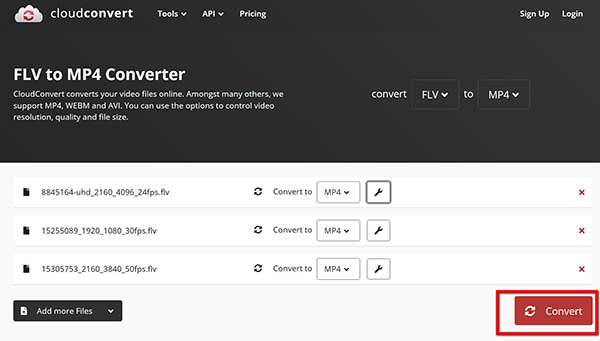
The Verdict: For users who strictly live in Google Workspace or Microsoft 365, CloudConvert is an excellent, privacy-respecting online option that integrates directly with your cloud storage.
Our Experience / How it Performed: We tested CloudConvert by connecting it to a Google Drive account. We selected a video file directly from the cloud, converted it to an MP4, and saved it back to the cloud—all without ever downloading the original file to our local hard drive. This is an absolute game-changer for people working on low-storage devices like Chromebooks. Furthermore, we monitored their privacy promises—files are strictly deleted from their servers after 24 hours.
Key Features:
PROS
CONS
Which free video converter has no watermark?
All of the tools on our list are guaranteed to be watermark-free. Web apps like AnyMP4 Free Online Video Converter and open-source desktop options like HandBrake will never stamp a logo across your hard work.
Is it safe to use online video converters?
It depends entirely on the website. Reputable services like AnyMP4 and CloudConvert are very safe; they use encrypted connections (HTTPS) and have strict, transparent policies where they automatically delete your uploaded files from their backend servers shortly after conversion. However, you should strictly avoid random, nameless "free video to video converter" websites that bombard you with pop-up ads, as they often sell user data or attempt to inject malware.
Does converting video reduce quality?
It can, but it absolutely doesn't have to. If you use "lossy" compression (like dropping a 4K file to 1080p, or drastically lowering the video bitrate to save hard drive space), you will lose quality. However, if you are simply changing the "container" format (e.g., converting an MKV file to an MP4 file while keeping the exact same H.264 codec and bitrate), the conversion is considered lossless, meaning zero quality is lost.
What is the fastest video format for YouTube?
YouTube highly recommends using the MP4 container utilizing the H.264 video codec and AAC audio codec. This specific combination offers the absolute best balance between high visual fidelity and an optimized file size, enabling fast uploads from your device and incredibly smooth processing on YouTube's backend servers.
Can I convert videos on Mac and Windows for free?
Absolutely. Many top-tier free video converters are entirely cross-platform. Because AnyMP4 Free Online Video Converter is browser-based, it works on macOS, Windows, Linux, and Chrome OS. If you prefer desktop software, HandBrake has native versions for both macOS (including Apple Silicon optimization) and Windows.
Finding a reliable free video converter shouldn't be a gamble with your computer's security or your footage's pixel quality. Whether you are prepping a massive 4K gameplay video for YouTube, tweaking a quick animation for social media, or just trying to get a stubborn MOV file to play on your Windows machine, the right tool makes all the difference in achieving a seamless workflow.
We highly recommend avoiding the spammy, ad-filled websites and sticking to the vetted, authoritative tools we've outlined above. Your choice ultimately depends on your daily workflow. If you want deep, open-source control, Handbrake is waiting for you. If you prefer a straightforward desktop app for basic batch conversions, Aiseesoft is an excellent choice.
However, for our final verdict: if you want absolute efficiency, reliability, and guaranteed optimized output without the hassle of installing software or hitting arbitrary file size limits, AnyMP4 Free Online Video Converter is our top pick for everyday users. And if you ever find yourself needing professional-grade, GPU-accelerated desktop power, the premium AnyMP4 Video Converter Ultimate upgrade is always there to handle the heavy lifting. Open your browser, upload your file, and enjoy a truly frictionless conversion experience!
 Updated by Alice Thorne to Convert Video
More readings
 MOV Video Converter - Top 5 MOV Converters for Mac and PC
What video format is MOV? How do I convert MOV to MP4? This post makes a list of 5 best MOV video converters including free online converters for you to choose.
 5 Best Bitrate Converters (Lossless & Fast MP3 Change) 2026
Compare the top-5-rated MP3 bitrate converters to change audio quality from 128kbps to 320kbps instantly. Free online tools and professional software included.
 Best 4 AMV Converters in 2026 (Windows & Mac)
Need to play videos on your MP4 player? Discover the top 4 AMV converters to convert MP4 to AMV quickly and with high quality. Free download available!
 [2026] Top 10 Best iMovie Converter for Mac You Should Not Miss
If you want to convert video to/from iMovie, then you should not miss this article. Here are top 10 best iMovie converter for Windows and Mac users.
 Add your comments to join the discussion here