
SUMMARY:
The MTS file extension is for AVCHD, which uses the MPEG-4 codec. Brands like Sony, Panasonic, Canon, and other HD camcorders use this format. However, not every device or application supports it. While modern media players and professional editors can open MTS files, many older editing programs and legacy hardware still work best with the AVI format. Although AVI is an older video format, it is still quite useful in 2026. Many industries that employ monitoring and surveillance tools, broadcasting operations, or hardware settings continue to use AVI because of its high compatibility and support. In this post, you will learn how to convert MTS/M2TS to AVI. We will compare three approaches so you can choose the best solution.

Though M2TS and MTS are high-end video formats, they may not suit everyone in every situation. Converting M2TS/MTS to AVI improves compatibility and makes the videos easier to use in certain situations. Here are the common reasons behind conversion:
How to play MTS files on Windows 10/11? Surely, the first thing that comes to mind is using VLC for its wide format support. You probably know VLC only as a free media player. Many didn’t know it has a hidden Convert/Save feature that can perform basic conversions. For a one-time AVI conversion in VLC, this tool is a good place to start.
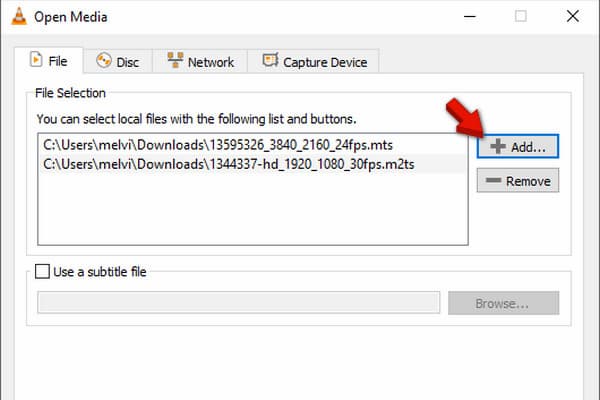
1. Open VLC and press Ctrl + R to access the Open Media window. Go to File, then click + Add to add the MTS or M2TS source. After you import them, click Convert/Save to proceed.
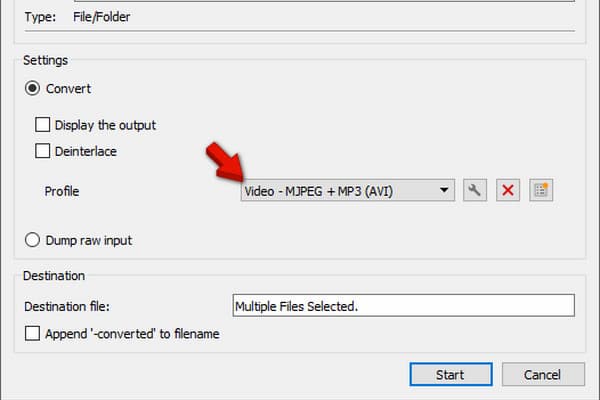
2. In the Convert window, navigate to the Profile picker. Select the Video - MJPEG + MP3 (AVI) profile. Right after selecting the format, click Start to render the video.
In our assessment, VLC is only good for one-time conversions. We found out that it has audio and video synchronization issues when handling large AVCHD files. For batch conversions, fast processing, and maintaining video quality, you need a professional MTS/M2TS converter.
If you need to convert hundreds of MTS/M2TS without losing quality, AnyMP4 Video Converter Ultimate is your best partner if you need to convert hundreds of MTS/M2TS without losing quality. It can handle high-bitrate AVCHD footage from Sony, Panasonic, Canon, JVC, and other camcorders. With it, you can convert MTS/M2TS to AVI and 500+ other formats. You can also choose to encode AVI in DivX, H.264, MJPEG, MSMPEGV3, MSMPEGV2, or Xvid. It uses advanced hardware-accelerated media processing to speed up the conversion by up to 120×. Notably, it can convert more than 100 files simultaneously without lag or crashing the software.
Secure Download
Secure Download
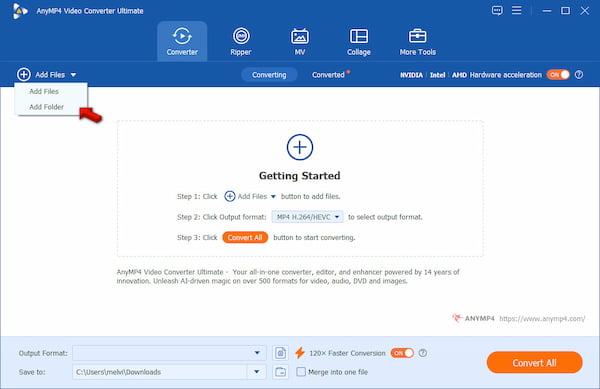
1. Download AnyMP4 Video Converter Ultimate and complete the setup. After installation, go to the Converter tab and click +Add Files to load the MTS/M2TS video(s). You can convert one or more MTS/M2TS files at a time.
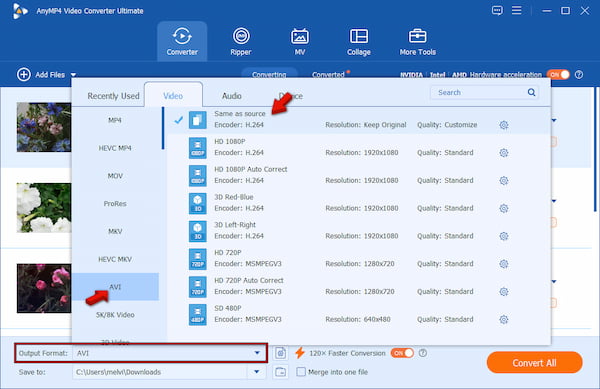
2. Click the Output Format picker and select AVI under the Video Category. Next, choose a quality preset that matches your source's quality. To change the video encoder, click Settings and choose MJPEG for lossless editing or Xvid for compatibility with legacy hardware players.
3. Go back to the main interface and turn on Hardware Acceleration. Also, toggle the 120× Faster Conversion button to speed up conversions. Set the output destination in the Save To field, then click Convert All to batch convert AVCHD to AVI without quality loss.
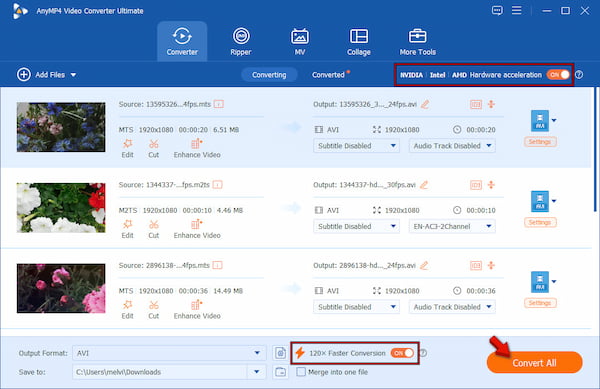
To evaluate AnyMP4's capabilities in terms of quality, batch conversion, and fast processing, we conduct hands-on testing. In our test, we use 55 MTS and 45 M2TS videos, totaling 2.31 GB. It took only 3 minutes and 24 seconds to encode AVCHD footage to AVI. In our video quality assessment, we found no degradation in the quality after the conversion.
If you don’t want to install any tool, then Online Video Converter is a convenient option. The name says it all: Online Video Converter is an online MTS/M2TS-to-AVI converter, period. With it, you can upload MTS/M2TS files up to 4 GB. Besides, your uploaded files are safe because they are deleted from the server after 24 hours.
To convert: The conversion process is simple and requires only 3 easy steps. First, click Choose Files to upload the MTS file from your computer. You can also import from cloud services or via URL. Next, choose AVI as your target output under the Video tab. Finally, click Convert to start the conversion.
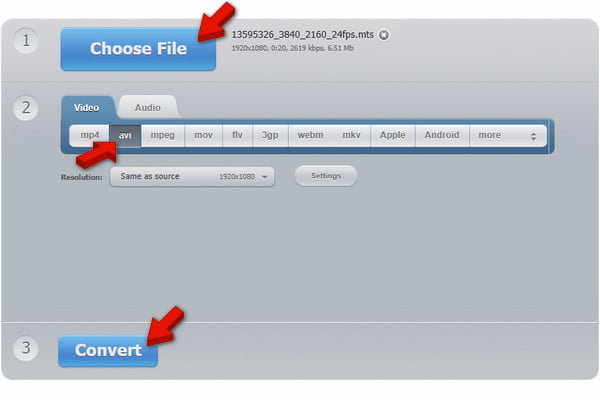
A 4 GB upload limit on a free tool initially seemed too good to be true. But there's a catch: upload and processing speeds depend heavily on your internet connection. For converting large MTS files, desktop software like AnyMP4 remains the better choice.
Why can’t my computer play .mts files from my Sony camera?
Your computer cannot open MTS files because it lacks the necessary AVCHD decoder. Another reason is that the files have been removed from their folders, which breaks metadata links.
What is the best free MTS-to-AVI converter without a watermark?
For a free, watermark-free MTS-to-AVI conversion, Online Video Converter is the best option. However, it has a 4 GB limit on file uploads. If you want to convert videos without file size limitations, opt for AnyMP4 Video Converter Ultimate.
Does converting M2TS to AVI reduce video quality?
Yes, converting the M2TS file format to AVI will affect video quality. M2TS is usually high-definition, whereas AVI is not a modern video encoding format. Thus, it does not support advanced compression methods, which results in a larger video.
Converting MTS/M2TS to AVI ensures higher compatibility with older media players, video editors, and other older hardware. VLC Media Player and Online Video Converter are good enough for quick and one-time conversions. However, if you need to batch-convert large MTS/M2TS videos, AnyMP4 Video Converter Ultimate is the best tool. If you need fast, stable, and high-quality conversions, AnyMP4 Video Converter Ultimate is the right choice.
 Updated by Alice Thorne to Convert Video
Related Articles
 Free Online GIF Converters | Convert GIF to AVI Simply
Want to play GIF files on other players or software? The first step would be to convert GIF to AVI. In this post, we will show you top 5 FREE GIF Converters to help you convert GIF to AVI.
 Top 3 Methods to Convert MOV Video Files to AVI Format
This is a comprehensive guide of 3 100% working methods to convert your MOV video files to AVI format, so that you can watch them on Windows 10/8/7 smoothly.
 Top 7 Methods to Convert MTS to MP4 Video
Get the best solution to convert MTS to MP4 in HD quality. After that, just feel free to edit and play converted MTS videos to any video editor or portable device.
 10 Best AVI Players That Bring You the Real Home Cinema Experience
Want to play AVI files on Windows or Mac computers? Here are 10 AVI video players for Windows and Mac to bring a smooth visual experience. Just read and check.
 Add your comments to join the discussion here