3 Ways to Convert WAV to OPUS (2026 Guide)
Quick Summary of 3 Methods of Converting WAV to OPUS:
- AnyMP4 Video Converter Ultimate: The top recommendation for fast, high-quality batch processing on Windows and Mac. It gives you full control over variable bitrates and finishes large folders of files in seconds.
- Audacity: A powerful free, open-source editor ideal if you want to trim, clean up, or edit your tracks before exporting them to OPUS using local libraries.
- AConvert: A handy web-based tool for quick, on-the-go conversions directly in your browser without installing extra software when you only have a single file.
If you've been working with uncompressed audio, you probably already know that raw WAV files are massive giants. They hog storage on your PC and take forever to upload online.
That is why you need to convert WAV to OPUS. The OPUS codec is a little wizard for audio. It gives you high sound quality at a tiny fraction of the file size. Therefore, when you chat on Discord, build WebRTC apps, or just want to save room, shrinking WAV into OPUS in a small size is super handy. In this guide, we will share 3 easy ways to get it done without any fuss.
|
Skill Level |
Best For |
Time Needed (per file) |
File Size Reduction |
Bitrate Control |
Batch Conversion |
Keeps WAV Master Safe |
Cost |
Platform |
| AnyMP4 Video Converter Ultimate |
Beginner |
Batch jobs & speed |
5 seconds |
80% - 90% |
Full VBR & CBR |
Yes |
Yes |
Paid (Free trial) |
Windows & Mac |
| Audacity |
Intermediate |
Free editing & freedom |
1 minute |
80% - 90% |
Good |
Manual plugin macro |
Yes |
Free & Open Source |
Windows, Mac, Linux |
| AConvert |
Beginner |
Quick single files |
30 seconds |
80% - 90% |
Limited |
Rare / Paid |
Yes (download only) |
Free (with ads/caps) |
Web Browser |
Method 1 (Recommended): Convert WAV to OPUS in Batch - AnyMP4 Video Converter Ultimate
If you have multiple WAV audio library that need to convert to OPUS, but need an easy tool to handle, then AnyMP4 Video Converter Ultimate is one of the best options. It can convert audio and video conversions across more than 500 formats with ease including WAV, OPUS, FLAC, MP3, WMA, etc. Besides, it combines fast processing, broad format support, and batch conversion into a clean interface, so that even beginners can do that with ease.
Here is a closer look at what makes it stand out for converting WAV to OPUS:
- • Up to 70x Speed with Hardware Acceleration: A massive 2.4 GB WAV archive converts in minutes, not hours. The GPU acceleration is so efficient that your computer's cooling fan doesn't even need to spin up.
- • Batch Conversion: it supports converting multiple WAV to OPUS files at one time to save your time.
- • Bitrate/Sample-Rate Settings: You can choose 64 kbps for clear voice recordings, 128 kbps for audio podcasts, or up to 192 kbps for music.
- • Built-in Editor (Trim / Merge / Effects): Clean up your files right inside the app before you compress them. Cut the dead air at the start and end of your tracks to keep your final file sizes as lean as possible.
1. After downloading this software for free on either a Windows or a Mac computer, launch it.
Click the prominent Plus (+) button in the middle of the main interface or drag and drop your WAV files directly into the conversion queue area.

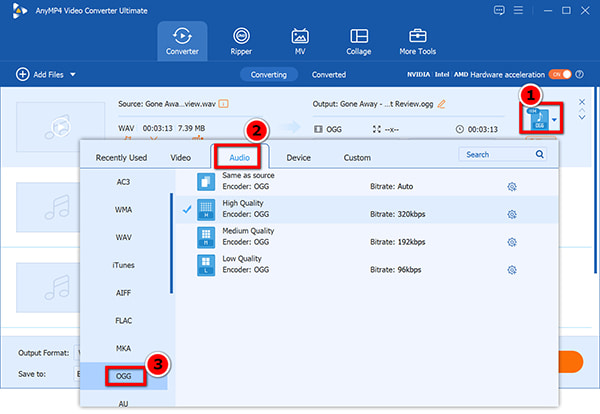
2. Navigate to the Output Format drop-down menu located at the bottom left or next to your imported file list.
Select the Audio tab from the top category bar, scroll down the left-hand codec list, and pick OGG.
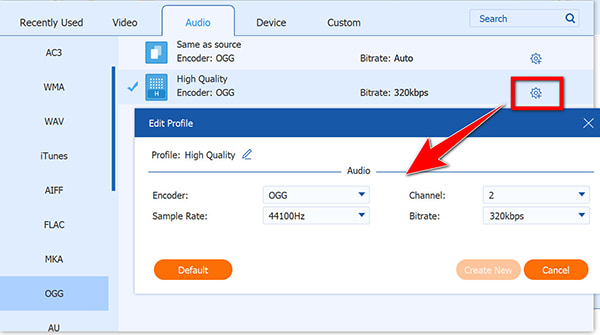
Click the profile gear icon to open settings, find the OPUS codec, and choose your target best OPUS bitrate (128 kbps is usually the sweet spot for a great balance).
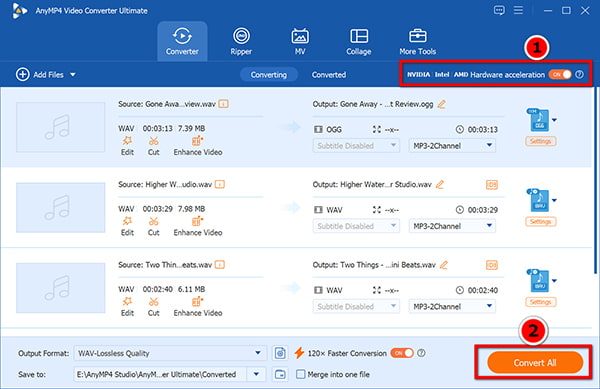
3. Back to the main interface, select your destination output folder at the bottom of the window, then click the large Convert All button in the bottom right corner.
Don't set your bitrate past 192 kbps unless you love giant files. OPUS is smart and doesn't need huge numbers to sound amazing. Also, if you ever get confused about why formats sound different, check out this handy guide on FLAC vs. MP3 vs. WAV to learn more.
Personal Experience Summary:
I tested this tool with a 500MB folder of uncompressed WAV tracks. This software finished the whole batch OPUS conversion in under a minute. It is super fast and easy to use without any complicated settings or steps.
Method 2: Convert WAV to OPUS in Audacity (Free & Open Source)
If you want to convert your WAV audio to OPUS waveforms before compressing them, Audacity is a classic pick. It is a free, open-source editor that lets you cut WAV file, adjust volume, and polish tracks. It is pretty easy to export to OPUS in simple steps.
Note
Audacity won't export to OPUS out of the box on some older versions. You might need to install FFmpeg or the standalone libOPUS encoder library first.
1. Open Audacity from your application folder. Go to File > Open to browse for your source audio track on your hard drive, or simply drag the audio file directly into the empty gray workspace.
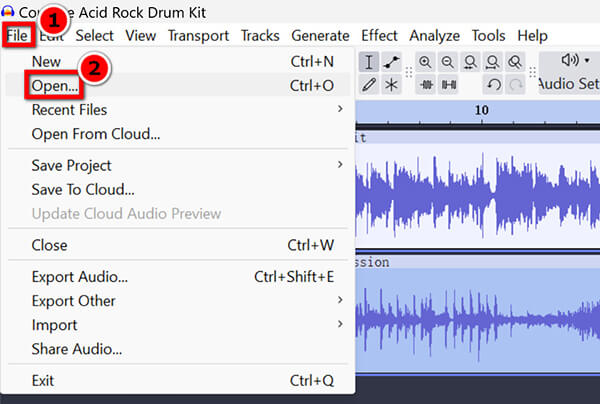
2. Use the timeline tool to make any cuts or audio adjustments if needed.
Click on File in the top left menu bar, hover over Export Audio, choose your destination folder from cloud service or local computer, and select OPUS Files.
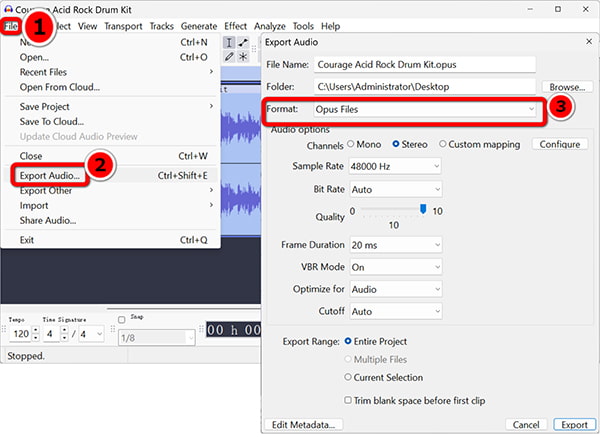
In the export metadata and settings popup window, fine-tune your quality sliders or bitrate targets.
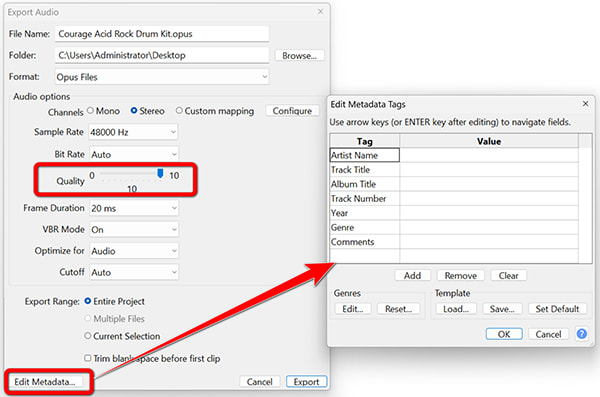
3. Click the Export button to complete the WAV to OPUS process.
If you want to convert WAV to OPUS for compressing an audio file, then Audacity can also help. Just follow this guide to compress audio in Audacity.
Personal Experience Summary:
Audacity is great if you want to trim or clean up audio before you encode it. It takes a couple extra clicks compared to a dedicated desktop app, but it is totally free and gives you deep control over the final sound.
Method 3 (Alternative): Free Online WAV to OPUS Converters - Quick, With Limits
If you need a quick solution without installing any desktop software, a web WAV converter like AConvert Audio to OPUS works well for one or two small files. You just need to open your browser, drop your WAV file on the page, and let their servers handle the conversion in seconds.
1. Open your web browser and go to the official conversion page at https://www.aconvert.com/audio/wav-to-opus/.
Click the Choose Files button on the web page to open your local WAV file and add it to the server.
Note
AConvert will block you if your WAV audio file exceeds 40 MB per file.
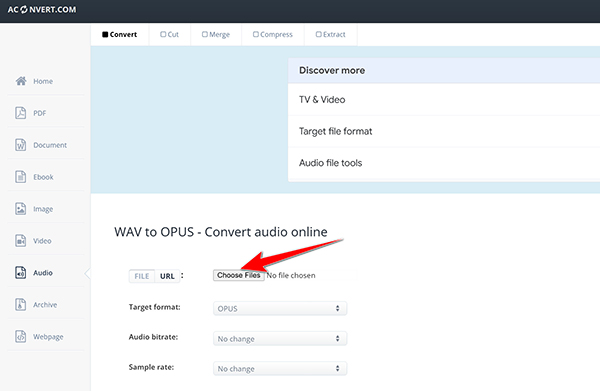
2. Confirm that the target format option is set to OPUS in the drop-down settings menu. You can also change the OPUS bitrate and sample rate before moving the next step.
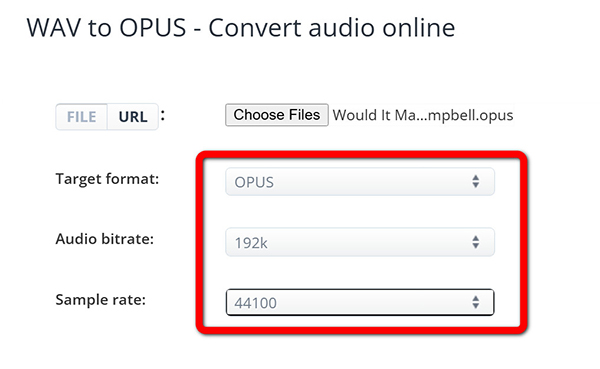
3. Click the green Convert Now! button and wait for the server progress bar to reach 100%.
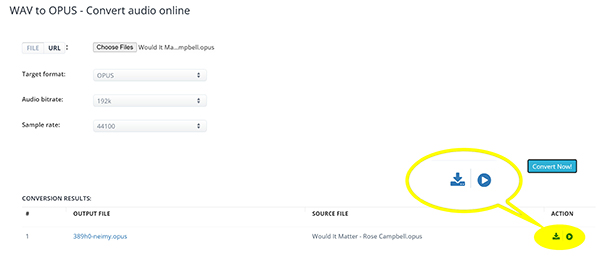
Download your newly converted file back to your local storage drive from the output results list. You can also use its preview feature to preview the converted OPUS file.
Personal Experience Summary:
It's very convenient when you have WAV files on a computer or mobile phone. But the slow upload speeds make it frustrating for large WAV music batches. Besides, this website is outdated in its interface, and there are ads, so you should be careful.
OPUS Is Lossy - When You Should NOT Convert WAV to OPUS
OPUS uses lossy compression, meaning it throws away tiny bits of sound data that human ears can't easily hear. This is how it shrinks files down so well.
If you are doing professional studio mixing, mastering, or archiving your master recordings, do not throw away your original WAV files. Always keep your uncompressed masters safe on an external backup drive. Only use OPUS for streaming, gaming chat on Discord, web publishing, or saving space on your mobile phone.
FAQs About Converting WAV to OPUS
Is converting WAV to OPUS lossless?
No. OPUS is a lossy audio format. It uses smart psychoacoustic tricks similar to Vorbis to reduce file size, meaning some minor audio data is permanently removed during the process.
What is the best bitrate for OPUS?
For most people, a bitrate between 128 kbps and 160 kbps offers near-transparent quality. If you want ultra-small files for voice chat, 32 kbps to 64 kbps works wonders.
How much smaller is OPUS than WAV?
An OPUS file encoded at typical settings is usually about 80% to 90% smaller than a raw WAV file. A massive 50MB WAV can easily shrink down to a neat 5MB file.
Does OPUS support 96 kHz or hi-res audio?
While you can input high sample rate files, the internal processing engine standardizes at 48 kHz. Even so, it delivers amazing clarity that beats older formats easily.
Can iPhone or iTunes play OPUS files?
Older Apple devices don't support OPUS natively, but recent iOS updates and third-party apps handle it fine. For broader compatibility, convert OPUS to MP3 instead.
Is OPUS better than MP3?
Yes, absolutely! OPUS beats MP3 by a mile. It gives you much better sound quality at much lower bitrates, making it a favorite for modern web apps, WebRTC, and Discord chats.
Conclusion
Want to convert your WAV files down to OPUS to save disk space without trashing your music's quality? Just pick the right settings for what you are working on.
- • If you want the fastest results without headaches, grab a dedicated desktop tool like AnyMP4 Video Converter Ultimate to convert WAV to OPUS on Mac or Windows tasks in bulk.
- • If you love tinkering with free settings, Audacity is your best friend. Choose the workflow that fits your daily routine, clear out that clutter, and enjoy your newly optimized audio files!


 Add your comments to join the discussion here