
Video compression reduces the file size of a video while maintaining its quality. This process is essential for easier storage, faster uploading, and smoother sharing. Compressed videos take up less space and are quicker to share on email, messaging apps, or social media. Without proper compression, your high-quality video may be too large to upload. This forces you to either lower the quality manually or split it into multiple parts. With numerous video compressors available today, it can be challenging to determine which tools are legitimate and effective. This post will cover the best free video compressors currently available for both desktop and online use. Our goal is to help you easily identify and choose the right tool, as we’ve tested these compressors in real scenarios. We evaluate their performance, ease of use, compression quality, and other key factors.
| Video Compressor | Video Compressor | Format | Resolution | Output Size | Quality Retention | Batch Compression | Watermark | Speed | Usability |
|---|---|---|---|---|---|---|---|---|---|
| AnyMP4 Video Converter Ultimate | 28.73 MB | MP4 | 2704×1520 | 17.22 MB | Retained |  |
|
16 seconds | Basic |
| FFmpeg | 52.63 MB | MKV | 1920x1080 | 26.65 MB | Good | |
|
3 minute and 38 seconds | Advanced |
| Movavi Video Converter | 24.12 MB | MPEG | 720×576 | 4.71 MB | Average |  |
|
1 minute and 28 seconds | Intermediate |
| VideoProc Converter AI | 137.14 MB | MP4 | 2160×4096 | 96 MB | Good | |
|
4 minutes and 57 seconds | Intermediate |
| FlexClip | 5.92 MB | MP4 | 1280×720 | 3.15 MB | Average | |
|
2 minutes and 15 seconds | Easy |
| FreeConvert | 36.63 MB | MP4 | 1280×720 | 28.73 MB | Good | |
|
3 minutes and 53 seconds | Easy |
| VideoSmaller | 28.7 MB | MP4 | 1280×720 | 18 MB | Compromised | |
|
2 minutes and 22 seconds | Easy |
| CapCut | 59.21 MB | MP4 | 1920x1080 | 44.40 MB | Good | |
|
2 minutes and 16 seconds | Easy |
The best video compressor should reduce the file size of videos without compromising the quality. When choosing a video compressor, certain features make the difference between a frustrating experience and a reliable tool. Below are the key features to look for in a good tool:
Compatibility:
Compatibility ensures that you can use the tool regardless of the operating system you're working with. Online compressors, for example, should work smoothly across browsers without requiring heavy downloads.
Compression Quality:
A high-quality compressor minimizes visible loss, preserving sharpness, color accuracy, and detail. Poor tools make videos pixelated, blurry, or blocky, especially when reducing file sizes aggressively. A good tool achieves size reductions while maintaining a watchable and professional video.
File Size Control:
Instead of only guessing how much the tool will shrink your video, a good compressor lets you specify the exact file size. This control is crucial when you need to upload videos to meet platform limits without trial and error.
Supported Formats:
A versatile video compressor should support a wide range of video formats. Different platforms and devices favor specific formats, so format flexibility ensures you don’t waste time converting files through multiple tools.
Ease of Use:
User-friendliness is a major factor, particularly for those unfamiliar with video compression. A good video compressor should offer an intuitive interface that allows even beginners to compress videos with just a few clicks.
Batch Compression:
For those working with multiple videos, batch compression is a time-saving feature. Instead of compressing files one by one, a good compressor allows you to process several videos simultaneously.
No Watermarks:
Many free compressors leave watermarks on the compressed videos. A good compressor should offer watermark-free results by default. This ensures your videos remain clean and usable for personal, professional, or commercial use.
Speed:
A high-performance compressor should process videos quickly without compromising quality. Advanced compressors utilize GPU acceleration and optimized algorithms to expedite the process. This matters for users handling large files or those with limited time to spare.
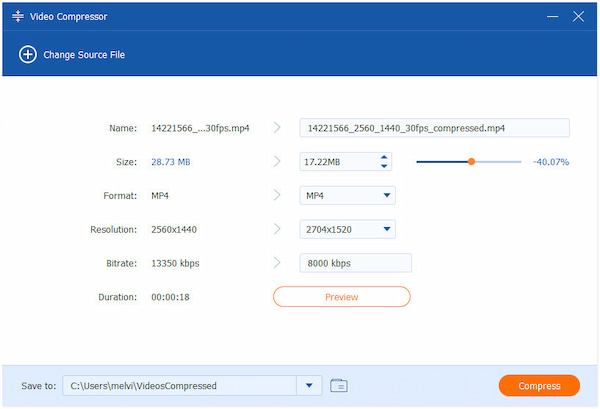
AnyMP4 Video Converter Ultimate is a desktop software that operates more than just converting media. It comes with a professional video compressor tool to reduce video size. It supports more than 500 media stream formats, including MP4, MKV, MOV, AVI, WebM, and others.
Secure Download
Secure Download
The free video compressor tool allows you to adjust the compression rate, set a target output file size, select your preferred resolution, and modify the video bitrate. It also includes a preview function, where you can check the compression effect before finalizing. You can export videos in MP4, MKV, WebM, MOV, AVI, WMV, M4V, ASF, and more.
What You’ll Like:
What to Consider:
What Users Say:
I found AnyMP4 Video Converter Ultimate made compressing videos straightforward. I particularly liked the feature that let me directly enter the exact desired output file size. I tested it with a 4K video, and it successfully reduced the file size without compromising quality.
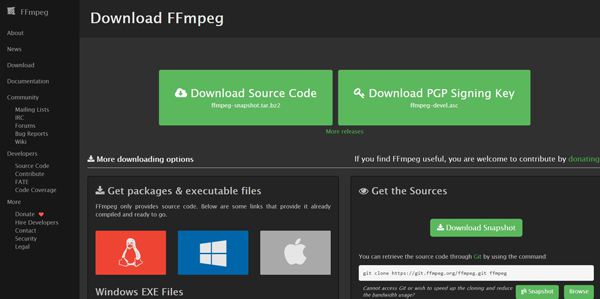
FFmpeg is a multimedia framework used by professionals for video and audio processing. FFmpeg compresses video through command-line input, which requires some technical expertise. You can lower video file size by adjusting the bitrate, changing codecs, and downscaling resolution. This free video file compressor is unmatched in terms of power, customization, and efficiency.
What You’ll Like:
What to Consider:
What Users Say:
The first thing I noticed about FFmpeg was its power and flexibility. After determining the correct commands, the results were impressive. However, getting to that point was not easy.
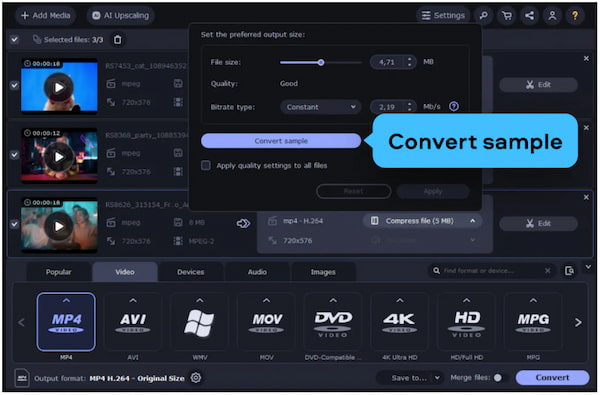
Movavi Video Converter is among the best video compressors for Windows and Mac. It allows you to reduce file sizes quickly without requiring deep technical knowledge. It includes different device and platform presets, enabling you to compress videos for smartphones, tablets, or online sharing. Beyond compression, it also provides basic video editing tools.
What You’ll Like:
What to Consider:
What Users Say:
I was impressed by how easily Movavi Video Converter shrank down some of my video files. However, the quality dropped noticeably when I tried compressing a video too much.
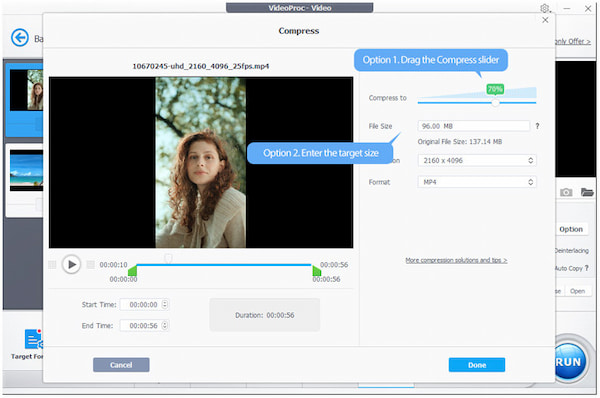
VideoProc Converter AI is a modern video processing tool that uses AI technology to improve compression efficiency. Many consider it the best video compressor software for compressing 4K, HD, and long-duration videos. It supports batch compression, allowing you to process multiple files simultaneously. You can also adjust resolution, format, and bitrate.
What You’ll Like:
What to Consider:
What Users Say:
I ran VideoProc Converter AI to compress one of my large 4K clips, and I was surprised by how fast it worked. However, it wasn’t all smooth. I noticed some blurring, color banding, and loss of fine detail that I didn’t detect until after the full export.
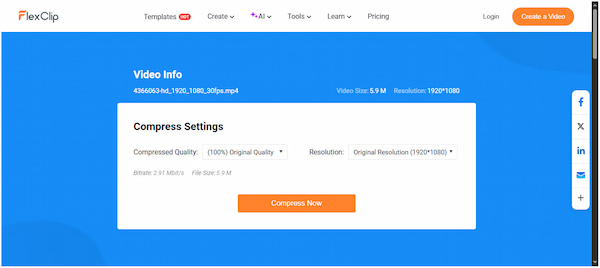
FlexClip is a free online video compressor to easily reduce video file size. It accepts various video formats as input, including MP4, M4V, MOV, and WebM. It allows you to adjust the compression quality from 10% to 100% to effectively reduce the video file size. Regarding the final resolution, you can either retain the original setting or select from the presets.
What You’ll Like:
What to Consider:
What Users Say:
FlexClip initially helped me determine the appropriate compression level. However, it had a drawback: compressing larger files took a significant amount of time.
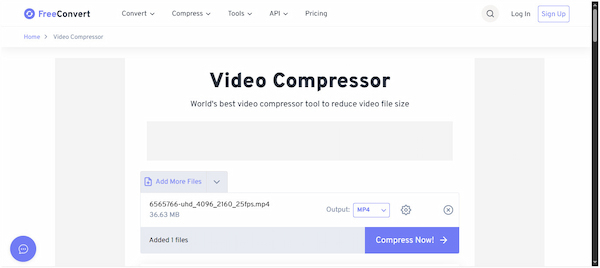
FreeConvert is one of the best free video compressors online with high customization options. It allows you to select your target file size (in percentage or megabytes), video quality, resolution, or bitrate. Additionally, it can handle large file uploads up to 1GB for free. You can save the compressed video in MP4, FLV, MKV, AVI, MOV, or 3GP format.
What You’ll Like:
What to Consider:
What Users Say:
I liked that I could upload videos from a local device, or even from cloud storage or a URL. However, the compressed output was slightly larger than my target because it attempted to strike a balance between quality and size.
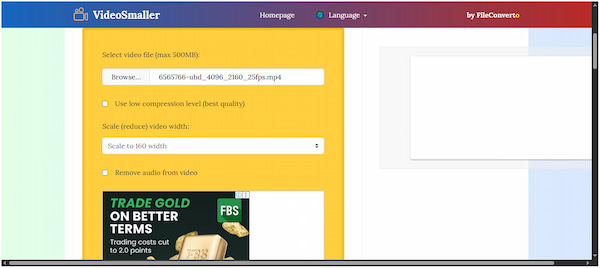
VideoSmaller is a straightforward tool to reduce the MB of a video, making it the best video file compressor. It allows you to compress MP4 video files up to 500MB with the option to remove audio. It also offers options such as reducing the video width to scale down the resolution. This option allows you to directly lower the file size of your video.
What You’ll Like:
What to Consider:
What Users Say:
I tried compressing a few videos with VideoSmaller, and the compression didn’t take too long. However, the video showed noticeable blur, blocky artifacts, and a loss of sharpness.

CapCut Free Video Compressor is part of CapCut's growing suite of online editing tools. It offers a browser-based video compression feature that reduces file sizes while maintaining good playback quality. Because it’s integrated with CapCut’s editor, you can compress videos and immediately proceed to edit them. Its compression is fast and doesn’t put stress on your device.
What You’ll Like:
What to Consider:
What Users Say:
In many of my tests, moderate compression resulted in files that were significantly smaller than the originals. However, CapCut seemed to reduce quality automatically, even when I didn’t ask it to.
Choosing the best free video compressor can make a difference in how easily you store, share, and upload your videos. After testing both desktop and online tools, it’s clear that a good video compressor reduces file size efficiently while maintaining the original quality. Among all the tools we tested, AnyMP4 Video Converter Ultimate stands out as a top choice. It combines professional compression features, support for multiple formats, file size and quality control, and a user-friendly interface.
 Posted by Mark Cristobal to Editor
Related Articles
 10 Best Laptops for Efficiently Video Editing on Windows and Mac
We assemble a list of the best laptops for video editing with a few high-end options that provide great experiences when processing videos anywhere and anytime.
 MKV Splitter – Pros and Cons of Top 5+ MKV Splitters (Free & Paid)
Here're top 5+ MKV splitter software for Windows and Mac. You can split large MKV files into two, three and even more parts without quality loss.
 5 Best Split-Screen Video Editors to Make Stunning Split Screen Video
When you want to make a side-by-side video with stunning effect, you can learn the 5 best split-screen video editors for Windows and Mac from the article.
 Updated Review of 8 Video Stabilizers (Software and Application)
Please get to know the best 8 video stabilizer software and applications to stabilize video. Let us dig deep into their features, pros, and cons.
 Add
your comments to join the discussion here
Add
your comments to join the discussion here