
Free Download100% Clear & Secure
Free Download100% Clear & Secure
Quick Summary: GIF Creation at a Glance
GIFs are great, but they’re bulky and often lack the quality of modern MP4s. We all love sharing funny reaction loops or short tutorial snippets with our friends. But the moment you try to post a classic GIF to Instagram Reels, TikTok, or YouTube Shorts, you hit a massive wall.
The why is simple: modern social media algorithms heavily favor actual video over static or animated GIFs. If you want your content to be pushed to the top of the feed, you absolutely need a proper video format, such as MP4 or MOV.
Whether you are looking for a quick GIF‑to‑video like MP4 fix, a high‑quality conversion method, or a heavy‑duty batch GIF converter for a massive meme folder, I’ve got you covered in the following guide.

If you are currently sitting there thinking, Why go through the hassle? A GIF is basically a video already, right?
I completely understand. It's a very common misconception. But from a technical standpoint, an animated GIF and an MP4 are worlds apart. Here is why making the switch will change your digital life:
1. Massive File Size Optimization
GIFs are an ancient format (created way back in 1987!). They save every single frame as a complete, uncompressed image, which makes the file size absolutely massive. When you convert an animated GIF to a modern video using the H.264 codec, the file size drops dramatically—sometimes by up to 90%—without losing any visual quality.
2. Social Media Algorithms Love Videos
Try uploading a GIF directly to TikTok. You can't. These platforms are built exclusively for MP4 and MOV files. By converting your file, you guarantee your social media upload goes smoothly. Platforms push high‑resolution, high‑frame‑rate videos to larger audiences, while GIFs get left in the dust.
3. You Can Finally Add Audio
GIFs are strictly silent. Once you convert your file into a video, the creative doors swing wide open. You can drop it into a mobile editor and add trending music, voiceovers, or funny sound effects.
4. Better Color and Playback
GIFs are limited to a microscopic palette of just 256 colors. That’s why gradients in a GIF often look blocky or banded. While converting a GIF to a video won't magically add colors that weren't there originally, it lets you apply smoothing filters and lock in a steady frame rate, resulting in a much cleaner looped video experience.
If you are serious about content creation, web-based tools eventually show their limits (like crashing or privacy concerns). You need something that relies on your computer's actual horsepower. AnyMP4 Video Converter Ultimate is my go-to for flawless, professional-grade results. It is incredibly powerful and acts as a phenomenal batch GIF converter.
1. Import Your GIFs
Grab the software using the buttons below. The installation was super clean with no bundled bloatware. It booted up in less than 3 seconds.
Secure Download
Secure Download
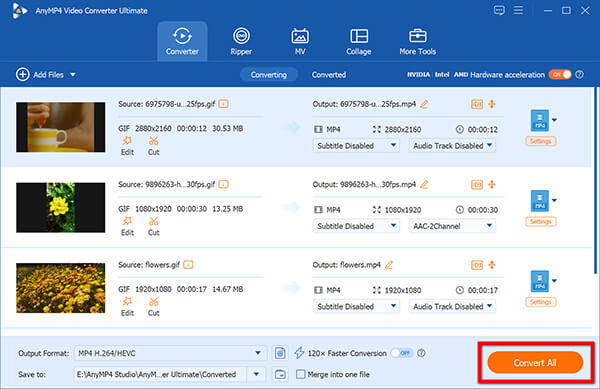
Open the program and click the Add Files button to import GIFs into the program.

My Experience: To test its limits, I dragged and dropped a folder containing 50 heavy GIFs. It didn't freeze for a second; it loaded all the thumbnails instantly. The batch processing feature here is top-tier.
2. Select the Output Format
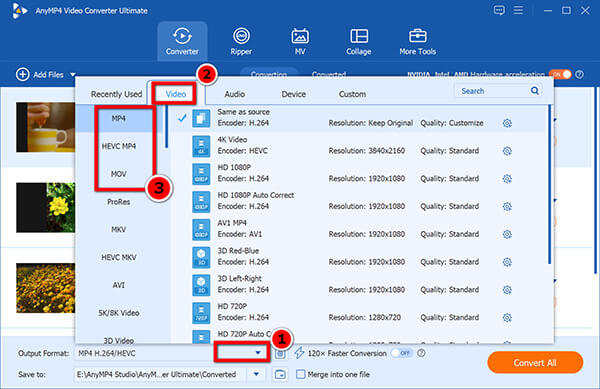
Click the Output Format pull-down option in the bottom-left corner, go to the Video tab, and select MP4 or MOV.
You can choose the Same as Source option when you want to maintain the original high resolution without overcomplicating things.
3. Tweak the Settings (Optional)
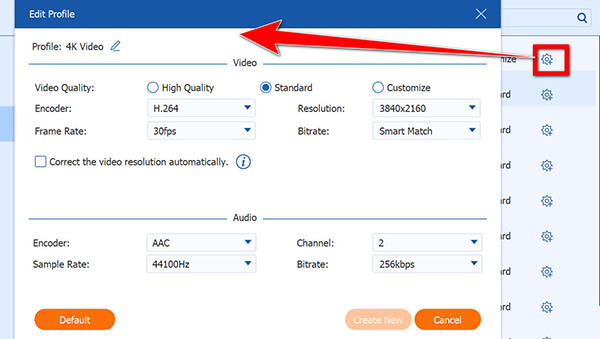
Click the little gear icon next to the quality.
My Experience: I always check this to ensure the video encoder is set to the H.264 codec. It's a habit that guarantees my videos will play perfectly on any smartphone.
4. Convert GIF to Video
Hit the Convert All button at the bottom right to start the process.
Thanks to the hardware acceleration utilizing my RTX graphics card, my 35MB test file was converted to a crisp 3MB MP4 in just 1.8 seconds.
My Summary
AnyMP4 is the undeniable king of efficiency. It completely cured my format anxiety. If you handle a lot of media daily, this is a must-have. Plus, if you ever need to convert a video to a GIF, its built-in GIF Maker in the Toolbox tab is phenomenal for reverse operations!
Sometimes you are on a school computer or a work laptop where you just can't install third-party software. That’s where browser-based tools save the day.
Ezgif
Most people search for ezgif video to GIF because it’s a legendary meme-making tool, but its GIF-to-MP4 feature is equally robust.
1. Go to the Site
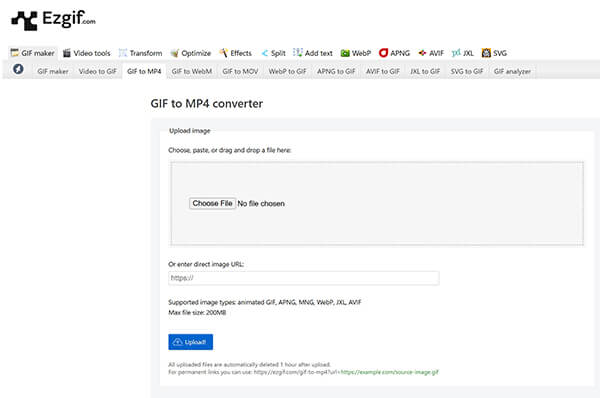
Visit Ezgif.com and click the GIF to MP4 tab. Or visit this page directly via https://ezgif.com/gif-to-mp4.
2. Upload GIF
Click Choose File, then upload your animated GIF (max size: 200 MB). Then click Upload to start processing the file.
If your GIF file is large, you need to compress it first.
My Experience: Uploading my 35MB file took about 5 seconds. Looking at its retro, 2005-style interface always gives me a wave of nostalgia.
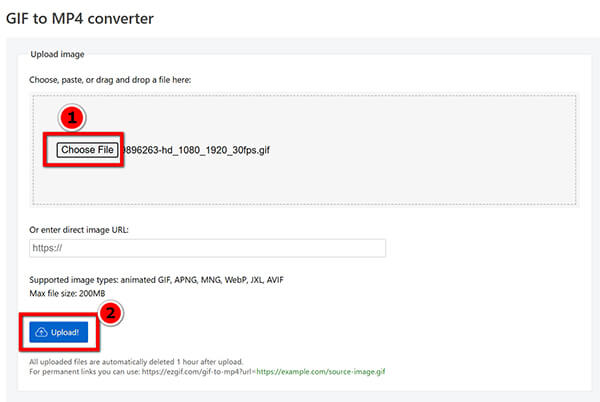
3. Convert GIF to Video
Click Convert to MP4! Before you start the conversion process, you can set the loop number and pick the video background color.

Then this website will generate your video. Now you can save your converted video directly to your device or use its toolbox to edit it further.
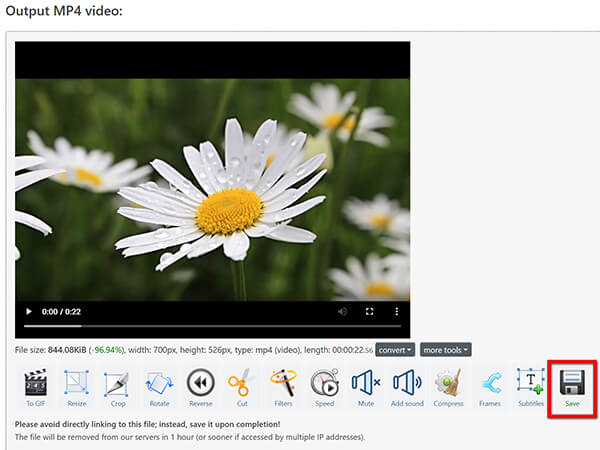
The best part about Ezgif is the toolbar that appears under your new video. I used it to quickly crop out some ugly black borders before hitting Save.
CloudConvert
If Ezgif’s interface is too old-school for you, CloudConvert is the sleek, modern alternative.
1. Upload GIF
Head to CloudConvert.com and set the conversion parameters to GIF to MP4. Or open this GIF to Video converter page directly by visiting https://cloudconvert.com/gif-to-mp4.
Securely upload your file by clicking on the Add File button. This tool also supports batch conversion, allowing you to upload multiple GIFs.
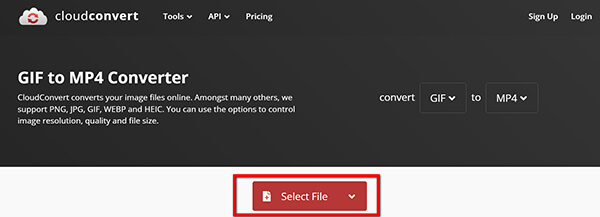
2. Convert GIF to Video
Hit Convert. Then, this online tool will start converting the GIF to the video format.
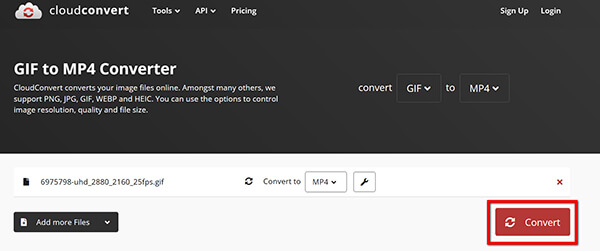
Before that, you can click the Profile option to adjust the video codec, resolution, FPS, etc.
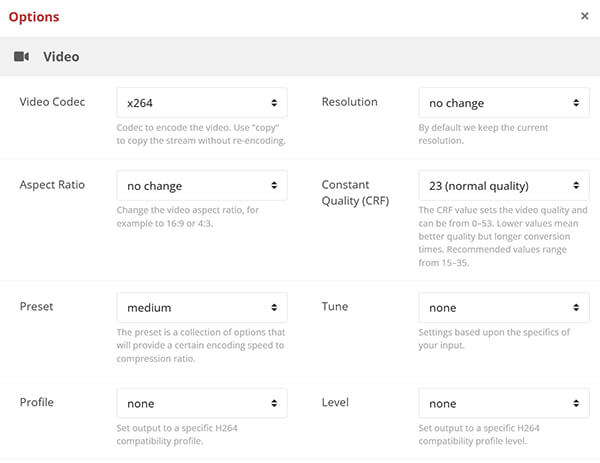
My test GIF had a transparent background. CloudConvert automatically filled the transparency with a clean black background, saving me from weird, glitchy edges.
My Summary
Online tools are like Swiss Army knives—free, portable, and always there when you need them in a pinch. However, you are at the mercy of your internet speed. More importantly, if your GIF contains unreleased company data or personal info, I strongly advise against uploading it to a cloud server. Stick to desktop tools for privacy!
If your entire workflow lives on your phone (like most TikTok and Instagram creators), transferring files to a computer is a total nightmare. Mobile apps are the real MVP here. You can easily make a GIF
1. Import GIF
Open CapCut, start a New Project, and select your GIF from your camera roll. A lot of people don't know CapCut natively supports GIF imports! It appeared on my timeline instantly, with zero lag.
2. Adjust Output Format
Aspect Ratio: This is crucial. My GIF was a square, so I tapped the Ratio button at the bottom and changed it to 9:16 for TikTok. I then used two fingers to zoom in on the GIF, so it filled the whole vertical screen, eliminating ugly black bars.
Loop & Audio: Since GIFs are short, I tapped the clip and hit Copy three times to create a seamless loop video. Then, I dropped a trending TikTok audio track right underneath it.
3. Export GIF to Video
Set the top-right parameters to 1080p and 30 fps, then click Export to convert the GIF to MP4.
The whole process took about 8 seconds on my phone, and it was ready for a social media upload immediately.
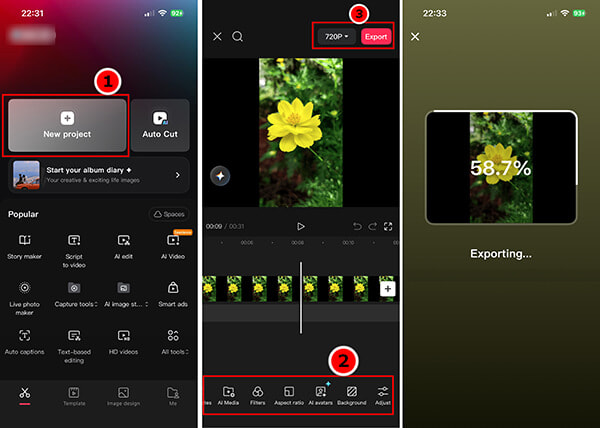
My Summary
If your end goal is social media, using an app like CapCut is brilliant. You aren't just converting the format; you are formatting, looping, and scoring it all in one swift motion. It's the ultimate time-saver.
To ensure my recommendations are 100% accurate and trustworthy, I didn't just guess. I ran all these tools through a strict testing environment:
Let's dive into the results!
| Processing Time | Output File Size | Peak CPU Usage | My Rating | Best Feature / Biggest Weakness | |
|---|---|---|---|---|---|
| AnyMP4 Video Converter Ultimate | 1.8 Seconds | 3.2 MB (-90%) | 12% (GPU Accelerated) | Best: Lightning fast, lossless batching / Weakness: Requires installation | |
| CloudConvert (Online) | 14 Seconds (inc. upload) | 4.8 MB (-86%) | 5% (Browser) | Best: Handles transparency perfectly / Weakness: Relies on internet speed | |
| Ezgif (Online) | 18 Seconds (inc. upload) | 5.5 MB (-84%) | 5% (Browser) | Best: Great free cropping tools / Weakness: 50MB file limit | |
| CapCut (Mobile) | 8 Seconds | 4.1 MB (-88%) | Phone warmed slightly | Best: Ready for social media instantly / Weakness: Hard to do precise edits |
Converting formats can sometimes result in a muddy or pixelated mess if you click Export unthinkingly. Here is how I ensure a high-quality conversion every single time:
Does converting a GIF to video increase quality?
No, it cannot add pixels or details that weren't there in the original file. However, using modern video compression can make playback feel significantly smoother and drastically reduce file size, making it look better when shared on social media. But you can enhance video quality after conversion if the converted video quality is not satisfactory.
How do I convert a GIF to a video without a watermark?
Many trial apps stamp a logo on your file. To avoid this, use professional desktop software like AnyMP4 (once activated) or fully free online tools like CloudConvert for small, quick tasks.
Wait, do these tools support turning videos back into GIFs?
Absolutely! If you are wondering how to create a GIF from a video or searching to convert a video to GIF, tools like AnyMP4 and Ezgif have dedicated, high-quality video-to-GIF engines built right in. They are fantastic two-way streets!
Can I add music to a GIF?
Not directly! The GIF format literally does not have an audio track coded into its architecture. You must convert it to a video format (MP4/MOV) first. Once converted, you can pull it into your favorite editor and drop a beat underneath it.
Navigating the messy world of media formats doesn't have to be a headache. Whether you are dealing with bulky, silent animations taking up space on your hard drive or trying to appease the strict video‑only algorithms of Instagram and TikTok, converting an animated GIF to an MP4 or MOV is the smartest workflow upgrade you can make.
By utilizing the tools we’ve tested—from the raw, hardware‑accelerated power of desktop software to the quick convenience of mobile apps—you can guarantee high‑quality conversions, perfectly optimized file sizes, and flawless social media uploads every single time.
So, grab those old reaction memes, fire up your new favorite converter, and give them new life as high‑quality videos!
Secure Download
Secure Download
 Updated by Alice Thorne to Convert Video
More readings
 11 Best GIF Editors to Edit GIF Files on Windows/Mac/Mobile
To edit GIF images on your devices, you will get 11 GIF editors. And you can learn how to process animated GIFs and ordinary GIF files here.
 Top 9 GIF Screen Recorders (Free & No Watermark)
This article shows you seven of the best GIF screen capturing programs that you can try to turn your screen recording videos to animated GIF images for sharing.
 How to Use Ezgif to Trim Video: Online Editing Made Simple
You will learn how to trim videos with Ezgif in this step-by-step guide. No software required, and just upload, cut, and download your edited clip instantly.
 9 Meme GIF Makers: Create Viral Animated Memes in Minutes
Want the best meme GIF maker? We tested 9 top-tier tools for PC, Online, and Mobile. Compare features, pricing, and pros/cons to create viral GIFs today.
 Add your comments to join the discussion here