How to Add Music on Google Slides: A Full 2026 Guide
Cloud-based office apps have emerged over time as the preferred option for creating documents, spreadsheets, and presentations for both professional and academic purposes. Easier file sharing and collaboration are the most obvious benefits of migrating to these options. In this article, we provide a detailed guide on how to add music to a Google Slides presentation, ensuring that your visuals not only look better but also sound professional. We will provide a comprehensive tutorial on three options for adding audio media to enhance the quality of your presentations.

Part 1. Why Add Music to Google Slideshows
Enhance Engagement
When used correctly, audio files inserted into slideshows can greatly improve the engagement factor of your presentation. This highly promotes the creativity, engagement, and entertainment skills of both the editor and their target audience.
Set a Mood
Setting the mood for a presentation is crucial, as it significantly enhances the quality of your presentation and helps capture your target audience. Aside from static visuals in your photo slideshow maker, adding background audio will significantly enhance the mood and messaging that your slideshow conveys.
Provide Emphasis
To create a compelling slideshow, you must utilize your creative skills to effectively emphasize key points in your presentation. This is where background audio takes the stage. When used correctly with proper visuals and well-placed music, it will leave a lasting impression and effectively emphasize the message you want to convey.
Part 2. Add Music to Google Slides from Google Drive
Best Used For: Adding music to your slideshows from uploaded files on your Google Drive storage.
If you are looking for a solution to learning how to add music to a Google Slideshow, the first option that you should learn how to use is the built-in one. Fortunately, adding music to Google presentations can be done using the editor's Insert function.
This option uses your Google account’s Google Drive MP4 or MP3 files to be added to your slideshow. Unfortunately, this made using local files inconvenient, as you would have to upload your local audio to Drive first before making it available in Google Slides.
Although inconvenient to some users, the extra step of uploading audio to Google Drive first may be worthwhile for certain presentation editors. With that in mind, you may now read our three-step guide below to learn how to add audio in Google Slides using the built-in insert option.
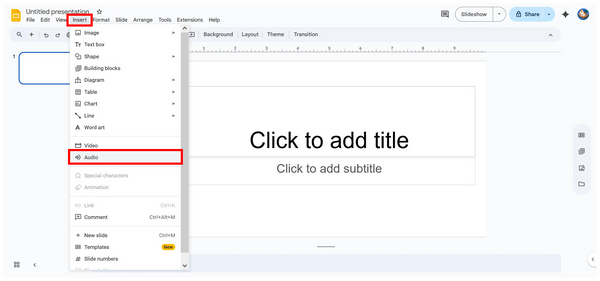
1. Open Google Slides and then select the Insert option from the taskbar. Then, click on Audio from the drop-down menu that appears.
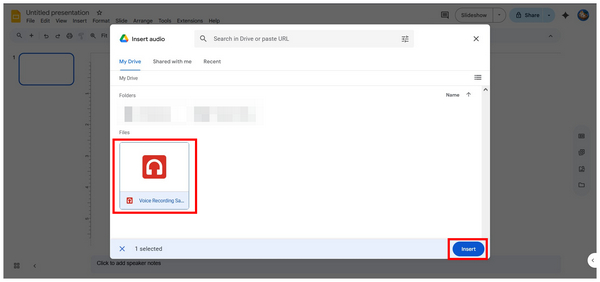
2. In the Insert Audio menu that will open, select the audio file you want to add from your Google Drive storage. Then, click on Insert to confirm your selection.
3. With the audio file added to your presentation, you can now edit the file’s Audio Playback options according to your preference. You can adjust the file’s playing cue, volume, loop, and other audio-related adjustments.

Among the options in this list, the built-in option for adding music to Google Slides is likely the most convenient. However, you need to ensure that the files you will use for the presentation are uploaded to your Drive first.
Part 3. Add Music to Google Slides with AnyMP4 Video Converter Ultimate
Best Used For: Creating video slideshows outside Google Slides with advanced editing options and formatting settings.
Although the cloud-based option of Google Slides is very convenient, its reliance on a stable internet connection could cause issues for users on the go. In this case, using an offline slideshow maker is more advisable, and AnyMP4 Video Converter Ultimate is one of the best tools for the job.
Compatible with both Windows and macOS computers, AnyMP4 Video Converter Ultimate’s MV Maker feature is designed to create video slideshows using pre-designed templates, themes, video filters, and audio files from your local storage. This eliminates the need to upload your file to Google Drive first, which makes adding audio much more convenient.
Unlike Google Slides, presentations created using this third-party tool are saved in video format for a smoother slideshow experience. This also enables the program to support a wider variety of file formats, including MP4, MOV, WMV, AVI, MKV, and GIF.
To learn how to create video slideshows with music in AnyMP4 Video Converter Ultimate, make sure to refer to our three-step guide below. For an easier time following each step, please download the program using the provided link.
1. Open AnyMP4 Video Converter Ultimate and proceed to the MV Maker tab. Then, select the Add button to import the media files you want to use for the video slideshow.

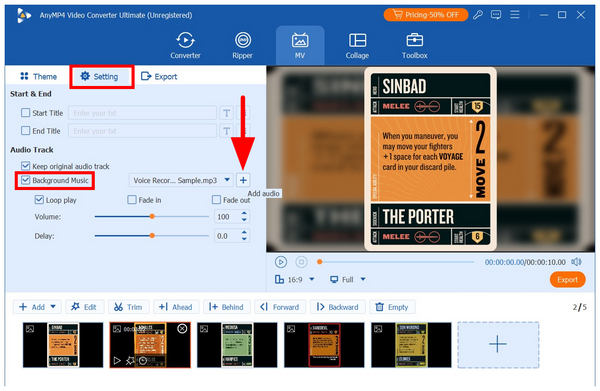
2. With the slideshow media added to the MV Maker, proceed to the Setting tab. There, click the checkbox beside Background Music, then select the Add Audio button to browse your local storage for the music file you want to use.
3. Once the background music and visual adjustments you want to apply have been added, proceed to the Export tab. You may now edit several output settings for your file, including its Format, Frame Rate, Resolution, and Quality. Once done, click on Start Export to begin producing your slideshow video.
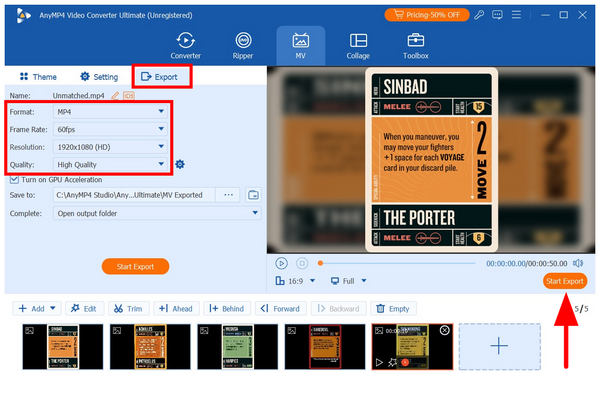
Although the slideshow you will create from AnyMP4 Video Converter Ultimate is not a traditional slide, its function and usage remain the same. In fact, using slideshow video makers is often the better option for specific events, such as weddings, birthday parties, and other social gatherings.
Part 4. Add Music to Google Slides via Copying YouTube Links
Best Used For: Adding videos to your Google Slides presentation from YouTube.
Now that we have provided two convenient options for users, I was wondering if you could add music to a Google Slideshow. Let us not proceed to using external sources using link-based insertions with YouTube.
Unfortunately, adding music from YouTube URLs is not currently available in Google Slides. However, inserting videos supports YouTube as an online source. When used correctly, this can be a good alternative, as linked videos still play their audio files in Google Slides.
Although this only works as an emergency option for convenience and easier plug-ins, learning how to insert YouTube videos into your Google Slides could still be helpful, especially if you want to add an uploaded voiceover on Google Slides from your YouTube video.
In this case, please refer to our three-step tutorial below on how to use YouTube links to add video files to Google Slides.
1. Open Google Slides and then click Insert from its taskbar. Then, select Video from the drop-down menu.

2. Go to YouTube and search for the video you want to add to your presentation. Copy its link.
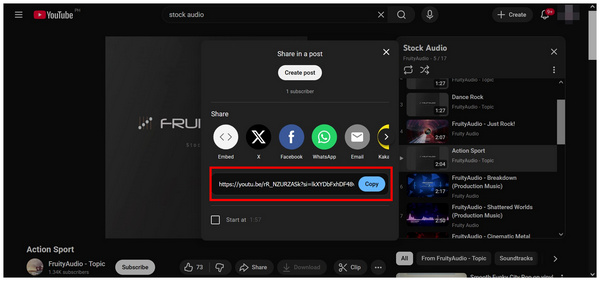
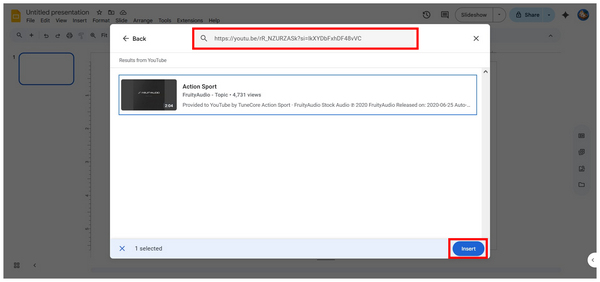
Go back to Google Slides and paste the YouTube link in the Insert Video menu. Click on Insert to confirm the added video link.
3. Once the YouTube video is added, you can now edit the Video Playback settings from the Format Options menu. These include the playing cue, duration, and mute audio options.
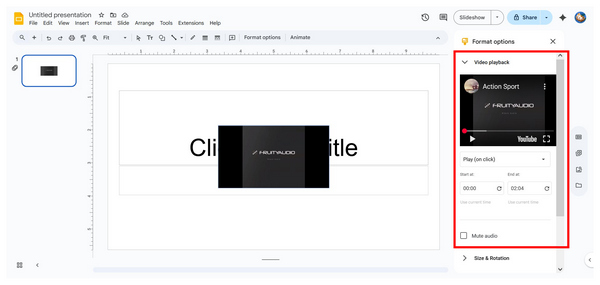
Since YouTube links are added in the same way as images, the steps to add them to Google Slides are very similar. However, adding YouTube links is more convenient since it does not require uploading any media files to Google Slides.
Part 5. Bonus Tips for a Seamless Experience
Use Royalty-Free Music to Avoid Copyright Issues
If you plan to share your presentation for corporate use or on social media, ensure you use royalty-free music to avoid potential copyright issues. If you fail to do so, you may face consequences such as content shutdown.
Keep the Audio File Size Reasonable for Smooth Playback
Since you will only use the audio file for background purposes and mood setting, you must ensure that both its file size and duration are reasonable for the role that it will play. This will ensure that your background audio plays smoothly. Keep both your file size and duration optimized for background use.
Test on Different Devices Before Presenting
To ensure that both your presentation’s visual elements and background audio work well, you must watch or play each slide on different devices. The common standard in this case is to play the slideshow from start to end, both on desktop and smartphone.
Part 6. FAQs About Adding Music in Google Slides
Can I add music directly to Google Slides?
Yes, you can. However, you can only do so for files on your Google Drive. You cannot add local files directly to Google Slides.
What audio formats are supported in Google Slides?
Google Slides supports a wide range of commonly used file formats, including MP3, WAV, FLAC, and others. However, it is more advisable to just use MP3 instead. It works best due to its compressed file size and good quality.
Can I loop music throughout the entire presentation?
Yes, you can. Google Slides supports this function. It can be edited in the audio playback options once your music file is added.
Is it hard to learn how to insert audio in Google Slides?
No, it is not. Adding audio in Google Slides is easy to do. You only need to learn how to use the insert button and how to upload files to Google Drive.
Does Google Slides support adding audio from local storage?
No, it does not. Google Slides can only add audio from media uploaded to Google Drive. To add music from local storage, you must first upload it to Google Drive.
Conclusion
Now that the options for adding music to a Google Slideshow have been discussed and tutorials have been provided, we hope this article has given you useful information on enhancing the quality of your presentations by using background music. If you think that a video slideshow works best for your event, make sure to download AnyMP4 Video Converter Ultimate and use its MV Maker to create your own presentation with audio.




 Add your comments to join the discussion here