How to Insert/Add Music to PowerPoint Slideshow
When creating slideshows and presentations, adding music is one of the most useful additions for professionals and students who want to upgrade their visual aid production skills. As such, starting with one of the most popular slideshow software with, Microsoft PowerPoint is a good start. In this article, we will provide a detailed guide on learning how to add music to PowerPoint slideshows while also discussing common audio plug-in issues, the playback settings, simple troubleshooting, and the best alternative tool for creating video slideshows.

Part 1. Problems of Adding Music to PowerPoint Slideshows
One of the most common problems when adding music when using PowerPoint photo slideshow maker is the issue with audio playback, which stops by default when you advance to the next slide in your slideshow.
Moreover, similar problems are also rooted in the default playback settings, such as when the audio will start, whether it is played in the background, whether the audio should loop, and other similar adjustments.
With some of the most common problems now addressed, let us proceed to the tutorial on how to put a song into PowerPoint presentations. Some of the issues mentioned in this section will also be addressed in the following parts of the article.
Part 2. How to Add Music to PowerPoint Slideshows
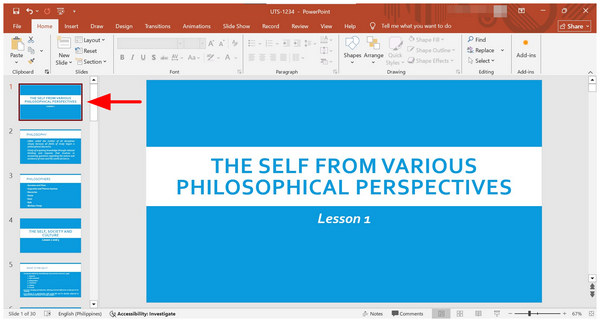
1. Open Microsoft PowerPoint and then choose the slideshow you want to edit or create a new one. Once done, select the First Slide.
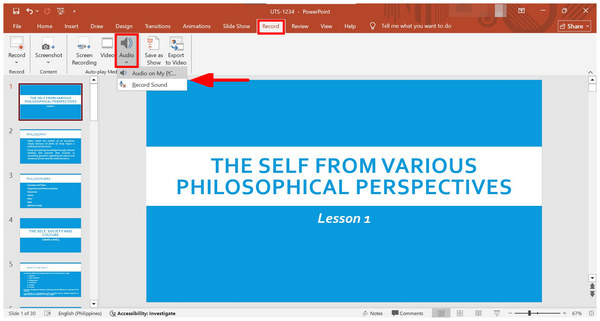
2. Next, go to the Record tab and then select Audio. Then, choose the audio source of your choice, either from your Local File or through live Recording. The more advisable source is using your local files instead.
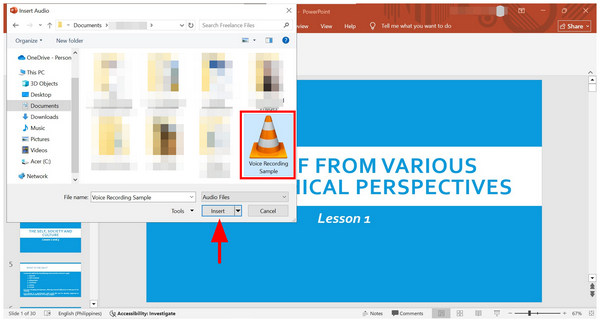
3. Locate the audio file from your local storage that you want to add to your slideshow. Then, navigate through your files and select Insert after choosing the audio you want to use.
With these three basic steps, you have learned the basics of learning how to embed music in PowerPoint. However, adding the music in PowerPoint is not the end, since you will have to adjust its playback settings for a smoother audio embedding.
Part 3. Crucial Step: Configuring Seamless Playback Settings
In this section of the article, we will explore the most common problems in editing audio playback to ensure that issues such as stopping music, looping, resetting, and other unwanted effects do not occur.
1. Select the Audio you have added by clicking the Speaker icon in your slideshow. Then, go to the Playback tab under Audio Tools.
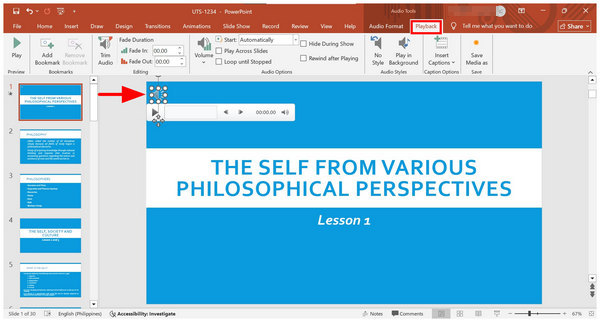
2. To edit the audio file’s start trigger, select the drop-down button next to Start. There, you have three options: In Click Sequence, Automatically, and When Clicked On.
Click Sequence will play the audio when you click anywhere on the slide with your mouse. Automatically, the audio will play immediately when you open the slide, and When Clicked On, it will play when you click the Audio icon on the slide.
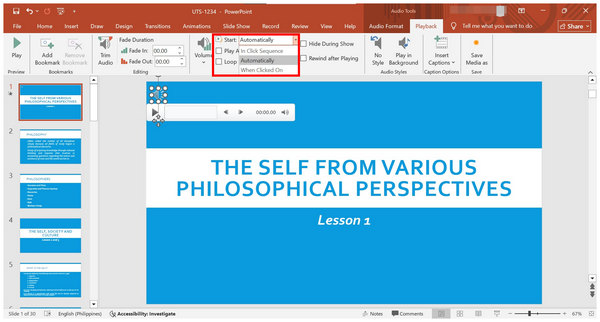
3. Finally, you can now edit how the audio will run using the Audio Playback options. Using these checkboxes, you can make the music Play Accross Slides, Loop Until Stopped, or Rewind After Playing. If you want the audio icon to be hidden, you can also select Hide During Show.
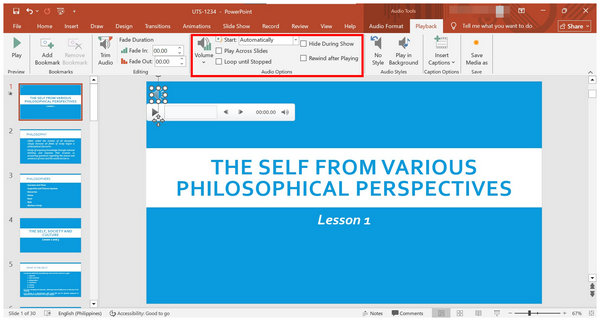
Using these featured playback settings, you have now learned both how you add music to a PowerPoint slideshow and how it will play. You can now set whether it will play throughout the presentation, loop, or only play in a defined slide.
Part 4. Troubleshooting Common Issues
Music Won't Play on Another Computer
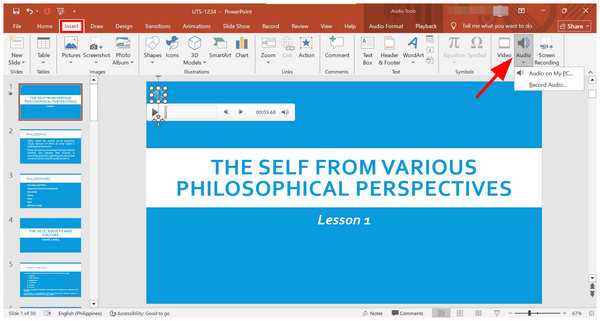
If your media file won’t play on PowerPoint in another computer, you have to change how the audio has been added to your slideshow. Instead of using the Audio option in the Record tab, use the one in the Insert tab instead.
Music Stops Exactly After One Slide
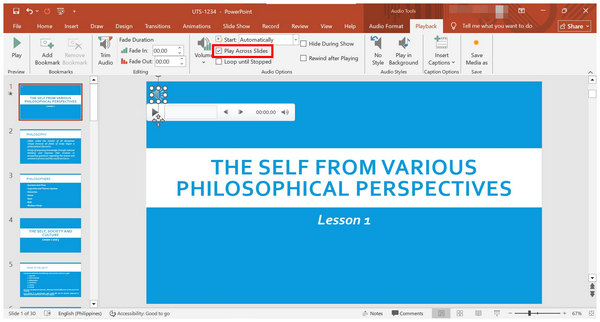
To play your music across multiple slides, select the Speaker icon, navigate to the Playback tab, and then check the box labeled Play Across Slides. Enabling this setting will make your audio play not only from a single slide.
The Speaker Icon is Visible
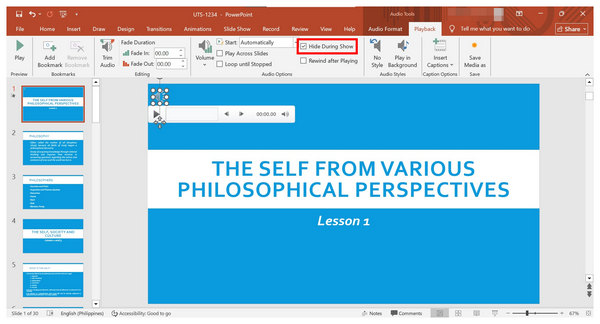
For certain types of presentations, the Speaker Icon may impact the visual appeal of your presentation. To hide it, click on the Speaker Icon, go to the Playback tab, and then check the Hide During Show option. However, this option has a limitation, as you can only use either the Automatic or Click Sequence options to start the audio.
Part 5. Alternative to Add Music to Slideshows
Now that we have discussed the basics and essential skills for adding audio to PowerPoint slideshows, using an alternative that is generally easier to use might be of interest to other users who find PowerPoint’s options too confusing. As such, using AnyMP4 Video Converter Ultimate to create video slideshows with smooth audio playback is advisable.
Available for both Windows and macOS computers, AnyMP4 Video Converter Ultimate features a fully functional MV Maker designed for creating video slideshows. Since it was designed to make one, it is equipped with pre-designed templates, visuals, video effects, themes, music, and other options for making high-quality slideshows.
However, unlike PowerPoint, presentations produced with this alternative are saved in a much more accessible video format. This also enabled it to support a wider range of file types, including MP4, MKV, MOV, JPEG, PNG, GIF, and others, for slideshow production.
If you plan to use a video slideshow or are overwhelmed by the playback settings of audio files in PowerPoint, AnyMP4 Video Converter Ultimate is a great alternative tool on the market.
To learn how to use the program for video slideshow editing, please read our three-step guide below, which outlines the essential steps for using the MV Maker feature. Do not forget to download the software for an easier time following our guide.
1. Open AnyMP4 Video Converter Ultimate and move to the MV Maker tab. Next, select the Add button to add the files you want to edit for the video slideshow.

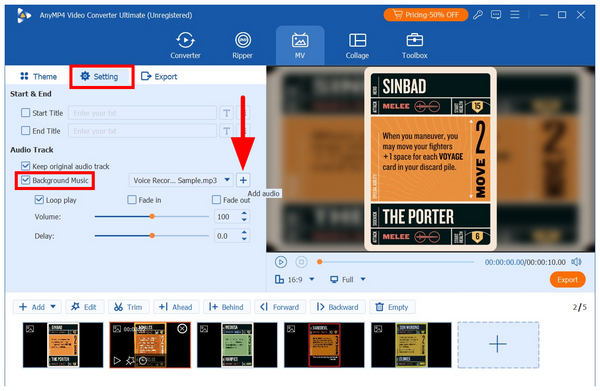
2. To proceed to adding audio to your slideshow, go to the Setting tab. Then, select the Background Music checkbox, and click the Add Audio option to access your local storage for the file you want to use.
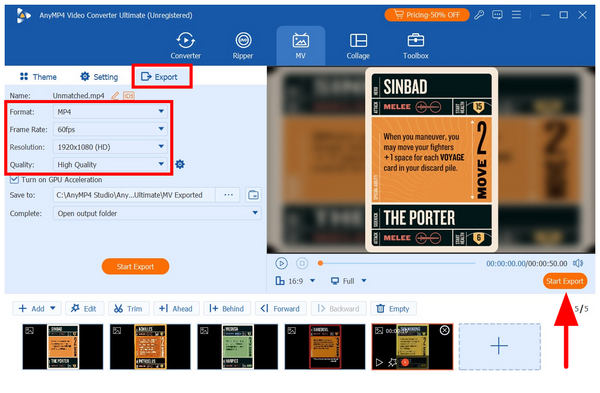
3. With your video slideshow now embedded with audio, proceed to the Export tab. Here, you have access to more advanced video output settings, including Format, Frame Rate, Resolution, and Quality. When you are satisfied with these adjustments, click on Start Export to create your slideshow video with seamless audio playback.
Since AnyMP4 Video Converter Ultimate allows you to add background music with just a few clicks, it works better if you plan on creating slideshows that are meant to be viewed as a video. It also eliminates the need to edit the music playback, as the alternative tool optimizes the audio to match the slideshow’s duration.
Part 6. FAQs About Adding Music to PowerPoint Slideshow
Can I add music to a PowerPoint slideshow?
Yes, you can. Adding audio files to PowerPoint presentations is a straightforward process. It can be done using either the Record for recording PowerPoint presentations or the Insert tabs.
How do I make music play automatically in PowerPoint?
You have to edit the Playback settings of the music file you have added. Select the menu beside Start to indicate how the audio will trigger. Among them, select Automatically.
What audio formats are supported in PowerPoint?
You have three options if you plan on adding music files to PowerPoint. You can choose among MP3, M4A, and WAV formats. Among these options, both MP3 and WAV are advisable, as the former is known for its compact file size and the latter for its high audio quality.
Can I add background music to a PowerPoint slideshow?
Yes, you can. Adding background music to a PowerPoint slideshow is possible by simply setting the correct playback options. You must use the 'Play Across Slides' and 'Loop Until Stopped' options to make the file function as background audio.
Is editing audio playback in PowerPoint confusing?
It could be confusing. Since PowerPoint is primarily designed as a visual aid production program, its audio playback settings are not optimized for simplicity. As such, they are advisable for experienced slideshow creators instead.
Conclusion
Now that we have provided a detailed guide for adding music to PowerPoint presentations, we hope this article has been helpful in providing essential information for PowerPoint users who are still unfamiliar with embedding audio in their presentations. However, if you find the audio insertion options in PowerPoint too confusing, we highly recommend using AnyMP4 Video Converter Ultimate, as it is both easier to use and produces video slideshows that are easier to play. You may download the alternative with the link below.






 Add your comments to join the discussion here