
Quick Answer:
Presentations often rely heavily on text and visuals to convey information. But what if you could add another element to engage audiences and enhance their understanding? Music has the power to transform a presentation from informative to truly immersive. It can set the mood, highlight key points, and enhance your audience’s memory retention. In this post, you will learn how to add music to PowerPoint presentations. We’ll explore the benefits of incorporating audio and provide instructions for different scenarios. This ensures your presentations leave a lasting impact.
Are you one of the many PowerPoint users questioning, Can you add music to PowerPoint? To put an end to your curiosity, the answer is YES! You can definitely add music to your PowerPoint slides. This can be a great way to set the mood, enhance transitions between slides, or add background ambiance. For instance, you’re creating a presentation about a historical event. You could include dramatic orchestral music to heighten the impact of key moments. You can also do voiceover on PowerPoint to make it more authentic and relatable. By incorporating music strategically, you can elevate your presentations. This creates a more engaging experience for your audience.
PowerPoint’s Supported Audio Formats:
PowerPoint allows you to add music to your presentation to create a cohesive atmosphere and enhance your message. For instance, you create a presentation about a bustling city. Upbeat background music can set the energy level and keep your audience engaged.
Here’s how to insert audio into a PowerPoint presentation for multiple slides:
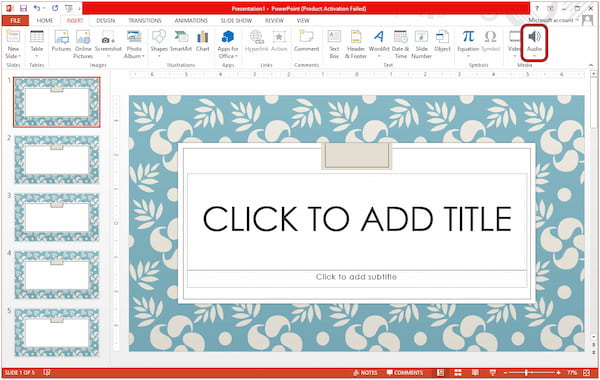
1. Open your PowerPoint presentation, head to the top ribbon, and select the Insert tab. Locate the Media section, choose the Audio option, and click it.
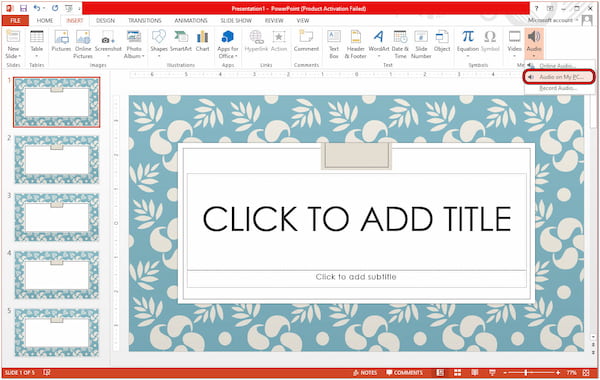
2. Select the Audio on my PC from the dropdown menu. Navigate to the folder where your music file is stored and select it.
3. The Speaker icon will appear on your slide. Click the Speaker icon to activate the Audio Tools tab on the ribbon. Under the Playback section, choose the Play in Background option.
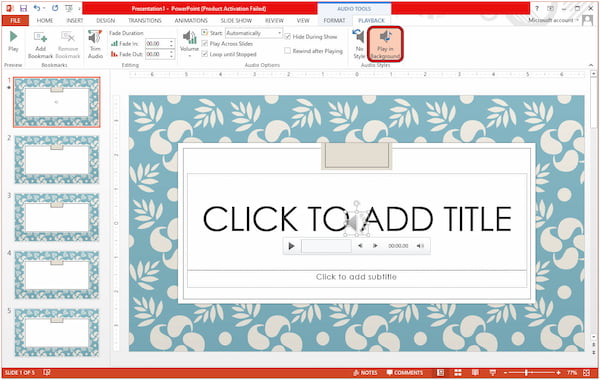
Note: Clicking this option ensures the music plays throughout the presentation.
PowerPoint allows you to add music that plays on certain slides, creating targeted emphasis. This method allows you to place music clips throughout your presentation strategically. It enhances specific slides and creates a more dynamic audience experience.
Here’s how to add audio on PowerPoint presentation for certain slides:
1. Open the PPT presentation and go to the slide where you want the music to play. Navigate to the Insert tab, look for the Media section, and select the Audio option.
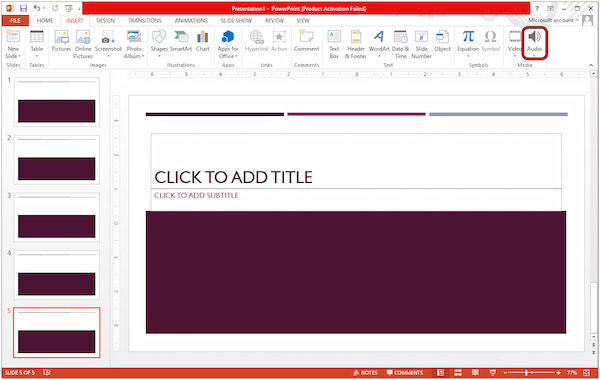
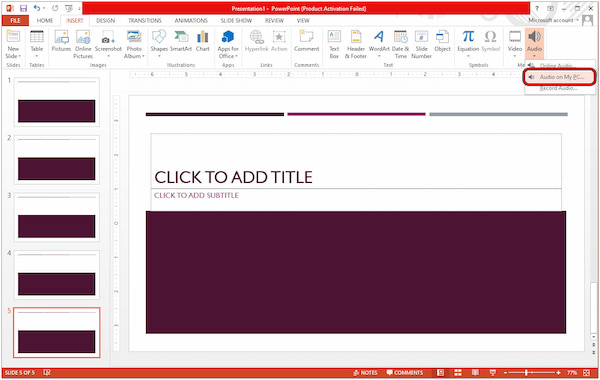
2. You’ll be presented with Online Audio, Audio on My PC, and Record Audio options. Choose Audio on My PC to open the folder where your music file is stored and select it.
3. A Speaker icon will appear on your slide. Click it to access the Audio Tools tab on the ribbon. Under the Playback section, look for the Start option and choose Automatically.
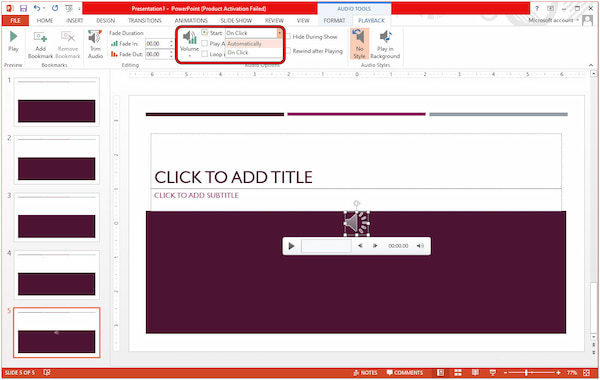
Note: This option ensures the music will play only for that slide automatically during the presentation. This eliminates the process of playing the music manually. Remember, just repeat the steps to insert music clips for other specific slides.
PowerPoint allows you to add music from your PC for customization. It lets you incorporate your desired sounds to create a more engaging presentation. This allows you to enrich your PowerPoint presentations with background music or targeted sound effects.
Here’s how to add music to PowerPoint presentation from a PC:
1. Choose a music file stored on your computer that complements your presentation’s theme and duration. Ensure your music file is saved in a PPT-supported format.
2. Launch the PowerPoint app and open the presentation you want to add music to. Click the Insert tab located on the top ribbon of the PowerPoint interface.
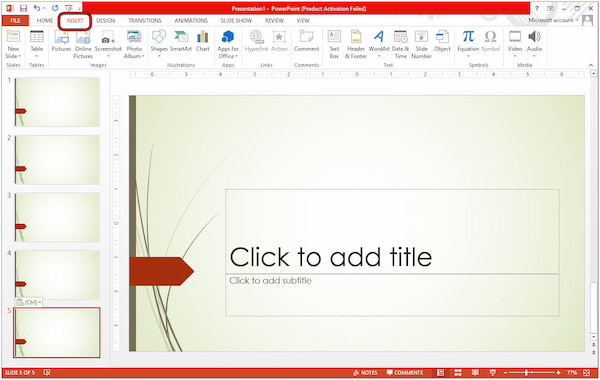
3. In the Media section of the Insert tab, locate the Audio button. Click it to access the audio insertion options. Choose the option labeled Audio on My PC from the menu.
On macOS, almost all features of PowerPoint are identical to those on Windows. The main difference you'll spot is the wording in the Insert menu (Audio from File... instead of Audio on My PC). Also, if you plan to share your presentation with Windows users later, saving your music as a standard .mp3 ensures it plays back without any weird compatibility hiccups.
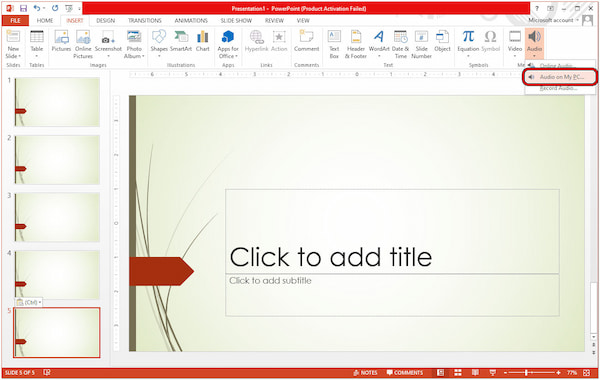
4. Select your desired music file from the file explorer window that will pop up. After loading it, a Speaker icon will appear on the slide where you clicked.
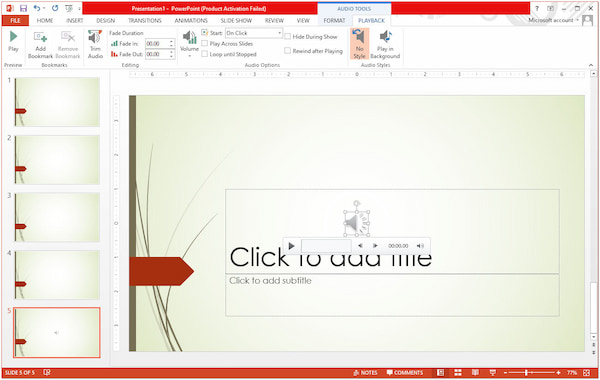
5. Click the Speaker icon to activate the Playback tab on the ribbon. Optionally, you can drag and drop the icon to a discreet location where it won’t interfere with your content.
You don't need fancy audio software to edit your background track. Just click the speaker icon and go to the Playback tab:
While PowerPoint supports common formats like MP3, WAV, and M4A, you might occasionally run into issues where a track won't play—usually due to unsupported formats (like FLAC, OGG, or AIF) or corrupted file headers.
If PowerPoint throws an error when inserting your audio, you can use a quick format converter like AnyMP4 Video Converter Ultimate. It can easily convert audio files to standard 128 kbps or 192 kbps MP3, and then you can re-insert it into your slide. As a bonus, converting high-bitrate files to MP3 also helps compress your overall presentation size so it's easier to email.
1. First, acquire the free download of AnyMP4 Video Converter Ultimate. Install the multimedia conversion software and allow the installation process to complete.
Secure Download
Secure Download
2. Once the installation process is complete, launch the AnyMP4 Video Converter Ultimate on your computer. Head straight to the Converter tab and click the + Add Files button.
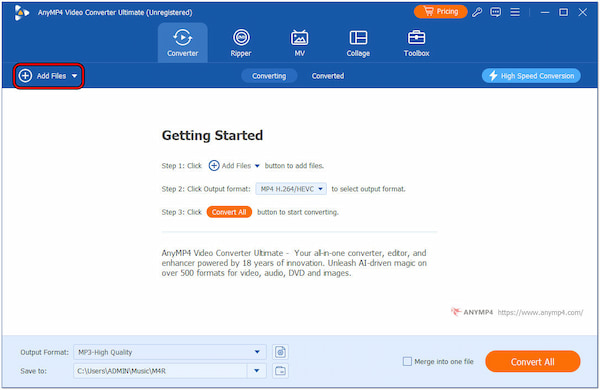
3. Load the file you want to convert. Once loaded, navigate to the Output Format section and select the Audio tab. Choose MP3 as the new format, which PPT accepts.
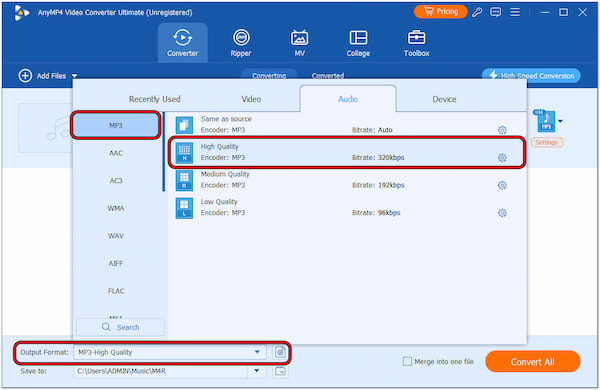
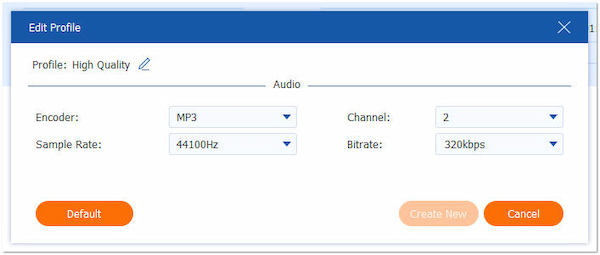
4. After selecting the new output format, click the Output Format Settings button. Here, you can customize the audio encoder, sample rate, channel, and bitrate.
5. If you prefer a specific location for your converted file, click the Save To section. It is located below the Output Format section, then select your desired folder.
6. Once you’re satisfied with your settings, click Convert All to begin the conversion. After successful conversion, return to the PPT and repeat the previous step for adding music.
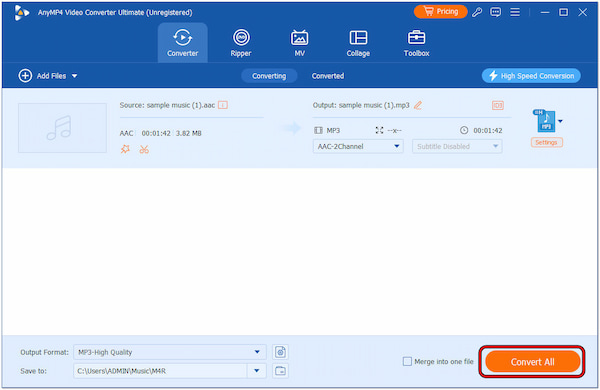
AnyMP4 Video Converter Ultimate makes the conversion of audio files to various formats easy. However, there’s a tiny catch. By default, PowerPoint is only accepting audio files with a maximum of 50MB. So, if it exceeds the required size, you need to compress audio. You can go to the Toolbox tab and look for the Audio Compressor tool for this purpose.
If you've used older versions of PowerPoint, you might remember an option to search for audio online right inside the app. Microsoft has actually removed that built-in online audio search in recent updates. But don't worry—you can still easily grab music from the web and put it into your slides.
The most important thing here is to make sure you're using royalty-free music. Using copyrighted songs (like downloading something off Spotify or YouTube without a license) can lead to copyright issues, especially if you're presenting at work, school, or uploading your slides online.
1. Download music from a safe, royalty-free site
First, download some royalty-free audio files from a reliable source. Here are some recommended websites:
Look for a track that fits your presentation's vibe, download it as an MP3 or WAV file, and save it somewhere easy to find on your computer (like your Downloads folder).
2. Insert the downloaded web audio into your slide
Once you have the file on your computer, bringing it into PowerPoint is super straightforward:
1. Open your PowerPoint presentation and click on the slide where you want the music to start.
2. Go to the top ribbon, click the Insert tab, then select Audio > Audio on My PC... (On Mac, it'll say Audio from File...).
3. Find the track you just downloaded from the web, select it, and hit Insert.
4. You'll see the little speaker icon show up on your slide. Click it, head over to the Playback tab at the top menu, and check Play in Background so it loops smoothly across your presentation.
Note for PowerPoint Web Version: If you are using PowerPoint within an internet browser (i.e., the web version of PowerPoint) rather than the desktop application, please note that its media functionality is relatively limited. You can still insert audio files, but if you need to use advanced features such as fade-out or editing, it is recommended to open the file directly in the full desktop version.
PowerPoint has an in-built feature that allows you to record audio from computer. It allows you to add your narration or sound effects directly into your presentation. This can be a great way to personalize your presentation and add emphasis to key points.
Here’s how to insert music into PowerPoint presentation by recording audio:
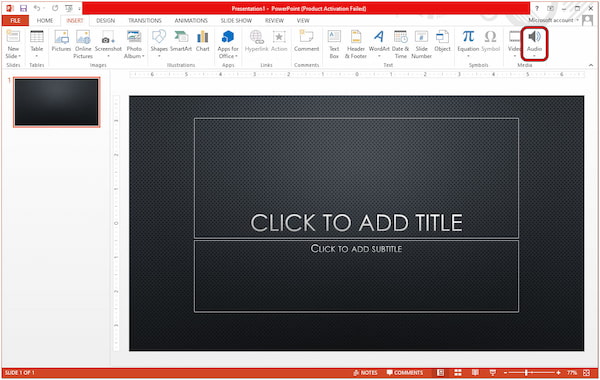
1. Open your PowerPoint presentation and head to the Insert tab. Locate the Audio option and click it. You can find this option under the Media section.
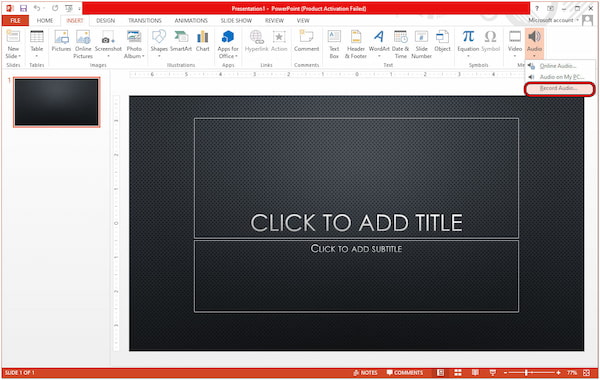
2. Select the Record Audio option from the dropdown menu that will appear. The recording window will pop up; enter a name for your recording.
3. Click the small red circle button to start capturing your audio. Speak clearly while narrating your presentation. Once done, click OK to end the recording and insert it into the slide.
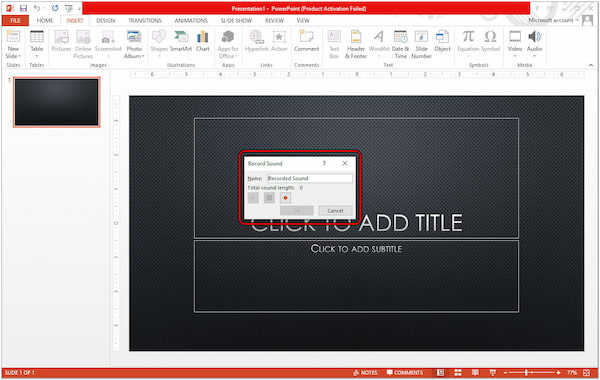
Recording audio directly in PowerPoint offers flexibility and control. You can narrate your entire presentation or add sound effects. It also allows you to record Q&A sessions for later reference.
PowerPoint's built-in recorder works great for basic voiceovers on a single slide. However, if you need to record both your voice narration and computer system audio (like background music) simultaneously, PowerPoint's native recorder has its limits.
For more complex recording needs, such as capturing a full presentation walkthrough with live audio and webcam overlay, a dedicated tool like AnyMP4 Screen Recorder can be helpful. It allows you to record system sounds and your microphone on separate tracks, adjust volume levels on the fly, and export a clean audio track ready to embed right into your slides.
1. Beforehand, get the free download of AnyMP4 Screen Recorder. Install the recording software and wait for the installation process to finish.
Secure Download
Secure Download
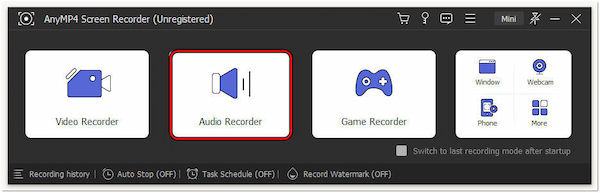
2. After finishing the installation process, launch the AnyMP4 Screen Recorder on your computer. Among the available recording features, select the Audio Recorder mode.
3. In the Audio Recorder window, toggle the Sound System and Microphone switch to turn them on. If needed, adjust their volume to achieve the precise sounds.
4. After configuring the audio recording settings, click REC to start recording narration and system sounds. Once done with the recording, click Stop to end the audio recording.
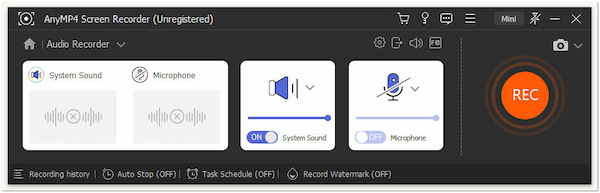
AnyMP4 Screen Recorder allows you to create high-quality recordings that seamlessly integrate narration with system sound. By doing so, you leave a lasting impression on your audience. Aside from recording audio, you can also record a PowerPoint presentation for later use.
Is it legal to use a YouTube video in PowerPoint?
It depends on the video’s copyright status! Embedding a YouTube video usually streams the video directly from YouTube. This means it’s generally considered safe. However, it would be best if you still double-checked the video’s description for any restrictions mentioned by the creator.
What music files can PowerPoint play?
PowerPoint supports a variety of popular audio formats. This includes .aiff, .au, .mid/.midi, .mp3, .m4a/.mp4, .wav, and .wma. These formats ensure smooth playback and compatibility within your presentation.
Can you use Spotify songs on PowerPoint?
Unfortunately NO! You cannot directly use Spotify songs in PowerPoint. Spotify songs are licensed for streaming within the Spotify platform and not for embedding in presentations. Using copyrighted music without permission can lead to legal issues.
Why can't I trim audio or set music to play across slides in PowerPoint Web?
PowerPoint for the Web is a simplified version of the desktop app. While you can insert basic audio files, advanced media tools like Trim Audio, Fade In/Out, and continuous Play Across Slides are currently only available in the full Windows and Mac desktop applications. If you're on a browser, simply click 'Open in Desktop App' at the top ribbon to access these options.
How do I make background music play continuously across ALL slides in PowerPoint without stopping?
Follow the steps below to solve this:
Step 1. Go to the slide where you inserted the audio (usually the first slide).
Step 2. Click on the audio icon, then go to the Playback tab at the top.
Step 3. Check the box for Play in Background (or select Play Across Slides and check Loop until Stopped).
Why is the audio option greyed out in my PowerPoint presentation?
There are several possible reasons: you are editing a shape/text box; you are in read-only mode; the audio features are limited in the online version.
How to insert an MP3 into PowerPoint on Mac OS?
Step 1. Open your presentation on Mac and select the slide where you want the track to start.
Step 2. Click Insert at the top menu, then click Audio > Audio from File...
Step 3. Browse and choose your .mp3, and click Insert.
Step 4. Click the audio icon on the slide, go to the Audio Format or Playback tab at the top, and adjust the settings (like Start: Automatically or Loop until Stopped).
Can I add music from Spotify or Apple Music to my PowerPoint presentation legally?
No, you can't. Music from streaming services like Spotify or Apple Music is protected by DRM (Digital Rights Management). It would be better to download music from royalty-free music sites, like Pixabay Audio, Incompetech, or YouTube Audio Library.
Now, equipped with the knowledge of how to add music to PowerPoint, you can transform your presentations into multimedia masterpieces. Remember, choosing appropriate music and using it strategically is key to maximizing its impact. Don’t let incompatible audio file formats hold you back! If you encounter an unsupported file, AnyMP4 Video Converter Ultimate can be a lifesaver. It efficiently converts your audio into PowerPoint-friendly formats. In instances where PowerPoint’s recording feature malfunctions, fear not! AnyMP4 Screen Recorder comes to the rescue. It lets you record both your narration and system sound simultaneously.
 Posted by Alice Thorne to Convert Audio, Record Audio
More readings
 PowerPoint Media Not Playing? 5 Reasons and Their Solutions!
Having trouble with PowerPoint media not playing? Figure out the reasons behind this issue and find effective solutions to ensure seamless multimedia playback.
 Ultimate Tutorial – 5 Steps to Insert a Video into PowerPoint
Want to embed a video into your PowerPoint slides? Don’t miss this tutorial that teaches you to step by step insert a video into PowerPoint on Windows/Mac.
 How to Compress Videos to a Smaller Size in PowerPoint Efficiently
Want to shrink a video in PowerPoint? You can learn the methods to compress videos in PowerPoint and 2 alternatives to PowerPoint to make the compression.
 Actionable Tutorial to Add Music to Snapchat Videos Properly
Snapchatters can add music before and after recording video with the built-in feature. This tutorial shows you how to add music to your Snapchat videos easily.

