
Key Takeaways:
Got a favorite music album downloaded online, only to find out it is just one massive APE file paired with a tiny CUE file? You are definitely not alone! Many CD fans often find themselves wondering:
I decided to transform my CD collection to digital files for better management. At the time, I am unfamiliar with different file structures, so each CD was ripped into one APE file with CUE sheet. Is there any software in term of sound quality can split single APE file into individual songs?
In this guide, we will share 3 ways to convert and split APE audio files to MP3 or other formats so they can play smoothly on any popular media player. Let's check out the best solutions available right now.

| Type | CUE Splitting | Output Formats | Platform Support | Setup & Ease of Use | Technical Support | |
|---|---|---|---|---|---|---|
| AnyMP4 Video Converter Ultimate | Professional Software | Yes (1-Click, Batch & Smart) | 500+ Video & Audio Formats | Windows & macOS | Ready to use, intuitive GUI | 24/7 Professional Support |
| Medieval CUE Splitter | Free Utility | Yes (Basic Windows-only) | Limited (WAV / MP3) | Windows Only | Basic interface, outdated | None (Community/Dead site) |
| foobar2000 | Free Media Player | Yes (Requires manual setup) | Multiple (Via components) | Windows & macOS | Requires component installation | Community Forums only |
APE, also known as Monkey's Audio, is a lossless audio compression format. It shrinks CD-quality music down to about half its original size without throwing away any audio data. When people rip audio CDs, they often save the entire album as one single file alongside a CUE text sheet that holds the track list, artist info, and timestamps.
Why do you need to split them? Because playing a 60-minute album as one single file makes it impossible to skip songs or jump to your favorite track on your phone. Splitting gives you separate files for smooth playback anywhere.
How do you convert and split APE tracks into FLAC, AAC, M4A, MP3, AIFF, WMA, WAV, etc., for playback on any portable device? APE audio files employ a symmetric algorithm, which means decoding takes comparable resources to encoding, making it unsuitable for all but the fastest portable players. Furthermore, support is limited on platforms other than Windows unless third-party software is used. Because of this, converting APE to popular audio formats is often the best route.
To convert APE files effortlessly, you can use AnyMP4 Video Converter Ultimate, a professional tool designed to handle audio and video formats while keeping the original sound quality. (Check how it compares with other tools in our comparison table below).
Recommendation
1. Add APE Files
Free download the APE converter installer for Windows or Mac, run it, and open the main interface.
Secure Download
Secure Download
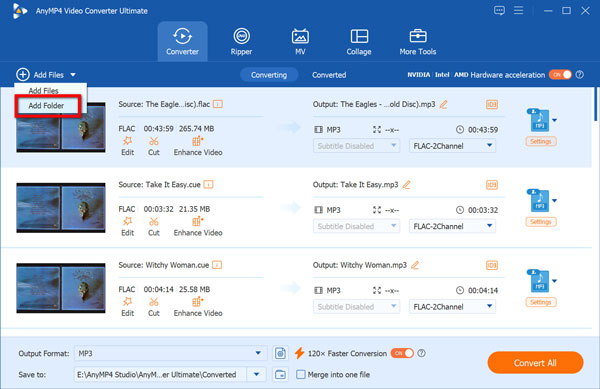
Go to the Converter column and click the Add Files button to load your APE files, or simply drag and drop your target APE file directly into the main window.
2. Choose Output Format
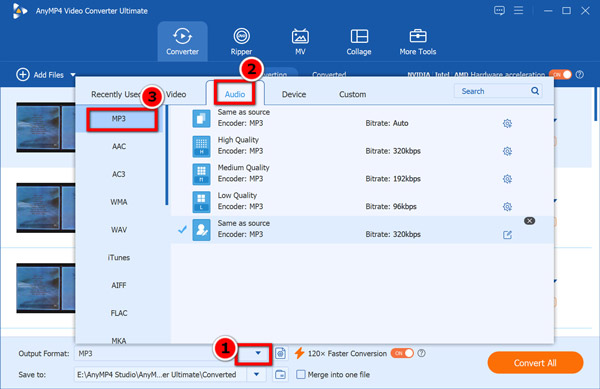
Open the Output Format drop-down list at the top right, select the Audio tab, and pick your desired output format from the list.
3. Convert APE Tracks
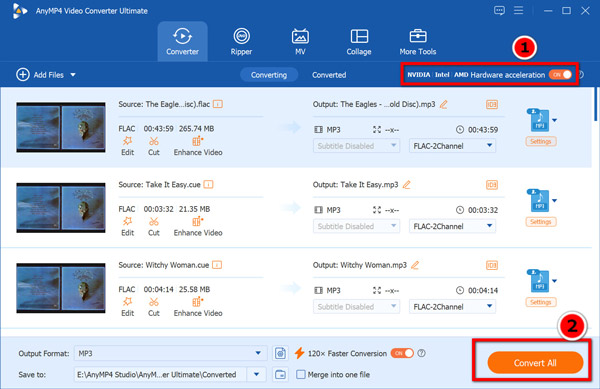
Click the Convert All button at the bottom right corner to begin batch conversion. A progress bar will show you the remaining time.
To speed up the CUE conversion process, you need to toggle on the GPU acceleration support at the top-right corner before clicking the Convert All button.
AnyMP4 Video Converter is the fastest way to handle batch conversions, manage cross-platform needs, and export your audio to over 500 formats without losing sound quality.
If your converted files sound a bit too quiet, check your output audio volume settings before starting batch conversion to keep playback levels consistent. Or, you can use the built-in volume booster feature of this software to adjust that.
A CUE file is the index file associated with an APE file. Without a CUE file, you cannot easily select individual songs while playing an album. If you open a CUE file using Notepad, you will see that it records the artist, album name, track numbers, titles, and exact start and end times for every song.
To split a single APE file into individual songs, you need a CUE-aware tool. Medieval CUE Splitter is a free utility built precisely for this task.
1. Open the Original CUE File
Install the software on your Windows PC. Open your .cue file using Medieval CUE Splitter.
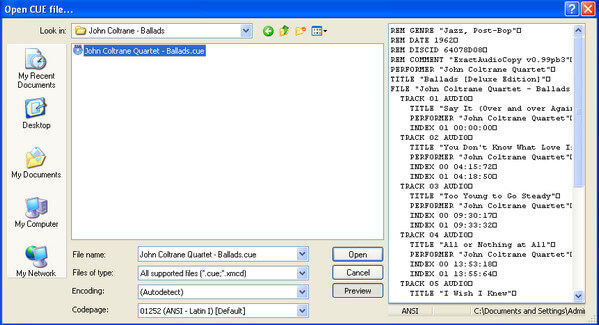
Once loaded, click the Split button in the bottom right corner.
2. Split the APE Files
Click OK on the pop-up window when finished. You will instantly get individual track files ready for listening.
Make sure your .ape file and .cue file share the exact same file name and sit in the same folder before opening them in the splitter to avoid loading errors.
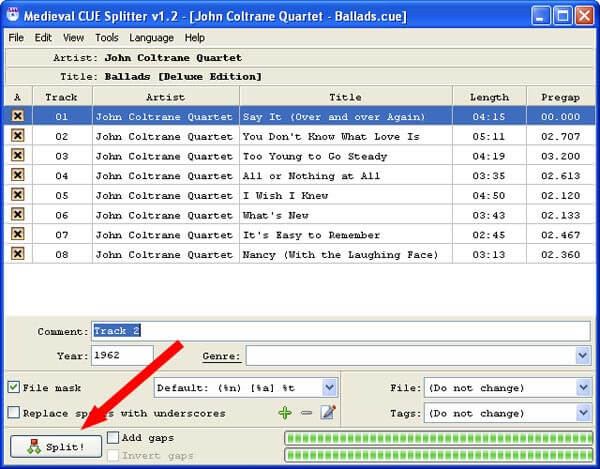
Medieval CUE Splitter is a handy free utility for Windows users who want a straightforward way to chop up single album files using a CUE sheet.
Another great free option for music lovers is foobar2000. Just load your .cue file into the player, and it will automatically list all the separate tracks based on the index data. This CUE splitter for FLAC, WAV, and more is pretty easy to on Windows. To split an APE file using foobar2000 along with its CUE sheet, you can follow these simple steps right inside the player:
1. Load the CUE Sheet
Make sure you have foobar2000 installed on your computer along with the standard Monkey's Audio (APE) decoder component (and the foo_input_std or foo_cuefilter components if needed) so the player can properly read lossless files and CUE sheets.
Open foobar2000, go to the top menu, select File > Open, and choose your .cue file. (Alternatively, you can just drag and drop the .cue file directly into the foobar2000 playlist window). The player will automatically parse the index and list all the individual tracks.
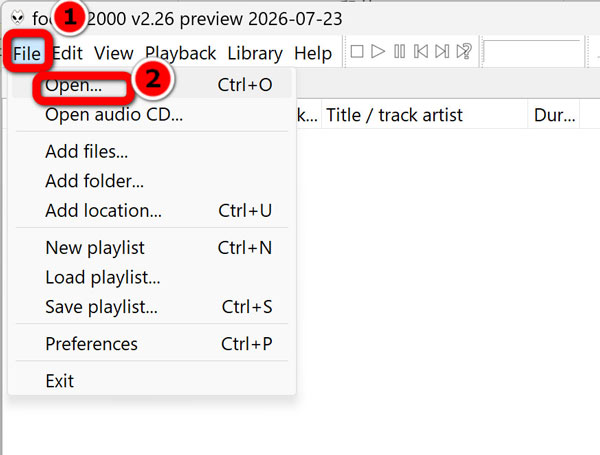
2. Select All Tracks
Highlight all the tracks in the playlist that were loaded from your CUE sheet by pressing Ctrl + A.
3. Convert and Split
Right-click the selected tracks, hover over Convert, and choose Quick Convert (or select the main conversion option).
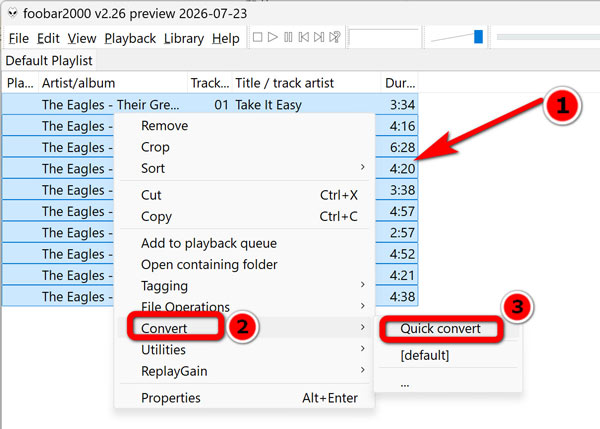
4. Choose Output Settings and Export
In the conversion setup window, pick your desired output format (such as FLAC, WAV, or MP3).
Click Convert, choose a destination folder on your computer, and foobar2000 will automatically split the single APE file into separate, individual song files based on the CUE timestamps.
Always double-check that your tag information is correct in foobar2000 before running the conversion so your new files have proper song titles and artist tags.
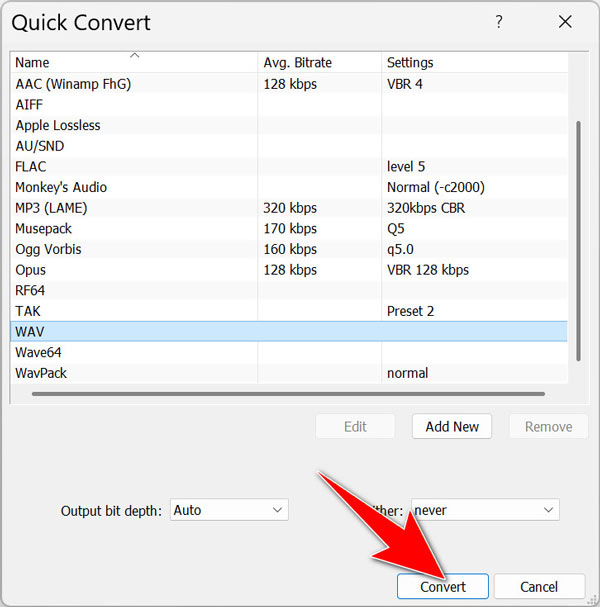
foobar2000 gives you lightweight, customizable playback and basic splitting features if you do not mind installing an extra audio decoder component.
What Is an APE File Format?
APE, also known as Monkey’s Audio, is a lossless audio format. It compresses music down to half its original size without losing quality, but you usually need a CUE sheet to split the full album into separate songs.
Why Does VLC Player Play a .ape File All as One Song?
Because VLC plays the APE file as one continuous audio stream unless you have a separate CUE index file or split the tracks beforehand.
How Do I Convert APE to FLAC?
For converting APE into FLAC, you just need a reliable audio tool like AnyMP4 Video Converter Ultimate to handle the conversion quickly.
Can Online Converters Split APE by CUE?
No. Online tools only convert whole files and lack CUE sheet splitting capabilities.
When you want to take full advantage of APE files, you should know how to extract songs from APE files as well as convert and split APE files to FLAC, AWV, and more desired formats. For fast processing, full Mac and Windows support, and flexible formats, try downloading AnyMP4 Video Converter Ultimate. If you have any other queries about the topic, feel free to explore more resources!
Secure Download
Secure Download
 Posted by Alice Thorne to Convert Audio
More readings
 4 Best Ways to Convert FLAC to MP3, WAV & ALAC (2026 Guide)
Convert FLAC audio to MP3, WAV, or ALAC with original audio tags and cover art intact with top desktop, CLI, and free conversion tools.
 10 (Free) Ways to Extract Audio from MP4 (2026 Guide)
Learn how to rip audio from MP4 files losslessly with the best 10 tools (VLC, Audacity, etc.) to isolate audio in seconds. 100% working for Windows & Mac!
 4 Best MP3 Volume Normalizers: Level Volume No Quality Loss
Uneven playlists blowing out your speakers? Here are the 4 best MP3 volume normalizers to batch-level local audio files perfectly without sound quality loss.
 5 Best WAV Converters in 2026 - Tested on Lossless Audio
Are you looking for the best WAV converter? Read this complete 2026 review to find the most suitable one for you!
 Add your comments to join the discussion here