- Convert video, audio, and DVD over 500 formats.
- GPU acceleration to speed up the conversion process at 70X faster.
- More than 16 editor tools in the toolbox (Updating).
- Create videos for TikTok, YouTube, Facebook, etc.

Free Download100% Clear & Secure
Free Download100% Clear & Secure
WAV to AIFF
Back to main page
Setting
Custom resolution:
| Core Features | Web Version | Pro Desktop |
| Max File Size | 50MB (Login: 100MB) | No Limit |
| Daily Limit | 2 Files (Login: 10 Files) | Unlimited |
| AI Video Upscaling | No | Yes (Up to 4K/8K) |
| GPU Acceleration | No | Yes (70X Faster) |
| Batch Processing | No | Yes |
Failed to upload media file! Please try again, or use AnyMP4 Video Converter Ultimate for Desktop.(Error code: 20015)


The original video resolution is higher than 1080p. If you want to output the original high resolution, you need to download the Pro Version. Or would you like to output the default 1080p resolution?

Summary
Converting a WAV file to AIFF is straightforward across all three programs. In AnyMP4 and Apple Music, you simply use the built-in batch conversion features. In Audacity, you load the file and export it as an AIFF.
Regardless of whether you're making music, saving your recordings, or maintaining an audio library in high resolution, you've probably come across the problems associated with WAV files. Sure, WAV can provide lossless audio recording. Still, the format sometimes fails to handle metadata properly, which can result in loss of data such as album cover art or artist information. Converting from WAV to AIFF does not improve your audio quality, since both formats contain an exact copy of the PCM audio file. Rather, it helps you wrap your files in a format more compatible with Apple products. Keep reading to learn about three proven methods that let you convert WAVs, making your audio files compatible with Apple devices without losing quality or metadata.
Both WAV and AIFF are lossless, uncompressed audio formats that use Linear Pulse-Code Modulation, offering equal sound quality. They allow recording high-quality sound at 32-bit resolution and sample rates up to 192 kHz or higher (depending on the application). The only difference between them is that while WAV is compatible with most Windows OS, AIFF is better suited to Apple systems and offers richer metadata.
When you need to batch convert WAV to AIFF, AnyMP4 Video Converter Ultimate is the professional choice of sound editors. It uses advanced encoding engines to convert audio without sacrificing the original LPCM audio quality. With it, you can convert WAV to over 500+ media formats, including AIFF. Not just one, you can add hundreds of files and convert them simultaneously without any lag or crashes.
It uses the most advanced hardware-accelerated media processing to achieve up to 120× faster conversion. To meet professional requirements, you can adjust the audio channel, sample rate, and bitrate. And the best deal is that it isn’t just a converter; it also operates as an audio editor. You can trim audio, boost volume, and edit or add ID3 tags.
Secure Download
Secure Download
Here’s how to convert WAV to AIFF in a professional way:
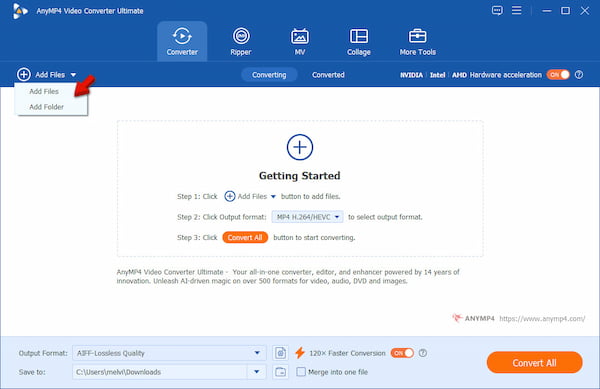
1. Download AnyMP4 Video Converter Ultimate and complete the setup. After installing it, the software will launch automatically. Click +Add Files to load your WAV sources from your computer. If your files are saved in a single folder, choose Add Folder instead.
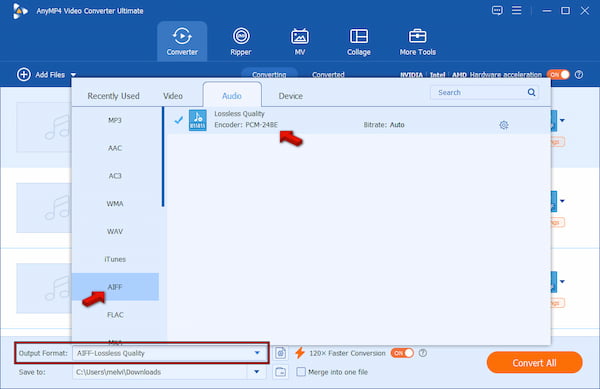
2. Click the Output Format picker, go to the Audio category, and select AIFF. Essentially, choose a quality preset that matches the source's quality. However, since AIFF is already a lossless format, the only option is Lossless Quality encoded in PCM-24BE.
3. Go back to the main interface, turn on Hardware Acceleration, and enable the 120× Faster Conversion button to speed up the conversion. Navigate to Save To and set the destination path, then click Convert All to convert WAV to AIFF lossless.
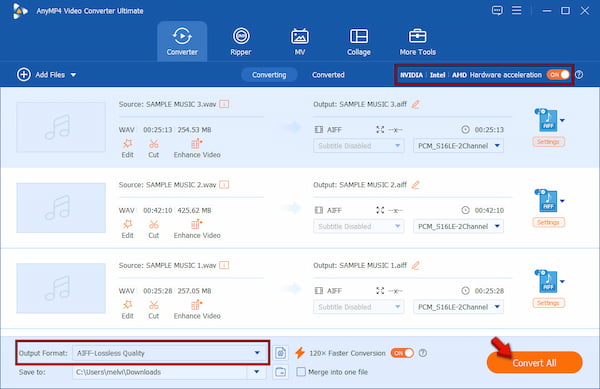
To assess the quality, speed, and batch conversion capabilities of AnyMP4, we conduct a hands-on test. In our test, we use a 2.19 GB file, totaling 100 WAVs. The 37 hours and 25 minutes of WAV files were converted to AIFF-Lossless Quality in just 3 minutes and 42 seconds. During our audit, we heard no distortion, muffled sounds, or glitches from the converted AIFF files.
Aside from acting as a WAV player, Apple Music can also convert audio files. It repackages the same audio data while updating the file wrapper to better support Apple’s ecosystem. The only thing you need to do is create a new version of the audio to enable the conversion.
Here’s how to convert WAV to AIFF on Mac:
1. Go to the menu bar of Apple Music and select Music. Press Cmd+, (comma), select File, and click Import Settings. Inside the Import Using picker, select the AIFF Encoder option.
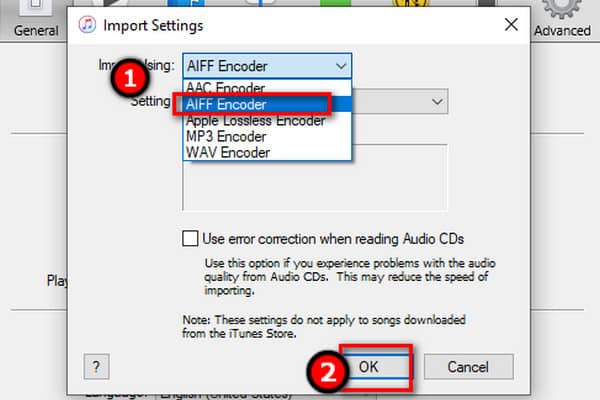
2. Return to your music library and select the WAV file. Navigate to File, click Convert, and select the Create AIFF Version option. It will now generate a new AIFF copy.
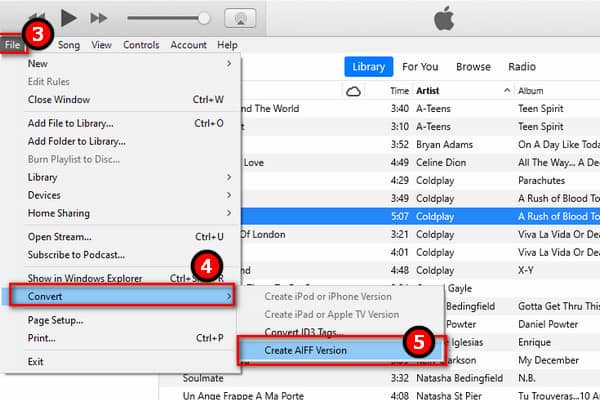
What we loved about Apple Music is that you only need to create a new version to get an AIFF from a WAV. Besides, the AIFF output sound remains exactly the same as the WAV source. However, you cannot create a new audio version from audio protected by DRM; only those you purchase on the iTunes Store and are iTunes Plus songs.
We all know that Audacity is a software for audio recording and multitrack editing. You can capture live audio from your system, import existing sounds, and even compress audio in Audacity. But many didn’t realize that it can operate as a basic converter. Audacity lets you convert WAV to AIFF for free as simply as importing the WAV and exporting it with the AIFF format settings.
To convert: Open Audacity and drop the WAV source into the workspace. After importing the WAV audio, click the File tab and go to the Export Audio option. In the Export Audio window, click the Format picker and select AIFF (Apple) signed 16-bit PCM.
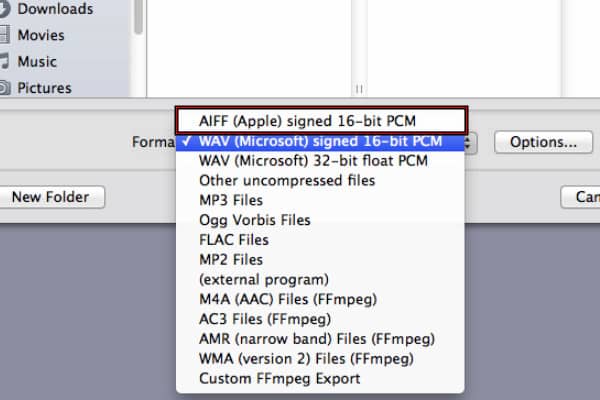
When you first use Audacity, you might feel intimidated because of its intricate interface. To be real with you, it is simple to use because you only need to import and export audio. However, if you’re planning to use it for audio editing and you're unfamiliar with it, you’ll surely get confused.
You're probably wondering why AIFF files have the same file size as WAVs. Well, there’s no problem with that. Both formats are lossless, uncompressed audio formats, meaning neither applies compression to reduce file size.
Some converters, like AnyMP4, retain metadata automatically even after conversion. In case the AIFF’s metadata is missing, you can use the Metadata Editor of AnyMP4 to enter the missing information manually.
AIFF is the audio format supported on Apple devices and professional audio software. However, its compatibility with car stereos and smart TVs varies by manufacturer. If it doesn’t play, you may want to convert it to another format, such as MP3.
If you have multiple WAV files to convert, using hardware acceleration can help save time during the process. Tools like AnyMP4 Video Converter Ultimate use the most advanced hardware-accelerated media processing to maximize CPU and GPU efficiency.
When converting hundreds of files, it's always a good practice to verify that every AIFF was created successfully. It is important to verify that the number of output files is correct and that the duration and sampling rate match the source. Also, you should play random files to check for any errors.
Does converting WAV to AIFF lose quality?
No, it will not lose any audio quality. It is because both formats are uncompressed, lossless formats. It means the conversion only rewraps the exact same audio data into a different file container. To keep the quality, match the sample rate to the source.
Is AIFF better than FLAC?
Neither format is better in terms of sound quality because both deliver lossless audio. However, for everyday listening, FLAC is better. Meanwhile, AIFF is better for editing and reproducing a file from another format.
Can Windows Play AIFF?
Yes, Windows can play AIFF files, but you need the right media player. The best option is VLC because it supports most audio and video formats. Also, older versions of Windows Media Player can play AIFF files natively.
WAV to AIFF conversion is a great option to maintain audio in lossless form. It can also enhance its compatibility with Apple hardware and software. The reason it is a good choice is not that one is superior to the other in terms of sound quality, but rather because of its better metadata functionality and greater compatibility with Apple devices and Mac applications. For infrequent conversions, you can use Apple Music or Audacity. However, for regular batch conversions with advanced output options and built-in editing features, AnyMP4 Video Converter Ultimate will work best.
Secure Download
Secure Download
 Updated by Alice Thorne to Convert Audio
More readings
 M4A to AIFF 2026 Guide: Convert with Lossless Quality
Converting M4A to AIFF? Learn why and how to convert while maintaining lossless quality with the 3 best tools for a smooth audio editing workflow in 2026.
 Top 7 Methods to Convert AIFF to MP3 [Free & Online]
When you need to convert AIFF to MP3 for more devices, you can check out the top 7 solutions for AIFF to MP3 conversion from the article.
 3 Best Methods to Convert AAC to WAV for High-Quality Audio
Need a high-quality audio playback? Learn the easiest ways to convert AAC to WAV without quality loss using offline and online tools for professional results.
 10 Best MP4 to WAV Converters for Lossless Audio Extraction
We tested the 10 best MP4 to WAV converters for computers and mobile devices. Get expert tips on PCM and bit rates to extract WAV without losing quality.
 Add your comments to join the discussion here