
Key Takeaways:
Got an old Flash file sitting on your hard drive? Since Adobe Flash EOL became official, opening those FLV files has become impossible. If you want to play those childhood animations, old banner ads, or interactive games on your phone or modern media player, you need a reliable way to convert SWF to MP4. Don't worry. In this guide, we will share the best 3 methods for high-quality SWF to MP4 conversion, so you can save your digital memories without a headache.

| Quality Retention | Success Rate & Compatibility | Ease of Use | Security & Privacy | Interactive Support | |
|---|---|---|---|---|---|
| AnyMP4 Video Converter Ultimate | Excellent: Includes AI upscaling to transform legacy 480p files into crisp HD/4K MP4s without losing track synchronization. | Very High: Bypasses complex script loops and handles encrypted or stubborn SWF structures effortlessly. | Beginner-Friendly: Clean graphical user interface with drag-and-drop features and visual preview windows. | 100% Safe: Operates entirely offline on your local Windows PC with zero cloud uploads or data tracking risks. | Full Support: Features manual click triggers and active-frame capture to successfully record interactive games and menus. |
| FFmpeg (Direct CLI) | Moderate: Transcodes basic streams directly, but variable frame rates can cause subtle jitter on high-refresh-rate displays. | Moderate: Works reliably on linear timeline files, but fails instantly on advanced scripting or encrypted assets. | Advanced: Requires manual terminal commands, environment path setups, and command-line syntax knowledge. | 100% Safe: Runs locally via your terminal environment, keeping all sensitive media files on your local drive. | No Support: Treats files as flat streams; interactive buttons result in frozen or dead video output. |
| CloudConvert | Basic: Handles standard flat vectors well, but complex gradients or embedded audio tracks can sometimes suffer compression artifacts. | Low-Moderate: Frequently errors out or returns blank screens if external assets or scripts fail to load remotely. | Easy: Straightforward web drag-and-drop interface requiring zero software installation. | Risky: Requires uploading proprietary or personal SWF files to external public cloud servers. | No Support: Headless cloud renderers cannot click buttons, turning interactive files into static 5-second loading screens. |
Think of a normal MP4 as a flipbook. Every single frame is drawn out. You flip the pages, and you see motion.
An SWF file works differently. It uses a vector rendering engine powered by code. When you open it, the script runs live on your computer. It calculates shapes, text positions, and colors on the fly. Standard video converters look inside the file and see zero actual video frames. Because there's nothing for them to read, they fail instantly. If you need to convert ActionScript 3.0 SWF to video, traditional tools just give up. You can learn more about file structure basics in this what is SWF guide. Also, Flash files use vector graphics. You can zoom in forever, and the lines stay crisp. MP4 files, however, use pixel grids. Without frame-accurate recording, your lines turn blurry.
When dealing with complex menus, games, or files built with heavy code, standard tools break down. That is where AnyMP4 Video Converter Ultimate stands. It features a unique "Active-Frame Capture" engine that bypasses the "ActionScript 3.0 Loop" issue, allowing it to convert interactive SWF games and menus into linear MP4s that others can't process. Besides, it supports over 500 formats for SWF, MP4, MOV, MKV, AVI, WMV, and more video formats. Over 20 toolx under its toolkit to edit and enhance your videos like video watermark remover, video enhancement, video reverser, etc.
1. Free download and install AnyMP4 Video Converter Ultimate on your Windows PC or Mac computer.
Secure Download
Secure Download
Launch the main application and stay on the default Converter tab. Click the Add Files button (or drag and drop your target .swf file directly into the main conversion window).

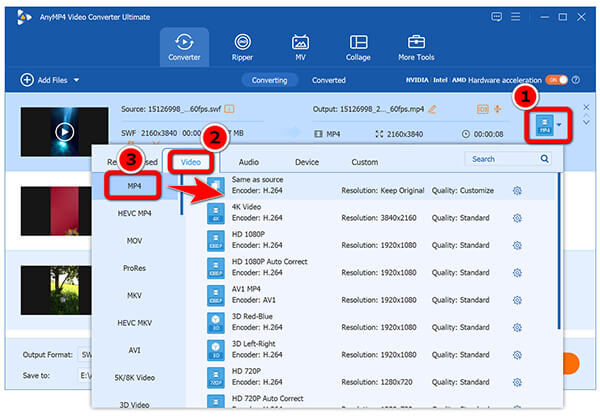
2. Click the Output Format dropdown menu on the right side of your imported file, go to the Video tab, and choose MP4 as your target export container.
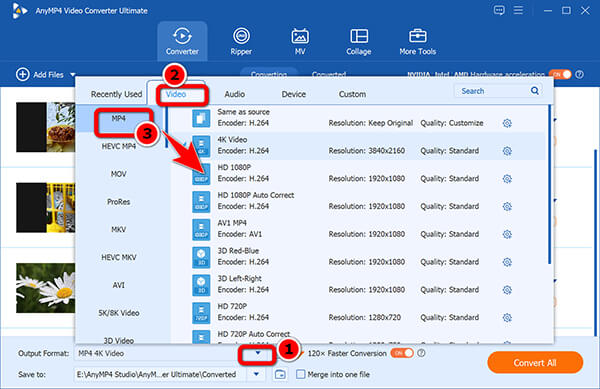
If you want to convert all multiple SWF files into MP4 videos, just find the Output Format dropdown option on the bottom-left corner to select Video > MP4.
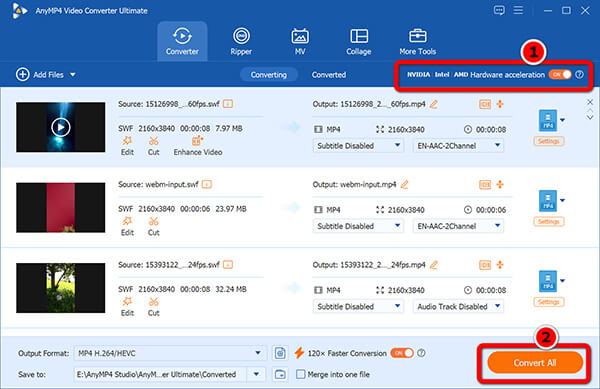
3. Click the Convert All button to batch process your files into clean MP4s. Before that, do not forget to enable GPU acceleration at the top-right corner to speed up the conversion at 30 times faster.
If your output file is too large for sharing, you can run it through a compress SWF utility.
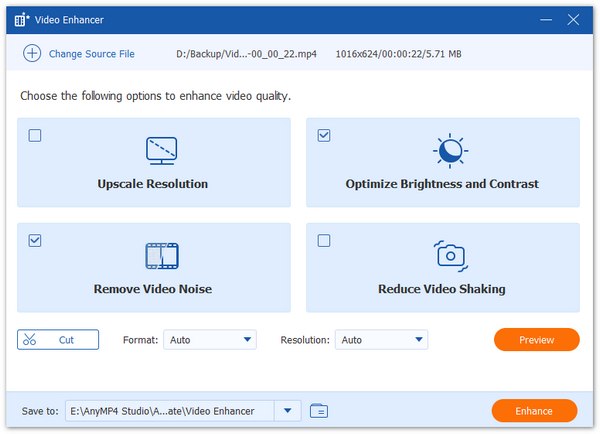
Old Flash files usually max out at tiny resolutions like 480p or smaller. Once you convert SWF to MP4, playing them on a modern 4K monitor makes them look tiny and pixelated.
AnyMP4 Video Converter Ultimate includes an AI upscaling engine. It fills in missing pixel details during the recording pass. You can easily turn a blurry old cartoon into a sharp, watchable HD file without losing clarity. You can also clean up frames using a basic SWF editor if you need precise cuts.
If your SWF file is a simple timeline animation, you don't need complex emulators. You can use FFmpeg directly from your command line. FFmpeg is a powerful open-source multimedia tool. For basic linear SWF animations, it reads the internal stream data and transcodes it straight into an MP4 container.
FFmpeg cannot handle interactive ActionScript buttons. If your SWF requires a mouse click to start, FFmpeg will just output a frozen frame.
1. Download the official FFmpeg build for Windows and add it to your system environment variables.
2. Open your Windows terminal by pressing the Windows Key, typing cmd, and hitting Enter.
Type cd (with a space after it), then open your Windows File Explorer, drag the folder containing your SWF file right into the black terminal window, and press Enter.
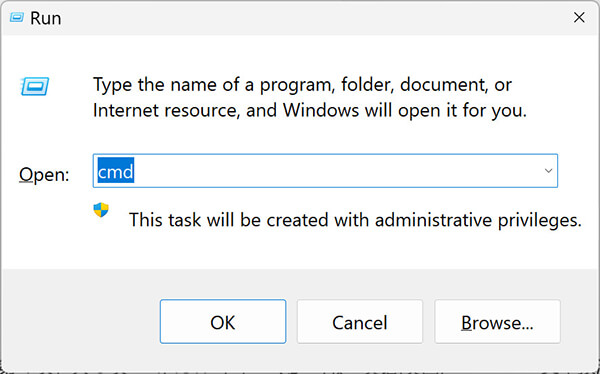
If you fail in this step, you can follow this quick step for step 2, and 3:
Place your ffmpeg.exe file and your target .swf file together inside the exact same folder on your computer. Right-click the empty space, and select Open in Terminal (or Open PowerShell window here).
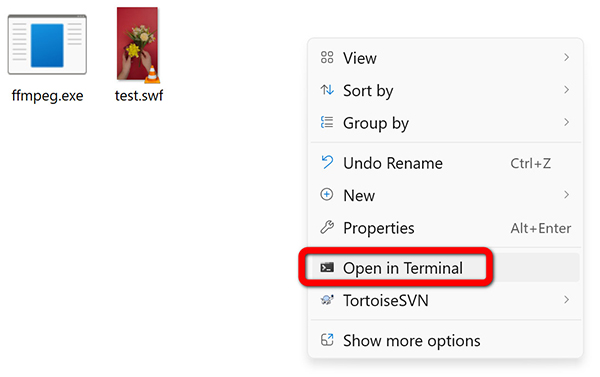
3. Type the direct translation command:
ffmpeg -i input.swf output.mp4
(make sure to replace input.swf with your actual file name).
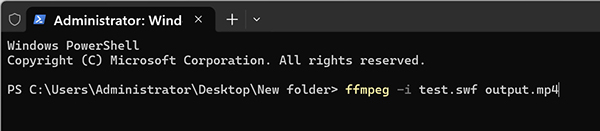
4. Press Enter to let FFmpeg parse the timeline data and write your new MP4 file directly into the folder.
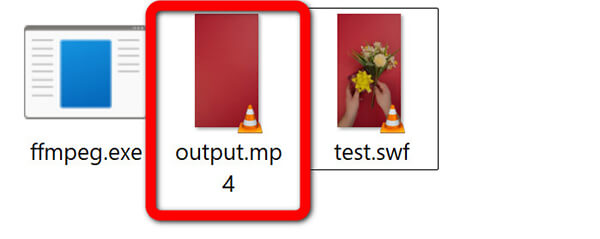
Be prepared for variable frame rate hiccups. If the source file uses an odd internal clock, your final MP4 might look slightly jittery. If you are hunting for best Swivel alternatives for Windows 11, FFmpeg works great for batching flat animations, but it takes patience. If you ever need to change container wrappers for other web video formats later, you can check out how to remux MKV to MP4.
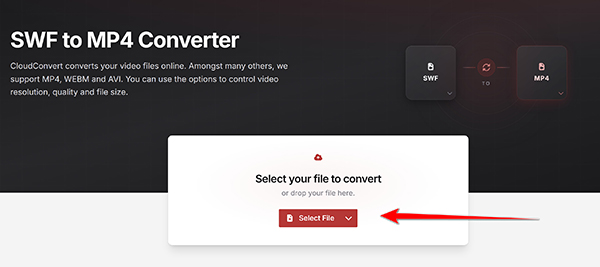
If you have a small banner logo and want a quick fix without installing software, web converters look tempting. Cloud tools let you drag and drop your file straight into your browser. For simple banner files with no buttons, these sites can make an MP4 in seconds. Here we will take CloudConvert as an example to show you the steps:
1. Go to the official CloudConvert SWF to MP4 Converter website (https://cloudconvert.com/swf-to-mp4) in your web browser.
Upload your local SWF banner file from your storage drive by clicking the Select File button.
Free accounts limit your file size and daily use.
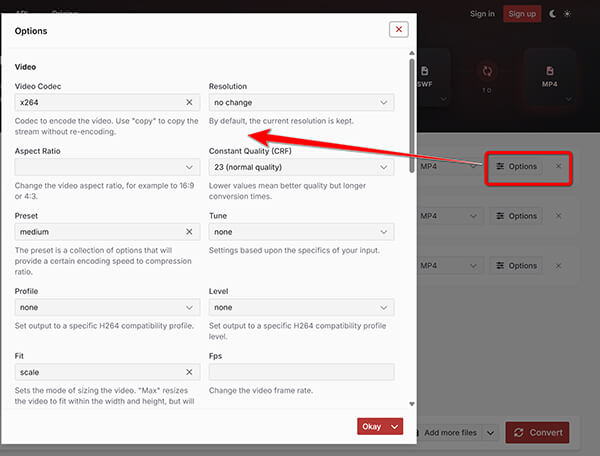
2. Your export target format is set as MP4 by default. Here, you can click the Options button to change the video codec, frame rate, resolution, and more.
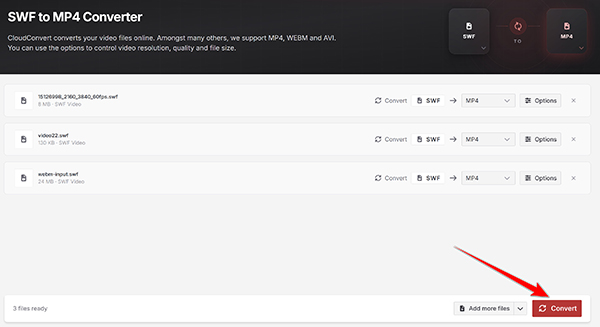
3. Click the Convert button to start processing and downloading your newly processed MP4 file once complete.
Here is the major friction point: Cloud tools are "headless," meaning they can't click buttons. If your SWF requires any user input to start the animation, these tools will return a 5-second video of a static loading bar. Also, cloud renderers often fail to load external XML or image assets linked inside the file, resulting in broken, empty outputs.
Why is my converted MP4 just a white screen?
This usually happens because the SWF file uses ActionScript to load pictures or wait for a click. Regular converters block or ignore these scripts, leaving you with a blank video frame.
Can I batch convert SWF files with interactive menus?
Not automatically. Because interactive SWF files require human clicks to start scenes or games, batch tools will just record the initial title screen over and over. You need a tool with an interactive preview window.
How do I keep the transparency from my SWF in the MP4?
Standard MP4 (H.264) files do not support transparency (Alpha channels). If you convert an SWF with a clear background into an MP4, the transparent parts will turn solid black or white. If you truly need transparency, you must export to a format like WebM or ProRes instead.
Finding the right method to convert SWF to MP4 depends entirely on what kind of file you are holding:
Secure Download
Secure Download
 Posted by Alice Thorne to Convert Video
More readings
 6 Top-Rated FLV to MP4 Converter for High-Quality Conversion
Looking for the fastest way to convert FLV to MP4? Discover the best FLV to MP4 Converter for desktop and online. We tested 10+ tools to find the top solutions.
 How to Convert MOV to MP4 Online (Fast & Free)
MOV video won't play? Convert MOV to MP4 on the web. Here are 4 ways to change MOV video formats to MP4 format free without downloading any software quickly.
 [2026] Top 6 SWF Players for Mac, Windows, Online
Have no idea which SWF video player to choose when Adobe Flash Player was discontinued? Here, you can get the six popular SWF players to open Flash files.
 Convert SWF to MP3 in 2026: 3 Lossless Ways to Extract Audio
Want to extract audio from a Flash file? Read on to discover 3 lossless ways to convert SWF to MP3 in 2026 using AnyMP4, SWFTools, and quick online tools.
 Add your comments to join the discussion here