How NVIDIA AI Noise Removal Delivers Studio-Quality Sound
Are you tired of background noise ruining your streams, video calls, or recordings? Poor audio quality can make even the best content or meeting sound unprofessional. That’s where NVIDIA Noise Removal comes in. It is a cutting-edge solution powered by NVIDIA Broadcast, the company’s flagship app for real-time audio and video enhancement. Built on AI technology, it uses AI Noise Cancellation to intelligently filter out unwanted sounds. It can deliver true studio-quality results without the need for expensive microphones or soundproof rooms. Originally introduced as RTX Voice, this groundbreaking feature has now evolved into NVIDIA Broadcast. It offers broader functionality and better performance for streamers, gamers, and remote professionals. In this post, we’ll cover what NVIDIA AI Noise Removal is and how it works. Also, we will teach you how to set up and use NVIDIA Broadcast and how to test and optimize your setup. By the end, you’ll know exactly how to achieve professional sound quality.
What is NVIDIA Noise Removal (RTX Voice & Broadcast)?
NVIDIA Noise Removal, originally branded as RTX Voice, is now integrated into the NVIDIA Broadcast app. It leverages NVIDIA RTX GPUs and AI technology to efficiently remove background noise from audio. Intelligently distinguishing your voice from other sounds, it filters out everything except your speech. RTX Voice also supports background noise suppression from players in loud environments, improving the clarity of their audio.
Why Clear Audio Matters for Streaming, Gaming, and Remote Work
Clear audio is crucial for streaming, gaming, and remote work, ensuring smooth communication and maintaining professionalism. In streaming, clear sound helps creators connect better with their audiences. It enables viewers to focus without being distracted by the background noise or muffled voices. For gamers, clean audio is crucial for teamwork and strategy. It allows players to hear and respond to teammates’ calls instantly. In remote work, clear voice communication builds professionalism and efficiency during meetings or presentations. It ensures colleagues can understand each other without repeating themselves.
• NVIDIA noise cancelling ensures your voice is easily understood, reducing confusion.
• Good sound quality enhances professionalism when streaming, meeting, or presenting.
• Clean, consistent audio prevents strain from trying to decipher unclear speech or noise.
• Listeners are more likely to stay interested when they can clearly hear what’s being said.
• High-quality sound enhances the realism of games, videos, and live broadcasts, making them more immersive experiences.
How to Enable NVIDIA Noise Removal (Step-by-Step Guide)
NVIDIA Broadcast Noise Removal feature uses AI technology to eliminate unwanted background sounds. This allows your voice to stay clear during gaming, streaming, or meetings. It works by creating a virtual audio device on your computer, allowing the software to process your microphone input before it reaches your chat or streaming app.
1. For RTX GPUs or higher, download NVIDIA Broadcast from the official website. For GTX GPUs, obtain NVIDIA RTX Voice, the standalone version compatible with older NVIDIA GPUs.
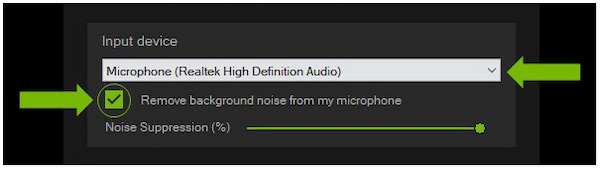
2. Run NVIDIA Broadcast or RTX Voice and select your microphone under the Input Device section. Then, tick the Remove background noise from my microphone box.
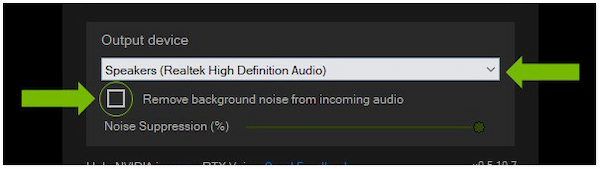
3. Under the Output Device section, select your speaker or headset. Check the box for Remove background noise from incoming audio to clean up incoming sounds.
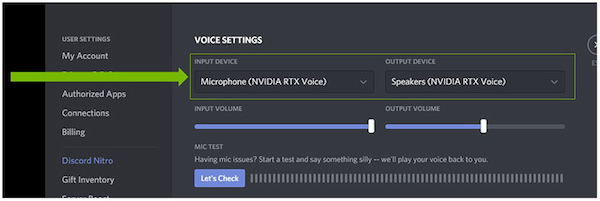
4. Go to your communication or streaming software. Select the NVIDIA RTX Voice (or NVIDIA Broadcast) virtual device as your microphone input.
5. Speak into your microphone and observe how effectively background noise is reduced. You can configure your setup by switching microphones or toggling the noise removal.
Tips
It’s best to enable NVIDIA background noise removal only for your microphone unless necessary. Enabling it for speakers can consume additional system resources and may slightly affect sound quality.
Best Alternatives and Complementary Tools
AnyMP4 Video Converter Ultimate - AI Noise Reduction for Video & Audio
NVIDIA Noise Removal (RTX Voice and Broadcast) is an excellent AI-powered option for real-time voice clarity. However, it only focuses on real-time audio filters for streaming, gaming, and calls. If you’re working on recorded videos or audio files, AnyMP4 Video Converter Ultimate is a great alternative. This one-stop media software is bundled with more than 20 tools for media editing. It includes the Noise Remover feature that lets you clean up unwanted noise and improve both video and audio quality.
1. First things first, get the free download of AnyMP4 Video Converter Ultimate. Install the AI noise reduction tool and allow the setup process to finish. Once the installation is complete, open the software to begin the video and audio noise reduction process.
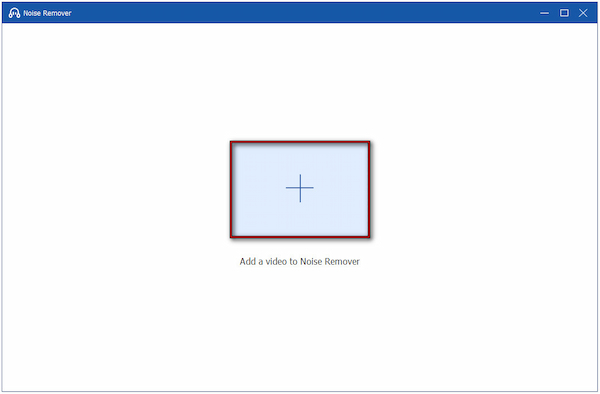
2. Immediately upon startup, the Converter tab is the chosen destination. Switch to the More Tools tab to access the Noise Remover from the list of tools. In the Noise Remover window, click the large Plus button to add the video file from which you want to remove noise.
3. Check the Enable Audio Noise Reduction box to activate the noise reduction feature. This option automatically detects and removes background noise from your video. Increase the Volume slider to 200% for better sound quality.
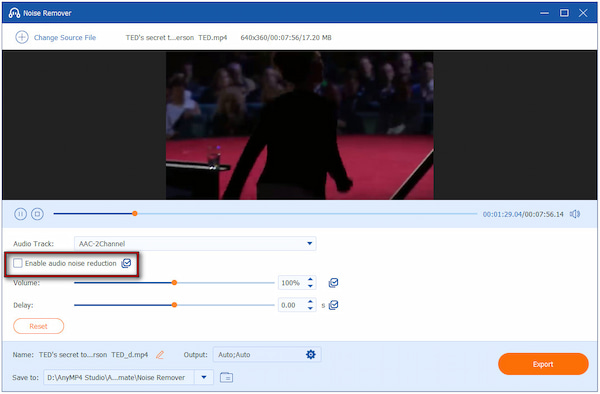
Creative Tip: If the audio is out of sync with your video, adjust the Delay slider to synchronize it.
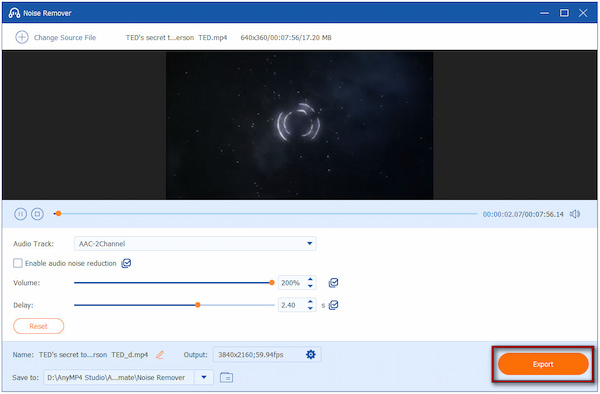
3. Once satisfied with the result, click the Output selector to specify the output settings. Here, you can modify the format, resolution, frame rate, encoder, sample rate, and other settings. Once everything is set, click the Export button to save the noise-free version.
AnyMP4 Video Converter Ultimate helps you effectively remove background noise from video. This allows you to refine your videos by enhancing their overall quality and reducing noise. In addition to the Noise Remover tool, it also features Video Enhancer. This tool enables you to upscale video resolution, optimize video effects, reduce video shakes, and more.
OBS Studio with NVIDIA Noise Removal
OBS Studio is a highly popular tool for live streaming and recording. This software works perfectly with the RTX Voice or NVIDIA Broadcast to deliver crystal-clear audio. By combining OBS with NVIDIA’s AI-powered noise suppression technology, you can remove unwanted background sounds. This makes your voice come through clean and natural during recordings.
Here’s how to get NVIDIA Noise Removal in OBS:
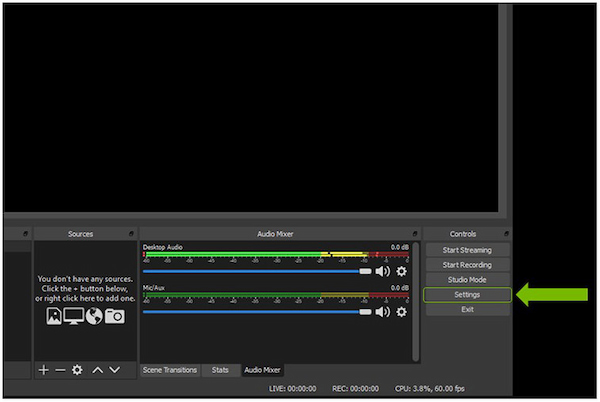
1. Before setting up OBS, ensure you have RTX Voice or NVIDIA Broadcast installed on your computer. Launch OBS Studio, navigate to the Settings menu, and select the Audio tab.
2. In the Audio settings window, select NVIDIA RTX Voice as your audio device:

Under Devices: Mic/Auxiliary Audio, select Microphone (NVIDIA RTX Voice).
Under Advanced: Monitoring Device, choose Speakers (NVIDIA RTX Voice).
3. Return to the main OBS interface and speak into your microphone. You’ll see your audio levels move as usual, but the background noise will now be noticeably reduced.
This configuration allows OBS to capture your microphone audio with noise suppression applied by RTX Voice. It ensures your live stream or recording sounds clean and free of noise.
Tool Comparison: Which Noise Removal Solution Fits You Best?
| NVIDIA Broadcast |
Versus |
AnyMP4 Video Converter Ultimate |
| Windows |
Platform |
Windows and Mac |
| No |
Video Noise Removal |
 |
| Yes |
Audio Noise Removal |
|
| Streaming, gaming chats, and video conferences |
Best For |
Post-production editing of videos or audio |
Excellent mic & speaker noise removal.
Works real-time with many apps.
Free software for supported hardware.
|
Pros |
Doesn’t require specialized GPU hardware.
Covers both audio and video noise removal.
Many users find it easy to use and versatile.
|
|
Requires Nvidia GPU.
There's a non-trivial performance impact.
Less flexibility for post-processing editing.
|
Cons |
Cannot remove noises from live streaming/conversation.
|
How to Test and Optimize Your Noise Removal Setup
After setting up NVIDIA microphone noise suppression, it’s important to test and configure the settings. Testing helps you confirm that background noises are being filtered out effectively, while your voice remains clear and natural. Optimizing the setup also ensures that only the right audio sources are processed.
1. Open your Windows Sound Settings and select Speakers (NVIDIA RTX Voice) as your output device. This routes your audio playback through the RTX Voice noise removal system. It allows you to hear how effectively it filters out background noise.

2. Play a video or recording with noticeable background noise. In the RTX Voice or NVIDIA Broadcast app, toggle Noise Removal ON and OFF for your microphone. Listen closely to the difference when noise removal is on.
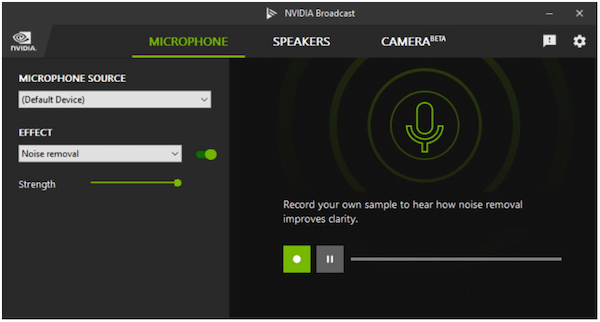
3. Once testing is complete, switch your Windows speaker output back to your default device. RTX Voice should be used as a speaker device only for voice chat or conferencing apps. Using it system-wide could accidentally filter out parts of music, videos, or games.
Perform quick tests before each important stream, recording, or call to ensure RTX Voice is running smoothly. By periodically checking the noise reduction and voice clarity, you can maintain the best possible sound quality.
FAQs About NVIDIA Noise Removal
Does NVIDIA Noise Removal work without an RTX GPU?
Originally, NVIDIA Noise Removal required an RTX GPU to function. However, NVIDIA later expanded support to some GTX series GPUs through the standalone RTX Voice app.
Can I use NVIDIA Broadcast with Zoom, Teams, or Discord?
Yes. NVIDIA Broadcast integrates seamlessly with popular communication and streaming apps. This includes Zoom, Microsoft Teams, Discord, OBS Studio, and other similar platforms.
How does AnyMP4 Video Converter Ultimate compare to NVIDIA Broadcast?
AnyMP4 Video Converter Ultimate differs from NVIDIA Broadcast mainly in how and when it removes noise. NVIDIA Broadcast operates in real-time, whereas AnyMP4 is designed for post-production editing.
Is there a free alternative to NVIDIA Noise Removal?
Yes, several free alternatives offer background noise reduction, though they may lack NVIDIA’s advanced AI processing. Tools like Audacity and OBS RNNoise plugin are popular options.
Will noise removal affect voice quality?
Yes, noise removal can affect voice quality, depending on the software and intensity of the filter. NVIDIA Broadcast preserves speech while removing non-voice sounds. However, if the background noise is loud or the filter is too aggressive, your voice may sound slightly muffled.
Conclusion
In summary, NVIDIA AI Noise Removal showcases the power of real-time AI technology to deliver professional-quality audio for any situation. With NVIDIA Broadcast, you can enjoy intelligent AI noise cancellation and real-time audio enhancement that filters out background distractions. It’s an all-in-one tool designed to elevate your communication and content creation. To clean up background noise in recorded videos or audio files, AnyMP4 Video Converter Ultimate is your best companion. It allows you to remove both audio and video noise and fine-tune your media, with no RTX GPU required.


 Add your comments to join the discussion here