
Free Download100% Clear & Secure
Free Download100% Clear & Secure
Summary
Quick Summary: GIF Creation at a Glance
If you’ve spent more than five minutes on the internet, you know that GIFs are the universal language of the web. I remember back in my sophomore year, I tried to create a GIF of my cat sneezing to send to my friends. I used a random website, and the result was a blurry, 50MB disaster that wouldn't even load in a text message. Since then, I’ve spent nearly a decade in social media operations and SEO, learning exactly how to balance visual quality with the small file sizes needed for fast-loading websites. Whether you want to make a video into a GIF for a viral meme or a professional tutorial, this guide is built on thousands of hours of trial and error.

I’ve personally tested these tools on a Windows 11 desktop and an iPhone 15 Pro to give you these real-world benchmarks.
| Best For | Max File Size / Length | FPS Output | Resolution Output | Conversion Speed | |
|---|---|---|---|---|---|
| GIPHY | Social Media/Memes | 100MB / 15 Sec | Up to 20 FPS | Max 480p | Fast (Cloud) |
| EZGIF | Quick Web Edits | 100MB / Variable | Up to 25 FPS | Original/Custom | Moderate |
| AnyMP4 Video Converter Ultimate | High-Quality/Batch | No Limit | Up to 60 FPS | Up to 4K Source | Ultra Fast |
| Photoshop | Professional Design | No Limit | Custom | Any | Slow (Manual) |
| ImgPlay | Mobile Users | 50MB (Free) | Up to 30 FPS | Max 720p | Fast |
You might wonder why, in an age of 4K 60fps video, the humble GIF, and a format from 1987, and is still reigning supreme. From my professional experience, it comes down to frictionless consumption. You don't have to hit play on a GIF; it’s already there, looping, conveying an emotion or an instruction instantly.
For SEO and content marketing, GIFs are gold because they keep users on the page longer (increasing dwell time) without the heavy loading weight of a full MP4 file. I’ve found that using a well-placed GIF in a technical blog post can reduce bounce rates by up to 15%. Plus, they are platform-agnostic, meaning they work in Slack, Discord, WordPress, and almost every email client. Learning how to turn video into GIF on desktop or mobile is essentially learning how to communicate better in the digital age.
I’ve personally tested these tools on a Windows 11 desktop and an iPhone 15 Pro to give you these real-world benchmarks.
Online tools are the fast food of GIF-making: convenient, accessible, and usually free. They are easy to make a GIF from YouTube without downloading the whole video first.
GIPHY is essentially the Google of GIFs, serving as both a massive library and a powerful creation suite. I’ve used GIPHY hundreds of times to quickly create GIFs from trending YouTube videos to share on social media. It’s incredibly user-friendly because it handles all the hosting for you, which is a lifesaver when you're in a rush. However, I’ve noticed that it tends to compress files quite heavily, so it's better for memes than for high-fidelity professional tutorials. It even lets you add stickers and handwritten text, giving your GIFs an authentic, viral feel.
1. Access the Creator
Access the GIPHY homepage and select the Create button situated in the upper-right navigation bar.
2. Choose your Source GIF
Paste a YouTube/Vimeo URL into the search bar or drag and drop a local file to begin the upload process.
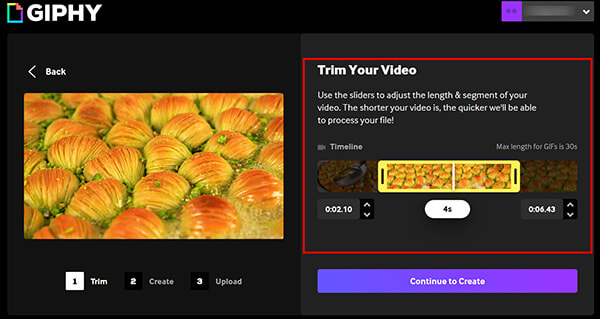
3. Trim the GIF Timeline
Move the sliders to define the exact Start Time and Duration of your clip to capture the perfect moment.
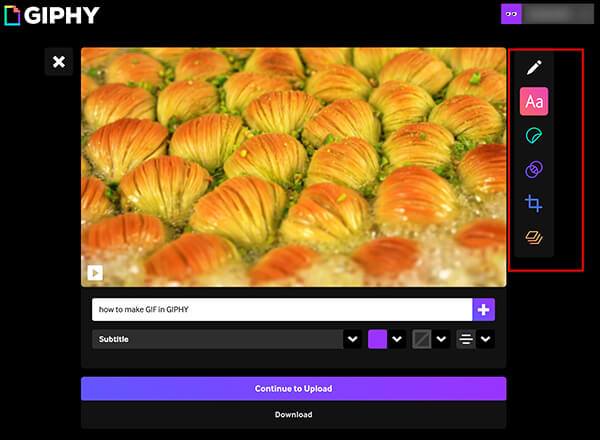
4. Add Personalization
Use the Decorate tab to overlay captions, choose a font style, or add animated stickers to your creation.
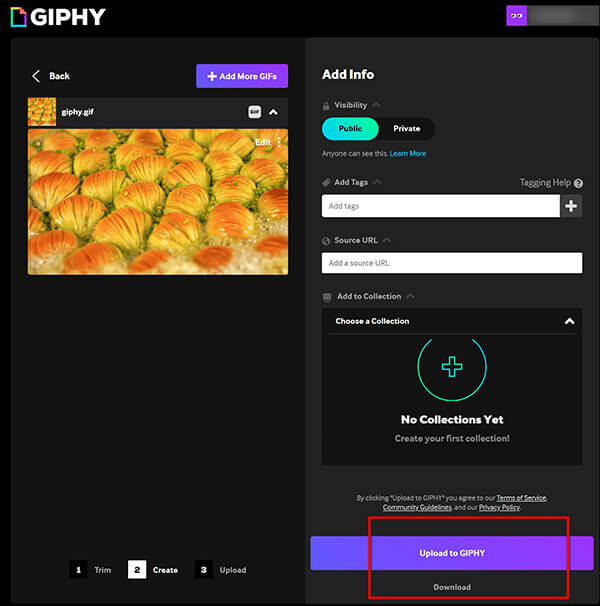
5. Finalize and Upload
Select Upload to GIPHY to finalize the upload and generate a unique URL for your GIF.
Or just click Download button to export the GIF from GIPHY.
Personal Experience Summary:
I love GIPHY for its speed, but keep in mind that everything you upload is public by default. I once accidentally uploaded a screen recording of a private work project, so always remember to toggle the Public/Private setting if you're not looking for global fame!
While GIPHY is flashy and social, EZGIF is the reliable Swiss Army Knife for people who need more technical control. I often turn to EZGIF when I need to make a GIF from photos because its GIF Maker tool lets you set the exact frame delay. It looks like a website from 2005, but it’s actually one of the most powerful free tools available for cropping, resizing, and optimizing. It’s especially helpful for SEO because it offers Lossy GIF compression, which can significantly reduce file size without making the image look like a pixelated mess.
1. Navigate to the Tool
Go to the EZGIF website and select the Video to GIF or GIF Maker tab depending on your source files.

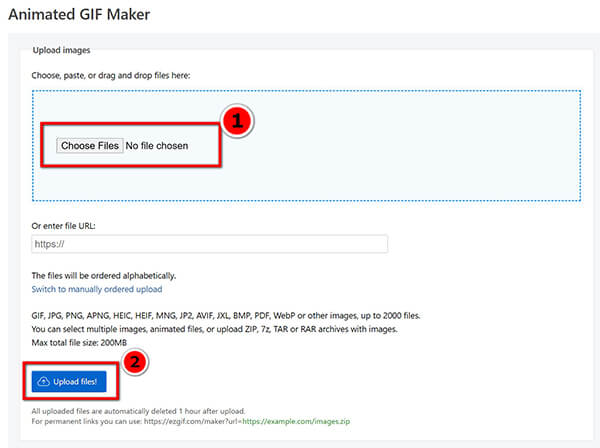
2. Upload your Media
Choose your video or image files from your computer and click the Upload files! button to bring them into the editor.
3. Configure the Output
Select your desired frame rate (FPS) and resolution, keeping in mind that 20 FPS is usually the sweet spot for smoothness.
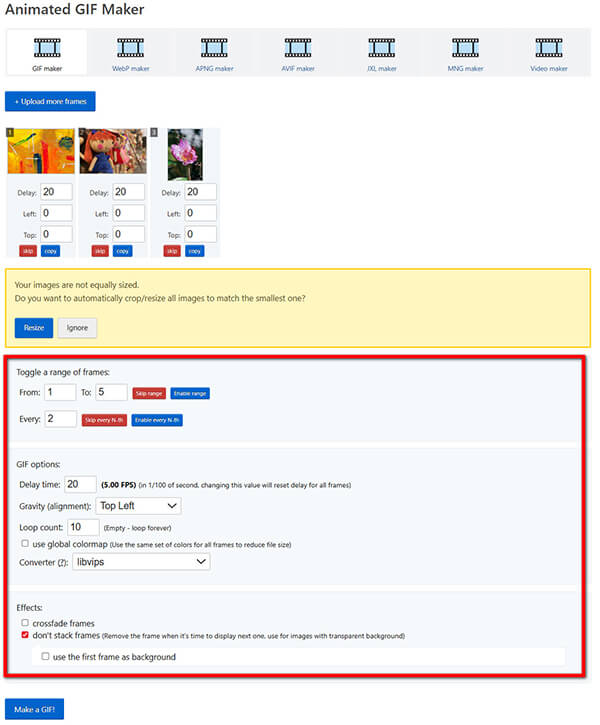
Use the Optimization dropdown to select a compression method that reduces the final GIF file size for faster web loading.
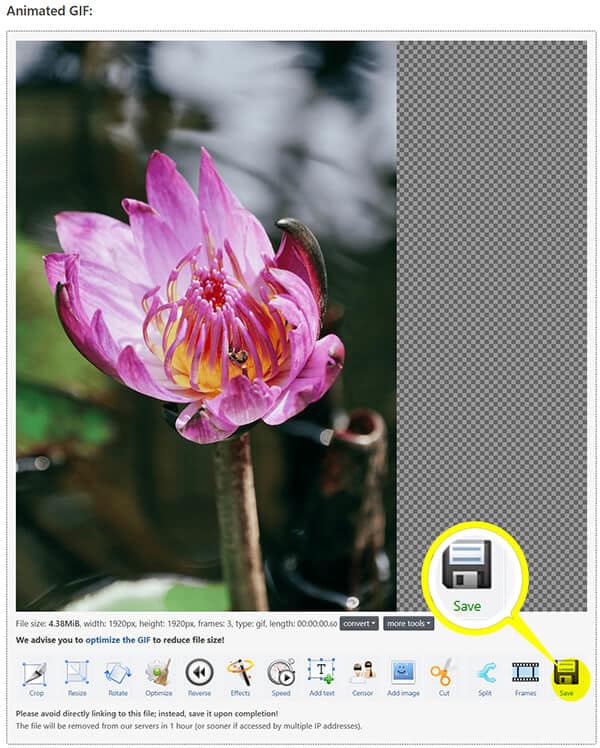
4. Convert and Save GIF
Click the Make a GIF! button, preview the result in the window below, and click the Save icon to download it.
Personal Experience Summary:
EZGIF is my secret weapon for fixing broken GIFs. If I have a file that's too big for Discord's 8MB limit, I just run it through EZGIF's resize tool, and it works every time.
When quality is non-negotiable, and like for a product demo or a high-end blog post, and you need desktop software. These tools offer better color processing and don't rely on your internet speed.
In my professional toolkit, AnyMP4 Video Converter Ultimate is the powerhouse I use for serious content production. While online tools often struggle with large 4K files or specific formats like MOV and MKV, this software handles them with ease. It is particularly valuable for its Precision Trimming, which allows you to clip videos down to the millisecond, and essential for creating that perfect loop where the end and beginning blend seamlessly. I also rely on its Batch Conversion feature when I need to convert videos to GIFs for an entire library of product clips at once. The High-Quality Output Control is the best in the business, giving you full reign over resolution and color palettes to ensure your GIFs look crisp even on Retina displays.
Secure Download
Secure Download
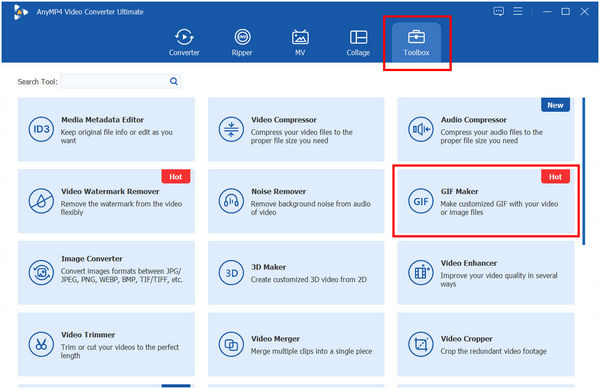
1. Open the Toolbox
Launch the software, navigate to the Toolbox, and locate the GIF Maker tool.
2. Import your Source Video/Photos
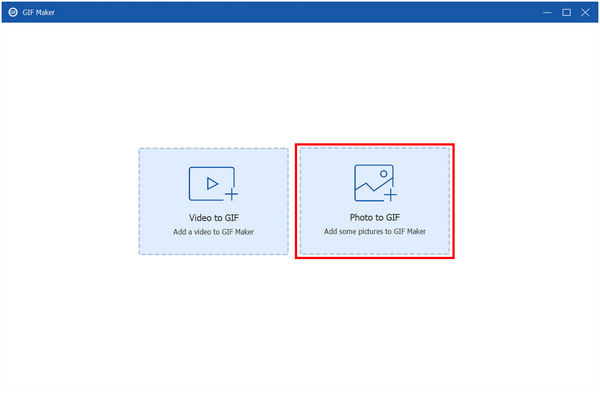
Select Video to GIF or Photo to GIF and choose the high-definition file you want to convert from your local drive.
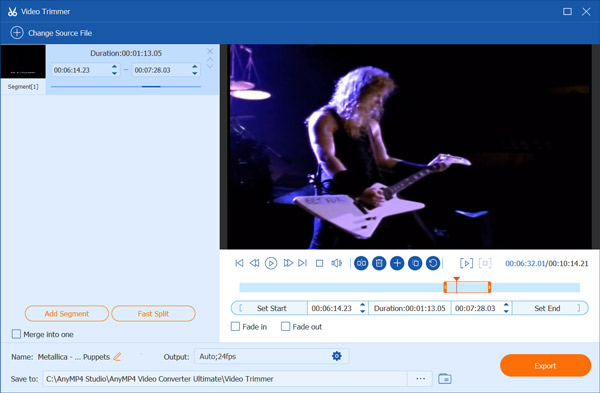
3. Use Precision Trimming
Click the Cut icon to open the timeline where you can enter specific start and end times down to the millisecond.
Set the Output Size and Frame Rate to 24 FPS for a cinematic look, ensuring the Loop Animation box is checked.
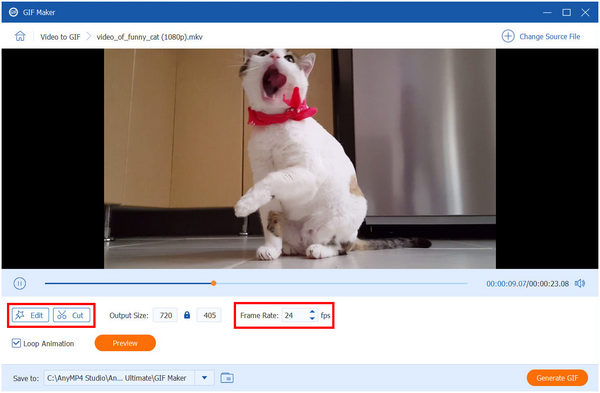
Hit the Edit button if you need to crop the frame, add a watermark, or apply filters to make the colors pop.
4. Generate the GIF
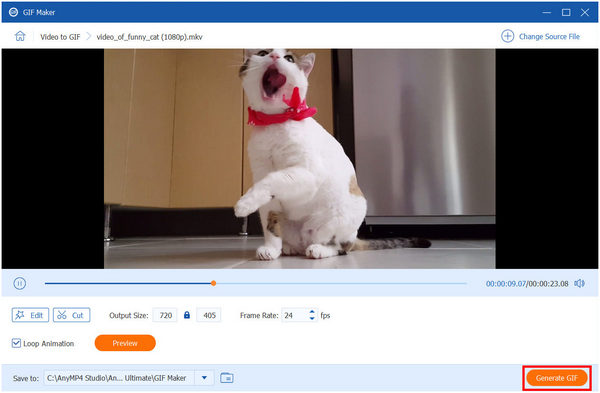
Click the Generate GIF button to save the high-quality file to your destination folder at lightning speed.
Personal Experience Summary:
This is the only tool I trust when I'm working with 4K footage. Most online converters will crash or automatically downscale the video to 480p, but AnyMP4 keeps the clarity intact, making it the best GIF software for professional creators.
Photoshop is the heavyweight champion for creators who want absolute control over every single pixel. I learned how to make a GIF in Photoshop during my first internship, and it completely changed how I think about file optimization. Since Photoshop treats every frame of a GIF as a layer, you can selectively delete frames, adjust the color of just one specific part of the image, or add complex text overlays that move independently. It’s definitely not the fastest method, but if you need to make a GIF in Photoshop from photos and want to apply professional-grade color grading, there is no substitute.
1. Import Video Frames
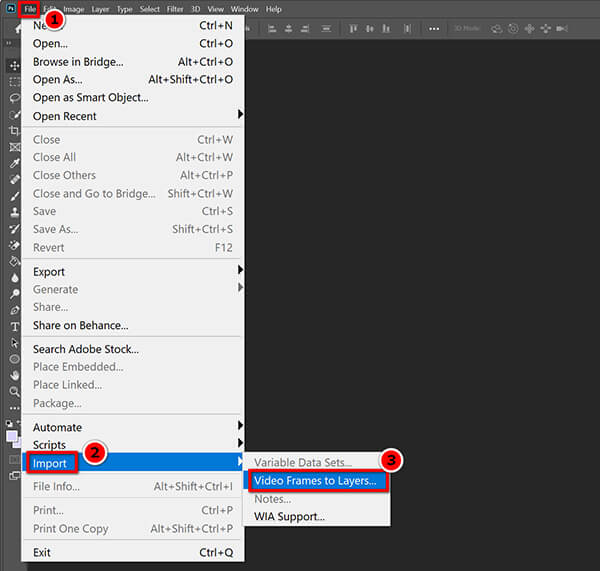
Go to File > Import > Video Frames to Layers to bring your footage into the Photoshop workspace.
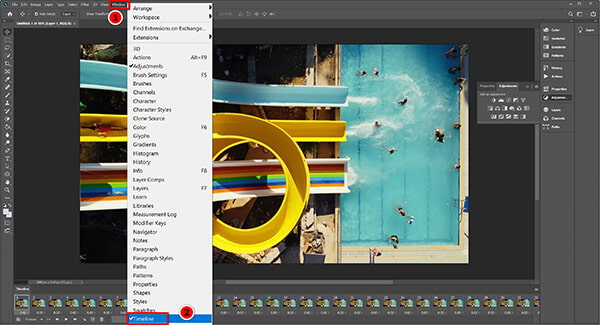
2. Open the Timeline Window
Navigate to Window > Timeline to see the frame-by-step breakdown of your video at the bottom of the screen.
3. Edit Individual Frames
Select specific layers to add text, remove background distractions, or adjust lighting for each individual frame.
In the Timeline panel, ensure the loop setting is set to Forever so the animation doesn't stop after one play.

4. Export for Web
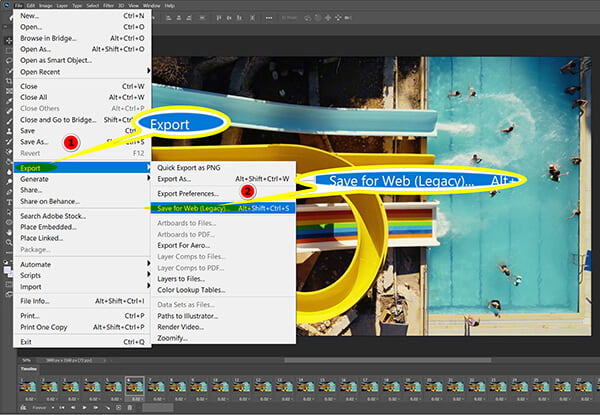
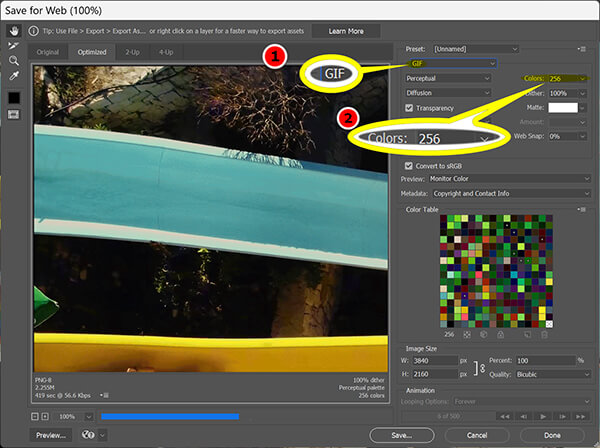
Go to File > Export > Save for Web (Legacy) and select GIF from the file format dropdown menu.
Adjust the Colors to 256 and the Dither percentage to find the perfect balance between file size and visual smoothness.
Personal Experience Summary:
Photoshop is a beast. I only use it when I need to do something highly specific, like rotoscoping (masking out a person from the background). For a simple 5-second clip, it's a bit like using a Ferrari to drive to the mailbox, but for art, it's essential.
Since we all live on our phones, knowing how do i make a GIF on the fly is a superpower for social media managers.
ImgPlay is my favorite mobile app for creating content because it integrates so well with the modern smartphone camera. It’s the easiest answer to the question of how to make a GIF on iPhone because it can instantly turn your Live Photos into looping GIFs. I use it constantly when I’m at events or traveling and want to share a behind the scenes moment on Instagram or X. It’s surprisingly powerful, offering features like frame-rate adjustment and Ping-pong (the effect where the video plays forward and then backward) which adds a fun, modern energy to your clips.
1. Choose your Input
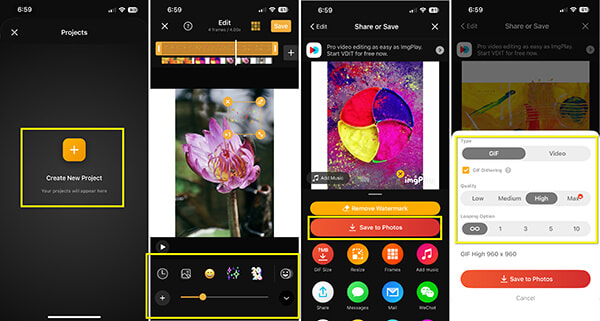
Open the ImgPlay app, hit Create New Project, and select whether you want to use a video, a series of photos, or a Live Photo from your gallery.
2. Trim the Length
Slide the yellow markers on the timeline to select the exact clip you wish to loop.
3. Add Creative Flair
Tap the T icon to add captions or use the Filters tab to give your GIF a specific aesthetic or mood.
Use the speed slider to make your GIF play in slow motion or fast-forward to match the energy of the clip.
4. Select Export Quality
Click Save to Photos and choose your desired resolution, usually High for social media or Medium for text messages.
Personal Experience Summary:
The Live Photo feature in ImgPlay is a game changer. Instead of filming a video, I just take a high-res photo with the Live setting on, and ImgPlay turns it into a perfect, stabilized GIF in seconds.
Q: What is the ideal file size for a GIF?
A: For web and blog use, try to keep it under 1MB to ensure fast loading times for mobile users. For social media like Twitter or Discord, you can go up to 5MB or 8MB, but larger files may be compressed by the platform anyway.
Q: Should I use a high or low frame rate (FPS) for my GIF?
A: High FPS (24-60) looks smooth but makes huge files. Low FPS (10-15) has a choppy look but is great for SEO. I usually stick to 18-20 FPS for the perfect balance of smoothness and speed.
Q: Can I make a GIF from a YouTube video?
A: Yes! GIF creator tools like GIPHY and EZGIF allow you to paste a URL directly. However, for a high-quality GIF, I recommend downloading the video and using the best GIF software like AnyMP4 to avoid browser-based compression.
Q: Why does my GIF look pixelated or have color issues?
A: GIFs are limited to 256 colors. If your source has a lot of gradients (like a sunset), it will look banded. Using the Dithering setting in Photoshop or AnyMP4 can help blend these colors more naturally.
Q: What’s the best format for GIFs?
A: The .gif format is the standard, but many modern websites actually use GIFV or silent MP4s because they are 10x smaller. If you are uploading to a blog, check if your CMS supports MP4 loops!
Q: Are GIFs supported on all platforms?
A: Yes, they are almost universally supported. From old Outlook email clients to the latest Discord builds, the GIF remains the most compatible animated format in the world.
Learning how to make a GIF is a skill that sits right at the intersection of creativity and technical SEO. Whether you’re looking for the instant gratification of GIPHY, the deep control of Adobe Photoshop, or the professional efficiency of AnyMP4 Video Converter Ultimate, the key is to prioritize the user experience. Always ask yourself: Does this GIF load fast, and does it clearly communicate my point?
From my years of experience, I’ve found that a well-optimized GIF is often more powerful than a 2-minute video. It respects the viewer's time while providing that visual punch that text alone cannot achieve. So go ahead, and grab a clip, pick a tool, and start creating!
Secure Download
Secure Download
 Updated by Angelica Liwanag to GIF
More readings
 Split Video into Parts 3 Best Video Splitters to Cut Video
Boring about the mute GIFs? Here is a comprehensive guide to explain how to add audio tracks to animated GIF images without technical skills.
 How to Trim MP4 Videos Online, Desktop, and Mobile (2026)
Do you want to learn the best options to cut MP4 videos on browsers, desktops, and mobile devices? Read this article to learn the five best options.
 Cut GIF Online & Offline Fast, Free & No Watermark
Need to trim or split a GIF? Discover the best free and premium tools to cut GIFs online or offlineno watermark, no fuss.
 10 Best MP3 Trimmers Available to Windows and Mac OS X/11/12
It always makes us exciting that we can trim MP3 files and merge the parts into one file using the best MP3 cutter and trimmer software we share in this article.
 Add your comments to join the discussion here