
Nowadays, video has become an essential part of our lives. Whether for personal sharing on social media or professional presentations, demand for video editing is constantly on the rise. A common and important operation in video editing is to flip the video. Flipping the video can correct the orientation, add special effects, or create a special visual experience. Today, we will focus on how to flip videos on Android. So, how can we achieve this effortlessly and efficiently? Let's explore this topic further.
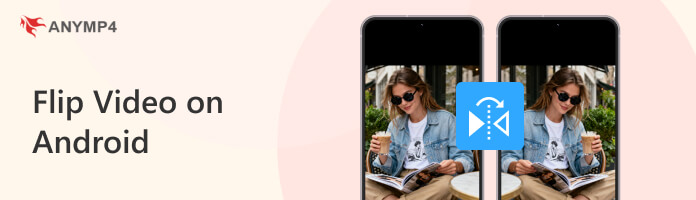
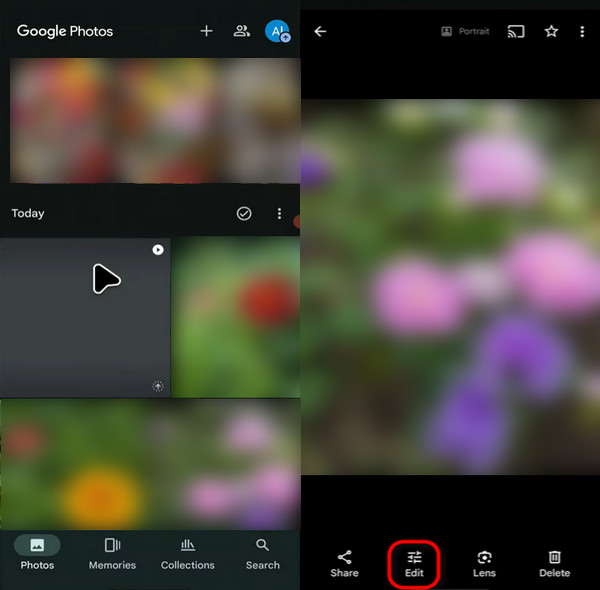
The easiest way to flip videos on Android is by using the Google Photos app. Because it is pre-installed on many Android devices, including Samsung devices, and allows you to flip (mirror) all your videos horizontally. Here is the step-by-step instruction to flip a video using the built-in Google Photos editor app:
1 Open the Google Photos app on your Android device, then tap the video you want to flip.
2 Tap the Edit button (it looks like a set of adjustment sliders) at the bottom of the screen to enter Edit Mode.
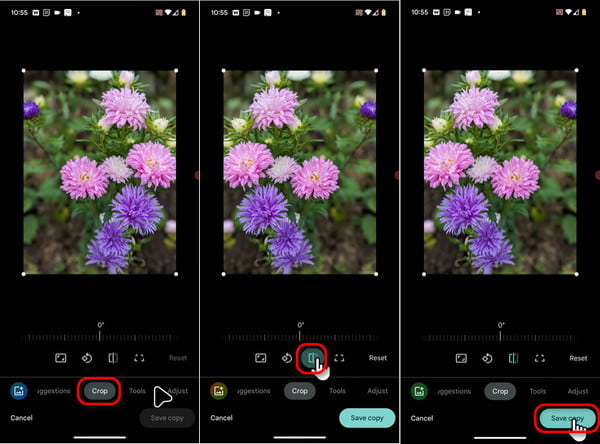
3 Scroll or swipe until to find and tap the Crop tab in the row of editing tools along the bottom.
4 On the Crop screen, look for the Flip button (a square with a horizontal arrow). Tap it to flip the video horizontally.
5 Once the video is flipped correctly, tap Save copy in the upper-right corner to save the flipped version as a new file. Then, the flipped video will be saved to your Google Photos library.
Clideo is a web-based online video editor, which means you can access their website directly through your Android phone's browser without downloading any apps. This is an excellent option if you don't want to download another app! Here are the detailed steps to flip videos on Android using Clideo:
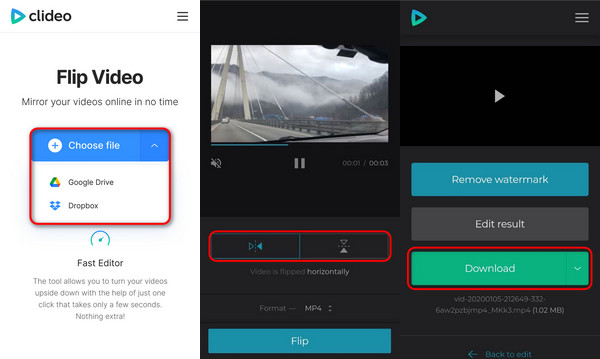
1 Open Clideo on your Android phone and navigate to the Clideo Flip Video page. Tap Choose file or Google Drive/Dropbox under the downward arrow in the lower-right corner to upload the video file you want to flip.
Note: It only supports free uploads of files up to 500MB in size.
2 Once the video is uploaded, tap the two flip buttons at the bottom of the preview screen to flip the video horizontally or vertically.
• The Horizontal Flip button: two triangles reflecting each other sideways to flip the video left and right.
• The Vertical Flip button: two triangles reflecting each other up and down to turn the video upside down.
3 Before flipping, you can preview the clip via the Play button directly below the video. If you are satisfied with the effect, tap the Flip button. Once finished, you can save it by tapping the Download button.
Flipping a video on Android is usually simple, but sometimes you may encounter issues. Here are essential tips and troubleshooting steps to ensure your video is flipped exactly the way you want it.
• Check for App Updates: Go to the Google Play Store, ensure the editing app you are using is updated to the latest version.
• Update Android OS: Outdated operating systems can sometimes lead to editor glitches or missing features. Check your phone's settings for system updates.
App data that builds up over time can impact editing functions. So, clearing the cache and trying the flip again is often a simple fix.
This classic fix often works because it resets any running background processes or sensor data (like the phone's orientation sensor) that may be confusing the video editor.
We have introduced two ways of flipping videos on Android above. In this section, the method of flipping videos on the computer will be additionally provided for your reference. If you are not satisfied with the limited video flipping functionality and lack of output settings options on Android, then using a flipping program on computer to flip the video might be a better choice.
AnyMP4 Video Converter Ultimate is the best choice. It is a versatile video editing and converting software compatible with both Windows and Mac computers. This powerful video editor comes equipped with a variety of tools, including Video Rotator, which allows you to flip videos effortlessly and freely, whether horizontally or vertically. Besides, it supports various output formats for Android like MP4, 3GP, WebM, and more, so that you can watch the flipped video on Android without efforts.
The following are the detailed steps to flip videos on a computer using it:
1 Click the button below to download and install it on your Windows/Mac computer. After installation, launch it.
Secure Download
Secure Download
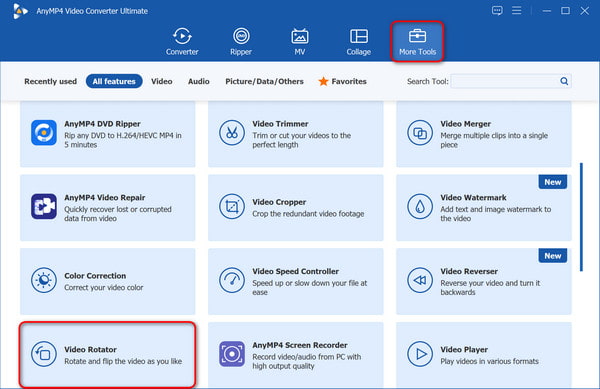
Navigate to the More Tools tab and find the Video Rotator tool, which is the professional tool for flipping and rotating videos.
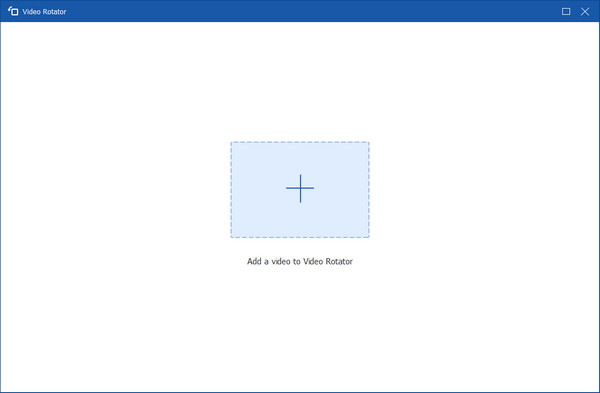
Click the plus button in the center of the screen to upload the video you want to flip into the Video Rotator.
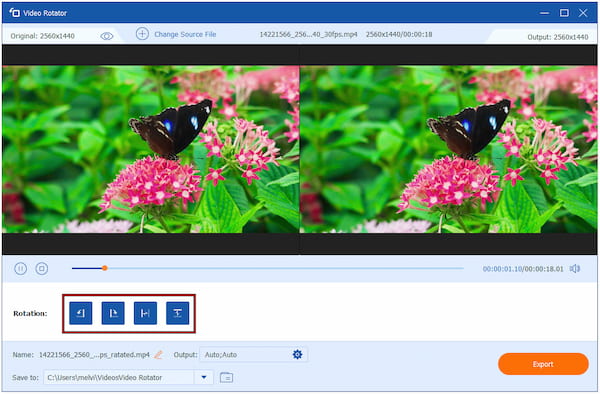
2 After the video is loaded, you can select the last two options (Horizontal Flip & Vertical Flip) in the Rotation menu to flip the video horizontally or vertically. (The first two options are Left Rotate and Right Rotate, respectively.) You can adjust as needed.
3 During the adjustment, you can preview the flipped video in real time. After completing the adjustments, click the gear button next to the output options to configure the Android outputs such as MP4, MKV, etc. Finally, click Export to save your flipped video.
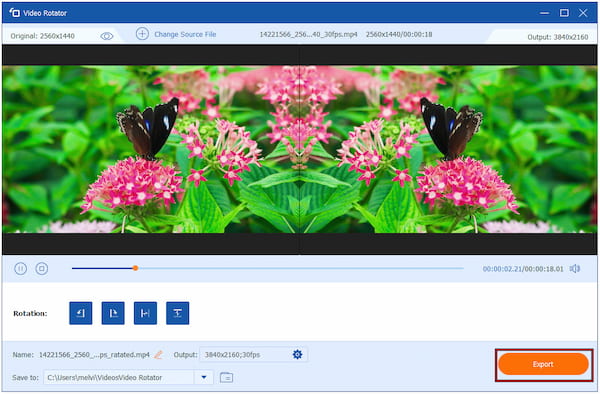
Now, you have done to flip a video on computer, and you can use an USB cable to transfer the processed video file into your Android phone.
What's the difference between flipping and rotating a video?
Generally, flipping refers to mirroring a video horizontally or vertically along an axis. In contrast, rotation refers to rotating a certain angle, either clockwise or counterclockwise, around the centre point to change its direction.
Q: What is an SRT file, and
The main reason why your front camera video looks mirrored is to enhance the user experience and intuition when viewing, thereby facilitating better composition.
Do all Android phones have a built-in flip feature?
That's a very relevant question for Android users! The short answer is no, not all Android phones have a built-in flip (mirroring) feature for videos in their default gallery or video editor, but most have a way to do it.
This is how to flip videos on Android. Whether you use the built-in tools like the Google Photos app, online video editors like Clideo, or professional video editing software like AnyMP4 Video Converter Ultimate for Windows and Mac, you can get the job done. Choose the option that best suits your needs to make your video flipping process easier. Hope this article is helpful to you!
Secure Download
Secure Download
 Updated by Mark Cristobal to Edit Video
More readings
 Top 6 Slow-motion Video Apps for Android Smartphones and Tablets
Looking for the best slow-motion video app for your Android device? Here is a top list reviewing the best apps unbiasedly.
 How to Compress Video on Android in High Quality with Computer
If you want to compress videos on Android phone to save storage space, you can learn 2 verified tools to compress videos on Android in high quality.
 3 Ways to Rotate a Video on Android Phone [Step by Step]
Here is how to rotate a video on Android phone or tablet, so that you can change the tilted videos to correct orientation without damaging video quality.
 3 Verified Methods to Crop an Android Video without Losing Quality
How to crop a video on Android phone or tablet? This tutorial tells you three methods 100% working with or without a computer.
 Add your comments to join the discussion here