
In the digital age, MP4 has become one of the most widely used video formats in various fields. While watching MP4 videos, several scenarios arise where the need to flip the video occurs. For instance, in video shooting, improper camera handling or an unfavorable shooting environment can result in the video being recorded in an unexpected orientation. Sometimes, creative video editing requires unique visual effects to flip the video. Additionally, in certain educational or demonstration videos, flipping the video can better present the content and help the audience understand it more clearly. This article will introduce how to smoothly flip an MP4 video using the three best software. Keep reading!

AnyMP4 Video Converter Ultimate is an all-in-one video editing software compatible with both Windows and Mac computers. It features various built-in tools like Video Rotator, which enables you to effortlessly flip MP4 videos in the fastest way, whether horizontally or vertically. In addition, this video editing program supports multiple input and output video formats, including the widely popular MP4, of course. Here are the specific steps to flip an MP4 video using it:
1. Click the download button below to download and install AnyMP4 Video Converter Ultimate on your Windows/Mac computer. After installation, launch it.
Secure Download
Secure Download
2. Click the Add Files button in the upper-left corner to import your MP4 video for flipping. Alternatively, you can directly drag MP4 video files into this program.

3. Click the edit button for the imported MP4 video to enter the editing interface.
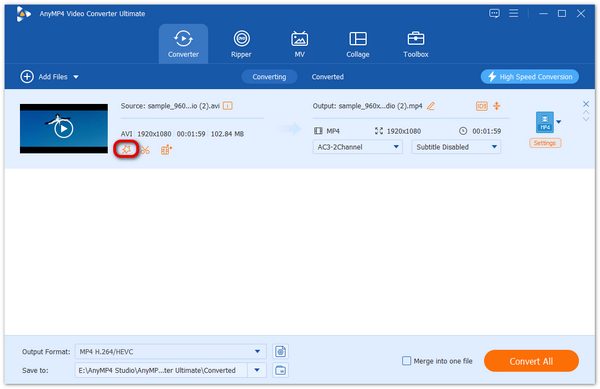
4. Under the Rotate & Crop tab > Rotation option, select the last two options (Horizontal Flip and Vertical Flip) as needed. You can simultaneously check the results in the video preview window.
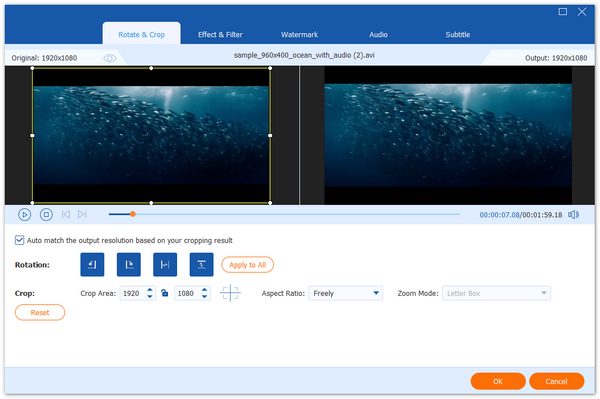
5. Moreover, you can crop the video by setting the crop area, adjusting the aspect ratio, and enabling zoom mode. After completing the editing, click the OK button to save the changes. Finally, click Convert All to export the flipped MP4 video.
In addition to the methods mentioned above, you can also use the Video Rotator tool under the More Tools tab within the program. It offers a wider range of options for video and audio settings, including output format, resolution, quality, and more.
VLC Media Player is primarily a video converter, but it can also be used to flip your MP4 video. There are two steps to flip a video using it: Temporarily flipping the video for playback, and converting and saving the file to make the change permanent. It should be noted that the permanent saving step in VLC involves re-encoding the video, which will result in some minor quality loss. The following are the steps to temporarily flip an MP4 video with VLC:
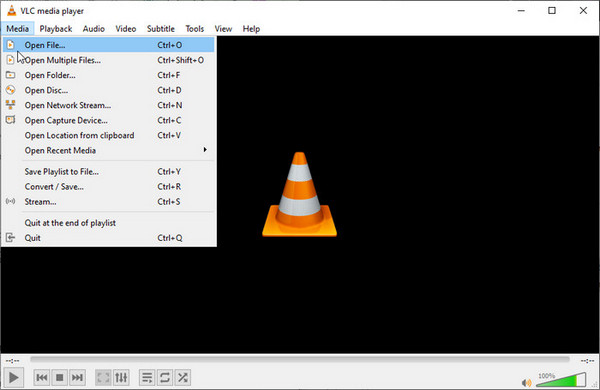
1. Open VLC and navigate to Media > Open File... to open the video you want to flip, or drag the file into the player.
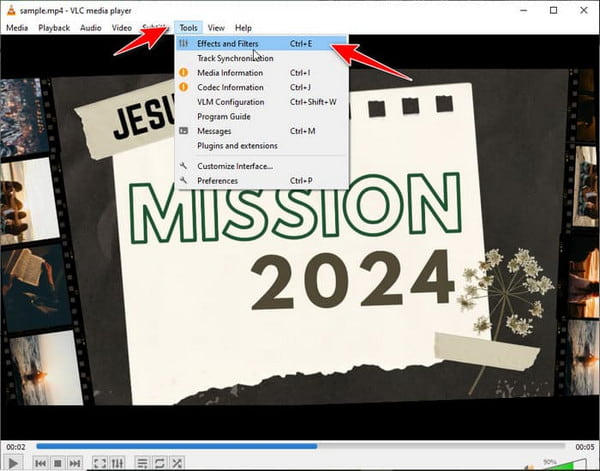
2. Go to Tools and select the Effects and Filters, option from the top menu bar, or use the keyboard shortcut: Ctrl + E on Windows/Linux, Cmd + E on Mac.
3. Click on the Video Effects, tab in the Adjustments and Effects window. Then, go to the Geometry tab. Check the box next to Transform to enable the flipping and rotation options.
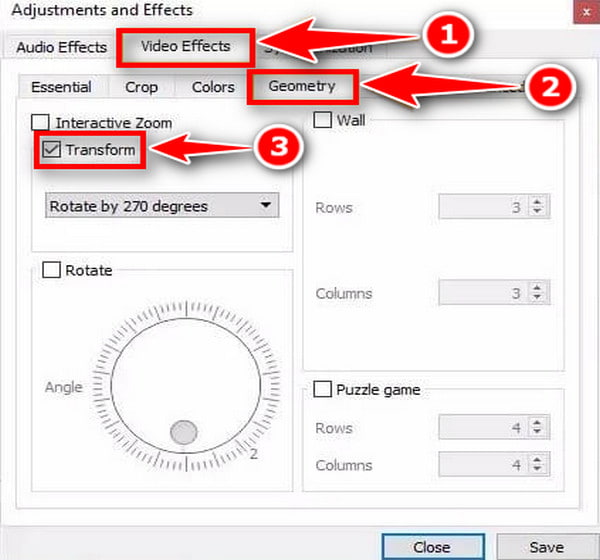
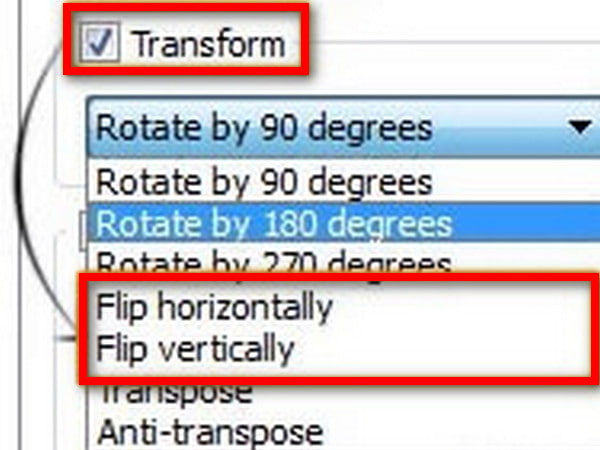
Once checked, select the desired flip from the dropdown menu under the Transform:
• Flip vertically: flip the video upside down.
• Flip horizontally: mirror the videos from side to side.
Click Close to apply the effect, and then the video will immediately flip.
The steps to flip an MP4 video in VLC are just for temporary playback. Read another article if you want to learn more about permanently flipping a video in VLC.
Clipchamp is a popular online (browser-based) video editor. It is designed to be accessible and easy for beginners, making it a powerful tool for quick edits, especially for social media content. Flipping an MP4 video in Microsoft Clipchamp is straightforward and is applied permanently when you export the final video. The steps to flip an MP4 video with Clipchamp are as follows:
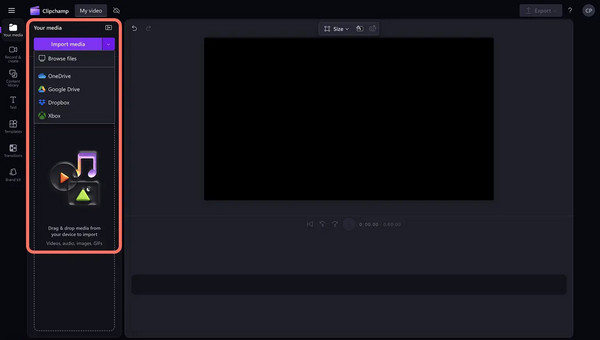
1. Start a new project or open an existing one. Click on the Import Media button and upload your MP4 file.
2. After successfully uploading the MP4 video, drag and drop it from the media library onto the timeline at the bottom of the screen.
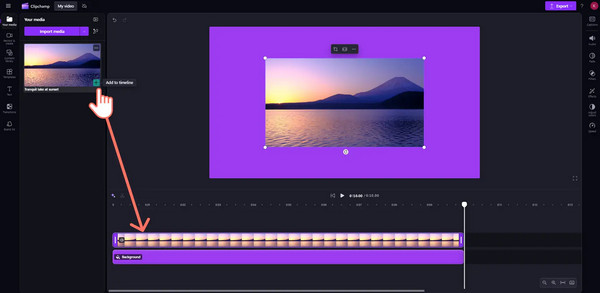
3. Click the MP4 video clip in the timeline to select it. Click the three-dot button in the floating toolbar above the video preview screen to open the Flip options. Then, you will see two options: Flip horizontal and Flip vertical.
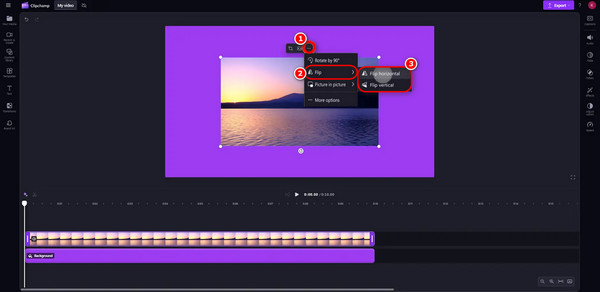
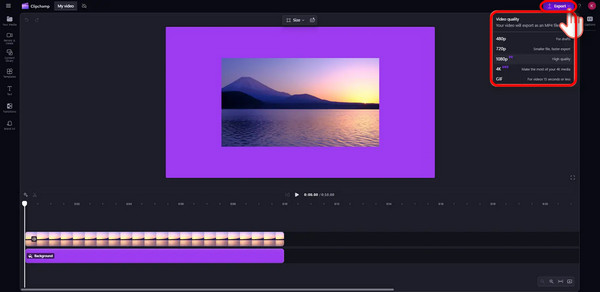
4. Select the option you need. The video will be instantly flipped in the preview window, allowing you to preview it. If you are satisfied with the changes to the video, click the Export button in the upper-right corner, select the desired video quality, and save the flipped MP4 video.
Will I lose video quality if I flip my MP4?
Yes, flipping (or rotating) an MP4 video can lead to a loss of video quality if the process involves re-encoding the video.
Are free online video flippers safe to use, and do they have watermarks?
Most major/well-known free tools are safe, but privacy can be a concern on lesser-known sites. Many free online tools use watermarks to encourage you to upgrade to a paid plan.
Can I flip a video without downloading any software?
You can easily flip a video without downloading any software by using a free online video editor or a dedicated online video flipper tool. These tools run directly in your web browser, so there is no installation required.
This article introduces three methods for flipping MP4 videos using three different video editing software programs. You can choose the one that best suits your needs. AnyMP4 Video Converter Ultimate, as a professional video editing software with powerful built-in tools, is highly suitable for flipping MP4 or other video formats. We hope this article can help you! If you find it useful, feel free to share it with others who might need it.
Secure Download
Secure Download
 Updated by Mark Cristobal to Edit Video
More readings
 Best 5 Video Compressor to Reduce MP4 File into Smaller Size
How do I compress a MP4 video file into smaller size? Here are best 5 video compressors (free & paid) to help you compress MP4 smaller for email, WhatsApp, etc.
 How to Rotate MP4 Video on Windows & Mac - 3 Easy Ways
Learn how to easily rotate your MP4 videos on Windows 11/10, and Mac computers. Our step-by-step guide helps you fix video orientation without quality loss.
 How to Add Audio to MP4 Video on Windows/Mac/Online
Learn how to add MP3 or background music to MP4 videos on Windows, Mac, or online. Step-by-step guide with free tools and pro tips - no re-encoding required.
 How to Zoom MP4 Videos on Windows, Mac, Online, and Mobile
Read this article for a detailed guide on how to zoom in on videos using multiple software featuring video editors, media players, and online editing tools.
 Add your comments to join the discussion here