
With the rise of vertical videos (9:16 aspect ratio) on social platforms such as TikTok, Instagram Reels, and YouTube Shorts, video editing programs like iMovie, which are primarily designed for traditional widescreen (16:9) videos, are facing increasing challenges. Specifically, editing vertical videos in iMovie often results in issues, such as black bars on the sides, due to the different aspect ratio. This article will show you how to edit videos in iMovie on Mac/iPhone/iPad without black bars affecting your viewing experience.
As we mentioned above, editing videos in iMovie has some challenges because this software was originally designed for traditional widescreen (16:9) aspect ratios. The specific issues you will face depend on whether you are using the Mac version or the iOS version. Below are some of the most common problems:
1. Aspect ratio constraints and black bars.
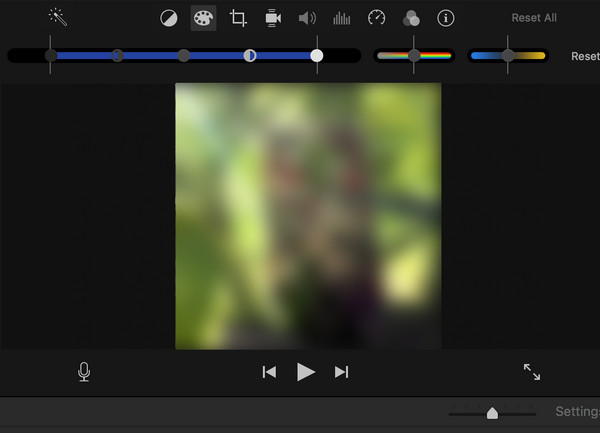
This is the most common and immediate problem, particularly on iMovie for Mac. iMovie for Mac has a hard-coded 16:9 (horizontal) aspect ratio for all standard movie projects. When you import a vertical 9:16 video, the project frame cannot change to match it. iMovie adds black bars to the left and right sides of your vertical video to fill the extra horizontal space of the 16:9 frame.
2. App preview mode limitations.
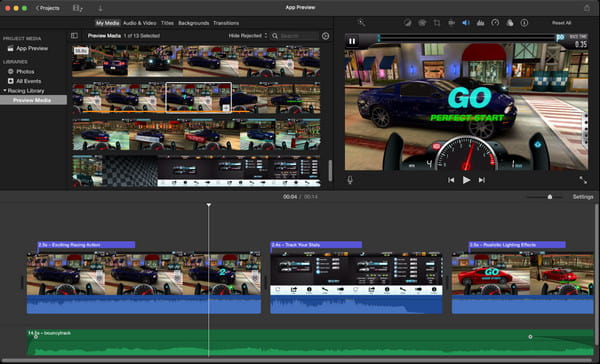
The New App Preview mode allows you to edit and export in a vertical format without the initial black bars. However, it limits the tools and features available. Specific examples are as follows:
• Standard iMovie titles and backgrounds are designed for horizontal projects and may not work or align correctly when used in a vertical project. So, you are often restricted to a very small, specific set of App Preview Titles.
• This mode may limit your export resolution to 1080p, meaning that if you shot your vertical video in 4K, you will lose quality upon export.
3. Workarounds (cropping and zooming) and their drawbacks.
Due to iMovie's fixed aspect ratio, users must rely on the cropping tool to crop the video, as well as the zooming tools and pinch-to-zoom feature to adjust the video. However, the former will crop the top and bottom of vertical videos, resulting in a loss of footage. The drawbacks of the latter are that if you zoom too far, you will lose the edges of the video. However, if you zoom out to fit the full height, you sometimes end up with black bars again.
Editing vertical video (9:16 aspect ratio) in iMovie on a Mac is challenging because the application is fundamentally designed for a 16:9 (horizontal) widescreen format. Follow these steps to edit vertical videos in iMovie on Mac:
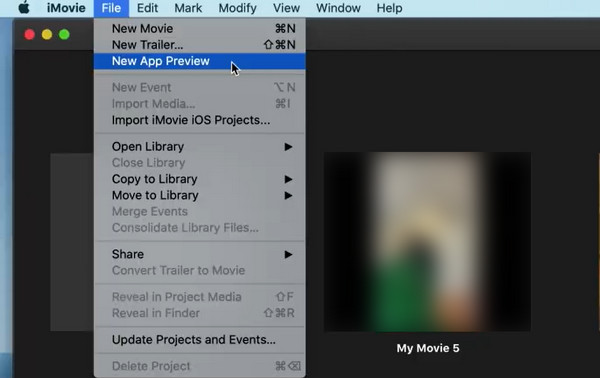
1. Go to File > New App Preview instead of New Movie to create an App Preview project, and the App Previews pop-up window will appear. Click OK in the bottom-right corner of the window.
2. Drag your vertical video clip into the timeline to import it. (The first clip you add must be vertical.) Then, it will automatically be displayed.
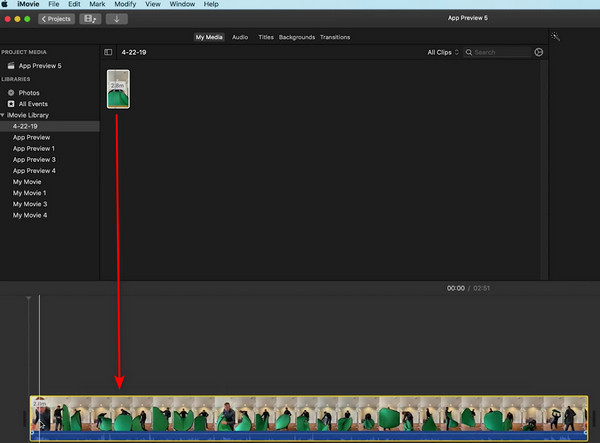
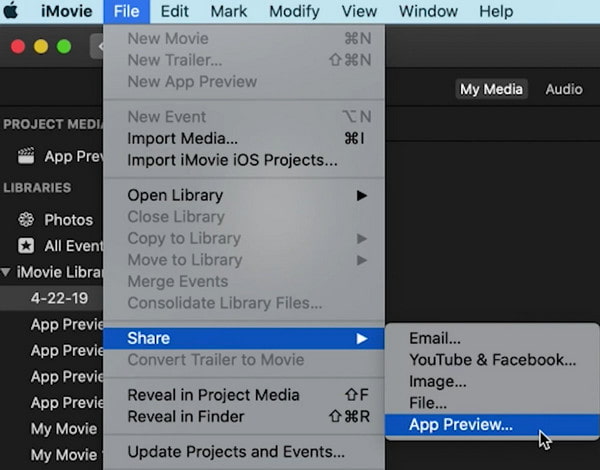
3. It will automatically create a vertical project, eliminating the need for black bars on the sides. Then, you can edit the video as usual using all of iMovie's tools. Finally, go to File > Share > App Preview to export the video in the vertical format.
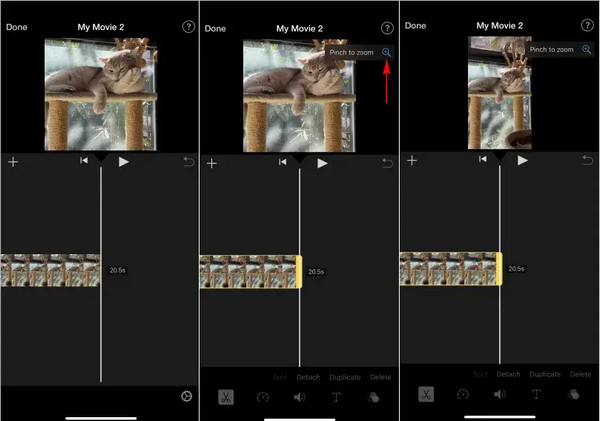
Editing vertical videos in iMovie on an iPhone or iPad is simpler than on a Mac, as the iOS version is more flexible with aspect ratios. However, it requires a few manual steps to prevent the video from being zoomed or cropped into a square shape. Here are the steps to edit the video in iMovie on iPhone:
1. Tap the plus-shaped button to create a project and select Movie. Import the vertical video you want to edit.
2. iMovie on iOS may automatically zoom in and crop to a square (1:1) ratio, but don't worry. You can restore the full frame by tapping the clip on the timeline > the Pinch to Zoom button (a magnifying glass with a plus sign) in the top-right corner.
3. Use two fingers to pinch inward on the video until it zooms out and returns to its original vertical aspect ratio (9:16). The video is now in vertical format.
Note: Using the pinch-to-zoom feature in this step can result in some quality degradation or loss of parts of the video frame.
4. Then, you can edit as needed: trim, split, apply effects, etc. After completing the edits, tap Done > the Share button (the square with an arrow) > Save Video to export. If it still has black bars, open it in your photos app and use the crop tool to select a 9:16 vertical aspect ratio.
AnyMP4 Video Converter Ultimate is a comprehensive video editing software compatible with both Windows and Mac, featuring a wide range of tools. It can rotate, trim, and crop vertical video files, and features a preview window that allows you to see editing results in real-time. In addition, its intuitive interface and straightforward steps make it an excellent alternative to traditional editing software, such as iMovie. The following are its detailed steps:
1. Click the download button to download and install it on your Mac/Windows computer. After installation, it will open automatically.
Secure Download
Secure Download
2. Click the Add Files button in the upper left corner to import the vertical video you want to edit. You can also directly drag it to this program.

3. After importing the vertical video, you can freely use the various editing functions to edit it. The editing functions you can use include, but are not limited to: trim & split, rotate & crop, adjust video effect, add text/watermark/subtitle, etc.
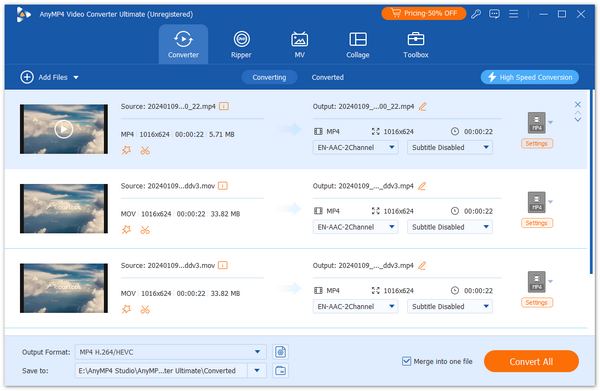
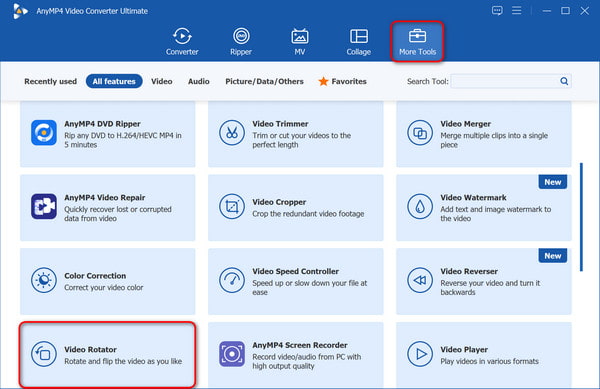
4. Furthermore, you can use powerful tools under the More Tools tab to edit your vertical video. After completing all required edits, save it to your device.
Why does my vertical video have black bars on the sides in iMovie?
Because iMovie videos are generally fixed to a standard horizontal aspect ratio, typically 16:9, whereas vertical videos have a 9:16 aspect ratio. Therefore, it utilizes black bars on the sides to fill the unused horizontal space, preventing the video from being stretched or severely cropped.
Does iMovie work vertically?
Yes, iMovie can work with vertical videos, but how well it handles them depends on whether you are using the Mac version or the iOS (iPhone/iPad) version. iMovie on macOS is designed around a traditional 16:9 widescreen aspect ratio, which creates limitations for vertical video.
Why does iMovie make my video square?
That's a very common frustration, and the reason iMovie is making your video look square is due to its default settings, which attempt to fit one type of video into a different frame size.
This guide shows you how to edit vertical videos in iMovie on Mac/iPhone/iPad. Additionally, if you use Windows or want an easier and simpler way to edit vertical videos, consider AnyMP4 Video Converter Ultimate. Its simple interface, versatile features, and diverse built-in video editing tools fully meet your vertical video editing needs. If you find this article helpful to you, feel free to leave messages in the comment section!
Secure Download
Secure Download
 Updated by Mark Cristobal to Edit Video
More readings
 Edit Contrast on Video - Increase and Lower Video Contrast
What is a contrast ratio video? How do you edit the contrast in a video? You can get a detailed guide to increase or lower the video contrast from this post.
 Mastering Audio Editing in DaVinci Resolve: A Comprehensive Guide
Discover how to edit audio in DaVinci Resolve. Learn about an alternative solution and answer common questions about DaVinci Resolve's audio capabilities.
 iMovie Split Screen – Create Split Screen Effects on All Devices
You can use iMovie to combine two videos on Mac, iPhone, and iPad. Moreover, you can get iMovie split screen alternatives to put multiple videos on one screen.
 Guide on How to Blur Videos in iMovie on iPhone and Mac
Today, we will introduce detailed steps of using powerful iMovie to blur videos on iPhone and Mac to help you get blurry videos.
 Add your comments to join the discussion here