
VLC Media Player is a well-known, free, and open-source cross-platform multimedia player that supports the playback of a wide range of video and audio formats. This feature allows users to play various types of video and audio files with ease. Beyond basic playback functions, VLC offers a range of advanced features, including streaming and network support, subtitle synchronization, video filters, equalizers, effects, and more. Crucially, VLC can also perform basic video edits, such as flipping and rotating. In this article, we will specifically explore how to smoothly flip a video in VLC. This must be of great interest to those who want to fix the mirror effect or create unique visual effects. Now, let's continue!
Firstly, we will introduce the quickest and most commonly used method to fix the video flip or mirror problem in VLC: using the Video Effects. Applies the change only to the current playback session, without altering the original file. Here is the step-by-step guide to temporarily flipping a video in VLC Media Player:
1. Import the video to flip.
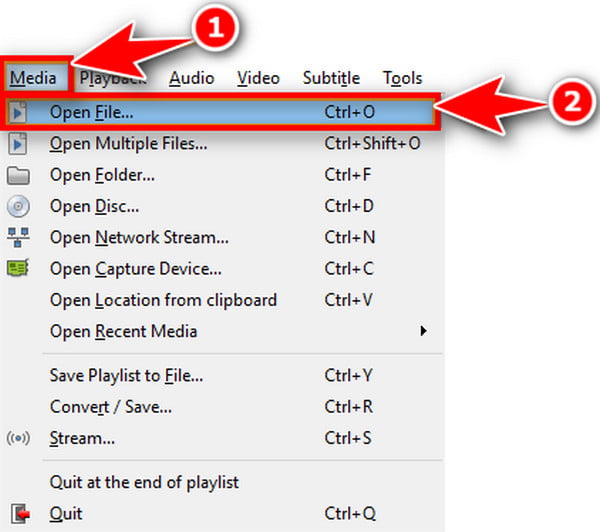
Open VLC and navigate to Media > Open File... to open the video you want to flip, or drag the file into the player.
2. Access Effects and Filters.
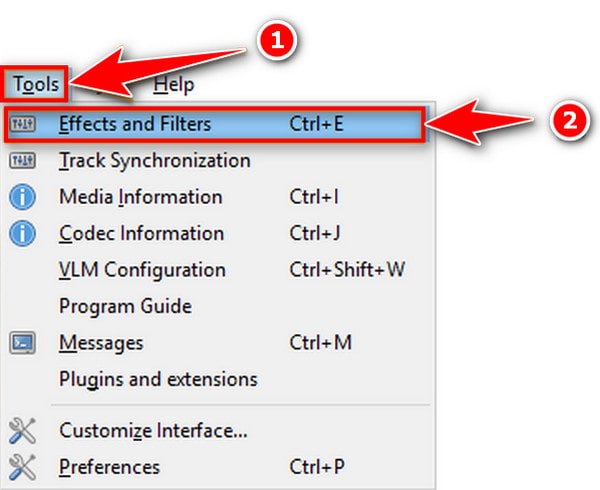
Go to Tools and select the Effects and Filters option from the top menu bar, or use the keyboard shortcut: Ctrl + E on Windows/Linux, Cmd + E on Mac.
3. Apply the flip filter.
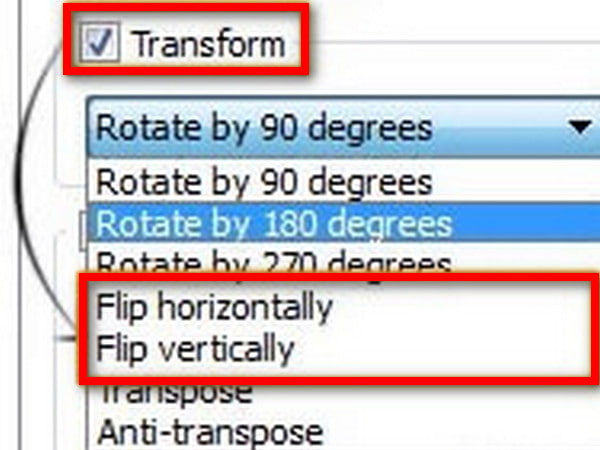
Click on the Video Effects tab in the Adjustments and Effects window. Then, go to the Geometry tab. Check the box next to Transform to enable the flipping and rotation options.
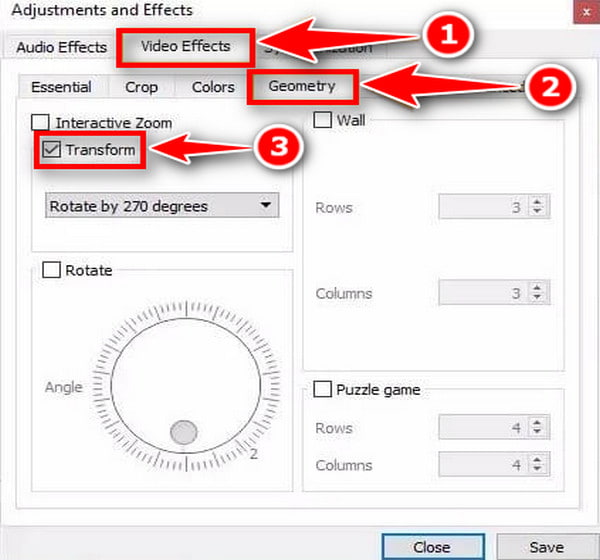
Once checked, select the desired flip from the dropdown menu under the Transform:
• Flip horizontally: mirror the videos from side to side (the most common method for correcting selfie videos).
• Flip vertically: flip the video upside down (a 180° vertical flip).
Click Close to apply the effect, and then the video will immediately flip.
Using the method above to flip a video in VLC is only temporary and applies only during playback. To make a flip or rotation permanent in VLC, you must re-encode the video using the Convert/Save function and specify that the Video Transformation Filter be applied to the new file. Here is the step-by-step instruction to permanently flip your video:
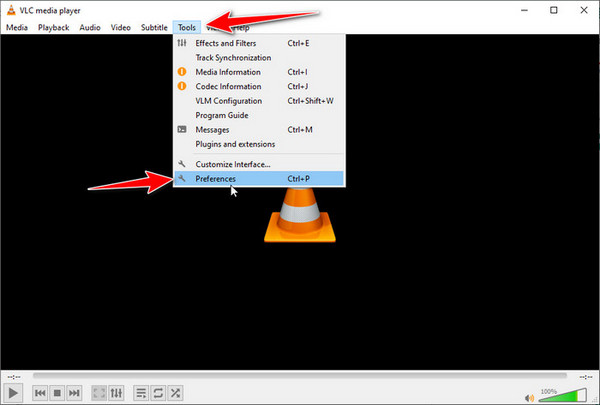
Click Tools > Preferences through the top menu.
1. Click Tools > Preferences through the top menu.
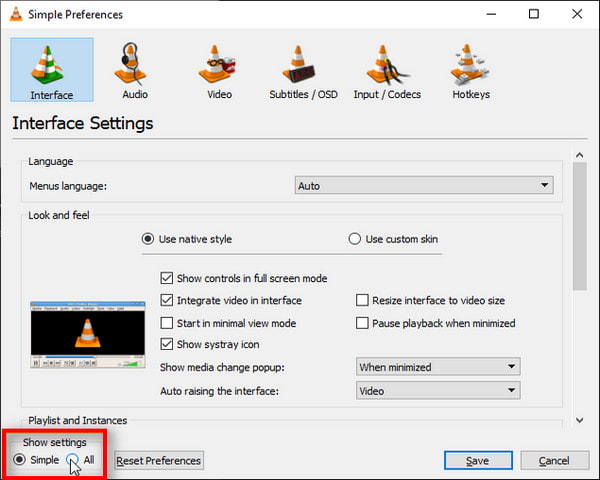
Click All under the Show settings section and enable advanced settings in the Simple Preferences window.
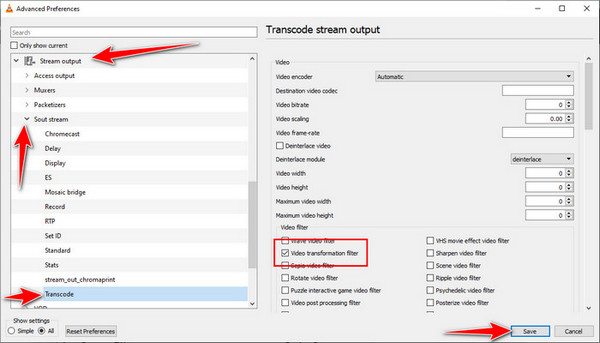
2. Go to Stream output > Sout stream > Transcode. Find and check the Video transformation filter. Click Save to save the changes.
3. Move to the main top menu and select Media > Convert / Save...
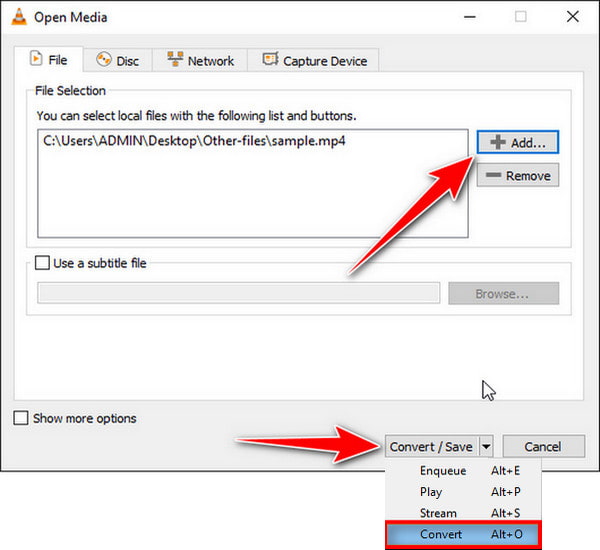
To begin the flipping process, select the file using the Add button, and then click Convert/Save at the lower right corner. Finally, select Convert from the dropdown menu.
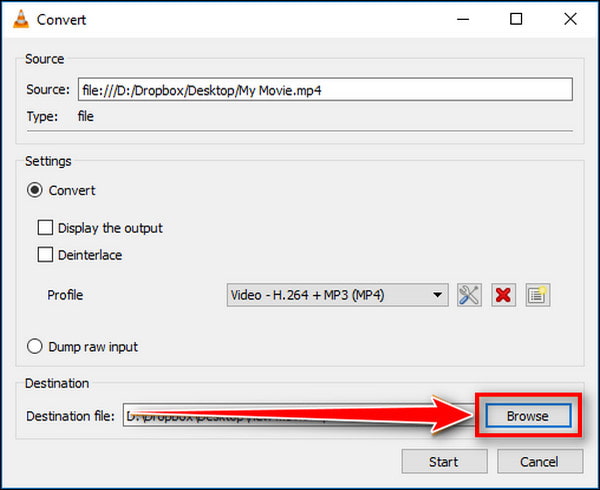
4. In the Convert window, click the Browse button to select the save location for the flipped video. Finally, click Start to begin the conversion.
1. Filter not working.
When you apply the flip/rotate filter but nothing happens on the screen, the issue is usually related to how VLC processes the video stream.
2. VLC not recognizing metadata.
This is an issue where a video that plays correctly (or is rotated) in one player appears sideways in VLC, or vice versa. Sometimes, VLC does not correctly read this metadata flag, resulting in the video playing in the wrong direction.
3.Temporary vs. permanent rotation confusion.
This issue typically occurs when you temporarily flip the video in VLC, but do not return to uncheck the filter for the next video. Then every video you open is flipped, vice versa.
VLC works well for flipping videos most of the time, but as mentioned earlier, it can sometimes be tricky to use. Not to mention that its main function is video conversion, rather than editing, such as flipping videos. If you're looking for a more user-friendly professional video software alternative, AnyMP4 Video Converter Ultimate is a good choice.
It is a professional all-in-one video editing software with powerful tools. Among these features is a video rotator that allows you to effortlessly flip any video horizontally or vertically without any loss in quality. Beyond video flipping, the software offers a range of editing features, including trimming, cropping, adding effects, and converting between various file formats. Its user-friendly interface makes it easy for both beginners and professionals to get started. The steps to use it are as follows:
1. Download and install it on your computer. After installing, it will launch automatically.
Secure Download
Secure Download
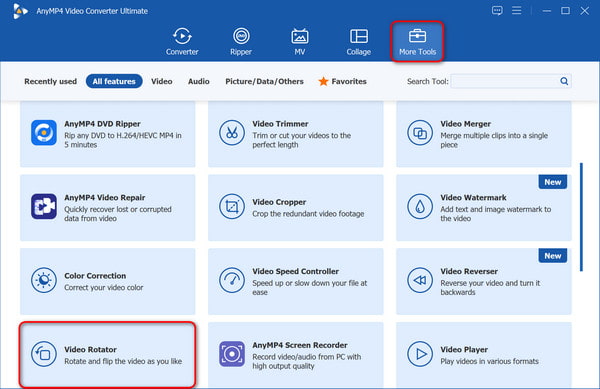
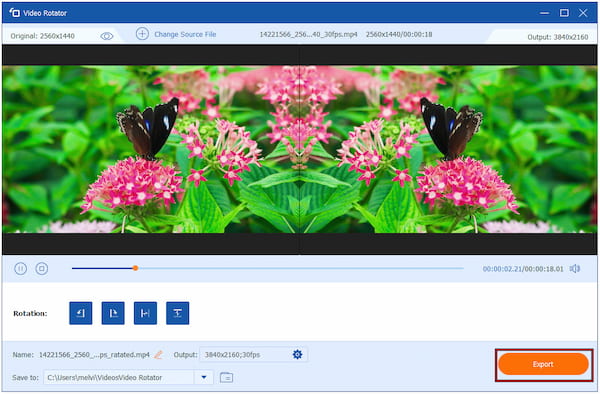
2. Go to the More Tools tab and find Video Rotator. Click it to flip the video with ease.
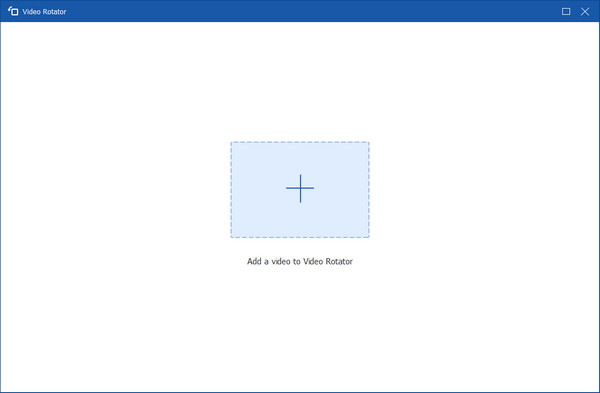
3. Click the plus button in the center of the screen to add the video that needs to be flipped to the rotator tool.
4. In the Rotation options, you can choose to Vertically Flip or Horizontally Flip the video as needed. In the process, you can preview the effects. Then click Export to obtain the flipped video.
What if the flip conversion process fails or the new file is corrupted?
If a video flip (conversion) process fails or the new file is corrupted, it may be due to the flipping process crashing, being interrupted, or encountering obstacles for some reason.
The flip conversion process worked, but the new video has no sound. What happened?
That's a very common issue when converting video files. When the video appears fine but the audio is missing, it almost always indicates an Audio Codec problem or an issue with the conversion settings.
Why does VLC remember my flip and rotation settings for other videos?
The reason VLC Media Player remembers your flip and rotation settings across different videos is due to the Video Transformation Filter is enabled by default after you make a change. It persists until you turn it off.
This article introduces methods for temporarily and permanently flipping videos in VLC, along with a step-by-step guide. Additionally, we troubleshoot video flipping issues in VLC and offer a simple solution: using the built-in Video Rotator tool within AnyMP4 Video Converter Ultimate, the best alternative to VLC. Do you still have questions about flipping videos in VLC Media Player? Or do you know any good methods we haven't mentioned? Feel free to leave a comment below and share with us!
Secure Download
Secure Download
 Updated by Mark Cristobal to Edit Video
More readings
 Ultimate Guide to Use VLC to Crop Videos [Best]
Can I crop MP4 video in VLC? How do I crop and save a video in VLC? Can VLC resize video? Learn how to crop, resize or zoom video in VLC media player.
 VLC Rotate Video Temporarily and Permanently
Are you wondering how to rotate a video in VLC Media Player? Is it possible? Everything you need to know is here. Check it out!
 How to Trim/Cut Video in VLC Media Player Quickly and in a Better Way
How to cut video in VLC? Can VLC clip video? How to cut a clip from a video in VLC? Learn a detailed guide to trim video in VLC media player from this post.
 Compress with VLC – Reduce the File Size of a Video for Free
Learn how to compress videos with VLC. If you want to compress video files without losing quality, you can also get 2 VLC video compressors alternative here.
 Add your comments to join the discussion here