
Summary:
Looking to convert M2TS to MKV without quality loss? The best and most reliable solution is AnyMP4 Video Converter Ultimate. It also supports GPU-accelerated hardware, batch conversion, and the preservation of multiple audio tracks and subtitles. If you want free choice, HandBrake has powerful encoding features. MKV is a versatile container and a great format for better playback compatibility with modern devices.
Disclaimer: This post is based on our independent testing and editorial opinions. We have tested the featured software using various M2TS files to compare performance, quality retention, and usability.
M2TS is a high-quality video format used by big camera manufacturers, such as Sony and Panasonic. It delivers excellent image quality but also creates large files. Worse still, M2TS has limited compatibility, making it difficult to play on common devices and media players. Fortunately, converting M2TS to MKV solves these problems. The MKV container offers broader compatibility with multiple audio tracks, subtitles, chapters, and high-bitrate video support. With a reliable M2TS-to-MKV converter that supports hardware acceleration, you can convert large AVCHD or Blu-ray videos quickly. In this guide, we'll compare the four best methods for converting M2TS to the Matroska format. We'll also explain when each method is the best choice so you can find the fastest and most reliable solution.

| Price | Conversion Speed | Difficulty | Multiple Audio/Subtitles Support | Hardware Acceleration Support | Best For | |
|---|---|---|---|---|---|---|
| AnyMP4 Video Converter Ultimate | Free and Paid | Up to 120× | Easy |  |
|
Beginners |
| HandBrake | Free | Normal speed | Advanced | |
|
Professionals |
| MakeMKV | Free | Fast speed | Easy | |
 |
Beginners |
| FreeConvert | Freemium | Depends on the server | Easy | |
|
Beginners |
The M2TS file is an HD video container format for Blu-ray discs and AVCHD camcorders. Big camera manufacturers use it to store Full HD and 4K recordings. It can contain HD videos, multiple audio formats, subtitle streams, chapter markers, and metadata. However, not all media players and devices can play M2TS files.
MKV is an open-source multimedia container format. It can hold almost all the modern video, audio, subtitle, and chapter formats in a single file. Unlike M2TS, MKV is not tied to Blu-ray or any hardware standard. You can remux to MKV, since it is a container that can keep the original video and audio without re-encoding.
AnyMP4 Video Converter Ultimate is a safe and secure M2TS-to-MKV converter. It can batch-convert hundreds of AVCHD videos and Blu-ray formats to the Matroska container without lag. It uses the most advanced lossless hardware-accelerated conversion technology to achieve 120× speed. You can adjust the video/audio codecs, bitrates, sample rates, frame rates, resolutions, and channels. Also, it can automatically detect embedded subtitles and audio tracks, allowing you to preserve a high-quality audio stream and multilingual subtitles.
PROS:
CONS:
Here’s how to convert M2TS to MKV:
1. Download AnyMP4 Video Converter Ultimate and set it up. Immediately after the installation, the software enters the Converter tab by default.
Secure Download
Secure Download
Click +Add Files to add an individual M2TS video source. You can also batch-import multiple files saved in a single folder by clicking Add Folder.
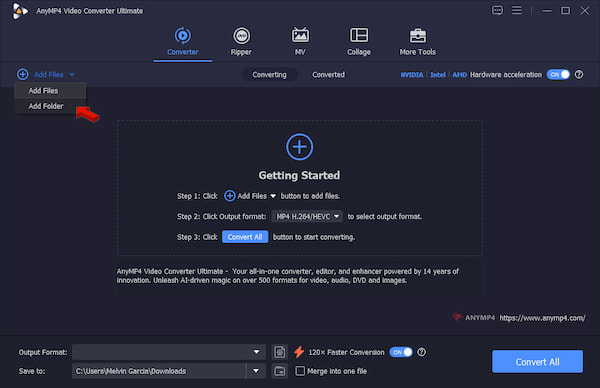
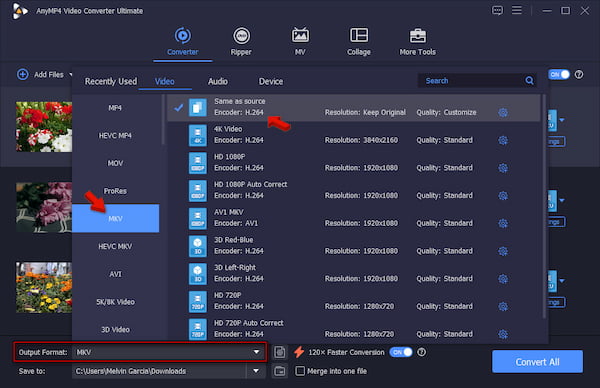
2. Head to the Output Format picker and select MKV in the Video category. For a lossless remux, use the Same as Source preset to retain the source's quality without re-encoding.
3. Enable Hardware Acceleration and 120× Faster Conversion to accelerate the conversion. Set your output destination folder, then click Convert All to batch-convert M2TS files to MKV fast.
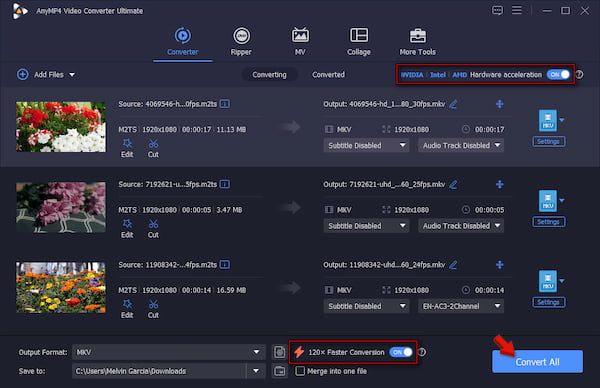
We put AnyMP4 to the test to evaluate its speed, quality, hardware acceleration (GPU) usage, and track preservation. In our test, it completed converting 100 M2TS files to Matroska format in 3 minutes and 26 seconds. When we play it on an MTS/M2TS player for video quality assessment, there’s no desync, and the video is crystal clear.
HandBrake is an established open-source video transcoder that has been around for years. It can encode AVCHDs, Blu-ray backups, and even TS streams to various MKV video codecs. This includes H.265 (HEVC) MKV, H.264 MKV, VP9 MKV, and AV1 MKV. See the instructions below to convert M2TS to MKV for free.
PROS:
CONS:
To convert: Upon opening HandBrake, the Source Selection window will appear. Here, click File to import an individual M2TS file or Folder to load an entire folder. Go to the Summary tab and select MKV in the Format picker. Right after selecting MKV as your format, head to the Picker preset and choose an MKV preset. Click Start Encode to convert M2TS to MKV with HandBrake.
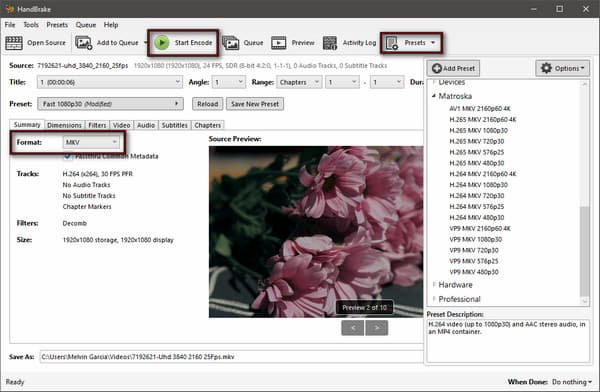
HandBrake always re-encodes your video. In other words, it cannot change the container from M2TS to MKV without re-encoding. This means conversions may result in a slight loss of quality, even with high-quality settings.
MakeMKV is known for ripping and converting DVDs and Blu-ray discs to MKV files. The good thing is that it remuxes the file rather than transcoding it. It means MakeMKV duplicates the source video, audio, subtitle, and chapter information directly into an MKV container. For a quick tutorial, follow the steps below to convert M2TS to a lossless MKV.
PROS:
CONS:
To convert: In MakeMKV, click the Folder button to open the M2TS source. Leave all the tracks selected to include everything in the output MKV. Select an output folder, then click Make MKV to start remuxing.
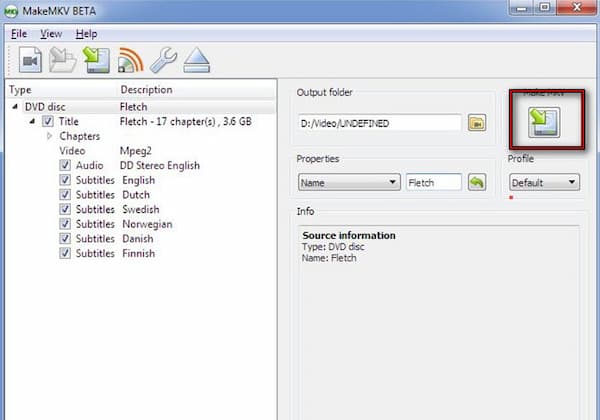
As the anime suggests, MakeMKV can make MKV from the sources you input. Since it only copies instead of re-encoding, the process finishes much faster. However, remember that remuxing is not the same as converting.
FreeConvert is a smart choice if you only need to convert files under 1GB. It can convert M2TS to lossless MKV without installing any software. However, since it runs entirely online, a stable internet is required to perform the conversion.
PROS:
CONS:
To convert: Navigate to FreeConvert and click Choose Files to upload the M2TS source. Select MKV in the Format picker, then click Convert to upload and process the video.
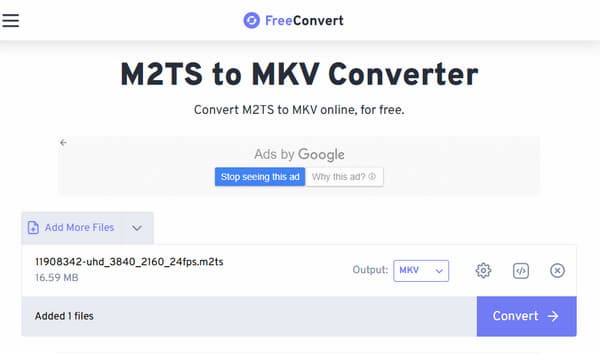
FreeConvert is convenient for one-time conversion of small M2TS or MTS files (Check MTS vs M2TS difference). However, if you’re uploading a sensitive or personal video, we remind you that your uploaded files will remain on the server for 24 hours. So, if your privacy is your priority, you should skip this tool.
Does converting M2TS to MKV reduce video quality?
It depends. If you use the correct converter, like AnyMP4, there is no quality reduction when you set the output to lossless mode. Also, if you use a direct remuxing method, there will be absolutely no drop in video quality.
Can I keep multiple audio tracks and subtitles when converting to MKV?
Yes. The advantage of MKV is that it can hold an unlimited number of tracks. However, the prerequisite is that the software you use (such as AnyMP4 or MakeMKV) supports selecting these tracks before output.
Why is my M2TS file converting so slowly?
M2TS files are usually massive (Blu-ray level). If GPU hardware acceleration is disabled, relying solely on CPU encoding will result in slow performance. It is recommended to switch to software that supports hardware acceleration.
HandBrake vs. AnyMP4: Which one should I use for M2TS?
HandBrake is suitable for users on a budget who have the patience to adjust complex parameters; AnyMP4 is suited for users who demand ultimate speed, a zero-learning-curve, and the ability to process large files losslessly.
Converting M2TS to MKV improves playback compatibility. Depending on the method you choose, you can also keep audio tracks, subtitles, and chapter information. Among the methods discussed, AnyMP4 Video Converter Ultimate is the best option for fast, lossless conversion. If you want a free solution and are willing to learn advanced encoding settings, HandBrake is a capable alternative. For lossless remuxing without re-encoding, MakeMKV is perfect, and FreeConvert is good for occasional conversions of smaller files.
 Posted by Alice Thorne to Convert Video
More readings
 5 Ways to Convert M2TS to MP4 on Windows and Mac
When you want to open camcorder-recorded M2TS files directly, transcoding M2TS to MP4 is the solution. Here are 5 ways to convert M2TS to MP4.
 Looking for a fast MTS to AVI converter? Learn how to batch convert M2TS/MTS to AVI without losing quality. Includes both free online and desktop tools.
 5 Best Ways to Convert MKV to MOV in 2026 (No Quality Loss)
Find the best way to convert MKV to MOV? Get the top 5 methods for Mac/Windows, including free online tools that deliver 4K-quality video without re-encoding.
 [Solved] Convert MKV Files to ISO in Two Easy Ways
With the help of this article, you can learn how to burn MKV files to ISO in two methods, which are both easy to learn for even beginners.
 Add your comments to join the discussion here