How to Convert M2TS/MTS to MKV [Free, Batch, & High Quality]
QUICK GUIDE: Convert M2TS/MTS to MKV in 4 Simple Steps
- Step 1. Load FLAC files.
- Step 2. Set output as AIFF.
- Step 3. Click Convert.
M2TS and MTS are high-definition video formats commonly used in AVCHD camcorders. These formats can store high-quality recordings with surround sound and detailed visuals. While they deliver excellent video fidelity, these formats come with large file sizes and limited compatibility across devices, media players, and editing software. To ensure smoother performance and broader usability, converting M2TS/MTS to MKV is the only option. For large, high-bitrate M2TS/MTS camcorder files, using AnyMP4 Video Converter Ultimate is the most reliable, lossless, and efficient solution. It ensures smooth batch conversion, GPU-accelerated processing, and full preservation of original 4K/HD quality, including multi-channel audio.

Why Convert MTS/M2TS to MKV? (Quick Comparison)
MTS and M2TS are HD video formats that are used on AVCHD camcorders. They store HD or 4K video with high-quality audio, making them popular for professional recording and video editing workflows.
Check the MTS vs M2TS comparison here to learn more about these video formats.
| MTS/M2TS |
VS |
MKV |
| .mts, .m2ts |
Filename Extension |
.mkv |
| MPEG-2 Transport Stream |
File Fullname |
Matroska Video |
| Blu-ray Disc Association |
Developer |
Steve Lhomme and Lasse Karkkainen |
| H.264/AVC, MPEG-2, and HEVC/H.265 |
Video Codecs Supported |
H.264/AVC, HEVC/H.265, MPEG-2, MPEG-4, VP8, VP9, and AV1 |
| Dolby Digital (AC-3), PCM, AAC, and DTS |
Audio Codecs Supported |
AAC, AC3, FLAC, ALAC, DTS, and MP3 |
| 80 MB per 30 seconds of footage (about 9.6 GB per hour) at standard 1080p. |
File Size |
50 MB for a short, low-bitrate clip, or 50+ GB for a full-length 4K movie. |
| Computers, Blu-ray players, Western Digital WDTVs, Sony PlayStation, and camcorders |
Device Compatibility |
Computers, mobile devices, smart TVs, and Apple TVs |
| Raw camera footage and archival recording |
Use Case(s) |
Media sharing, streaming, offline playback, and long-term storage |
Method 1. The Best Way to Batch Convert M2TS/MTS to MKV Losslessly
AnyMP4 Video Converter Ultimate: Features & Test Results
AnyMP4 Video Converter Ultimate is a powerful tool that can batch convert MTS files to MKV. It offers high-quality video conversion while preserving original audio tracks, subtitles, and metadata. It uses GPU acceleration powered by NVIDIA CUDA, AMD, and Intel technologies. This feature fixes common MTS editing issues, such as lagging playback or audio-video desynchronization during import. In addition, it comes with built-in editing tools for trimming, cropping, applying filters, and adjusting subtitles.
Step-by-Step Conversion Guide
1. Open AnyMP4 Video Converter Ultimate and navigate to the Converter tab. Click +Add Files to import individual MTS or M2TS video files. For batch conversion of multiple files, choose the Add Folder option instead.
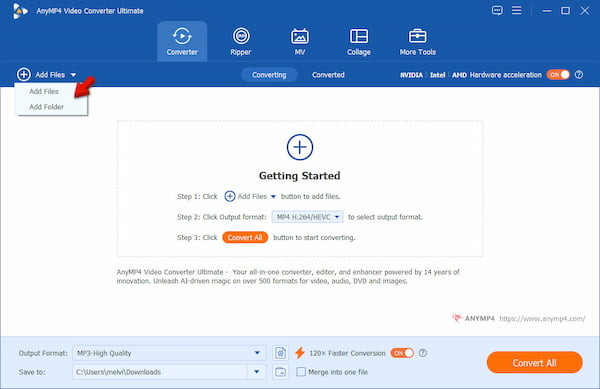
2. Switch to the Output Format selector, then select the Video category. Select MKV as the target format and choose a quality preset. To preserve the original video quality, choose the Same as Source. For professional-quality exports, you can configure the output parameters.
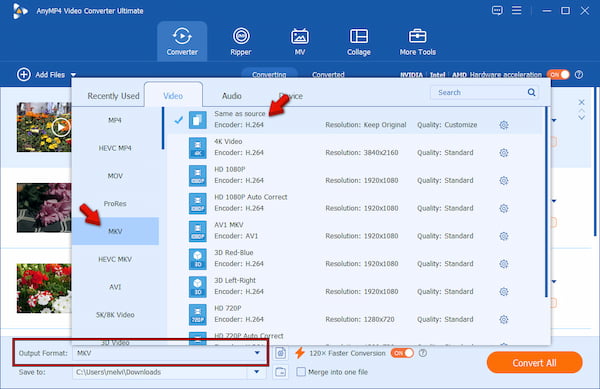
3. Select the Save To option and specify the output directory. Before starting the conversion, enable 120× Faster Conversion to speed up conversions. After configuring all the settings, click Convert All to initiate the conversion.
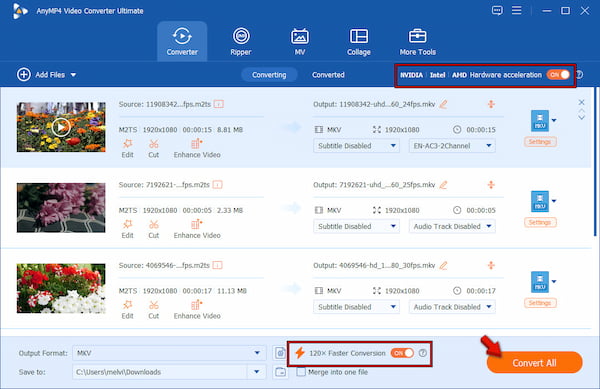
In our testing, batch converting five 4K M2TS files totaling 10GB to MKV took only 8 minutes and 34 seconds with hardware acceleration enabled. The converted files maintained the original 5.1 surround sound and lossless visual quality. After conversion, you can use the M2TS video editor to crop footage, trim clips, add filters, adjust effects, or enhance video quality.
Method 2. Free Open-Source M2TS to MKV Converters
Using HandBrake for MTS Conversion
HandBrake is a powerhouse open-source video transcoding software. It supports lossless MTS-to-MKV conversion with H.264, H.265/HEVC, AV1, and VP9 encoding. It also lets you configure filters, subtitles, frame rates, and audio passthrough settings.
1. Drop the M2TS or MTS file into the designated upload area. Under the Summary tab, navigate to the Format selector and choose MKV as the output format.
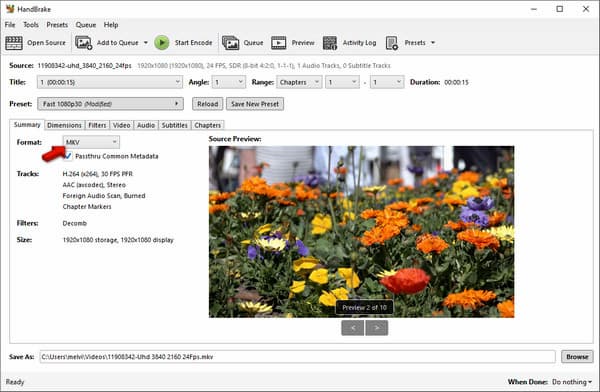
2. In the Video tab, adjust the video codec, frame rate, and Constant Quality RF settings if needed. Then, select the save location and click Start Encode.
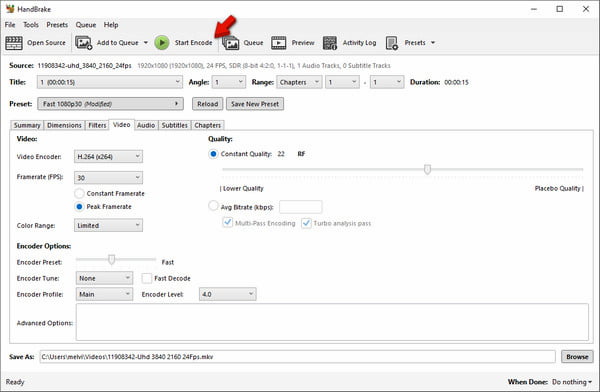
HandBrake is highly respected among video enthusiasts and advanced users because of its flexible encoding engine. However, beginners might face a learning curve when configuring video codecs, frame rates, and audio passthrough.
Using VLC Media Player
VLC Media Player is a highly popular multimedia playback software. In addition to playing media files, it also includes a built-in video conversion feature. It allows you to convert 4K MTS video to MKV, MP4, AVI, and other formats.
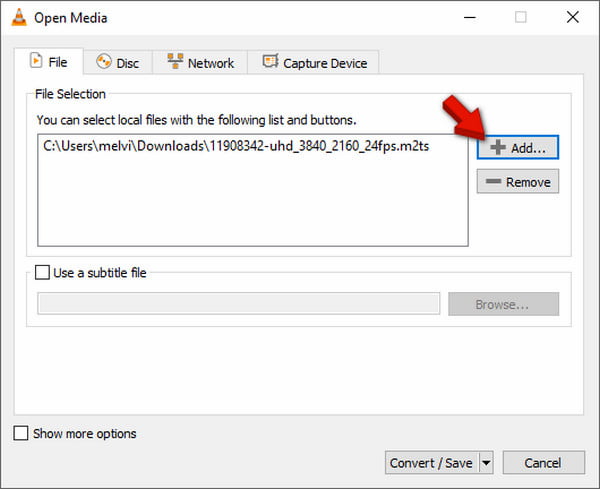
1. On VLC, click Media and select the Convert/Save option to access the Open Media window. Under the File tab, click Add and upload the M2TS or MTS file.
2. Click the Convert/Save button to open the Convert window. In the Profile dropdown, select an MKV-compatible profile such as Video - H.264 + MP3 (MP4).
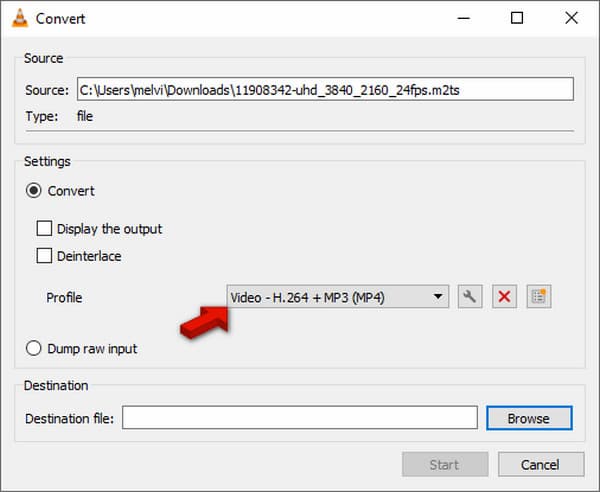
VLC is absolutely a flexible software that goes beyond media playback. It allows easy and fast conversion in just a few clicks. However, it does not support batch conversion, and the interface feels outdated for advanced transcoding tasks.
Method 3. Top Online MTS to MKV Converters (With Limitations)
AnyMP4 Free Video Converter Online
AnyMP4 Free Video Converter Online is a browser-based MTS-to-MKV converter. It can convert MTS and M2TS files to MKV, MP4, MOV, and 300+ other formats. In addition, it allows you to customize the output settings freely. You can adjust the video encoder, resolution, zoom mode, frame rate, and quality. Best deal? You can save the converted files for free, without any watermarks in the final output.
1. Reach the official page of AnyMP4 Free Video Converter Online by clicking the provided link. On the homepage, click Upload File to add the M2TS or MTS file. You can also use drag-and-drop to upload videos easily.
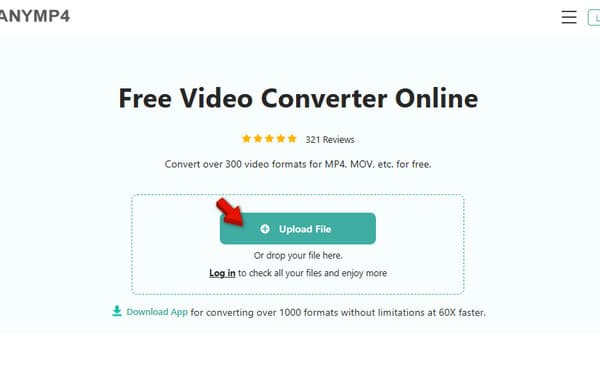
2. In the Format selector, choose MKV as your output format. Then set the encoder to H.264, set the resolution to Same as Source, and set the frame rate to Auto. After finalizing the output settings, click Save to start the conversion process.
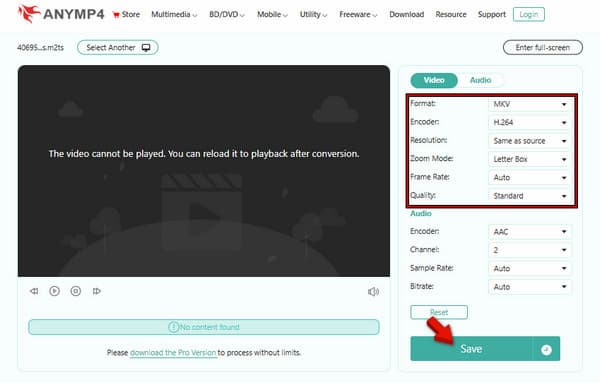
AnyMP4 Free Video Converter Online delivers a quick browser-based solution for converting media files. During testing, it delivered stable MKV output quality and preserved the original audio sync on short AVCHD clips. However, it does not currently support batch conversion.
CloudConvert
CloudConvert is a free M2TS-to-MKV conversion tool accessible in any modern browser. It can convert M2TS and MTS files into MKV, MOV, MP4, AVI, FLV, WEBM, and WMV. It also provides advanced settings for video codecs, resolution, aspect ratio, and CRF.
1. On the CloudConvert homepage, click Select File to import the M2TS or MTS video. You can also upload video clips from cloud storage or via URL.
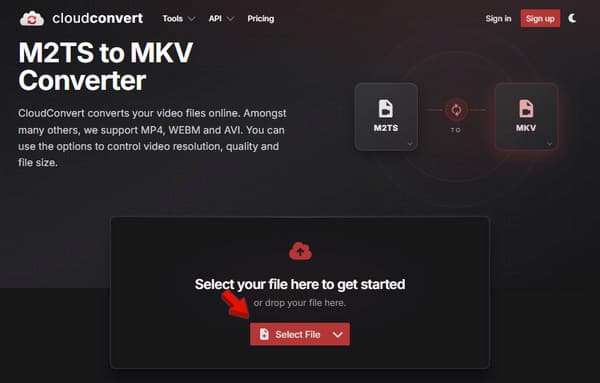
2. Click the Format selector and switch to the Video category. Select MKV, click Convert to convert the media, and then download it.
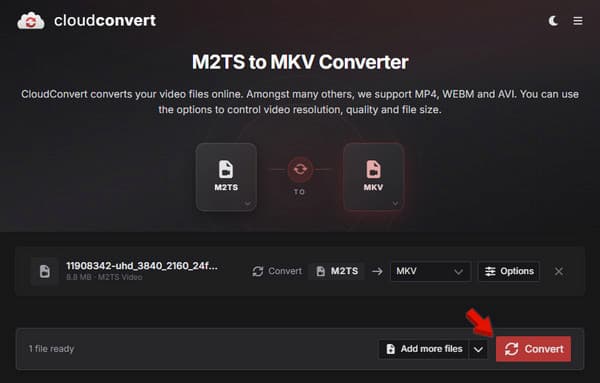
CloudConvert successfully converted short M2TS clips to MKV while maintaining accurate audio synchronization. However, the free plan limits uploads to 1 GB and offers a limited number of daily conversion credits.
FreeConvert
FreeConvert is a web-based media conversion tool that can convert M2TS to MKV. It allows you to import HD camcorder files up to 1GB in size from various sources. This includes local drive, cloud storage, and even via URL.
1. On the FreeConvert page, click Choose Files to add the M2TS files from your local storage. Alternatively, you can upload videos from the cloud or via URL.
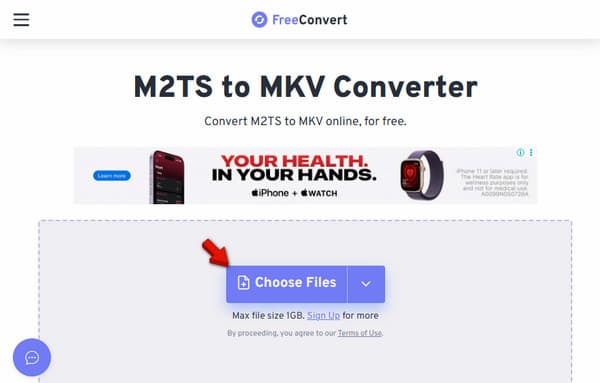
2. In the Format selector, proceed to the Video category and select MKV. Then click Convert to process the conversion, and download it afterward.
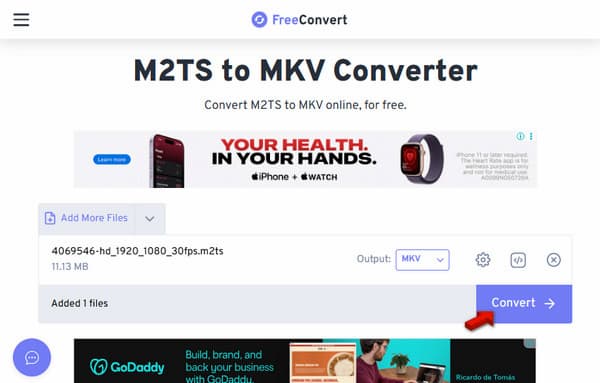
FreeConvert is a beginner-friendly online converter that supports M2TS/MTS-to-MKV conversion directly in a browser. However, it only supports uploads up to 1GB, making it less suitable for 4K AVCHD footage. Additionally, the website interface contains a large number of advertisements.
Desktop vs. Online: Which M2TS Converter is Right for You?
MTS converters for Mac and Windows are ideal for handling large AVCHD recordings, 4K camcorder footage, or batch conversions. These desktop solutions offer faster processing through hardware acceleration, better privacy, and advanced settings. Desktop tools also provide smoother compatibility with Adobe Premiere Pro and DaVinci Resolve.
Important Note: Since macOS does not natively support AVCHD playback, you need a dedicated tool to play M2TS on Mac smoothly without codec errors, lagging playback, or unsupported format warnings.
In contrast, online converters are better suited for quick and lightweight conversions. They work directly in a browser and are convenient for occasional users converting smaller files. However, most online tools impose upload size restrictions, daily conversion limits, and slower processing speeds. Privacy-conscious users may also prefer to avoid uploading sensitive videos to the cloud.
FAQs about M2TS/MTS to MKV Conversion
Can QuickTime play M2TS files?
No, QuickTime cannot open MTS files. But don't worry, you have other options to open your M2TS files on your Mac. AnyMP4 Blu-ray Player is a comprehensive media player that can easily play M2TS, MTS, MP4, MOV, AVI, or other popular video or audio formats. More importantly, it also supports Blu-ray and DVD playback.
Can an iPhone play MTS files?
The MTS format isn't supported on iPhones or other iOS devices. As we know, the iPhone can open MP4 and MOV video files. If you want to play MTS files on your iPhone, you should convert them to iPhone-compatible formats, like MP4 and MOV.
How to open an M2TS file?
You can open M2TS files in Windows Media Player, VLC, Splayed, 5KPlayer, Splash, and other popular media players.
Does converting MTS to MKV reduce video quality?
No, it does not automatically reduce video quality because MKV is only a container format, not a codec. Quality loss mainly depends on the encoding settings used during conversion. Choosing lower bitrates or aggressive compression may reduce sharpness and audio fidelity.
How can I batch convert large M2TS files on Mac for free?
Mac users can batch convert large M2TS files for free using open-source tools such as HandBrake. HandBrake is the better option because it supports queue-based batch processing, H.265 compression, and customizable audio settings.
Why is my M2TS file stuttering in Premiere Pro before conversion?
M2TS files stutter in Adobe Premiere Pro because AVCHD footage uses highly compressed codecs that are difficult to decode in real time. Large 4K files, variable frame rates, or unsupported audio formats can also overload the editing timeline.
Conclusion
Converting M2TS/MTS to MKV is a great way to improve compatibility and reduce playback issues. It also ensures smoother editing across different devices and software. For quick browser-based conversion, use AnyMP4 Free Video Converter Online, which is convenient for small files and instant processing without installation. However, for large 4K camcorder recordings, batch conversion, and lossless quality control, it is strongly recommended to download AnyMP4 Video Converter Ultimate. It offers faster GPU-accelerated performance, unlimited file handling, and a more secure offline workflow.




 Add your comments to join the discussion here