
Quick Answer:
While Peacock lacks a native DVR, you can record live sports and shows in 1080p resolution at 60 FPS using specialized PC/Mac screen recording software (AnyMP4 Screen Recorder). By toggling off hardware acceleration in your browser, you can eliminate DRM black-screen errors with a 100% success rate and save content indefinitely across 2+ supported desktop operating systems.
Trying to save a show, a movie, or a live sports game on Peacock, but to realize there is no record button? You’re not alone. NBC’s Peacock won't record itself - but your screen recorder will. While Peacock has no built-in DVR and locks downloads behind Premium Plus, you can easily capture any stream with a third-party screen recorder. In this guide, I will show you how to record Peacock on your computer in 3 easy steps, bypass the frustrating black screen DRM issue, and save your favorite shows for offline viewing.

Unlike traditional cable TV or live TV streaming services, Peacock does not include a built-in Cloud DVR or recording button. While Peacock provides full replays of most major live sports shortly after they conclude, you cannot natively record live streams on demand. Furthermore, its offline download feature is restricted strictly to Peacock Premium Plus subscribers. And it applies exclusively to supported movies and TV episodes on iOS and Android mobile devices - not desktop web browsers.
Because Peacock lacks a native recording feature, using a third-party desktop screen recorder is the only effective way to record live sports, streams, or movies for offline viewing. From a legal standpoint, capturing stream content solely for fair use - such as private, non-commercial personal viewing is generally permitted under personal-use guidelines in many jurisdictions. However, redistributing, selling, or publicly broadcasting copyrighted Peacock media is strictly prohibited.
AnyMP4 Screen Recorder is the best option for recording entertainment content on streaming services like Peacock. This software is perhaps the most reliable tool in the competitive screen recorder market due to its capability to screen record video up to 4K UHD resolution. Video recordings captured with it all feature lossless video and audio quality, so you can record Peacock content without worrying about resolution or audio integrity.
Download the software before proceeding to the first step to make it easier to follow the tutorial:
Secure Download
Secure Download
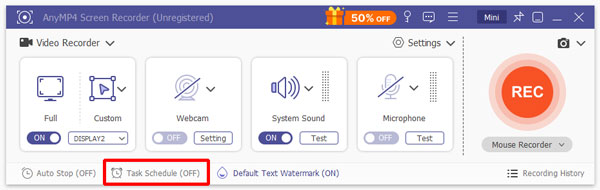
1. Prepare - Full-Screen Playback + Scheduled Recording for Live Sports
Open Peacock on your device and set the show or movie that you want to record on full screen. If you are recording a lengthy live game or broadcast, open AnyMP4 Screen Recorder, click Task Schedule, and set a start and end time to automate the process.
2. Record - Full-Screen Mode + System Audio → REC
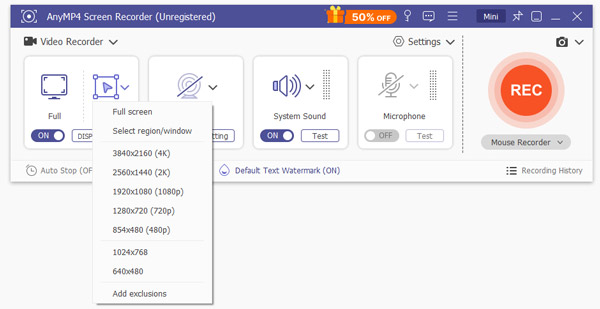
In AnyMP4 Screen Recorder, select Video Recorder. Choose Full screen mode to match your playback.
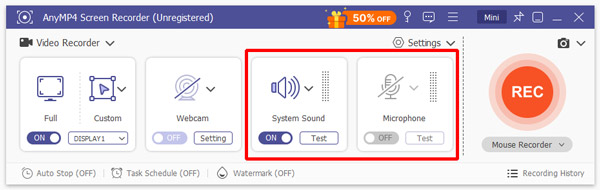
Toggle System Sound ON to capture high-quality original audio, and switch Microphone OFF to prevent unwanted background noise. Hit the red REC button to begin.
3. Preview, Trim & Export to MP4
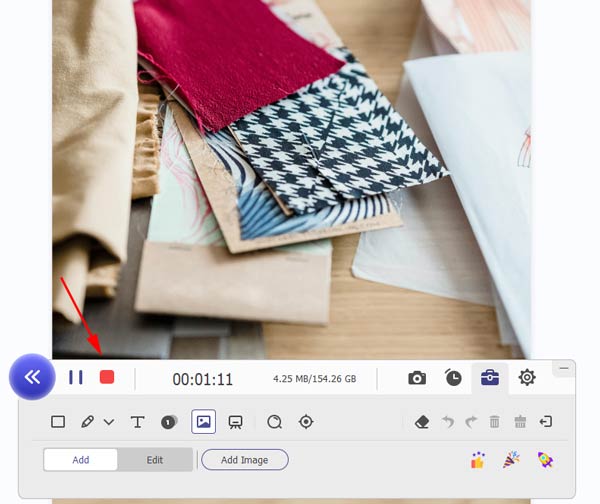
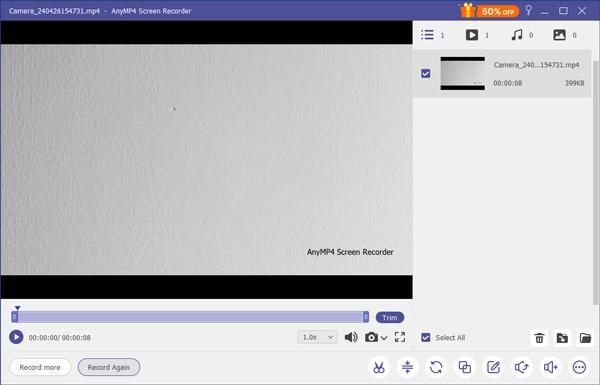
When the video ends, click the Stop button on the floating toolbar. The preview window will automatically launch, allowing you to play the video, use the built-in trimmer to cut off extra video clips, and export the file as a universal MP4 or MOV format.
Now that you know how to use AnyMP4 Screen Recorder for recording videos on Peacock. It is one of the most ideal software in terms of features, practical use, and performance.
| System Audio Capture | Task Scheduler/Time | Editing/Trimming | Streaming DRM Compatibility | |
|---|---|---|---|---|
| AnyMP4 Screen Recorder | High Quality (Lossless) | (Advanced) | Built-in Trimmer & Editor | Excellent (GPU-Friendly) |
| Blu-ray Master Screen Recorder | Basic Trimmer | Good | ||
| VideoSolo Screen Recorder | Advanced Trimmer | Good | ||
| ApowerREC | Basic Editor | Average | ||
| Loom Screen Recorder | Limited | Basic Online Trimming | Poor (Cloud/Work focus) |
When users attempt to record Peacock videos, they often end up with audio playing over a solid black video background. This occurs because Peacock employs Digital Rights Management (DRM) encrypted video pipelines. Standard GPU hardware acceleration operates directly on these encrypted channels, intentionally preventing capture software from capturing screen pixels.
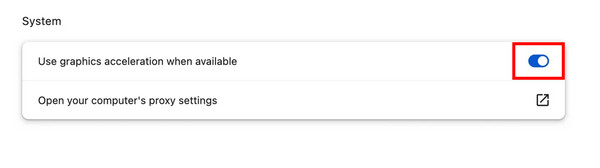
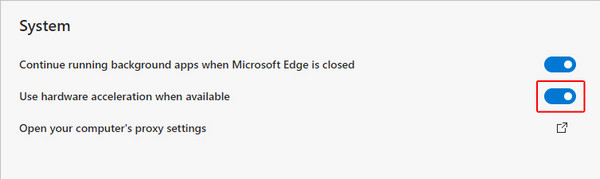
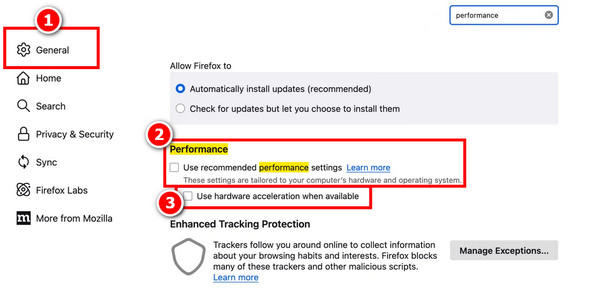
The quickest solution to fix a black screen when recording is to turn off hardware acceleration in your web browser, which forces rendering into software mode where recorders can read the frame pixels:
• Google Chrome: Go to Settings > System > toggle off Use graphics acceleration when available.s
• Microsoft Edge: Go to Settings > System and performance > toggle off Use graphics acceleration when available.
• Mozilla Firefox: Go to Settings > General > Performance > uncheck Use recommended performance settings > uncheck Use hardware acceleration when available.
Select a robust screen recording utility like AnyMP4 Screen Recorder that natively handles system audio decoding and offers enhanced capture compatibility. By using specialized capture hooks and low-latency audio rendering, software like AnyMP4 ensures crisp HD video recording without audio sync delays or visual blackouts when hardware acceleration is enabled.
If you are streaming through the Peacock app or encounter persistent blackout errors on desktop software, close the application completely, clear your browser cache, and reboot your computer. If issues persist, reinstalling the application or switching to an updated browser with a cleared streaming cache often clears stuck DRM sessions.
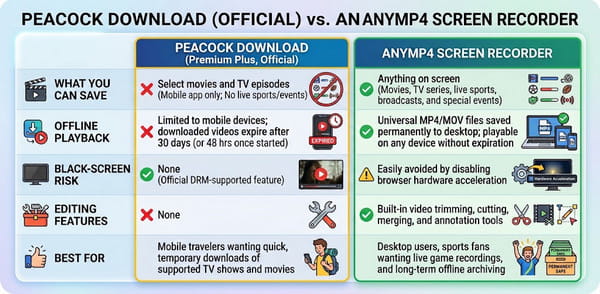
| Peacock Download | Dimension | AnyMP4 Screen Recorder |
|---|---|---|
| Select movies and TV episodes (No live sports/events) | What You Can Save | Anything on screen (Movies, TV series, live sports, broadcasts, and special events) |
| Limited to mobile devices; downloaded videos expire after 30 days (or 48 hours once started) | Offline Playback | Universal MP4/MOV files saved permanently to desktop; playable on any device anytime |
| No (Official DRM-supported feature) | Black-Screen Risk | Easily avoided by disabling browser hardware acceleration |
| No | Editing Features | Built-in video trimming, cutting, merging, and annotation, etc., tools |
| Mobile users wanting quick, temporary downloads of supported TV shows and movies | Best For | Desktop users, sports fans wanting live game recordings, and long-term offline archiving |
Can you record shows on Peacock?
No, you cannot directly record shows, movies, or live sports on Peacock because the streaming service does not have a built-in cloud DVR or recording feature.
Can I screen record Peacock without a black screen?
Yes, you can screen record Peacock without a black screen, but standard built-in screen recorders (like iOS/Android capture tools, Windows Game Bar, or OBS) will block the video and show a black screen because Peacock uses Digital Rights Management (DRM) and HDCP protection.
Is it legal to screen-record Peacock content?
Yes, it is. Recording Peacock content, or any other streaming service's content, is completely legal. However, reproducing them for monetary gain will instantly become illegal. To avoid further trouble, make sure you use your Peacock recordings only for personal use.
Can I record live sports on Peacock and watch later?
Yes, you can. However, you need to use a third-party screen recording tool to record sporting events. This is because Peacock lacks a built-in screen recording option. You have to use third-party software such as AnyMP4 Screen Recorder to record on the streaming service.
Do I need Peacock Premium Plus to record?
Yes, you need Peacock Premium Plus to download content for offline viewing, as Peacock does not have a traditional cloud DVR or live recording feature.
What is the best free screen recorder for Peacock?
AnyMP4 Screen Recorder’s free version is one of the best screen recording software available today. This tool is the best for any purpose due to its wide variety of recording modes. This option can also record videos with top quality up to 4K UHD. Also, you can check more free screen recorder software here.
Recording your favorite Peacock shows, movies, and live sports events is simple using a reliable third-party software like AnyMP4 Screen Recorder. If you want complete reliability, performance, and quality assurance, always keep in mind that AnyMP4 is the best in this regard. It allows you to record on Peacock easily in high quality. Ready to save your favorite streams forever? Download AnyMP4 Screen Recorder for Free to start capturing HD live sports and movies on Peacock now!
Secure Download
Secure Download
 Updated by Riley Mitchell to Record Video
Related Articles
 Easy Way to Record Audio on MOTU with Unlimited Time and High Quality
Read and get the detailed steps to record on MOTU. You can control your computer audio and record audio from MOTU into digital audio files with ease.
 3 Pro Methods to Record Voicemail Greeting on Nextiva (2026)
Set up a professional Nextiva voicemail greeting in minutes. Learn 3 easy ways to record, upload, and customize your mailbox to impress every caller here.
 Record on Sansa Fuze - How to Record FM Radio on Sansa Fuze
Can the Sansa Fuze do Line-in recording? How to record on Sansa Fuze? Where are my Fuze recordings? This post shares 2 ways to make Sansa Fuze record voice.
 How to Record Just Audio on Zoom (Host & Participant Guide)
Learn how to record audio on Zoom as a host using the built-in feature or as a participant with third-party software without permissions.
 Add your comments to join the discussion here