
Secure Download
Secure Download

To record anime without a black screen, use a recorder with DRM bypass (like AnyMP4) or disable hardware acceleration in your browser settings. Always aim for MP4 format at 60FPS for the best editing quality.
Recording anime clips can be both exciting and frustrating for content creators, especially when you want to create AMVs, reaction videos, or tutorials. If you’ve ever tried to capture anime clips, you’ve likely encountered two major challenges. This includes technical issues, such as poor video quality or the dreaded black screen issue, as well as legal concerns related to copyright and fair use. No one wants to spend hours trying to record the perfect scene only to end up with unusable footage or risk violating copyright rules. This post will show you several ways to record anime clips legally. We will help you capture your best-loved highlights in high-quality while staying compliant with copyright and fair use regulations. Our aim is to make the process smooth, reliable, and fully accessible for content creators.

Before you record or save anime highlights, there are things you need to take note of. Anime is fully protected by copyright from the moment it’s created. In other words, recording or reposting it without permission can be infringement unless your use qualifies as fair use. Fair use is not automatic; it’s a legal defense that is evaluated on a case-by-case basis, most commonly under U.S. law.
In practice, fair use (primarily a U.S. legal concept) allows limited use of copyrighted material. However, it is evaluated case by case and does not guarantee protection. Simply uploading anime clips for entertainment, compilation, or redistribution can easily cross the line into infringement, even if no money is made.
To reduce legal risk, your anime clip usage should meet these conditions:
Important Note: Fair use can protect anime clips used thoughtfully and sparingly for commentary or critique. However, uploading long, unedited, or purely entertainment-focused anime recordings may still result in copyright claims or takedowns, regardless of intent.
Recording anime clips properly requires more than just pressing a record button. You need the best anime recording software that can handle streaming restrictions, high-resolution visuals, and clean audio capture. Below are three reliable solutions tailored to different user needs:
AnyMP4 Screen Recorder is the most complete and reliable option for recording high-quality anime clips. This software is designed to bypass DRM-related black screen issues from streaming platforms. It allows you to capture anime playback exactly as it appears on your screen. It supports 4K resolution at 60FPS, which is essential for preserving the visual fidelity and smooth action of modern anime.
Recordings are saved directly in MP4 format, ensuring instant compatibility with all major video editors. Additionally, it offers advanced audio control, letting you record only the system sound or mix it with a microphone input. This is ideal for reactions, reviews, or commentary videos. With no time limits, you can record full scenes or extended sequences without interruption. Meanwhile, GPU acceleration ensures smooth, lag-free recording even at high resolutions.
Here’s how to record anime clips in AnyMP4 Screen Recorder:
1. Start by securing a free download of AnyMP4 Screen Recorder. Install the anime screen recorder and be sure to finish the installation process. Once the setup process is completed, run the software to access its main dashboard.
Secure Download
Secure Download
2. By default, the Screen Recorder is the selected recording mode. Click Custom to select a fixed region or Full to record the entire screen display. To record a specific window, select the Select Region/Window option.
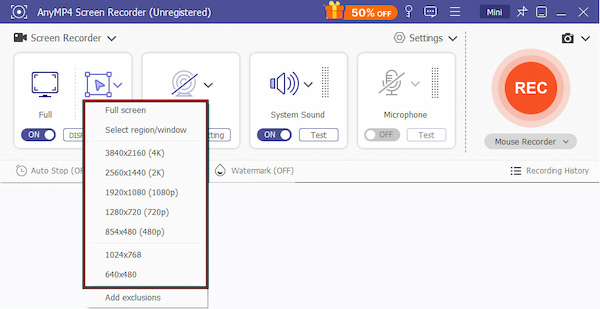
Recording an anime clip without sound is incomplete. In the same menu bar, enable System Sound to capture the anime’s audio. If needed, turn on the Microphone to include commentary or reactions in your recordings.
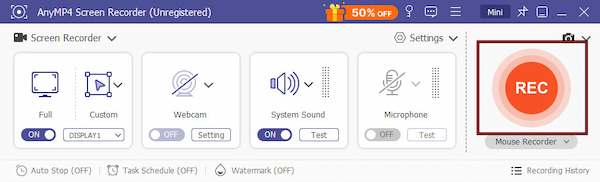
3. Open your anime episode or clip in the streaming service or media player you’re using. Click the REC button, then immediately switch to the anime playback. Please note that the software uses GPU acceleration to prevent lag.
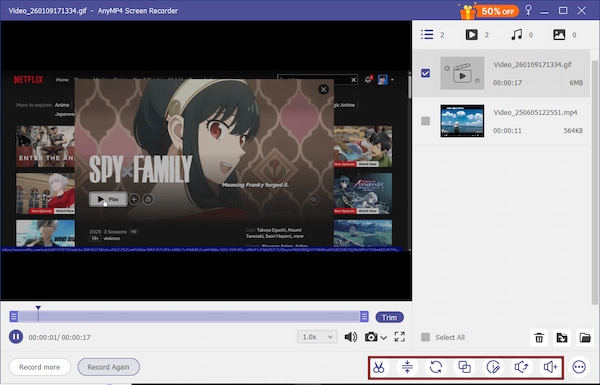
4. When the scene ends, click the Red Square button to stop. A preview window will appear, allowing you to trim the beginning or end of the clip. Your anime clip is saved as an MP4 file by default, ready for editing or for direct upload.
AnyMP4 Screen Recorder provides a reliable and professional solution for capturing anime clips. It can efficiently handle black screen problems caused by DRM, capturing anime exactly as it appears on your screen.
Bandicam is a lightweight screen recorder that allows you to capture short anime clips without needing to configure complex settings. It can capture high-quality video and system audio with minimal performance drops. However, it struggles with DRM-protected streams, which can result in black screens.
Here’s how to record anime using Bandicam:
1. In Bandicam, select the Rectangle Area mode to record video from a website. This mode is best for browser-based anime streaming or media players. Open your anime episode or clip and ensure it plays smoothly.
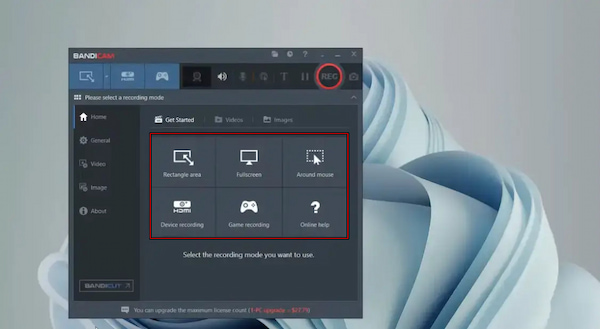
2. Click REC to begin capturing the anime clip. Bandicam will record everything within the selected area. When the scene ends, click Stop to end the recording. The recorded clip will be saved automatically to Bandicam’s output folder.
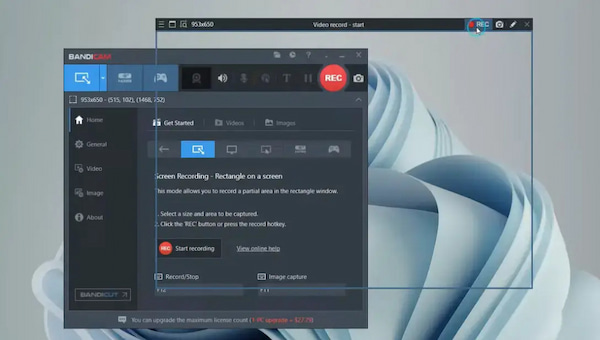
Bandicam is an easy-to-use screen recorder that runs smoothly even on modest systems. However, it cannot capture DRM-protected content, which can result in black screens. Also, the free version imposes time limits and watermarks.
QuickTime Player is the best free screen recorder for anime AMVs for macOS users. It allows basic screen recording, making it convenient for capturing short anime scenes. It delivers decent video quality and can record system audio with additional setup.
Here’s how to do an anime record on QuickTime Player:
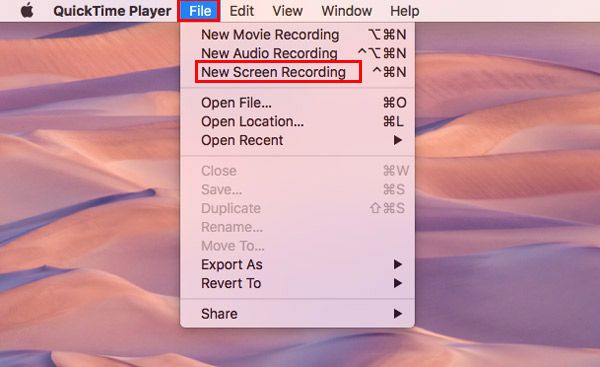
1. In QuickTime Player, click File and select the New Screen Recording option. In the recording window, click the small pulldown menu next to the record button to configure audio. For anime, select None or use an audio routing tool to capture system sound.
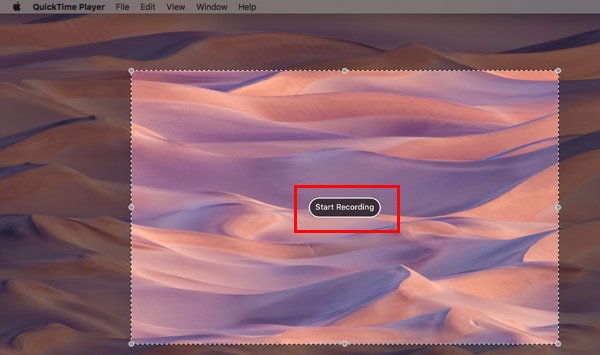
2. Click the Record button and click anywhere on the screen to start recording the entire display. Alternatively, drag your mouse to select just the anime window or area, then click Start Recording. Once the recording starts, play your anime clip.
3. When you’ve captured the scene, click the Stop button in the menu bar. Then, proceed to the File menu and select Save to store your recording. By default, QuickTime Player saves files as MOV (H.264) with AAC audio.
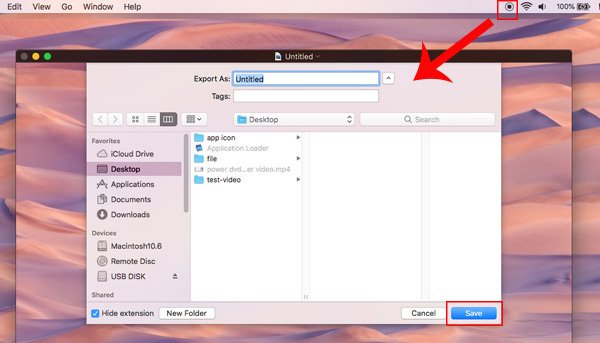
QuickTime Player is the best video recording software for Mac users to quickly record anime clips. However, it cannot bypass DRM protections, so it works best for offline anime playback only. Additionally, recordings are saved in MOV format with AAC audio.
Q: Can I record anime clips from streaming platforms?
A: Some services, such as Netflix, Crunchyroll, or Disney+, actively prevent screen recording. Attempting to capture these streams will result in a black screen. Using AnyMP4 Screen Recorder can bypass some technical restrictions for personal, fair-use purposes. This means you can record anime from Netflix/Crunchyroll without worrying about black screens.
Q: Which is the best free tool to record anime clips?
A: The QuickTime Player is the best free option to record anime clips. It’s built into the system, requires no installation, and allows you to capture either the full screen or a selected area. However, it lacks advanced features like 60FPS recording or DRM bypass.
Q: How do I edit anime clips after recording?
A: After recording anime clips, you can edit them using AnyMP4 Screen Recorder’s built-in tools. It allows you to trim unnecessary parts, merge multiple anime clips into a single video, and adjust audio levels to enhance sound quality.
Q: What format should I use to save anime clips?
A: The best format for saving anime clips is MP4 (H.264). MP4 is universally compatible with most video players, editors, and social media platforms. It maintains high-quality video and audio in relatively small file sizes.
Recording anime clips doesn’t have to be complicated or risky. By understanding the technical challenges and copyright and fair use considerations, you can record anime responsibly and professionally. Using the right tools ensures your clips are smooth, clear, and legally compliant. Among the options available, AnyMP4 Screen Recorder stands out as the most reliable solution. With its 4K/60FPS capture, system audio control, DRM bypass, and unlimited recording, it makes recording anime clips seamless and stress-free.
Secure Download
Secure Download
 Updated by Alice Thorne to Record Video
More readings
 4 Easy Ways to Record Video on Mac (Free & Pro Recording)
Learn the 4 best methods to record video on Mac. Find the step-by-step guide to creating interesting tutorials and gameplay.
 2 Ways to Record a Webinar on Windows/Mac/iPhone/Android
How to record a great webinar for loop learning or sharing? This post shows how to record a webinar through webinar recording software and services.
 How to Record Webcam Videos on Windows and Mac
Learn how to record webcam videos with ease. Explore five tools and methods for high-quality webcam recordings in this comprehensive guide.
 Tips and Tricks to Record Screen for Tutorial Videos
Looking for a screen recorder to make engaging tutorial videos? This post explains how to record screens for tutorials and get practical tips for best results.
 Add
your comments to join the discussion here
Add
your comments to join the discussion here