
Secure Download
Secure Download
Screen recordings are starting to become a staple in most mobile devices since these types of media can share more information than static screenshots. In addition to this, the increased popularity of mobile gaming also contributed to the practical reason why recording your phone’s screen is a good option. This is even more relevant for content creators focused on producing gaming content on their mobile devices. However, errors in screen recordings are still common, and it will be the topic of our article today. In this write-up, we will provide a complete guide on iPhone screen recordings having no sound. We will explore the common causes of this problem together with the most popular potential solutions for this error. Additionally, we will also provide an alternative option to help our readers capture iPhone screen recordings with smooth audio.
Although multiple potential reasons can cause errors in iPhone recordings, we have provided a list of three common causes why audio-related issues may plague your screen recordings. These common causes range from recording setup issues to permission settings, and in some cases, application-centered problems.
Before proceeding to the more common reasons why your iPhone recordings have no sound, you have to learn that there are apps that simply cannot be recorded due to very tight DRM and privacy restrictions.
These include streaming apps like YouTube, Spotify, and Apple Music. Messaging apps like Messenger and FaceTime cannot be recorded as well, since this is both a privacy breach for the app and for the callers involved. These apps cannot be recorded, and muted audio is a result of the DRM and security measures.
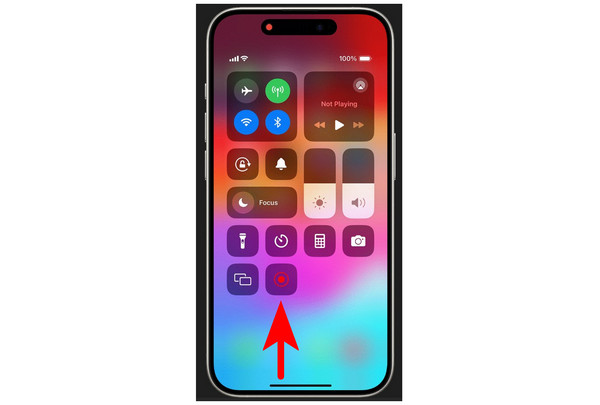
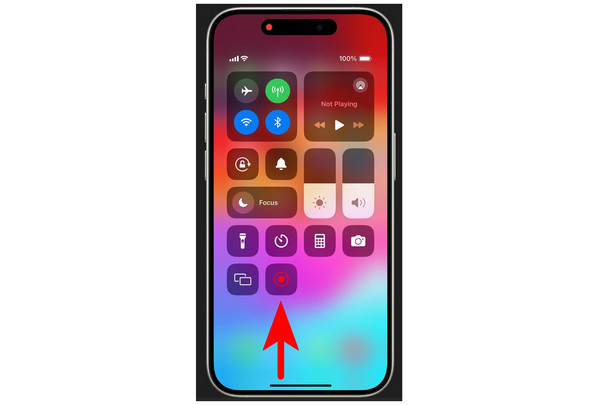
To capture external audio, ensure that you long-press the recording button in your Control Center to allow microphone input during the screen recording. Although simple to use, it is often overlooked by iPhone users, but it can resolve 90% of missing external sound issues once they learn how to use it.
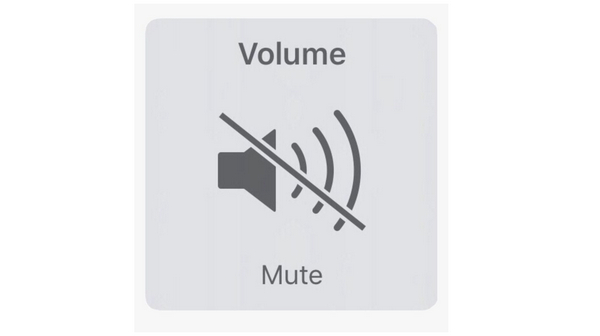
Perhaps the simplest reason why your recordings are muted is that there is no system audio to be recorded in the first place. This may be caused by unintentional muting of your device or if the user accidentally turned down their phone’s volume all the way to zero. If you think that this is the reason for the muted error, make sure to check your phone’s volume by pressing the volume up button once the screen recording process is in progress.
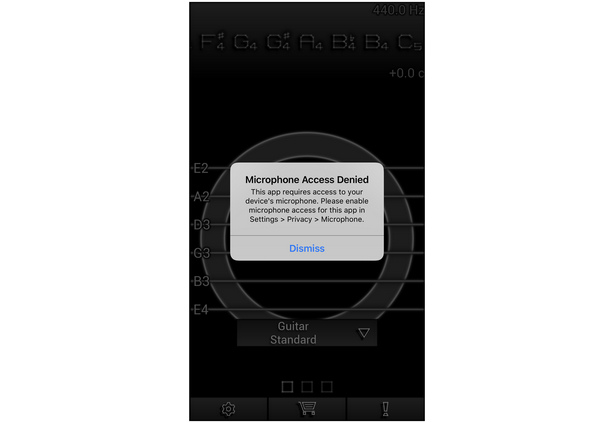
If you are screen recording with a mic equipped and your captured recording is muted, the problem may be rooted in the microphone permission of your application. Turning off your app’s microphone permission will cause your recordings not to capture microphone input and, in some cases, may even prevent the system audio from being captured as well. This would essentially mean that your entire recording will be muted and not only the audio from your microphone. If you are using a background noise reducer for a microphone, it may also cause this problem.
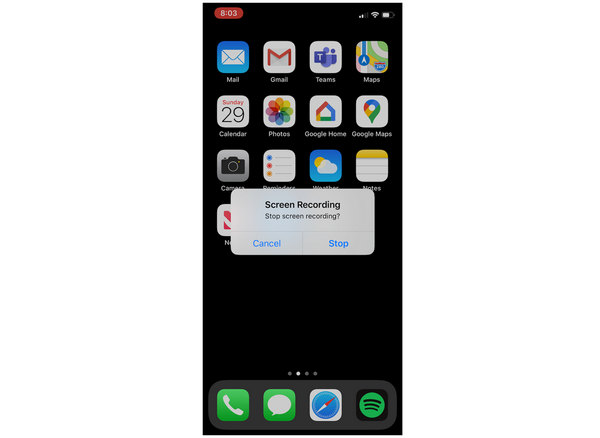
Some developers prohibit recordings while their application is in use. This means that some sort of effort to block recordings may be activated when you use your iPhone’s screen recording function in an app with this feature. The most notable apps that have this privacy protection feature are Messenger and Chrome. When conducting a video call in Messenger, recording the call may cause the output to be muted, but the video will still be captured. On the other hand, an incognito tab in Chrome browser cannot be captured using screen capture or screen recording options.
With these usual causes now discussed, let us proceed to the other end of the spectrum and provide some of the common solutions when having audio-related problems during your screen recording sessions.
Some of these tips are closely related to the usual problems that are presented above. However, the most common error with accidental muting has been removed since this option is very simple to solve. In exchange for that, we have provided a third-party solution that can ensure that your iPhone screen recording will have smooth audio quality. Some of these solutions should solve your problems related to no sound when recording video on an iPhone.
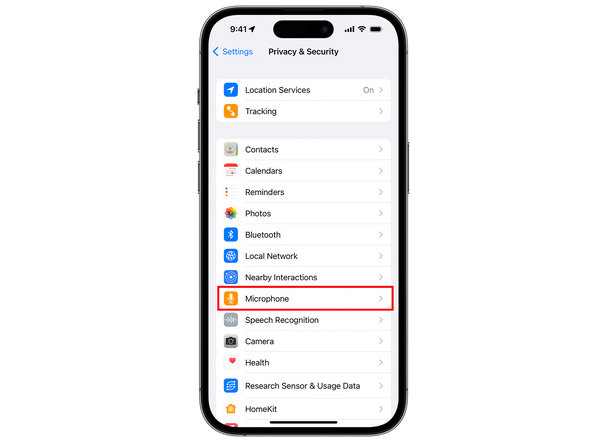
The direct solution to the second potential cause of muted recordings is to enable the microphone access of the application that you want to record. If this permission is enabled, you will be able to record both system audio and your microphone input into the screen recording that you are capturing. You can easily access the microphone permission in the Privacy & Securit settings of your device.
To avoid disruption when screen recording, making sure only to use apps that allow screen recording is the safest option to consider. With that in mind, most of the apps that permit this function are social media applications, mobile games, and public browser tabs. Additionally, avoid the apps mentioned above in the prohibited apps mentioned above, such as video calls in messaging applications and incognito browser tabs.
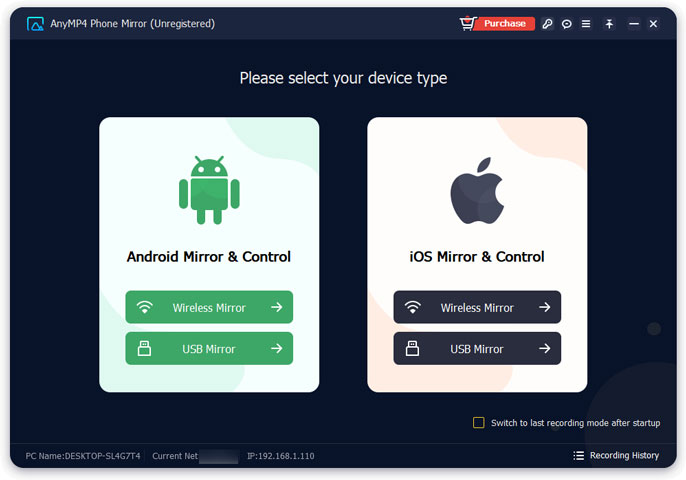
The safest option to ensure that your screen recording will have video input and crisp audio is to use third-party recording software. The quality will be ensured if you are using a recorder software outside your device, such as a computer. This can be done by mirroring your phone into a separate device and then performing the screen recording within your computer.
With that in mind, we highly recommend using the third-party tool that will be featured in the next section of this article to ensure high-quality screen recording.
Perhaps the best option to make sure that your screen recording will have high quality is to use phone mirroring apps and then record your screen on the computer where it is casting. With that in mind, we highly recommend using AnyMP4 Phone Mirror as the best mirroring option available.
This phone mirroring app is highly optimized for easy setup of connections between devices. Additionally, its iOS mirror connection can be easily set up by having both your device and computer connected to the same WiFi network. This essentially means that the official Apple AirPlay supports this software.
In addition to these benefits, you will also avoid premature device overheating and lag during recordings, as the recording duty is performed externally via a computer. This will also ensure that your audio track is separated, making it simpler to edit your video projects.
If you are interested in using this option to mirror your iPhone and record your screen on your computer, follow our detailed tutorial below. However, please note that DRM-protected content cannot be bypassed by external apps such as this one. These include apps such as Spotify, Netflix, FaceTime, WhatsApp, and more.
Ensure you download the software first to make each step easier to understand.
Secure Download
1. Open AnyMP4 Phone Mirror and select the iOS Mirror and Control mode.
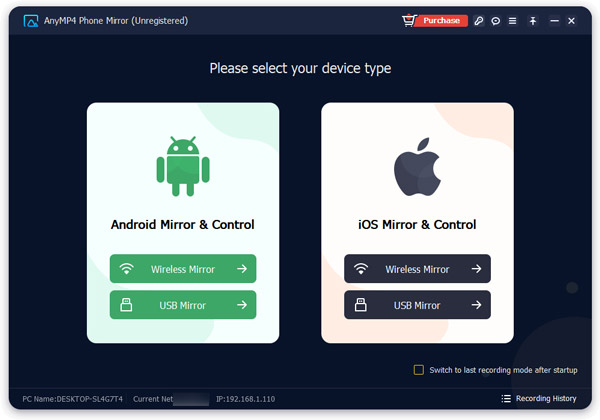
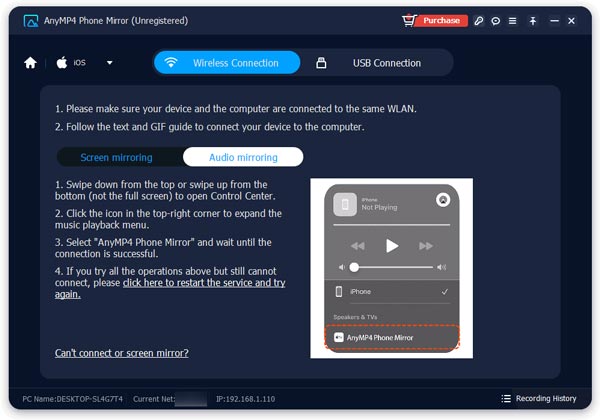
2. Connect both your computer and mobile device to the same WiFi network. Then, open Control Center on your device and select the AirPlay option. Under the Speakers and TV wireless network, tap on the AnyMP4 Phone Mirror option.
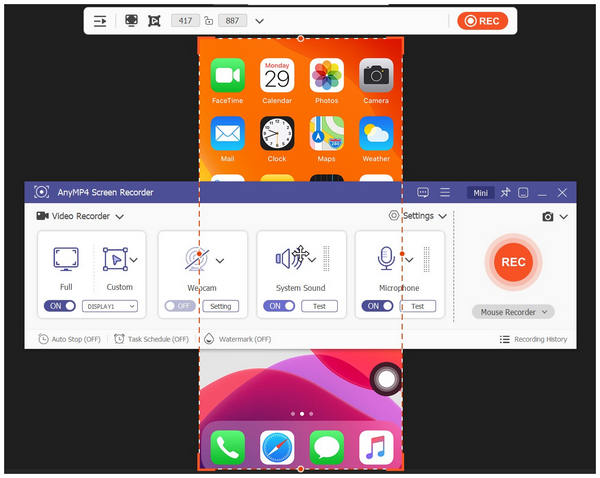
3. Now that your iPhone screen is being cast in the AnyMP4 Phone Mirror software, you can use any recording software on your computer to capture your device’s screen.
With these steps now provided, we hope that your next screen recording sessions will have higher quality, especially in terms of audio clarity. Fortunately, this result is easily achievable, especially when you use our method involving AnyMP4 Phone Mirror.
How to enable/disable the microphone during iPhone screen recording?
Using the iPhone Screen Recorder by default will capture a muted recording. To add audio to your screen recordings, hold the record button for a few seconds. These are the steps to either enable or disable audio during recordings.
Why is there no sound when using AirPlay to mirror and record?
AirPlay mutes recordings for security purposes. This is because audio recordings may carry significant information. As such, they are muted.
Can I record game sound and my commentary simultaneously?
Yes, you can. However, you need to use third-party tools. Only system audio can be captured when using the built-in recorder of iPhone devices.
Is it hard to record an iPhone externally?
No, it is not. Numerous apps support recording through phone mirroring. Among them, AnyMP4 Phone Mirror is the most accessible choice.
Can I bypass DRM-protected apps for recording?
No, you cannot. DRM-protected apps are absolutely prohibited for recordings. This means that any recorder, even external ones, cannot capture the content on these apps.
With the best options to solve issues such as screen recordings with no sound on iPhone now discussed, we hope that this article will greatly improve all your future mobile recording work. If you are still concerned about the setup requirement, make sure to use AnyMP4 Phone Mirror, which you can download using the link below.
Please share this article online to help other iPhone users having trouble with screen recording.
Secure Download
Secure Download
 Posted by Alice Thorne to Record Video
More readings
 3 Sweat-Free Methods to Mirror Android to PC
This post will outline 3 ways to mirror Android to Windows effortlessly. Check out wireless and USB solutions to enhance the screen-sharing experience.
 How to Screen Mirror iPhone: Step-by-Step Tutorial
This article will teach you the best step-by-step methods on how to screen mirror iPhone on any other devices. So what are you waiting for? Learn now!
 Mirror Android to Apple TV: 3 Practical Life Hacks to Check
This post will outline three effective ways to mirror Android to Apple TV and enjoy content sharing and streaming. Check the following instructional guide here!
 How to Mirror Android to TV With/Without WiFi
Learn how to mirror Android to TV effortlessly using WiFi and HDMI connections. Follow our comprehensive guide and enjoy your favorite content on a big screen.
 Add your comments to join the discussion here