
Secure Download
Secure Download
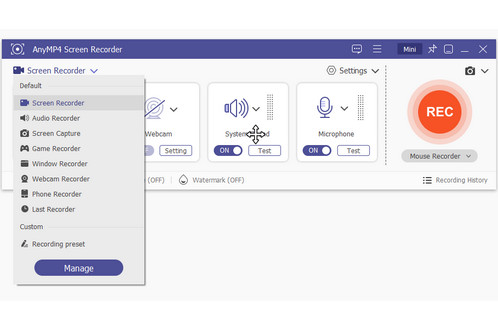

Best Overall: AnyMP4 Screen Recorder (Best for High-Res & Ease of Use)
Best for Developers: ScreenToGif (Frame-level precision)
Best for Quick Sharing: Gyazo (Cloud-based)
A GIF screen recorder has the capability to record your screen and save as an animated GIF file. It is said that a picture is worth a thousand words, so an animated GIF sometimes may be worth a million words. More importantly, GIF become more and more popular on social media. Therefore, this post will share the top 7 best GIF screen capturing applications for Windows, Mac, iOS and Android.
To provide you with an authentic and reliable guide, our software review team spent over 20 hours testing each tool featured in this list. We didn't just read the manuals; we put them through a rigorous benchmarking process to ensure they meet modern standards for speed, quality, and file size.
To maintain consistency, we used the following hardware for our evaluations:
We rated each program on a 1-10 scale based on Compression Efficiency (quality vs. file size), User Interface (UI) Intuition, and Export Speed. Only the tools that passed our "Stability Test" (no crashes during 3 consecutive recordings) made it to this final list.
| Tool | Price | Frame Rate Control | Maximum Keyframe Interval | Maximum Quality | Recording Limits | Editing Tools |
|---|---|---|---|---|---|---|
| AnyMP4 Screen Recorder | Free and Paid | Up to 120 fps | Up to 10 seconds | Very High | 400 MB for GIF |  |
| ScreenToGif | Free | Up to 60 fps | Up to 2 seconds | High | 15 MB for GIF | |
| GifCam | Free | Up to 33 fps | Up to 2 seconds | Good | 8 MB for GIF | |
| LICEcap | Free | Up to 60 fps | Up to 2 seconds | High | 10 MB for GIF | ❌ |
| IceCream Screen Recorder | Free and Paid | Up to 144 fps | Up to 2 seconds | Very High | 100 MB for GIF | |
| RecordIt | Free and Paid | Up to 60 fps | Up to 2 seconds | High | 1 MB for GIF | ❌ |
| Gyazo | Free and Paid | Up to 60 fps | Up to 2 seconds | High | 10 MB for GIF | |
| AZ Screen Recorder | Free and Paid | Up to 60 fps | Up to 2 seconds | High | 50 MB for GIF | |
| DU Screen Recorder | Free and Paid | Up to 60 fps | Up to 2 seconds | High | 20 MB for GIF | |
Compatibility: Windows 10 and 11
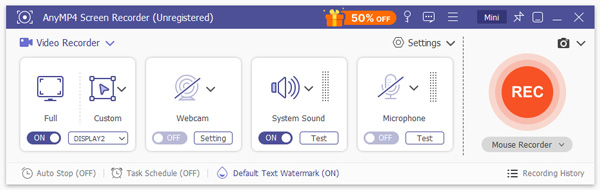
AnyMP4 Screen Recorder is an easy way to record your screen as GIF on Windows and Mac computers. This GIF screen capture tool applies automatic GIF optimization during export to achieve clarity and file size. You can adjust the frame rate in the settings to reduce unnecessary frames to lower GIF size. It also intelligently manages the color palette to minimize redundant colors to stay within GIF limitations without visible banding.
Recommendation
PROS
CONS
In short, it is the best option to capture your screen as GIF files on PC or Mac computer.
Secure Download
Secure Download
How to Make GIF Screen Recording
1. Get the best GIF screen recorder
Launch the GIF screen capturing software after you installed it on your PC. There is another version for Mac.
Choose Screen Recorder in the home interface to open the GIF screen recorder window.
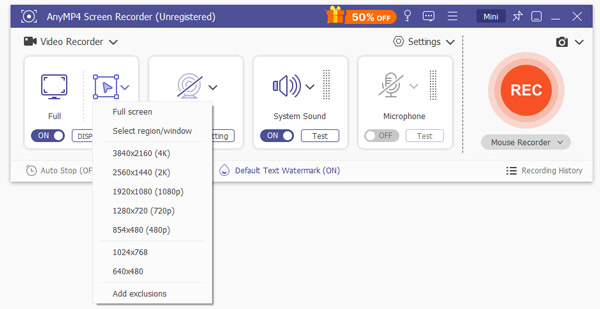
2. Record your screen
Turn on the Display and System Sound options, while disable the Webcam and Microphone options. Click Settings icon to open Preferences dialog and set GIF as the output format in Output tab.
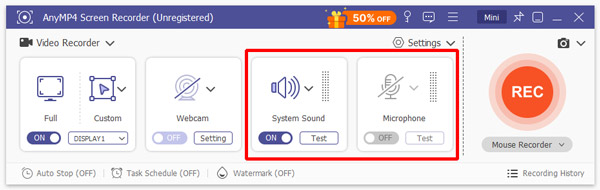
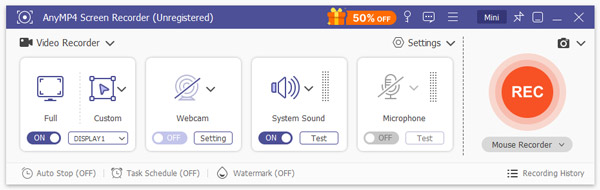
Go to the screen you want to record, set the recording area and modify the volume. Once click the REC button, your screen will be captured.
3. Export screen recording as GIF
When it is done, click the Stop button to open it with the Preview window. Finally, click the Save button if you are satisfied.
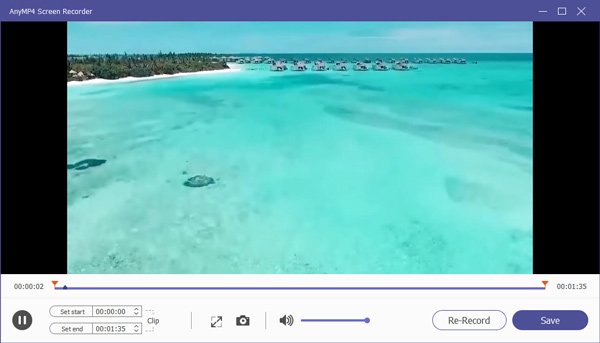
Then you could play the GIF recording with the GIF player easily.
Compatibility: Windows 10 and 11
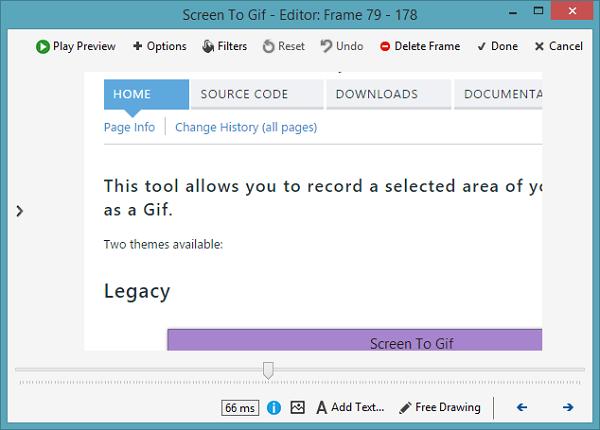
ScreenToGif is a specialized tool to make GIF from screen. It offers manual, frame-level optimization to fine-tune GIF file size with precision. You can remove duplicate or unnecessary frames, lower the frame rate, and reduce playback duration to compress output.
Recommendation
PROS
CONS
How to capture screen to GIF
1. Open the GIF screen recorder, and set the recording area by enter the dimension.
2. Click the Record button to start capturing.
3. Hit the Stop button when recording finishes.
Compatibility: Windows XP and later
GifCam is a GIF recorder that focuses on simplicity and real-time compression. It captures screen activity directly into GIF format using delta frame recording. This means only changed areas between frames are saved to reduce file size.
Recommendation
PROS
CONS
How to record screen to GIF
1. When you want to make a GIF screen recording, open the GIF screen recorder.
2. Hit the REC button to start capture your screen.
3. Finally, click the Stop button when it completes. Then hit Save to store it as GIF.
Compatibility: macOS 10.7 and later
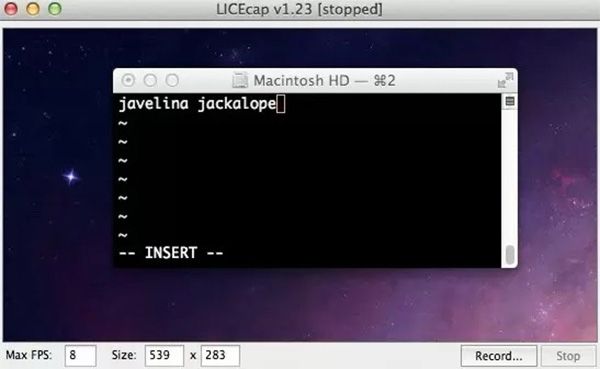
LICEcap is a powerful Mac app that allows users to control frame rate during recording. It uses a basic adaptive color palette, making it effective for UI recordings, app walkthroughs, and software demonstrations.
Recommendation
PROS
CONS
How to make a screen recording to GIF
1. Run the GIF screen recorder and adjust the size to cover the recording area.
2. Hit the Record button to start making a recording. Then click Stop to save it as GIF.
Compatibility: macOS 10.9 and later
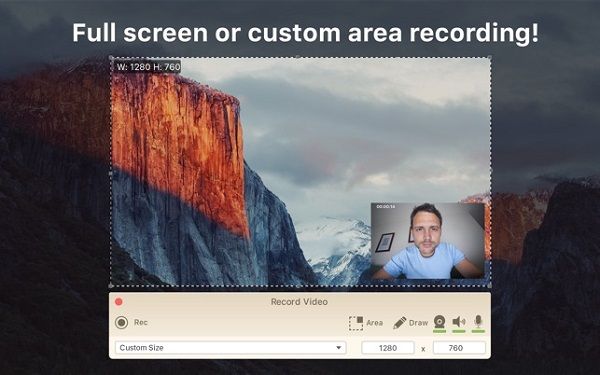
Icecream Screen Recorder is a versatile screen recording tool that supports exporting animated screenshots as animated GIFs. It lets you capture the entire screen or a selected area and then export the result as a GIF file. It also offers basic controls for frame rate and resolution during recording.
Recommendation
PROS
CONS
How to create a screen recording to GIF
1. Run the GIF screen recorder and set the recording area.
2. Click the REC button to start capturing.
3. After screen recording, export it as GIF.
Compatibility: iOS 16 or later
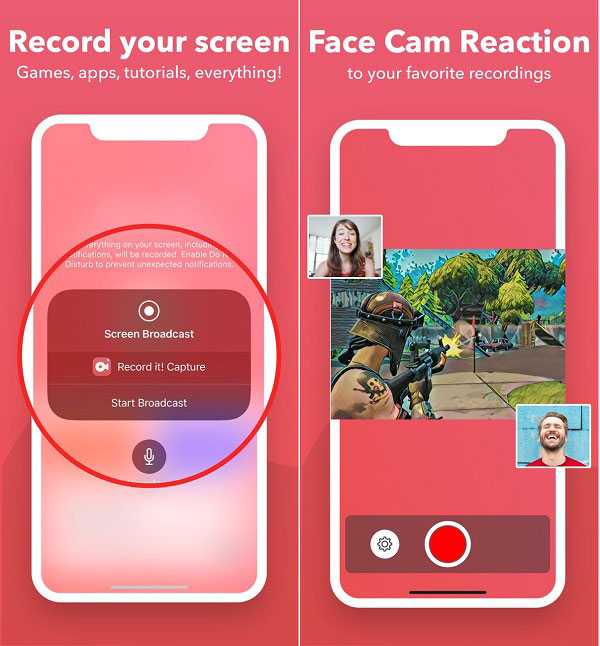
RecordIt is an app that allows you to convert video to GIF using mobile-optimized compression presets. It reduces frame rate and resolution during conversion to keep GIF sizes small. It also applies automatic color reduction to ensure smooth playback.
Recommendation
PROS
CONS
How to capture your iPhone screen
1. Install and set up the GIF screen recorder on your iPhone.
2. Go to the desired screen, open Control Center > Screen Recorder and tap Record it! Capture.
3. Finally, save the recording as GIF.
If you like, you could turn GIF to MP4 for easy playback on your iPhone.
Compatibility: iOS 27 beta, 26 or later
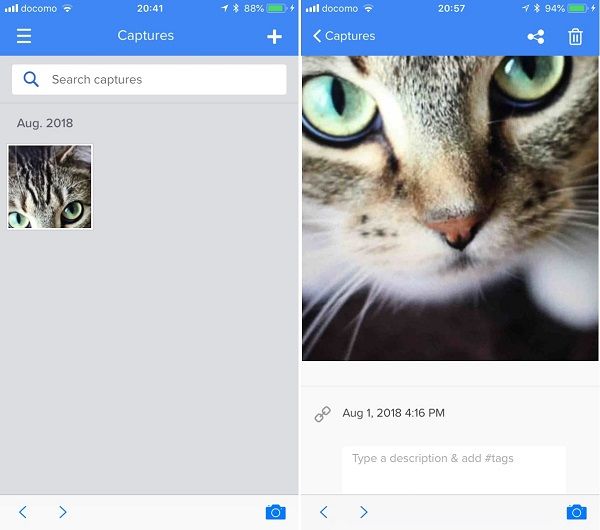
Gyazo optimizes GIFs for fast cloud sharing. It automatically caps frame rate and color depth to ensure quick uploads and instant playback in browsers. The color palette is intelligently reduced to avoid visual artifacts, making Gyazo GIFs lightweight.
Recommendation
PROS
CONS
How to record iPhone screen to GIF
1. Install the GIF screen recorder from App Store.
2. When you expect to capture your screen, tap on the REC button.
3. Next, save the capture to Camera Roll in GIF.
Compatibility: Android 6 and later
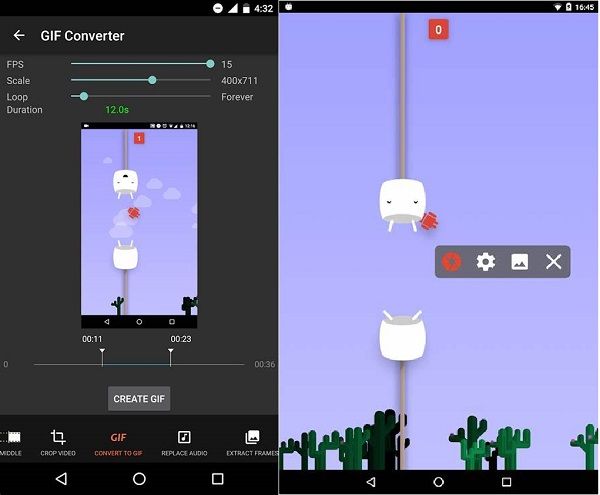
AZ Screen Recorder allows users to customize frame rate and resolution before conversion. During video-to-GIF conversion, it compresses files by reducing color depth and trimming redundant frames. This ensures Android screen GIFs remain smooth.
Recommendation
PROS
CONS
How to capture Android screen
1. Install the GIF screen recorder, and tap the floating button when you wish to capture screen.
2. After screen capture, convert it to GIF with the built-in video converter.
Compatibility: Android 6 and later
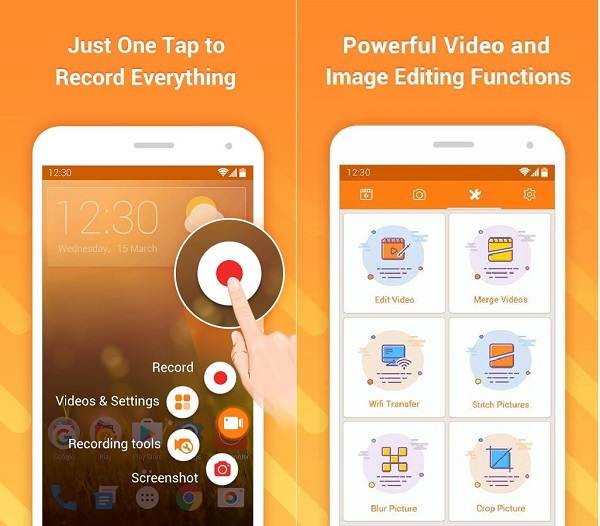
DU Screen Recorder applies post-recording compression when exporting to GIF. You can lower FPS and output resolution to reduce file size, especially for long recordings. It also performs automatic color palette optimization to maintain acceptable visual quality.
Recommendation
PROS
CONS
How to record Android screen
1. Install the GIF screen recorder app to your Android phone.
2. Tap the floating button and select Record when you want to capture screen.
3. When it is complete, convert the recording to GIF.
Q: Why is my GIF file size so large?
A: High frame rates, large recording dimensions, long durations, and complex color changes increase file size. GIFs are limited to 256 colors per frame, so poor palette optimization can cause inefficient color usage and bloated files.
Q: Should I use GIF or WebP?
A: You should use WebP instead of GIF whenever possible. WebP supports lossy and lossless compression, full 24-bit color, alpha transparency, and smaller file sizes. Additionally, WebP is widely supported by modern browsers.
Q: Can GIF capture tools record sound?
A: No. GIF does not support audio, regardless of the screen recorder used. While some tools allow recording system sound or microphone input, the audio will be discarded during GIF export. If audio is important, record in MP4 or WebM first, then keep the video format.
Q: Does GIF recording support transparency?
A: Partially. GIF supports binary transparency only, but not smooth alpha transparency. This means no soft edges or semi-transparent shadows, which can cause jagged outlines on complex visuals.
This article shared several GIF screen recorder applications for Windows, macOS, iOS and iPhone. Now, what you can do is to pick up your favorite one and start your screen recording based on our guide. If you have better suggestions, write them down below this post.
 Posted by Riley Mitchell to Recorder
More readings
 8 Best DVD Recorders of Amazon to Record DVD or VHS Files
When you need to record some TV programs as DVD, what should be the best DVD recorders you should choose? Just find the 8 recommended ones from the article.
 11 Best iPhone Screen Recorder Appsc
Don't know how to find a suitable iPhone screen recorder app? In this article, we list 10 best iPhone screen recorder app for you to refer.
 Top 5 Methods to Turn GIF into MP4 With Ease
Are you still worry about how to turn GIF into MP4 videos? Take it easy. The article explains the top 5 methods, which enables you to easily and quickly turn GIF into MP4 anytime anywhere you want.
 GIF Editor – Best Tools to Edit Animated GIF Files on Different Platforms
If you want to edit GIF images on different platforms, you can learn more about the 8 best GIF editors to edit animated GIF and ordinary GIF files from the article.
 Add your comments to join the discussion here