5 Ways to Trim MP4 Video on Desktop, Mobile, and Online
Learning how to trim videos is an essential skill that everyone must know if they plan on posting videos online, pursue a career in multimedia, or even for personal needs. In this case, learning the best options to trim MP4 videos is very important for modern users since MP4 is the most used format today. In this article, we will explore the best software for trimming MP4 videos much more easily on desktops, mobile devices, and online tools. We will explore each software’s best uses, supported platforms, and main features, and then provide a detailed guide on using the trimming option of each tool.
Part 1. Why You Should Trim MP4 Videos
Before proceeding to our video editing tools to trim MP4 online, desktop, or mobile, let us first discuss the most common options why most video editors choose to trim videos on Windows, Mac, Mobile, or Online. These three reasons are usually the most common; however, there are countless reasons why cutting videos is important.
Remove Unwanted Sections
Perhaps the most common reason trimming MP4 videos is important is to remove unnecessary sections. These sections are usually the cue to cut the video or the boring sections before the main context of the clip.
Meet Video Duration Limit
When posting videos online, most social media sites and apps have a strict duration limit. In this case, a video that is too long needs to be cut to meet the video length limit of the site where you will share it. This is more prominent for short-form videos for TikTok, IG Reels, and YouTube Shorts.
Use Video for Multimedia Project
If you plan on using the video for multimedia or other forms of editing projects, cutting raw videos is a standard procedure to improve the efficiency of post-production. In this case, it is more ideal to cut unwanted portions of raw videos first before running them in the video editing process.
Part 2. Trim MP4 Videos with AnyMP4 Video Converter Ultimate (All-in-One Solution)
Best Used For: Simple and automated video trimming process.
System Compatibility: Windows, macOS
The first software we will feature is the best all-in-one solution for trimming MP4 videos and editing other multimedia files, with none other than AnyMP4 Video Converter Ultimate.
Originally designed as a format converter tool, the software is equipped with other beginner-friendly video editing tools, including a professional-grade Video Trimmer perfect for cutting MP4s.
Compatible with both Windows and Mac desktops, the Video Trimmer tool of the software offers flexible editing adjustments, including basic fast splitting of videos, deleting segments, and setting fade-in and fade-out effects. These editing features are ideal for producing MP4 videos optimized for social media content or as assets for editing projects.
In addition to reading the MP4 format, AnyMP4 Video Converter Ultimate also supports other video files such as MOV, WMV, AVI, MKV, and GIF. For more advanced users, technical parameters such as output format, video encoder, and audio channel are adjustable as well.
However, what makes AnyMP4 Video Converter ultimate standout is its versatility when it comes to multimedia tools. It also offers a functional MV Editor, Collage Maker, and Video Compressor tool to apply other practical edits to the MP4 video.
To truly make AnyMP4 Video Converter Ultimate an all-in-one tool, it also offers more convenient editing options, such as Video Cropper, Video Rotator, Video Reverse, Format Converter, Video Watermark Remove, 3D Maker, Video Enhancer, Video Reverser, and Video Speed Controller.
To learn more about what makes AnyMP4 Video Converter an ideal video trimmer tool, please read its main features below, and proceed to our three-step guide on how to use its video cutter feature.
For an easier time learning the software, make sure to read it using the link below.
Main Features:
• The MV Editor is a perfect tool for easily editing videos.
• Professional DVD ripper tool to convert DVD media to over 500 digital formats.
• Features a format converter tool that can process and read files from 500+ formats.
• Equipped with 20 tools under the toolbox, like practical watermark remover, video crop, merge, video enhancers, and more, to optimize videos.
• It can read videos up to 4K quality to reduce their file size.
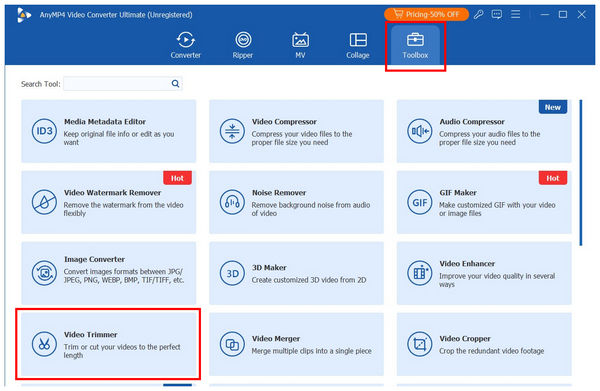
1. Open AnyMP4 Video Converter Ultimate, then go to the Toolbox section of the program. Then, find the Video Trimmer tool and use it. In the add file pop-up, select the Add button to import the MP4 you want to trim.
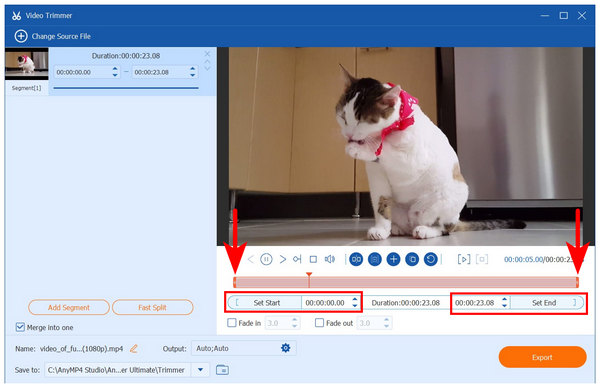
2. Once the MP4 file is imported into the Video Trimmer tool, you may use two different options to cut it. For faster trimming, use the Trimming Sliders at the start and end parts of the video. For a more accurate option, you may adjust the time value in the Set Start and Set End tabs to identify the portion of the video that will be cut. Additionally, you may improve the transition of the cutting effect by adding Fade-in and Fade-out effects to the video.
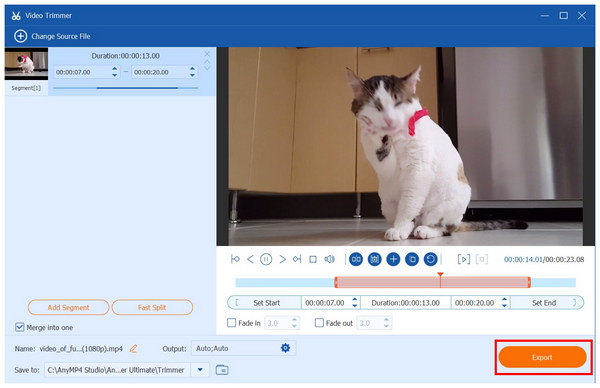
3. Now that the unwanted section of your clip has been trimmed, click Export to produce the edited video. You may now upload the file to your favorite social media site or use it as a video editing asset.
With the easiest video trimmer tool for desktops now discussed, we hope this article will meet all your video editing needs, even beyond MP4 file trimming. This was made possible by the highly versatile features and editing options equipped in AnyMP4 Video Converter Ultimate.
Part 3. Trim MP4 Videos with VLC Media Player (Free Way)
Best Used For: Watching videos regardless of their file format.
System Compatibility: Windows, macOS
Although unpopular to other users, the VLC Media Player editor has a basic video trimmer tool that can process and be used as an MP4 trim tool. Unfortunately, this is tricky to use since you will not be able to save the trimmed video on the computer itself; you need to use a DVD driver or other external storage.
Although it is not an ideal option, the presence of the trimmer tool still makes it viable enough, and it may be a good option if you already plan on saving the edited video in an external storage.
To learn exactly how to use a video trimmer tool to trim MP4 videos, make sure to read our detailed guide below featuring the Media menu of VLC Media Player.
Main Features:
• Volume booster system to improve the video’s audio.
• Built-in subtitle downloader to add online subs.
• Wide video codec support to play all video formats.
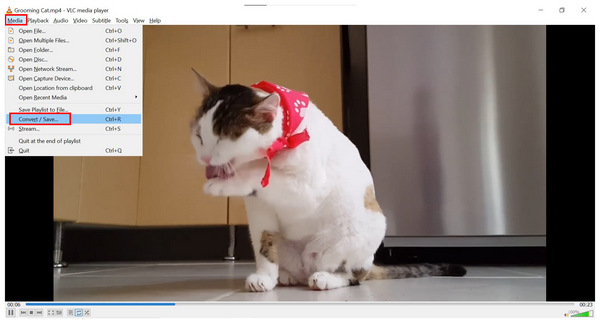
1. Open the MP4 video you want to edit in VLC Media Player. Then, select the Media tab of the software, then click on the Convert/Save option.
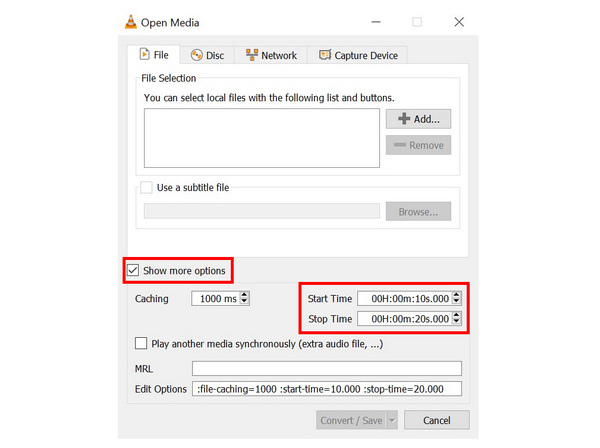
2. In the Open Media tab that will pop up after selecting Convert/Save, click on Show more options. Then, edit the time in the Start Time and Stop Time tab to capture the portion of the video you want to trim.
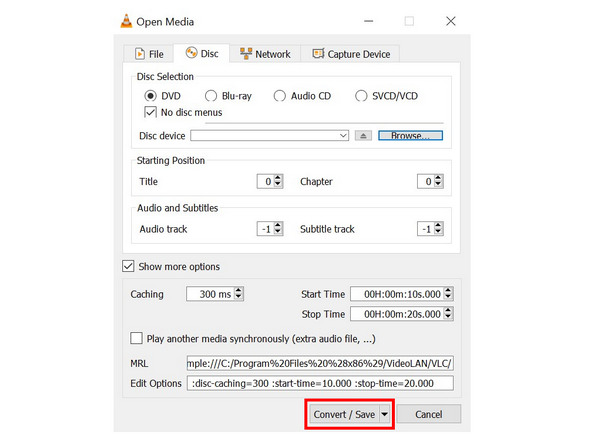
3. Then, proceed to the Disc tab and select where the edited video will be saved. Once you have selected the save path, click on Convert/Save.
Due to the limited editing options in VLC Media Player, it should only be considered as a last option if you plan on trimming MP4 videos. It may get the job done, but there are way better options.
Part 4. Trim MP4 Videos with Premiere Pro (Professional Way)
Best Used For: Professional-grade video editing.
System Compatibility: Windows, macOS
If you are more on the experienced side, video trimming may be done directly on the video editing software of your choice; in this case, Adobe Premiere Pro might be the ideal tool for you.
Unlike AnyMP4 Video Converter Ultimate and VLC Media Player, this software specializes in providing video editing services to its users and sacrifices other flexible features. Fortunately, this made the software the most advanced and well-used tool among experienced video editors.
In fact, video trimming in the program may be done using different options since it also has different editing tools to cut MP4 clips. To make it simpler, we will provide a tutorial on using the easiest video trimming option in the software.
If you are used to more basic editing tools, learning to use Premiere Pro as an alternative to trimming MP4 in QuickTime is a good step forward.
The tutorial below uses the Playhead and Keyboard Shortcut method, which is also the easiest to use among the flexible options in Adobe Premiere Pro.
Main Features:
• Professional-grade video editing tools.
• Multiple video trimmer options for users of different skills.
• Accurate video trimmer software and advanced editing options.
1. Move the Playhead bar to the part of the video where you want the cut to start.
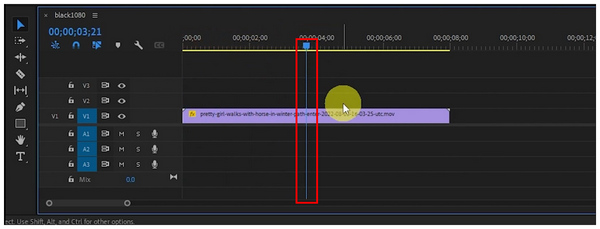
2. Then, click on the video in the timeline to select it.
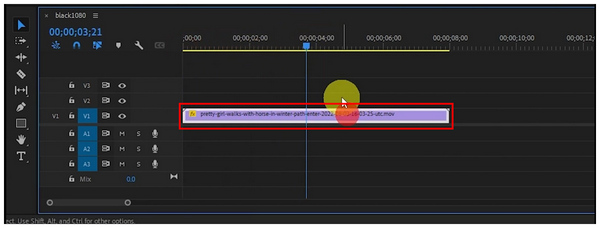
3. With the Playhead now set, use the keyboard command Control + K (or Command + K, depending on your operating system) to trim the video where the playhead is located.
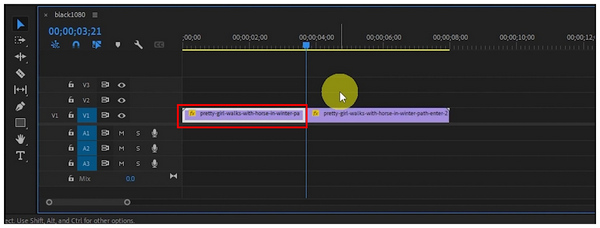
To cut the video into multiple portions, repeat the process by moving the Playhead and using the keyboard shortcut repeatedly.
Part 5. Trim MP4 Videos with CapCut on Mobile
Best Used For: Mobile-based video editing of social media content.
System Compatibility: Android, iOS, Windows, macOS, Browsers
Moving forward to mobile devices, CapCut Mobile might be one of the more recognizable video editing tools among the competitive video editing software in the smartphone market. This was made possible by the features in the tool aligned towards accessibility.
This is also prominent when using the software as a video trimmer tool since it offers trimming sliders to its users, making the program highly applicable for quick and easy video trimming.
However, CapCut suffers from the same issues present in most apps since the tool is also plagued with constant ads, including pop-ups and videos in between menus. The program may be easy, but solely relying on it might not be the most efficient.
Learn the program’s main features and read our tutorial for it below.
Main Features:
• Offers video editing templates for easier video editing.
• Optimized for mobile devices, making it easier to edit using a touchscreen.
• Flexible premium plans for users with different editing needs.
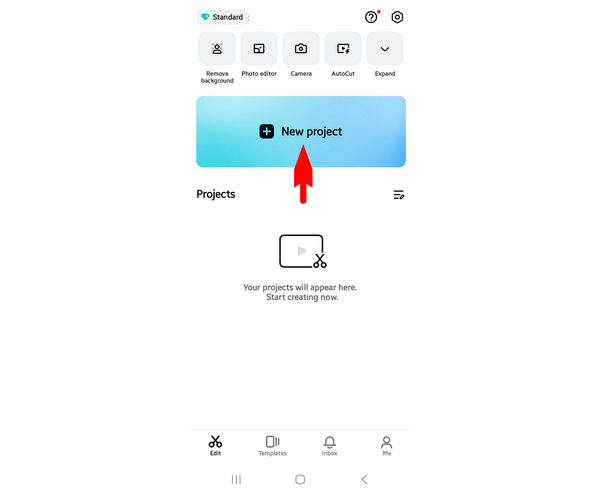
1. Open the Capcut app and then select the New Project option in the main menu.
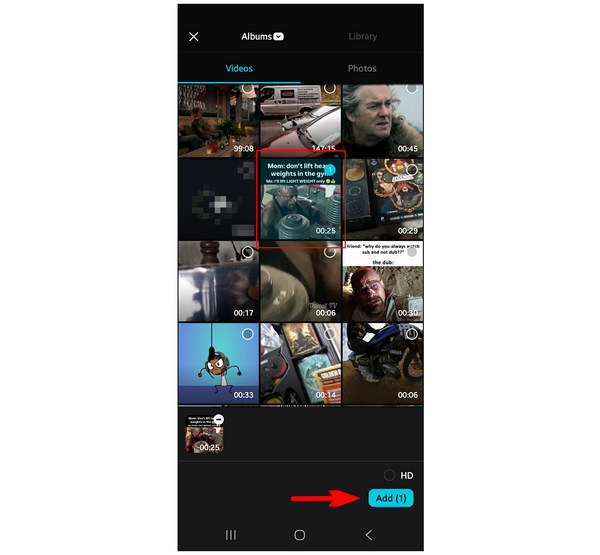
Give access to the app to open the videos on your device. Then, tap the MP4 video you want to edit and select Add.
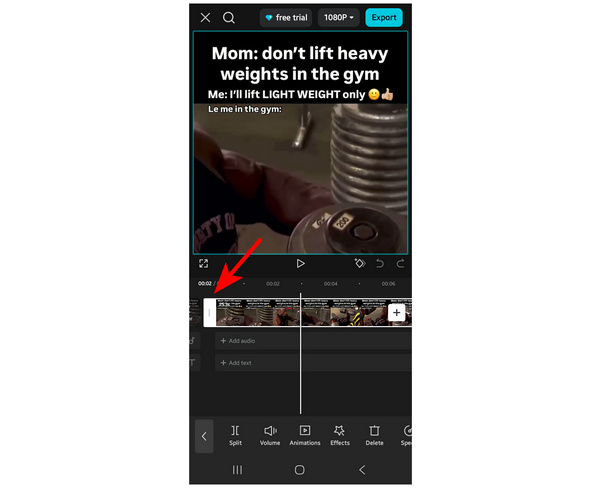
2. In the editing timeline of Capcut, tap the video. Then adjust the Video Trimming sliders at the start and end of the video.
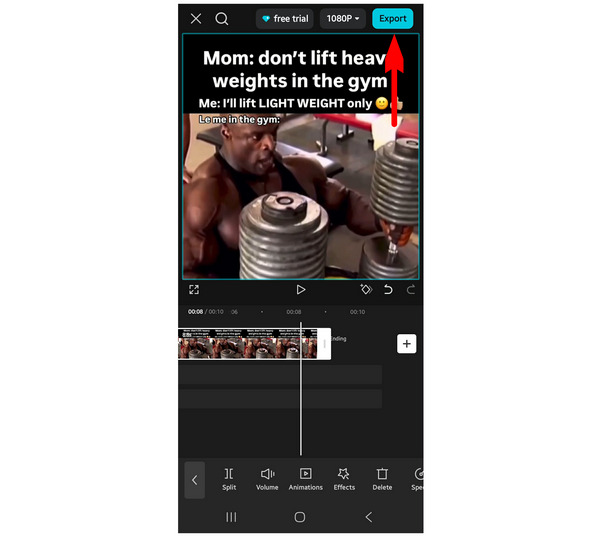
3. With your video now trimmed and the unwanted portions removed, you may now tap Export to create the trimmed video clip.
Part 6. Trim MP4 Videos with Kapwing Online
Best Used For: Quick and installation-free editing.
System Compatibility: Browsers
The last option we will highlight is the best tool to cut an MP4 file online, with none other than Kapwing Online. One of the leading browser editing tools is exclusively designed for online usage.
Among the options in this list, Kapwing might be the most accessible since it does not require any installation or registration. Unfortunately, it suffers from high reliance on internet performance and low input file size support.
As a reference, the editing tools presented above do not have an input file size limit. Meanwhile, the free version of Kapwing is capped at 200 MB.
Although it is limited in the file size department, it can still function well, especially when you need to edit something more immediately and on short notice.
Main Features:
• Fully browser-based, which makes it installation-free.
• Advanced video editing options are especially versus other online tools.
• Its free-to-use version is reliable enough for simple editing.
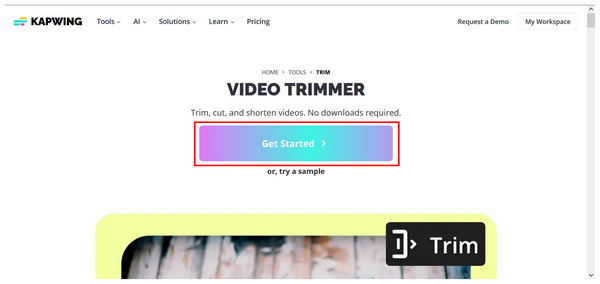
1. Search for Kapwing Video Trimmer online to find the website of the online tool. Then, click on Get Started in the main menu of the website.
In the editing window of the online software, select Click to Upload to add the video you want to trim.

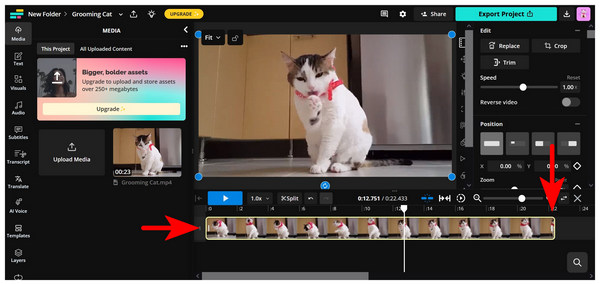
2. In the editing timeline of the tool, select the imported MP4 video. Then, move your cursor to the Video Trimming slider in the start and end portions of the clip. Click-and-drag it.
3. With the MP4 file trimmed, select the Export Project to proceed to the video importing process. Follow the process of the online tool to save your video.
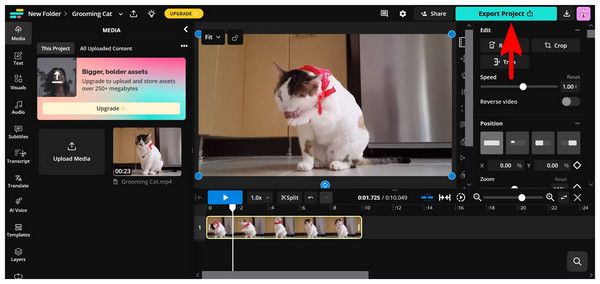
Another weakness of online tools is that videos processed in them usually have watermarks. Kapwing is also guilty of this downside. With that in mind, make sure to edit your video first before using them if you mind having watermarks on your clips.
Part 7. Which is the Best Way to Trim a Video
Now that we have featured the best options to cut an MP4 video online, on desktop, and mobile, we hope that this article has made video editing and trimming videos much more accessible.
For a quicker comparison of each program, we have provided a detailed table below that highlights each tool’s most prominent editing measurements.
The table below provides a clear overview of each software’s ease of use, input file size, trimming controls, performance, output quality, editing features, and pricing.
| MP4 Video Trimmer Tools |
Ease of Use |
Input Video Size |
Trimming Precision & Control |
Speed & Performance |
Output Video Quality |
Additional Editing Features |
Pricing |
| AnyMP4 Video Converter Ultimate |
Beginner-friendly |
No file size limit. |
Fast-splitting
Time-based Cutting
Trimming Siders
|
Hardware Accelerated
GPU Accelerated
|
4K UHD
1080p
720p |
Video Cropper.
Video Enhancer.
Watermark Remover.
Format Converter.
Video Rotator.
|
Free- $18.75 |
| VLC Media Player |
Intermediate |
No file size limit. |
Time-based cutting |
Lightweight CPU and RAM usage |
1080p
720p
|
None |
Free |
| Premiere Pro |
Advanced |
No file size limit. |
Timeline-based editing.
Ripple cutting.
Monitor trimming.
|
GPU Accelerated |
4K UHD
1080p
720p |
Multi-track timeline.
Video effects and filters.
Color grading.
|
$22.99 - $37.99 |
| CapCut on Mobile |
Intermediate |
No file size limit. |
Timeline cut and splitting. |
Dependent on mobile device performance. |
1080p
720p
|
Video transitions.
Video effects,
Graphic stickers and overlays.
|
$7.99 - $9.99 |
| Kapwing Online |
Beginner-friendly |
250 MB - 6 GB |
Frame trimming. |
Dependent on the internet connection. |
1080p
720p |
Video trimmer.
Editing templates.
Smart video cutter.
|
Free - $24.00 |
Conclusion
With the best video editing and MP4 video trimming software now discussed, we hope that this article has provided you with useful information that will help you decide which option works best for your MP4 videos. If you are still having trouble deciding which one to use, prioritizing versatility and ease of use will always be a safe choice. In this case, downloading AnyMP4 Video Converter Ultimate using the link provided below is a good first step.





 Add your comments to join the discussion here