
Free Download100% Clear & Secure
Free Download100% Clear & Secure
As social media platforms and professional environments increasingly require clean visual effects, removing text from videos has become a common task in modern content creation. Additionally, it is necessary for reasons such as enhancing video professionalism and brand image, updating information, and reducing distractions for viewers. This article will introduce the two best AI tools and provide specific steps to help you achieve this.
The text appearing in videos is not limited to one kind of type but can manifest in multiple forms. Accordingly, the difficulty of removal varies depending on the type of text. The following are several common types:
1. Static text (e.g., watermarks, logos, date/time stamps).
Static text remains in a fixed position and does not change its content or move throughout a specific scene or the entire video.
2. Dynamic text (e.g., subtitles, captions, scrolling credits).
Dynamic text is active—it changes, moves, or animates in sync with the video content.
3. Embedded vs. overlay text (burned-in vs. removable layers).
This is the most important distinction for anyone trying to remove text. It refers to whether the text is embedded into the image pixels or exists as a separate layer.
The direct answer to this question is yes.
However, it is essential to note that the method varies depending on whether the text is layered or burned-in. Specifically, this refers to whether the text exists as a separate layer (which can be toggled off or deleted) or is embedded within the image pixels (requiring removal via AI tools).
Vmake AI is a powerful, automated tool for removing layered text, such as soft subtitles, without cropping your video. You should know that layered text is not part of the image itself, but rather a separate track floating above the image. Therefore, you can use tools like Vmake AI to directly disable or remove them from videos without affecting the video pixels.
Here are the steps to remove layered text from videos with it:
1. Upload your video.
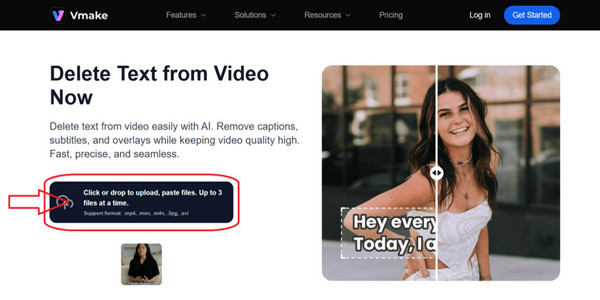
Navigate to the Vmake AI Video Text Remover tool or open the Vmake app. Click or drop to upload the video files. It supports common formats, including MP4, MOV, M4V, AVI, etc.
2. AI detection and processing.
After the video is uploaded, the AI will automatically scan and highlight the detected text. You can also manually adjust the selection area as needed to ensure all layered text is covered.
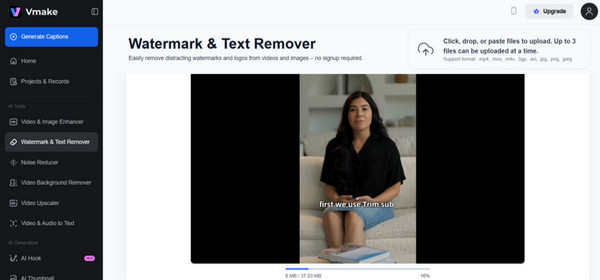
Vmake offers three customization options. Here, we select the first option, Smart Remove, to delete layered text/subtitles from the video.
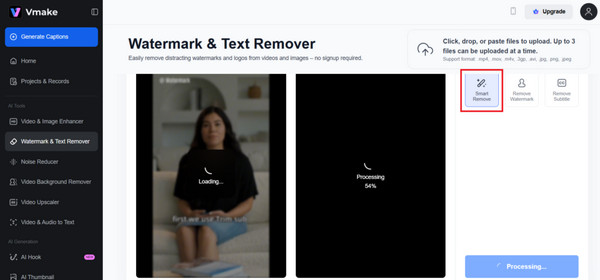
3. Preview, edit further, and download.
After video processing is complete, you can preview the results in real time to verify the accuracy of the removed text. You can also make further edits, such as using Vmake's frame-freezing feature to isolate and clean specific segments.
Finally, configure some export settings, such as video format, length, and resolution. Then, click the Download Full Video button in the bottom-right corner to save the video to your device.
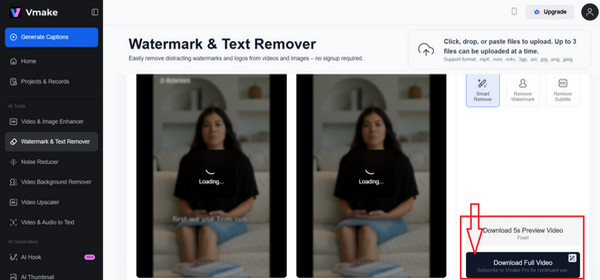
Using Vmake AI Video Text Remover to remove layered text from videos is a great option. However, please note that downloading the entire video requires extra credit usage for free users, and the resolution is typically limited to 720p.
AnyMP4 Video Converter Ultimate is a comprehensive video editing software that offers a range of powerful tools. Its professional Video Watermark Remover allows you to effortlessly and perfectly remove burned-in text watermarks from videos. You can freely select the watermark area and choose time intervals to customize the watermark removal region. Additionally, it supports multiple video input and output formats and can customize the format, encoder, and other output parameters. It is a great tool for removing burned-in text from videos.
Below are the steps to remove burned-in text from videos with it:
1. Download and install this powerful text remover on your computer. After installation, it will automatically launch.
Secure Download
Secure Download
Go to the More Tools tab and find the Video Watermark Remover tool to remove burned-in text from videos.
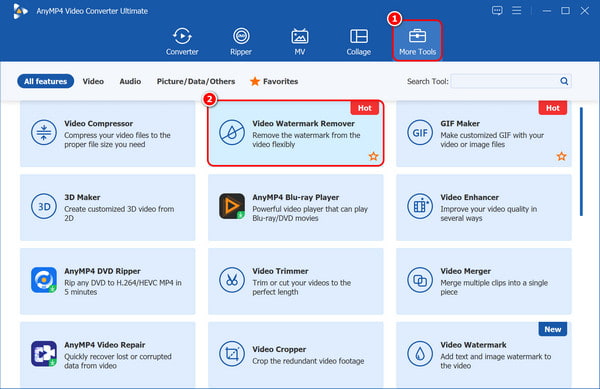
2. Click the plus button in the central of the screen to add a video from which the burned text needs to be removed to the Video Watermark Remover tool.
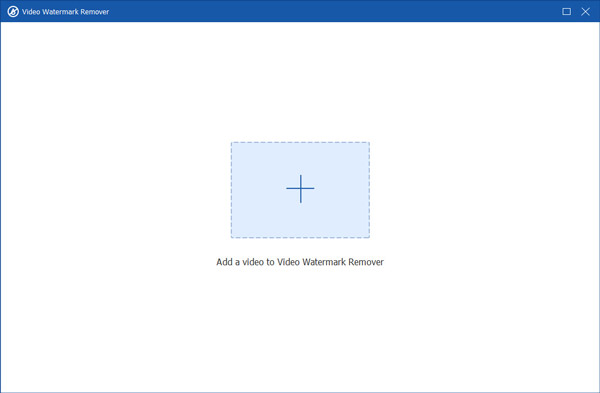
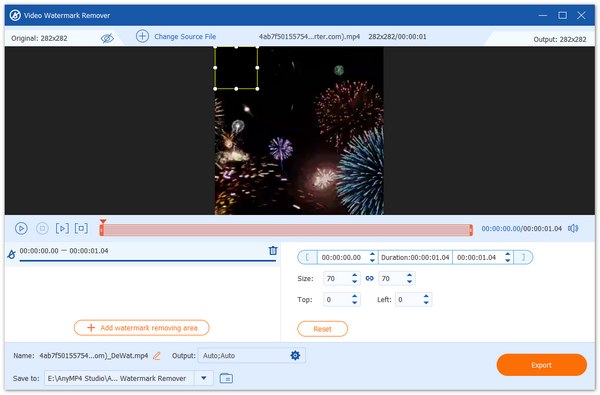
3. After adding the video, please click the Add watermark removing area button to select the burned-in text area you want to remove from the video.
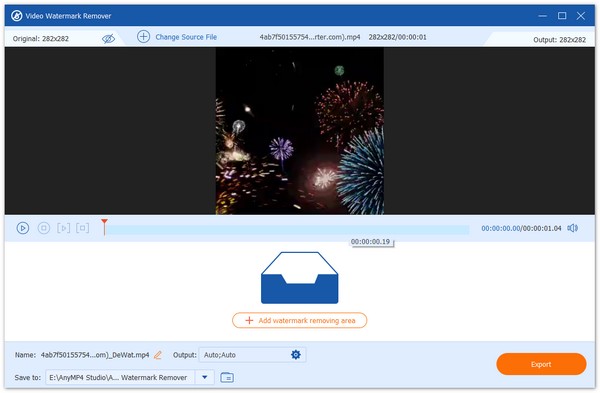
You can adjust the size of the burned-in text area by modifying the value next to the Size option or by dragging the section box with your mouse. You can also adjust the value of Top and Left to move the watermark area. Finally, click the Export button to get the video without the burned-in text.
Thanks to hardware acceleration and AI algorithms that erase text and blend the background, it is fast and easy to remove hard-coded embedded text using the built-in Video Watermark Remover tool of AnyMP4 Video Converter Ultimate. Moreover, this tool supports the export of 4K and 1080p without quality loss.
Removing text from a video is a delicate process. Even with powerful AI tools, it may also ruin the video quality or lead to legal trouble. Here are the most common mistakes to avoid:
1. Aggressive cropping.
Many people try to remove text by simply zooming in or cropping the edges of the video. But it may lose vital visual information (like the top of a person's head or important background context) and ruin the original composition of the shot.
2. Low-quality blurring tool.
Using the Mosaic or Gaussian Blur tool is the fastest way to erase text, but blurring creates a smudge that draws the eye directly to the area you want to hide. It even degrades the video quality.
3. Copyright and legal violation.
Removing the branded logos or creator's text watermark from videos without permission is technically easy, but it can be legally risky due to potential copyright violations.
Can I remove text from a video without cropping?
Yes, you can remove text from a video without cropping. Modern AI video text removers can erase the text by analyzing the surrounding pixels and reconstructing the background behind it.
What types of text can be removed from videos?
Almost any text that is visually part of the video frames can be removed using AI inpainting, which reconstructs the background behind the text.
Is it possible to remove hardcoded subtitles?
Yes, it is possible to remove hardcoded (burned-in) subtitles without cropping. AI Video Inpainting can digitally erase them and fill in the background.
This article provides two methods to help you easily and effectively remove text from videos, according to the two different types of text in the video. Using the powerful built-in Video Watermark Remover tool in AnyMP4 Video Converter Ultimate allows you to remove unwanted text flexibly. It is definitely one of the best choices.
Secure Download
Secure Download
 Updated by Mark Cristobal to Edit Video
More readings
 2 Ways to Remove Text from Image in Photoshop With Background
Erasing text from images can be instantly done in Photoshop. Know the easy steps to remove the text from a picture with keeping the background.
 How to Remove Text from Snapchat Photos and Videos
Wondering if there is a Snapchat text remover, the answer is here! We will provide 2 ways to delete text on your Snapchat videos and photos.
 How to Insert Text in Final Cut Pro for Titles and Captions
Want to learn how to put text in Final Cut Pro to add video titles or captions? Read this simple article guide to learn how and discover the best alternative.
 How to Add Text in DaVinci Resolve [Easy-to-Follow Guides]
If you want to add text in DaVinci Resolve and don’t know how to accomplish it, don’t stress. Check our post and learn a simple guide for adding text to videos.
 Add your comments to join the discussion here