2026 In-depth Review of Canva Slideshow Maker (Pros, Cons & Tutorial)
Is Canva a good slideshow maker? If you want to know the answer to this question and are looking for the right slideshow creation tool, this article is a good place to start. We will review Canva Slideshow Maker in detail, covering its features, advantages, and disadvantages, etc., aspects, as well as provide a step-by-step tutorial on creating slideshows with it for your reference. Keep reading to learn more.
Part 1. What Is Canva Slideshow Maker
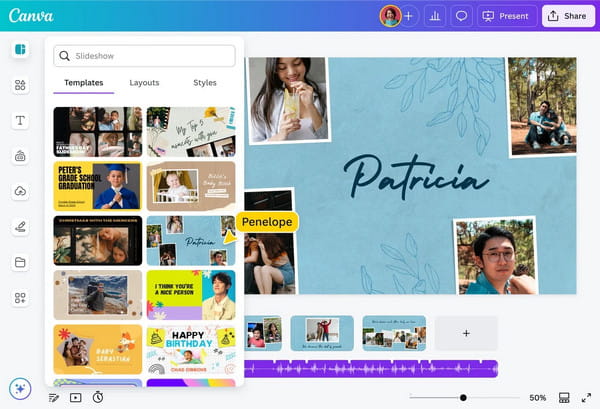
Canva Slideshow Maker is an extremely user-friendly browser-based tool that can quickly create static photos, videos, and texts into visually stunning slideshows, presentations, and more. It offers a large number of high-quality templates, images, and audio, supports customization, and exports to MP4 or PDF formats. Canva is suitable for creating projects quickly, but compared to PowerPoint and some professional video editing software, it has limitations in advanced editing features. Generally speaking, it is a photo/video slideshow maker designed for those who want to make high-quality works without a steep learning curve.
Main Features:
- Accessible via web browser and the Canva mobile app on iOS and Android.
- The drag-and-drop interface makes it easy for users to add photos, videos, and audio to slideshows.
- The template library provides a wide range of preset templates suitable for various occasions.
- Built-in editing tools and video editors with capabilities for trimming, cropping, and adjusting video clips.
- Enables real-time collaboration with team members and easy sharing through links, social media, or email.
Part 2. Canva Slideshow Maker Review: Advantages
Canva Slideshow Maker is a beginner-friendly slide and presentation design tool that enables users to quickly and easily create impressive slideshows. The following will list its advantages and disadvantages for you in detail so that you can better understand this slide creation tool.
The advantages of Canva Slideshow Maker:
- Ease of use: Drag-and-drop interface is incredibly intuitive for beginners.
- Stability: It is browser-based, so you do not need to worry about software crashes causing file loss.
- Safety: It has built-in protection mechanisms for user data and AI-generated content, and it operates in accordance with industry-standard security measures.
- Templates: Its vast media library features a wide variety of templates along with built-in media materials such as music and video.
Part 3. Canva Slideshow Maker Review: Disadvantages
The disadvantages of Canva Slideshow Maker:
- Price: A free version is available, but it is limited by the number of slides you can create and download, as well as by watermarks.
- Stability: It relies on a stable network connection to run, and sometimes the response is slow.
- Input video and audio formats: It is not a professional encoder, so some 4K files or formats may experience lag during editing.
- Editing tools and other features: Compared with Canva's alternatives and professional video editors, its editing tools and features are relatively basic.
Part 4. How to Make a Slideshow on Canva
Here is a step-by-step guide to creating slides using Canva Slideshow Maker:
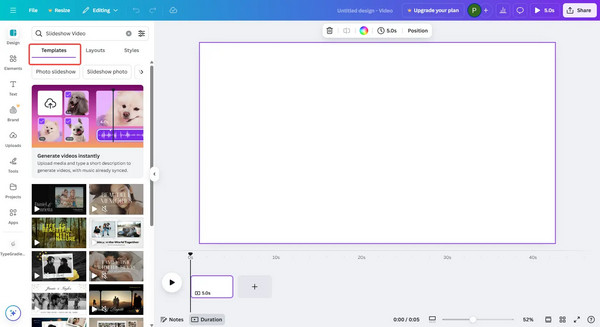
1. Select a suitable slide template in Canva.
Open Canva and log in to an account to edit and save your designs. Then, click Create a design and search for Slideshows to start. Browse Canva's template library and select a suitable template based on the style of the slideshow you want to create.
2. Customize the slideshow design in Canva.
Use Canva's built-in editing functions to customize your slideshow design. For example, you can upload photos, videos, or select different backgrounds, fonts, and color schemes, and add background music, animations, and transitions to make your slideshow more personalized.
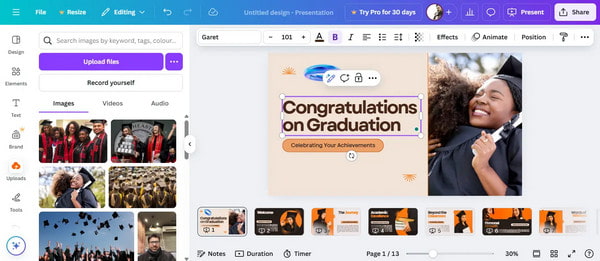
3. Save, export, and share the slideshow.
Click Present to preview your slides. If you are satisfied with the result, you can download and export it as MP4, JPEG, PNG, PDF, PPT, or even Google Slides. You can also share it with others via link, social media, or email.
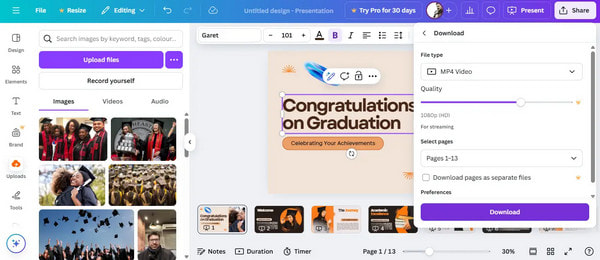
Creating slides with Canva Slideshow Maker is simple and quick, making it ideal for beginners in slide presentation creation. However, for users with more advanced editing needs, a professional video slideshow creation tool may be a better choice.
Part 5. Final Verdict on Canva Slideshow Maker
Is Canva a good slideshow maker?
Based on the real user reviews, Canva Slideshow Maker is a good slideshow maker for ordinary users who are not professional designers, particularly in its ease of use, security, and extensive library of pre-designed templates. However, for those who need to make professional and fascinating slideshows and presentations and have high video editing requirements, other tools are better options.
Part 6. Alternative to Canva Slideshow Maker to Create Slideshows
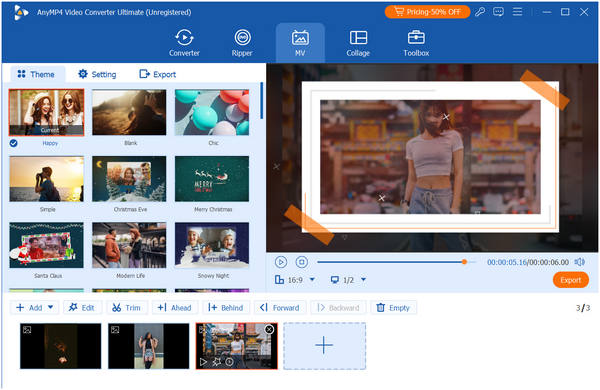
AnyMP4 Video Converter Ultimate is a powerful video editing software compatible with both Windows and Mac computers. This is one of the best alternatives to Canva's video slideshow creation feature, which allows you to effortlessly make share-worthy slideshow projects. As a professional video editor, it supports multiple file input and output formats such as MP4, MKV, MOV, JPEG, PNG, GIF, and more. Additionally, it offers numerous pre-designed templates of various themes and editing tools for adjusting video effects like rotation, adding watermarks, and subtitles. Finally, it allows users to customize output parameters such as format, encoder, and channels. Click the download button below to start your free trial now!
Part 7. FAQs
What is Canva Slideshow Maker?
Canva Slideshow Maker is a web-based tool that enables users to create and edit photo slideshows, video presentations, and professional decks.
Can I add music to a Canva slideshow?
Yes, you can add music to a Canva slideshow. You can either use Canva’s library of licensed tracks or upload your own files.
What formats can I export my slideshow in?
Slideshows can be exported into various formats, depending on the software, primarily as video files (MP4, MOV, WMV) for playback, document formats (PDF, HTML) for sharing, or image sequences (JPG, PNG) for individual slide editing.
Conclusion
This article provides a detailed and comprehensive review of Canva Slideshow Maker, exploring its advantages and disadvantages in terms of usability, security, stability, pricing, etc., aspects. We also outline its key features and the steps for creating slideshows. Is it a good slideshow maker? The answer varies for different people. If you are troubled by its shortcomings, we also recommend its best alternative: AnyMP4 Video Converter Ultimate. We believe it will make you satisfied!





 Add your comments to join the discussion here