
Today, presentation tools play a vital role in both academic and professional fields. Whether students are working on projects or professionals preparing important proposals, they often need to use slide creation tools. Google Slideshow Maker has become a popular choice for many users. So, how does it perform? This article will provide an in-depth review, examining its core features, user experience, and usage steps to determine whether it is the best tool for creating slides and presentations.
Google Slides is a free, browser-based, and highly collaborative presentation tool provided by Google. It is available as a web application, a mobile app for both Android and iOS, and as a desktop application on Google's ChromeOS. This presentation program excels in real-time team collaboration, ease of use, and integration with the Google ecosystem. While it offers fewer advanced design features and transitions compared to Microsoft PowerPoint, it is ideal for educational and professional environments.
This section will review Google Slides from various aspects, including ease of use, collaboration, file compatibility, transitions and animations, integration with Google Drive, and offline access.

The interface is famously minimalist and intuitive, requiring almost no learning curve. As a browser-based tool, it requires no installation.
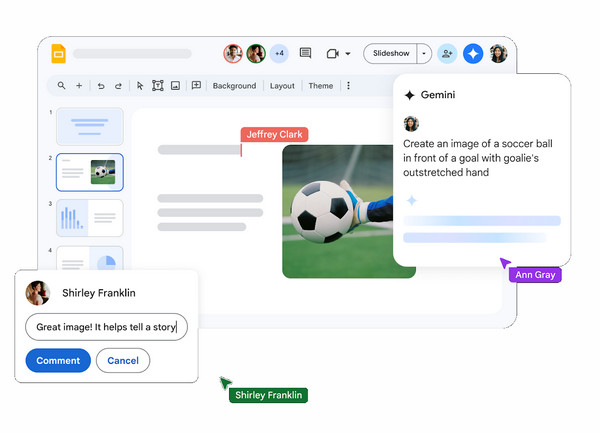
Google Slides can support up to 100 people to edit a file simultaneously without any lag, and its real-time commenting features make it the top choice for team projects.
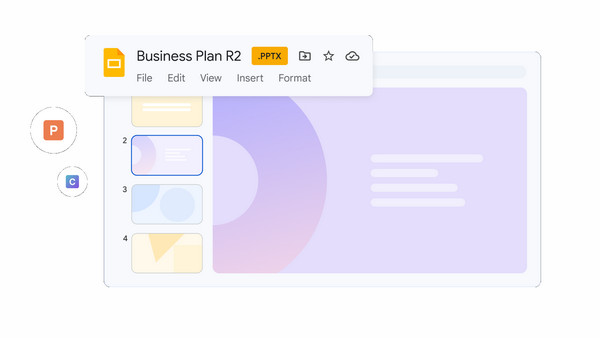
You can open, edit, and save PowerPoint (.pptx) files directly in Google Slides. You can also download your work as a PDF, PPTX, PNG, or TXT presentation file.
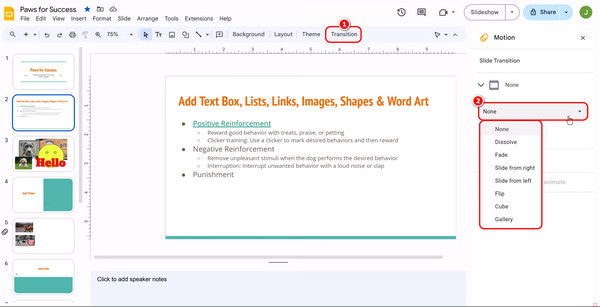
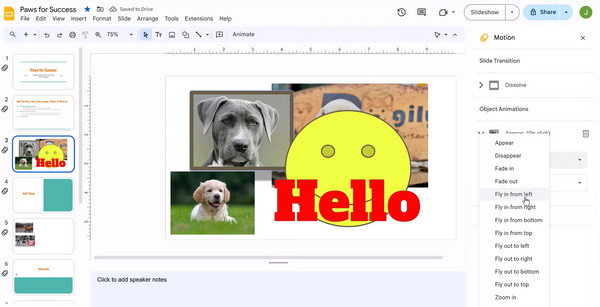
It offers standard transitions (Fade, Slide, Flip) and object animations (Fly in, Zoom). While it may be less cinematic than high-end motion graphics in Microsoft PowerPoint, it is sufficient for most users.
Google Slides integrates seamlessly with Google Drive, Google Sheets, and Google Photos. Files are automatically saved to Google Drive, and you can pull data directly from Google Sheets or images from Google Photos without leaving your current tab.
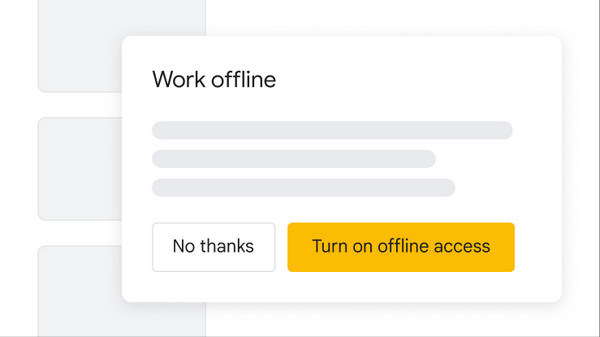
The offline access feature is very effective, allowing you to access, create, and edit slides even without an internet connection. However, you need to use the Chrome or Edge browser and install the Google Docs Offline extension to set it up.
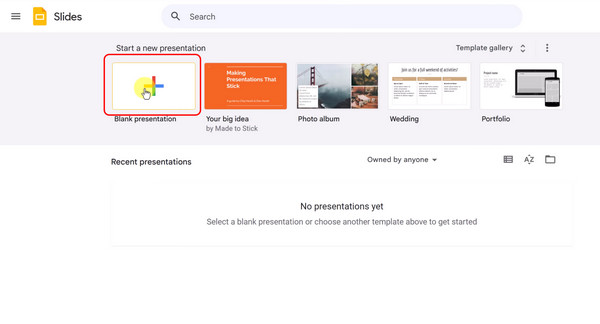
1. Go to slides.google.com, or simply type slides.new in your browser's address bar. Then, click the Blank presentation button to create and open your new presentation.
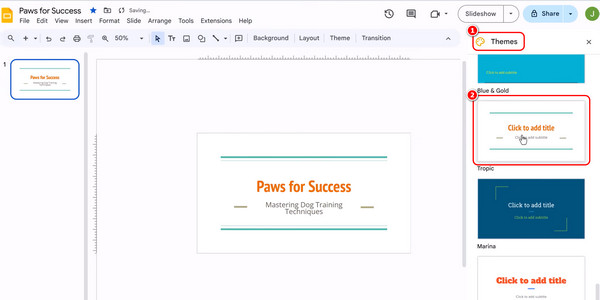
2. Once your file is open, a Themes panel will appear on the right side. Scroll through the options and click one to apply it to your entire presentation.
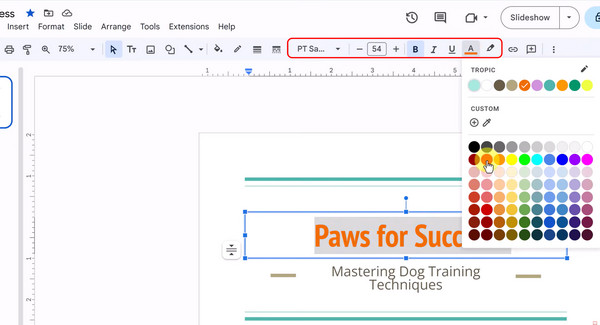
3. Click the Text box, and you can drag it anywhere on the slide. You can also select some or all of the text within the text box to adjust the text color, font, and more in the top toolbar.
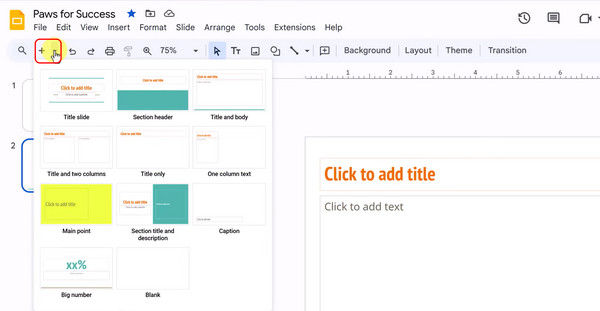
4. Click the plus button in the upper-left corner or use the Ctrl+M shortcut to add a slide with the default layout. You can change the slide layout from the dropdown menu next to the add button. Click and drag the slide thumbnails in the left-hand sidebar to reorder them.
5. Add animations and transitions to make your slideshow feel more dynamic. Click Transition in the toolbar. This controls how you move from one slide to the next (e.g., Dissolve or Cube).
Click on a specific image or text box, then click Add animation. You can make items fly in or zoom when you click the mouse.
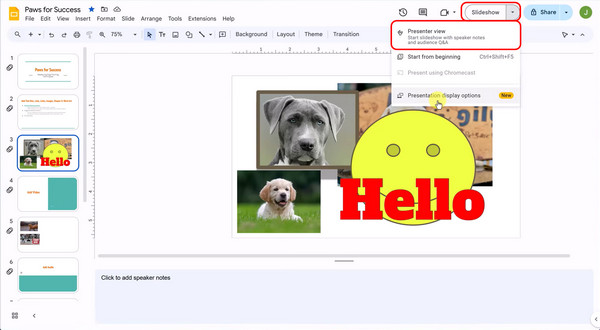
Finally, click the Slideshow button in the top-right corner to show your slides. You can also click the down arrow next to Slideshow to open Presenter View.
Video slideshows also play a vital role in business presentations. Check out the best video slideshow makers here
The good (what users like):
The bad (what users dislike):
Final Verdict:
Google Slides may not be the most powerful, but it can reliably meet most presentation needs. However, if you have professional requirements for creating and playing slides, you'd be better off choosing other specialized software.
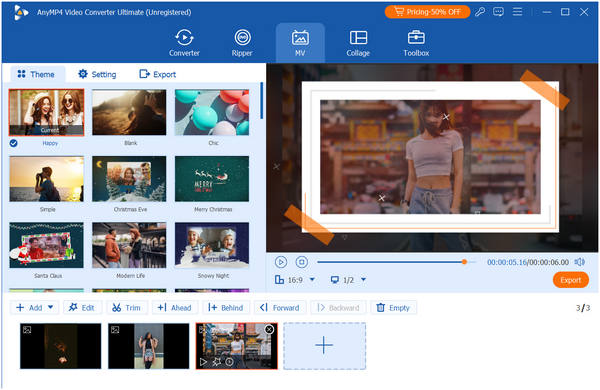
AnyMP4 Video Converter Ultimate is an all-in-one video editing software. Its MV Maker feature allows users to import videos and photos in formats like MP4, MKV, MOV, JPEG, PNG, and GIF within minutes, creating professional-grade slideshows using pre-designed templates. It offers numerous templates and filters, as well as presets with themes, music, and transitions to make your video slideshows more captivating. As a professional video editing tool, it also provides a rich set of editing tools for adjusting video effects—such as rotation, watermarking, and subtitles—all designed to help you create stunning videos.
Secure Download
Secure Download
How do I access Google Slides?
Accessing Google Slides can be done in several ways, depending on the device you use. For example, direct web access is recommended for computers. Mobile phones and tablets can access it through dedicated apps. Additionally, you can open it via Google Drive or Gmail.
Can I use Google Slides offline?
Yes, you can use Google Slides offline. This is a powerful feature for working during flights, in remote areas, or during internet outages. To use it, you must first set up offline access while you still have an internet connection.
Can I collaborate with others in real time in Google Slides?
Yes, real-time collaboration is one of the standout features of Google Slides. You and your team can edit the same presentation simultaneously, and every change is saved and synced instantly across all devices.
This comprehensive review of Google Slides Maker offers an in-depth exploration of Google Slides from multiple perspectives, aiming to provide a deeper understanding of this presentation creation tool. If you prefer not to download software, the online tool is an ideal choice. However, if you're hesitant to use it because of its limitations, consider its best alternative: AnyMP4 Video Converter Ultimate.
Secure Download
Secure Download
 Updated by Mark Cristobal to Edit Video
More readings
 Top 10 GIF Makers Online and Offline
Do you want to make GIFs but don't know which tool to use? If yes, find out the ten GIF tools we have listed here.
 Top 5 Social Media Video Creators Online and Offline
Are you looking for the best tool to help you create videos for social media? Well, you are lucky indeed! Check the five tools we have listed here.
 A Comprehensive Windows Movie Maker Review in 2026
Find out if you can still use or download Windows Movie Maker. Read our complete Windows Movie Maker review on safety, functionality, and modern options.
 Top 7 Photo Video Collage Makers – Latest Review You Should Not Miss
What is the best photo and video collage maker for Android, iOS, PC, or Mac? You can look through this unbiased picture video collage maker review here.
 Add your comments to join the discussion here