Best 5 FLV Converters (Tested & Ranked)
Quick Answer: Which FLV Converter Should You Choose?
If you need a fast answer on the best FLV converters, here is a quick snapshot of the top 5 tools tested and ranked based on conversion speed, privacy, and batch processing performance:
- AnyMP4 Video Converter Ultimate (Best Overall): The most powerful desktop converter for batch processing, offering up to 70x GPU acceleration and lossless quality retention without file size limits.
- VLC Media Player (Best Free Transcoder & Player): 100% free, open-source desktop software ideal for playing FLV files directly or performing basic, offline FLV-to-MP4 conversions.
- HandBrake (Best Free Advanced Encoder): Open-source tool for advanced users who need to customize video bitrates, frame rates, and codec presets.
- AnyMP4 Free Online Video Converter (Best Instant Web Tool): A lightweight, browser-based converter perfect for quick, single-file conversions without installing software.
- FreeConvert (Best Cloud-Integrated Tool): Reliable online tool that lets you convert FLV files directly from Google Drive or Dropbox (supports files up to 1GB on the free tier).
Before, every major video-sharing platforms use FLV (Flash Video) format on Adobe Flash to stream content. However, since Adobe officially pulled the plug on Flash Player at the end of 2020, FLV files have become the digital equivalent of an antique. Most modern media players, smartphones, and video editing software simply refuse to open them. So, what do you do if you have a hard drive full of classic internet animations, old downloaded tutorials, or archived web streams? You need a dedicated FLV converter.
Whether you are trying to convert FLV files to edit them in a modern suite, play them on an iPhone, or simply archive them in a universally accepted format like MP4, having the right tool is critical. But with so many options out there, from heavy desktop software to quick web apps, how do you choose? Find out the answer now.
How We Tested
To ensure we provide the most accurate and authoritative recommendations, we set up a controlled testing environment. The goal was to find the best way to change FLV format without losing video quality or exposing personal data.
- • Test Machines: Windows 11 Pro desktop and a MacBook Pro (M2 chip).
- • Test Files: One massive 1.2GB 1080p FLV recording, plus a folder of 15 short FLV clips (around 50MB each) to test batch FLV converter capabilities.
- • Key Focus: Conversion speed, CPU load, output visual quality, and overall safety.
1. AnyMP4 Video Converter Ultimate: Top Recommended FLV Converter for Professional & Batch Processing
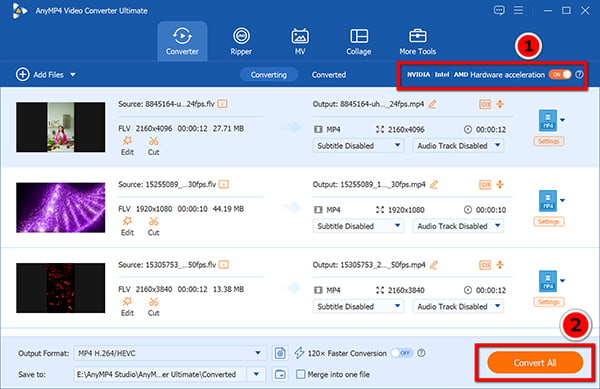
Best for: Batch processing, high-speed rendering, and lossless conversion.
Supported OS: Windows 11/10/8/7, macOS.
Pricing: Freemium (Free trial available; Paid licenses unlock full features).
Max File Size: Unlimited.
AnyMP4 Video Converter Ultimate is a professional-grade desktop software designed to handle over 500 media formats. Its batch conversion feature lets you convert multiple FLV files at once to save your time. Moreover, its GPU acceleration support enables you to process the FLV conversion at 70 times faster than other tools. Adopting the latest AI enhancement technology, you can get a high-quality output video file for sharing or watching on your device for a superb screen.
Performance & Experience
The speed and stability are where this program really shines. In our practical testing with a batch of 15 FLV clips queued up simultaneously, NVIDIA GPU acceleration kicked in automatically, wrapping up the whole batch in under three minutes while keeping CPU usage around 15%. Navigating between the conversion, editing, and compression tabs feels simple and straightforward. The installer is clean, and no sneaky toolbars, bloatware, or pop-up ads during setup. Apart from FLV, it also works as a reliable AVI converter if you need to handle older video files.
PROS
- Lightning-fast conversion speeds (up to 70x faster with GPU acceleration).
- Flawless support for batch processing and 4K/8K resolution.
- Packed with extra tools (video editor, compressor, GIF maker).
CONS
- The free trial version only exports the first 5 minutes.
2. VLC Media Player: Best Free & Open-Source FLV Converters (Desktop)
Best for: Occasional, basic conversions and universal media playback.
Supported OS: Windows, macOS, Linux, iOS, Android.
Pricing: 100% Free.
Max File Size: Unlimited.
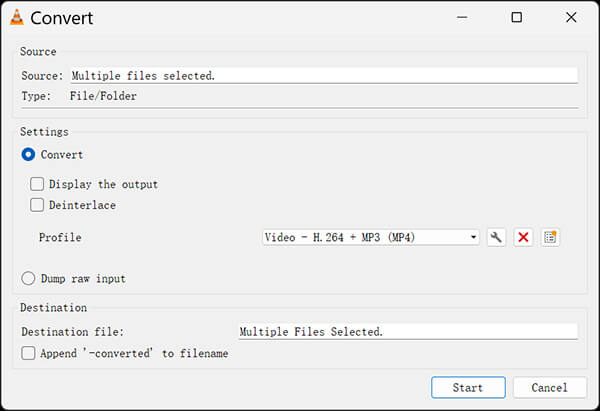
VLC is an open-source media player known for being able to play almost any media file like FLV, MOV, MKV, WMV, and more. Beyond its playback capabilities, it features a hidden built-in conversion tool that allows users to transcode FLV files locally without installing extra software.
Performance & Experience
Testing VLC's converter shows a functional, no-frills tool. Transcoding our 1.2GB FLV file to MP4 completed without errors, but processing took notably longer compared to dedicated converters since VLC relies heavily on software rendering. The conversion menu (Media > Convert / Save) isn't obvious, so beginners might struggle on their first try. That said, if you don't even want to convert files, you can simply use it as an FLV player to watch your videos directly.
PROS
- Completely free with no ads or spyware.
- Cross-platform compatibility.
CONS
- The conversion interface is clunky and non-intuitive.
- No robust support for batch converting large folders easily.
3. HandBrake: Best Free Desktop FLV Converter for Custom Encoding
Best for: Advanced users who want granular control over video codecs and bitrates.
Supported OS: Windows, macOS, Linux.
Pricing: 100% Free.
Max File Size: Unlimited.
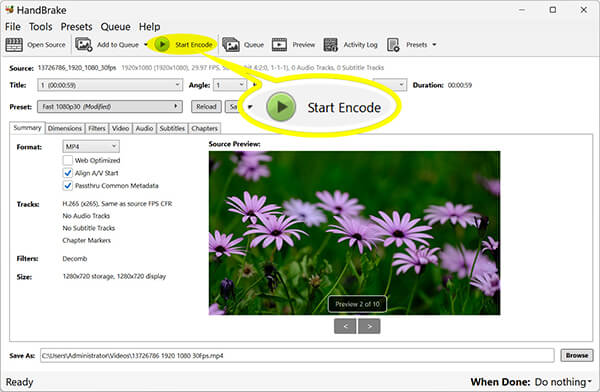
HandBrake is a highly respected open-source video transcoder. It is built for users who want to dive deep into video encoding parameters, offering immense control over frame rates, audio tracks, and subtitle embedding.
Performance & Experience
During hands-on encoding runs, HandBrake produced a high-quality video output with tight file compression. However, pushing a heavy FLV file through HandBrake drove CPU utilization near 90% on our test rig. The interface leans heavily on technical jargon like "Constant Quality RF" and "Anamorphic PAR," which can intimidate casual users. Still, as a FLV converter Mac and Windows power users can trust, it gets top marks for flexibility.
PROS
- In-depth customization for video and audio parameters.
- Excellent community support and built-in device presets.
CONS
- Intimidating interface for casual users.
- Only outputs to MP4, MKV, and WebM (does not support exporting to AVI or MOV).
4. AnyMP4 Free Online Video Converter: Best Instant No-Install Web Tool
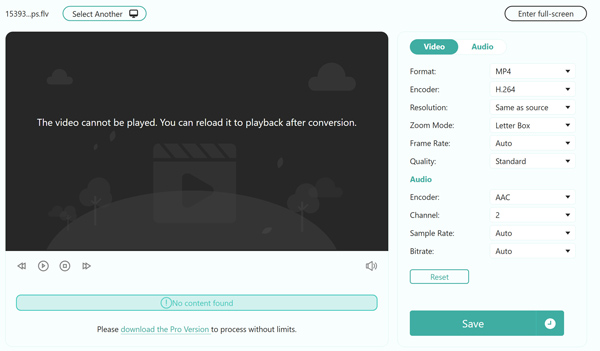
Best for: Instant conversions for smaller files without downloading any desktop software.
Supported OS: Web-based (works on any browser).
Pricing: Free.
Max File Size: Generous limits for a free web tool.
AnyMP4 Free Online Video Converter is a free, lightweight, and browser-based FLV converter. It allows users to upload their FLV files to a secure server, choose an output format, and download the converted video within minutes, all from a web browser.
Performance & Experience
Testing with a 45MB FLV video clip went smoothly from start to finish. Uploading, converting, and downloading took under a minute on a basic home broadband connection. The web page stays clean without spammy click-bait download buttons. Just keep in mind that overall processing speed ties directly to your home internet upload speed.
PROS
- Zero installation needed, and perfect for school or work computers.
- Clean interface with no deceptive download buttons.
CONS
- Requires uploading files to a cloud server, which might raise privacy concerns for highly sensitive personal videos.
- Severely bottle-necked by internet upload/download speeds, making it frustrating to convert large FLV files.
5. FreeConvert: Best Cloud-Integrated Online Converter
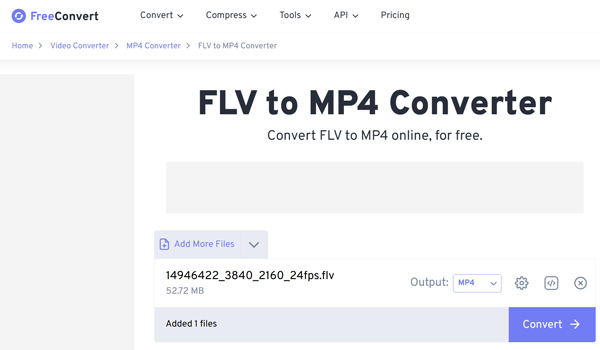
Best for: Cloud conversions directly from Google Drive or Dropbox.
Supported OS: Web-based.
Pricing: Freemium.
Max File Size: 1GB on the free tier.
FreeConvert is a popular web FLV converter utility that handles a massive variety of file types, from documents to videos. It integrates directly with cloud storage services, allowing users to pull FLV files from their Google Drive, convert them, and save them back to the cloud.
Performance & Experience
In our test, FreeConvert handled cloud imports easily and even offered handy advanced settings for tweaking resolution or aspect ratios before rendering. The main downside on the free version is the layout clutter: banner advertisements surround the main upload box. During peak internet hours, converting a FLV file to MP4, resulting in larger 800MB files, occasionally hit server timeouts.
PROS
- Seamless integration with Google Drive and Dropbox.
- Offers basic advanced settings (codec, screen size) rarely found in web tools.
CONS
- Pages are cluttered with display advertisements.
- The 1GB file limit makes it useless for long-form FLV archives, inevitably pushing users toward a safer, unlimited desktop solution like AnyMP4.
Quick Guide: How to Convert FLV Files Securely and Fast
Before we dive into the deep reviews, let's walk through a practical scenario. If you want a visual guide on how a professional offline FLV converter safe environment works, here is a quick standard operating procedure using our top pick, AnyMP4 Video Converter Ultimate.
1. Load the Video
Free download, and open the program on your PC or Mac.
Drag and drop your FLV files directly into the main interface. You can add whole folders for batch processing.

2. Choose Output
Click the "Output Format" dropdown on the right side. Select Video > MP4 and choose the "Same as Source" option to guarantee lossless FLV conversion.
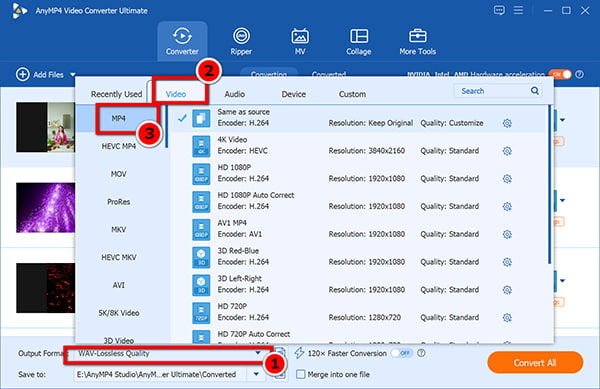
Edit (Optional): Before conversion, you can utilize its built-in tools to crop video or add watermarks.
3. Convert FLV Video
Hit the big Convert All button. Thanks to hardware acceleration, a 1GB file usually finishes in just a few moments.
FAQs About FLV Converters
How do I convert an FLV file to MP4 without losing quality?
Set your output resolution, frame rate, and bitrate to "Same as Source" (or select a "Lossless" preset). As long as you don't downscale these settings, the video quality remains identical. Tools like AnyMP4 Video Converter Ultimate handle this automatically when you load your file.
What is the best free FLV converter for Windows 11 and Mac?
HandBrake is your best bet if you want deep control over codecs and quality presets. If you just need a quick, no-nonsense conversion without installing new software, VLC Media Player, as the FLV player, can get the job done. For heavy batch tasks, grab a free trial of a dedicated desktop converter instead.
Is it safe to use online FLV converters for personal videos?
For casual clips, yes—most reputable sites use SSL encryption and wipe files after a few hours. However, once you upload a video, you lose physical control of it. For private home videos or confidential work files, always use an offline desktop converter so your data never leaves your hard drive.
Conclusion: Which FLV Converter Should You Choose?
Converting FLV files doesn't have to be a frustrating chore. While Adobe Flash may be long gone, having the right tool ensures your classic videos, old streams, and archived tutorials remain completely accessible on modern devices.
To help you make the quick decision to find the best FLV converter:
- • For speed, batch processing, and pristine quality: Go with AnyMP4 Video Converter Ultimate. It is hands-down the most reliable desktop software for handling large video folders securely and quickly without quality loss.
- • For a 100% free offline fix: Use VLC Media Player if you just need quick playback and simple transcode options, or turn to HandBrake if you want deep control over video bitrates and codecs.
- • For a quick, one-off task under 50MB: A web tool like AnyMP4 Free Online Video Converter gets the job done instantly in your browser without requiring software installation.


 Add your comments to join the discussion here