Clipchamp Screen Recorder Review 2026: Free, Friendly, Capped at 1080p
Quick Answer:
- The Clipchamp screen recorder is free. All you need is a Microsoft account. Exports come out at 1080p, and there's no watermark. Each take stops at 30 minutes. The catch is sound. Clipchamp records system audio only when you share a browser tab. Share a window or the full screen? You'll get silence. Want 4K? That needs Microsoft 365 or Clipchamp Premium.
- Free export cap: 1080p.
- Max per recording: 30 minutes.
- 4K export: Premium only.
- Watermarks on free 1080p files: 0.
- Verdict: 7.9/10.
Microsoft Clipchamp is a free video editor, built into Windows 11 since 2022. It has a screen recorder behind one button. No install. No card. No setup. So the Microsoft Clipchamp screen recorder looks like an easy win. Most people stop there and press record. I did too. The reason why I wrote this Clipchamp review, is every page I found online repeats the same three lines. Free. Watermark-free. Built into Windows. None of them test a window recording. None explain the 1080p cap or the 4K paywall. The audio rule sits in one buried support note.
So here I want to output a real-test review of Clipchamp. It covers the audio rule, the pricing, its tutorial, and ends with a verdict. Keep reading to get the details.
What Is Microsoft Clipchamp? The Editor with a Recorder
Clipchamp started in Brisbane in 2013. Microsoft bought it on 7 September 2021.
Microsoft Clipchamp is the full name. Most people drop the first word.
It went into Windows 11 in 2022. That is why it feels preinstalled.
It runs in Edge or Chrome on Windows, Mac, Linux and Chromebook. There is also a Windows app.
Two platforms are missing. Microsoft retired the iOS app on 9 June 2026. There is still no macOS app. Our QuickTime screen recording guide is the Mac workaround.
Does Clipchamp Record System Audio?
Short answer: yes, only from a browser tab.
Clipchamp opens the standard share picker. You pick a tab, a window, or your entire screen. The audio toggle appears for tabs only.
Pick a window and the toggle goes away. Your mic keeps running. The sound from your PC does not.
Pick the entire screen and you get the same result. Silent system audio, live mic.
That is why the recorder looks broken. The file does have sound. It just has your voice and nothing else.
Every week someone posts the same question on Reddit. The docs answer it in one line, tucked inside a note.
The Windows app adds a second rule. It lists Microsoft Edge tabs only. A Chrome tab never shows up in that picker.
Want a Chrome tab instead? Open Clipchamp in Chrome and start there. The app hands you back to the tab you picked. Our Chrome screen recorder guide covers that flow in more detail.
Here is the full matrix.
| Source |
Mic |
System audio |
Result |
| Browser tab, toggle on |
|
|
Full mix |
| Browser tab, toggle off |
|
|
Voice only |
| Window |
|
|
Voice only |
| Entire screen |
|
|
Voice only |
| Windows app, Edge tab |
|
|
Full mix |
| Windows app, Chrome tab |
|
|
Use Chrome |
One workaround helps. If the sound lives in a tab, share that tab. Then size the tab inside the editor.
Need a window with sound? Record voice and picture separately. Then mix both in the editor. Our screen and audio recording guide shows the manual route.
Is Clipchamp Free
Free means free here. No export limit, no watermark, no card.
But free stops at 1080p. That is the hard line.
The editor is the same on both plans. Trim, crop, text, captions, the recorder. All of it ships free.
Premium adds three things. 4K UHD export, the premium stock assets, and a brand kit.
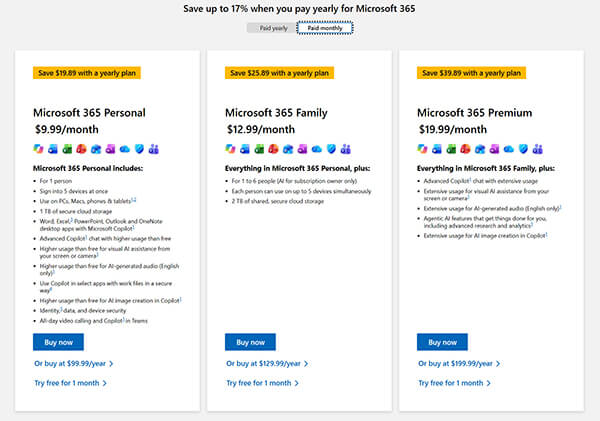
The way you buy it changed. Premium now comes inside Microsoft 365. The Personal plan costs $9.99 a month. The Family plan costs $12.99 a month. Yearly billing runs $99.99 and $129.99.
Some regions still sell Clipchamp Premium alone. It runs about $12 a month. Check your local store page before you pay.
One more trap. Add a premium stock clip and the export blocks. The pricing page puts it plainly. A free plan cannot export a video with premium assets in it.
Most people get the clipchamp watermark rule wrong. A free 1080p export carries no mark at all. Premium stock follows its own rule. Add one, and the free export stops.
Older builds did stamp a watermark. Either way, you upgrade or you swap the clip out.
| Feature |
Free |
Premium |
| Export ceiling |
1080p |
4K UHD |
| Watermark |
None |
None |
| Premium stock |
Blocked |
Included |
| Brand kit |
|
One brand |
| Recording length |
30 min |
30 min |
| Price |
$0 |
Microsoft 365 |
People search clipchamp 4K export free right after the menu shows 1080p. The answer is no. Not on the free plan.
Want 4K without a yearly Microsoft bill? A 4K screen recorder usually costs less than a year of 365.
Clipchamp Strengths: Templates, Captions and Stock
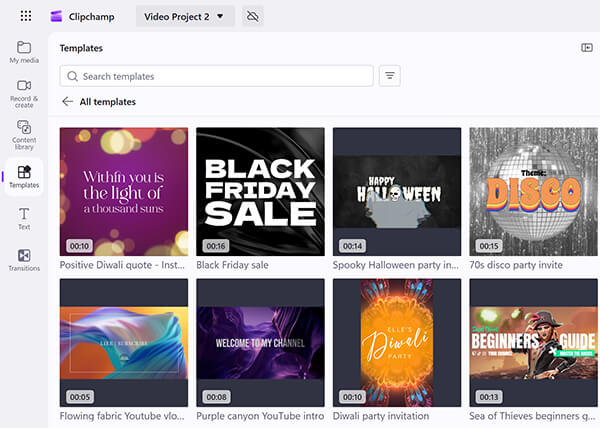
Most Clipchamp review pages stop at the editor. Fair enough. The editor is half the product. But the recorder is the half people search for.
Templates do the layout work. Pick one, drop the clip in, change the text.
Basic tools cover trim, crop, resize, rotate and speed. Nothing deep. Nothing missing for a tutorial.
The stock library holds free video, images, music and sound effects. Filter to free assets and nothing blocks.
AI captions are the best free feature. Auto captions cover 80+ languages. You can restyle the font, size and color.
Text-to-speech turns a script into a voiceover. Silence removal cuts dead air for you.
Background removal works on webcam clips. Edges look rough. Fine for a talking head, not for a product shot.
It also imports WebM recording files. MP4 and MOV work too.
Free exports carry no watermark. That is rare for a free editor. If you edit on another tool later, this no-watermark editor list is worth a look.
Hands-On: Screen and Webcam Recording in Clipchamp
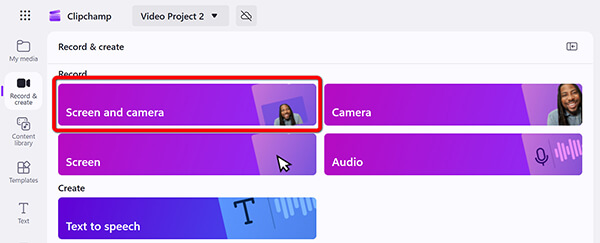
Apart from recording a screen, Clicpchamp can also work as a webcam recorder to capture screen and webcam simultaneously.
I ran three tests. First Chrome on Windows 11. Then the Windows app. Then screen plus camera.
Test one was a Chrome tab running a dashboard demo. Mic on. Audio toggle on. The tab sound came through. So did my voice. Both landed on a single mixed track.
The picture came out clean at 1080p. Menu text stayed readable. The file landed on the timeline. It saved as MP4.
Test two was the Windows app, with a Chrome tab open. The picker listed Edge tabs only. My Chrome tab never showed up.
So I opened Clipchamp inside Chrome and tried again. It worked. Same result, one extra step.
Then I shared a plain window. Silence. Mic only. That's what the help page says.
Test three used the screen and camera mode. It saved two clips, not one. The webcam clip sat next to the screen clip. Drag it smaller and you've got picture-in-picture.
Export took about a minute for a four-minute clip. Not fast, not painful.
Two things I could not do. Record past 30 minutes. Record without the Clipchamp tab on screen.
How to Screen Record with Clipchamp: 6 Steps
Here is how to screen record with clipchamp. Six steps, one dropdown.
The Clipchamp screen and camera record mode gives you two separate clips. Use it for a talking-head corner.
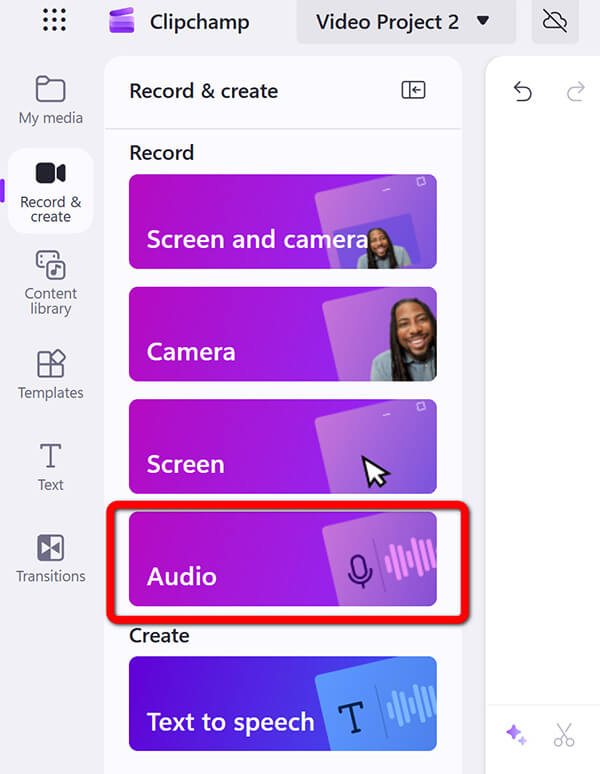
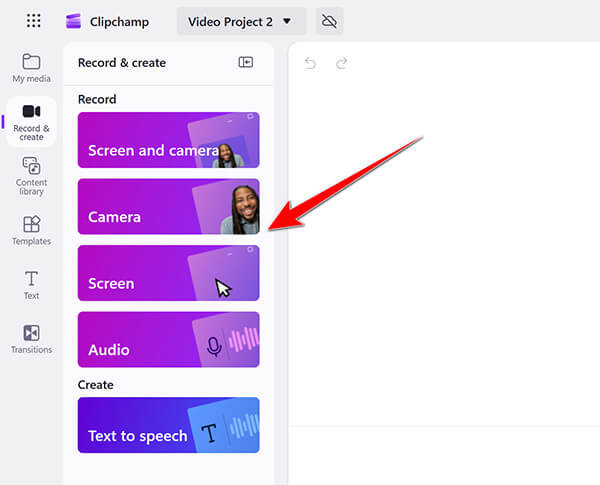
1. Sign in to your Clipchamp account. Open the Record & Create tab. Click Screen or Screen & camera.
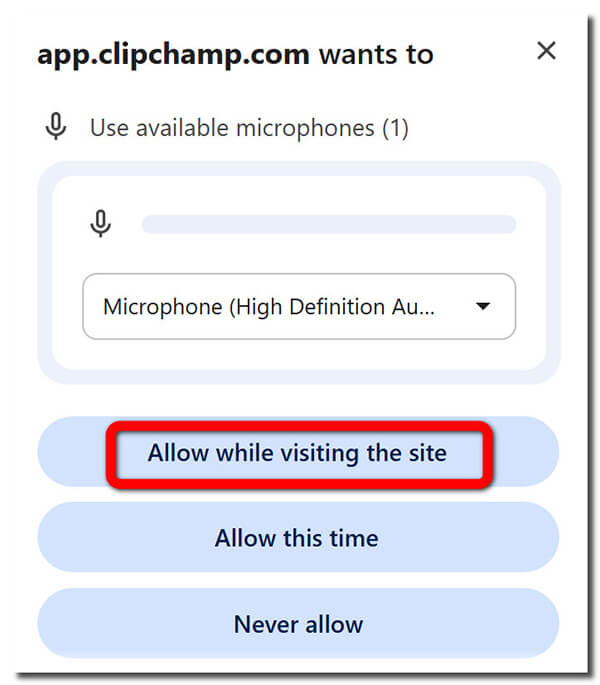
2. Allow mic and camera access. If you deny it and the file stays silent.
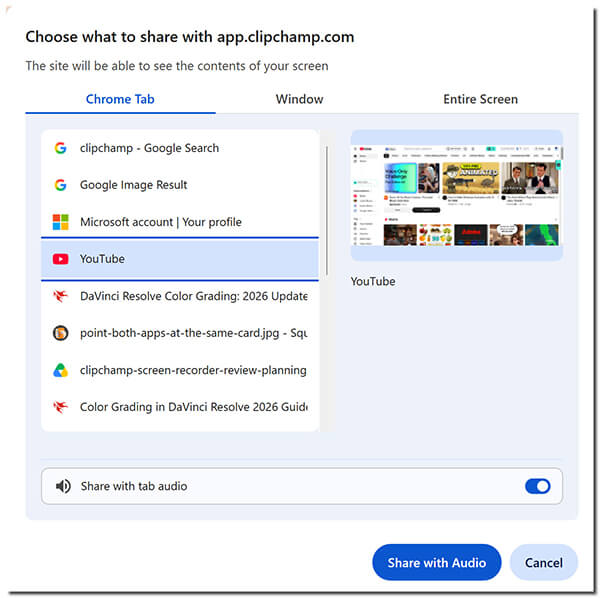
3. Pick a browser tab, then turn on audio sharing. Press Share with Audio. Wait two seconds before you talk.
Note
window mode records no system sound.
4. Then click Stop recording.
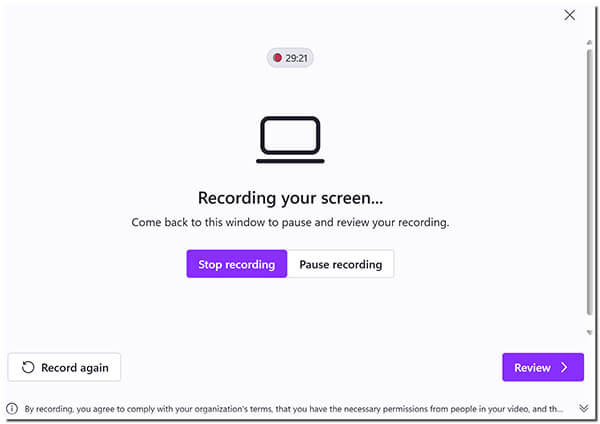
It gives you the option to preview the recording, or Save and edit.
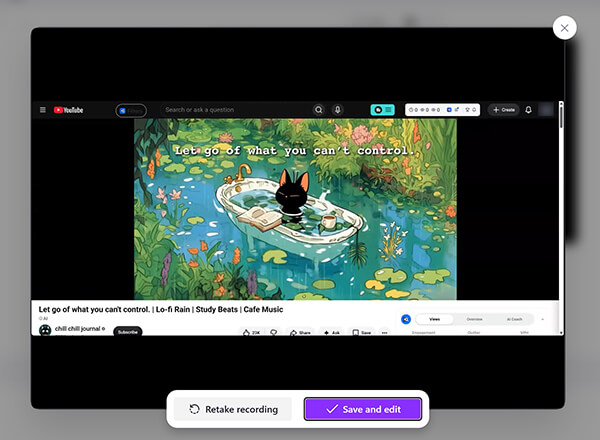
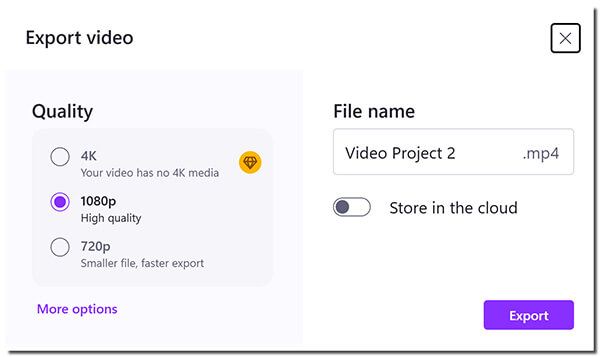
The clip lands on the timeline. Trim the head and tail. Add captions if you want them. Export at 1080p. On Premium, switch the export to 4K instead. Our Windows recording walkthrough covers the same flow with a desktop recorder.
Where Clipchamp Falls Short: 1080p, Tracks and Windows Limits
Five limits matter more than the rest.
The first is the free ceiling. 1080p and 30fps, every time. Fine for a tutorial. Weak for a game clip or a 4K screen.
Second: audio. One mixed track, no split. You can't balance game sound against your voice later. Our no-lag screen recorder guide explains why split tracks save edits.
Third: length. The Clipchamp 30 minute limit counts per recording. A longer session means several takes. Then you join them in the editor.
The fourth is gaming. There is no game mode, so no high frame rate and no game capture overlay.
The fifth is reach. The Windows app records Edge tabs only. No macOS app, no iOS app, and no hidden or background capture.
People also search clipchamp screen recorder not working. Two causes cover most cases. A denied permission, or a window share where they expected tab audio.
Reports of split audio on export show up in community threads too. I did not hit it in my tests. Keep your projects short and export early.
Clipchamp Alternatives? Clipchamp vs OBS, Game Bar and AnyMP4
No single recorder fits every job. Clipchamp shows why. It is a browser recorder inside an editor, so browser rules apply. Tab audio. A 1080p ceiling. A 30 minute clock.
Three jobs send people looking for a Clipchamp alternative.
- •4K output for a YouTube upload.
- •Split tracks, so game sound and your voice stay apart.
- •One take longer than 30 minutes.
OBS, Xbox Game Bar and AnyMP4 Screen Recorder answer those jobs in different ways. OBS is free and open source. It has no editor. Game Bar is already on Windows. It is built for game clips. AnyMP4 Screen Recorder is a paid recorder. It records 4K at 60fps. H.265 keeps files small. GPU encoding holds the frame rate on a normal laptop. The audio side is the real split. System sound and mic land on separate tracks. Fix one without touching the other. A window lock keeps one app recording. You can work in three other apps while it runs. There are 7 modes. Webcam, phone mirroring and audio only are three. Scheduled recording and hotkeys cover the long sessions.

Compare that with a browser tab and a 30 minute limits. For a long tutorial or a game session, the difference is not small. It is a different class of tool.
|
Price |
4K support |
Frame rate |
System audio |
Split tracks |
Webcam overlay |
Built-in editor |
Game mode |
Length cap |
| Clipchamp |
Free |
Premium |
30fps |
Tab only |
|
|
|
|
30 min |
| OBS |
Free |
|
60fps |
|
|
|
|
|
None |
| Game Bar |
Free |
|
60fps |
Game only |
|
|
Trim only |
|
2 hours |
| AnyMP4 Screen Recorder |
Trial |
|
60fps |
|
|
|
|
|
None |
Clipchamp Pros, Cons and Who Should Use It
Five things it does well:
Five things it does well:
- • Free, and already on Windows 11.
- • An editor and AI captions in the same tab.
- • 1080p capture in about four clicks.
- • Webcam overlay without a second app.
- • Templates and a stock library for quick posts.
Four things it does not:
- • The 1080p free cap and the 4K paywall.
- • Browser tab audio only, with one mixed track.
- • No game mode. No background capture. 30 minutes per take.
- • Buggy exports and slow renders keep coming up.
Clipchamp suits a Windows 11 user who makes short 1080p clips. A teacher. A support team. A small channel. It also suits anyone who wants captions without paying twice.
It doesn't fit a gamer. It doesn't fit a 4K channel either. Split audio tracks kill it too.
Clipchamp FAQs
Is Clipchamp free, and what does the free plan limit?
Yes, free with a Microsoft account. Unlimited exports up to 1080p, no watermark. 4K, premium stock and the brand kit need Premium.
Can I export 4K from Clipchamp for free?
No. That clipchamp 4K export free query has one answer. 4K UHD needs Microsoft 365 or Premium.
Is there a Clipchamp 30 minute limit?
Yes, per recording. Each new take gets its own 30 minutes. Join the clips in the editor.
Does Clipchamp put a watermark on my video?
Not on a free 1080p export. The Clipchamp watermark rule only bites with premium assets. That project cannot export on the free plan. So swap the clip or upgrade.
Can Clipchamp record my screen and webcam at once?
Yes. The Screen & camera mode saves two clips. You can resize and move the webcam clip on the timeline.
Is Clipchamp safe to use?
Yes. It is a Microsoft product with a standard sign-in. Editing runs on your machine, and projects sync to OneDrive.
Conclusion
In this review of Clipchamp, it earns a 7.9 out of 10.
- • Ease of use scores 8.8.
- • Editing and AI score 8.5.
- • Value scores 7.0, because the 1080p cap bites.
- • Versatility scores 6.2, the lowest of the four.
It is the easiest free capture tool on Windows 11. The editor is friendly. The captions are free. And 1080p exports carry no watermark.
It is not a dedicated recorder. 4K sits behind Premium. System audio needs a browser tab. One mixed track, 30 minutes, no game mode. At this point, AnyMP4 Screen Recorder is the best Clipchamp alternative. It does 4K at 60fps. It splits the audio tracks.


 Add your comments to join the discussion here