How to Convert WMV to MP4 on Windows PCs, Mac and Online
Quick Answer: How to Change WMV to MP4
- Fastest & lossless: Use AnyMP4 Video Converter Ultimate if you have large files, need batch processing, or want to keep pristine 1080p/4K detail using GPU acceleration.
- Best free desktop option: Use VLC Media Player if you already have it installed and don't mind a slower encoding speed, and use vHandBrake if you love open-source tools with clean preset controls.
- Best free online option: Use AnyMP4 Free Online Video Converter if you want a quick, watermark-free conversion right inside your web browser without installing heavy software.
Got an old WMV file stored on your hard drive that refuses to open on your phone or Mac? You are definitely not alone. Windows Media Video (WMV) is a classic Microsoft format. But try playing it on an iPhone, an Android, or modern editing software, and you usually get a blank screen or a frustrating error message. The fix is simple. You just need to convert that file into an MP4. MP4 uses H.264 video and AAC audio, meaning it plays smoothly on almost every device, browser, and social app on the planet. In this guide, we will share 4 easy ways to convert WMV to MP4 on Windows, Mac, and online platforms. Read and select the best method you need.

Method 1. How to Convert WMV to MP4 with AnyMP4 (Fastest, Lossless)
When I have a batch of large video files to process, I always reach for a dedicated desktop app. AnyMP4 Video Converter Ultimate is built specifically for speed, supporting over 500 formats including WMV, MP4, MOV, MKV, AVI, etc. Its full GPU hardware acceleration support enables your computer's graphics card load smoothly and guarantee a faster conversion speed. Besides, its over built-in 20 tools give you more controls to edit video and audio like AI video enhancer, video watermark remover, video collage, video maker with templates, and so on.
1. Free download and open the software on your Windows PC or Mac.
Click the Add Files button at the top left and pick your WMV files from your local storage. You can drop an entire folder in if you want to batch-convert a bunch of clips at once.

2. Here, there are 2 ways to make WMV to MP4 conversion:
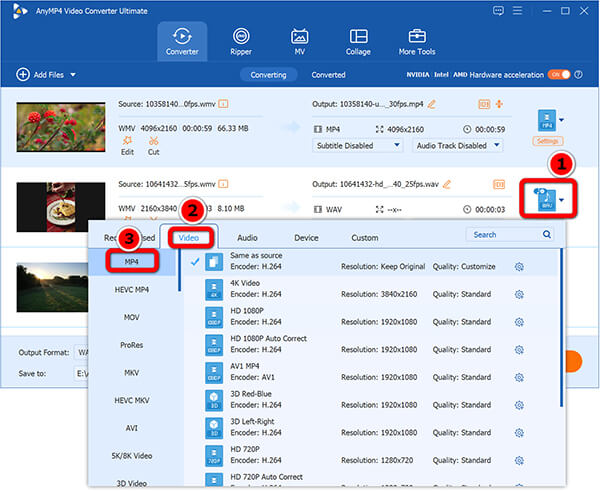
• For several WMV to MP4 files conversion with customized output settings:
Go to the Profile drop-down menu on the right side, choose the Video tab, and select MP4. I usually pick the "Same as source" resolution or 1080p HD to keep the picture looking sharp.
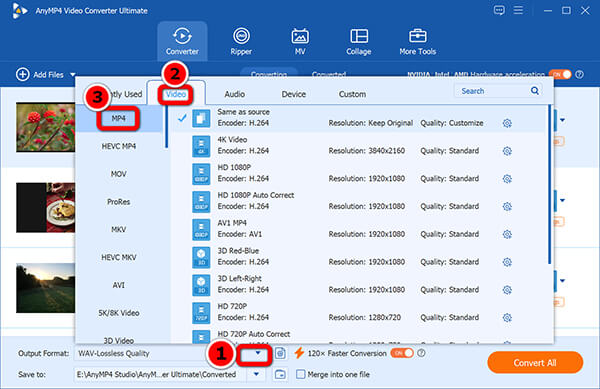
• For converting multiple WMV files to the same output MP4 videos:
Go to the Output Format dropdown options at the bottom-left corner, then just like above to go to the Video tab > Choose MP4.
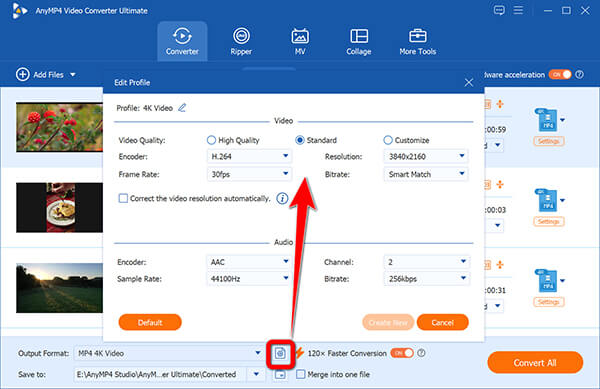
For changing the MP4 codec, resolution or frame rate, just click the Profile option to do the adjustment.
Not sure how to choose the output settings? Check the guide here:
How to Choose MP4 Output Settings: H.264 vs H.265, Bitrate, Resolution
3. Toggle on the GPU acceleration at the top-right corner, and hit the big Convert All button at the bottom right to start converting WMV to MP4 immediately.
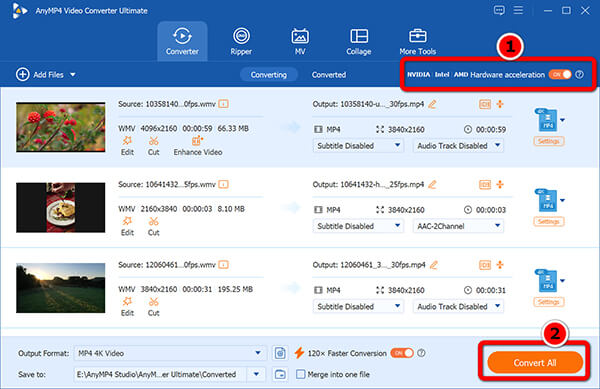
Make sure your graphics card drivers are up to date, otherwise GPU acceleration might not kick in, leaving your CPU to do all the work and slowing down batch tasks.
This desktop WMV to MP4 transcoder is very easy to use, even if you are a beginner. Moreover, it has more powerful features to refine my converted MP4 file. So with this all-in-one video tool, I can convert, edit and make the video without downloading extra apps.
Method 2. Convert WMV to MP4 with Free Online Video Converter
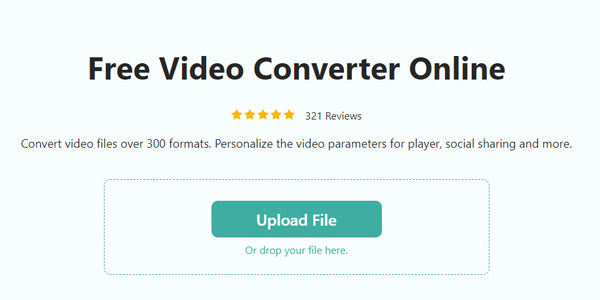
Don't want to install any software at all? You can do it right in your web browser using AnyMP4 Free Online Video Converter. It provides a quick, watermark-free way to process WMV to MP4 securely and quickly.
1. Go to the official online tool page in your browser on computer or mobile phone via AnyMP4 Free Online Video Converter. Click Upload File and select your local WMV file.
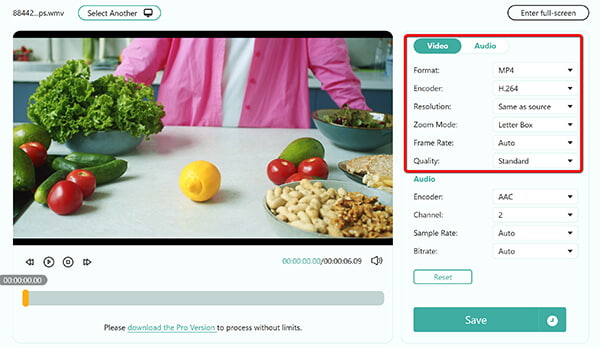
2. Choose MP4 at the dropdown selection bar of Output. Next to it, you can customize the output MP4 parameters, like encoder, resolution, frame rate, quality, and more.
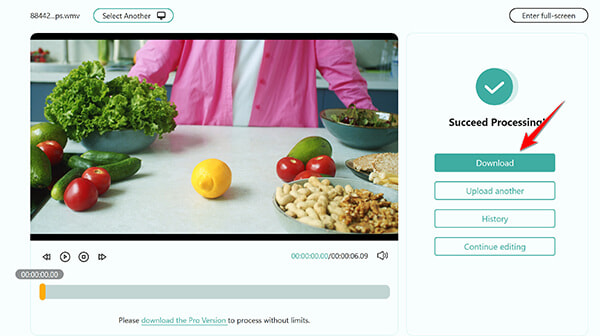
3. Click Save after confirming all the settings, and this free online tool will convert WMV to MP4. After the conversion is done, you can download the the output MP4 file on your computer.
Browser-based tools rely entirely on your internet upload speed. If you try to upload a massive large file on a slow connection, the upload process can time out or stall.
It is a lifesaver when I am working on a borrowed laptop and don't have permission to install desktop apps. Just keep it to smaller clips for the best speed. However, it cannot handle batch file conversion.
Method 3. How to Convert WMV to MP4 with VLC (Step by Step)
Almost everyone has VLC Media Player installed on your computer. It is a hidden WMV video converter that is totally free, open-source, and works identically on both Windows and Mac to change WMV to MP4 and other formats.
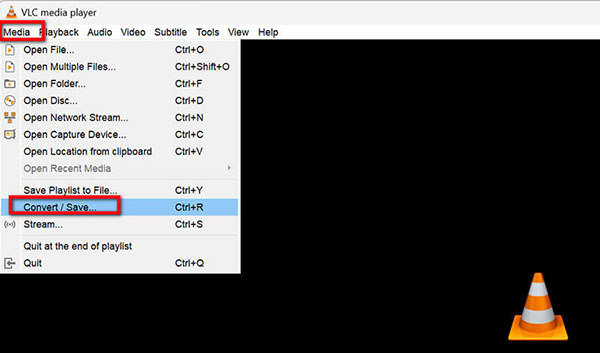
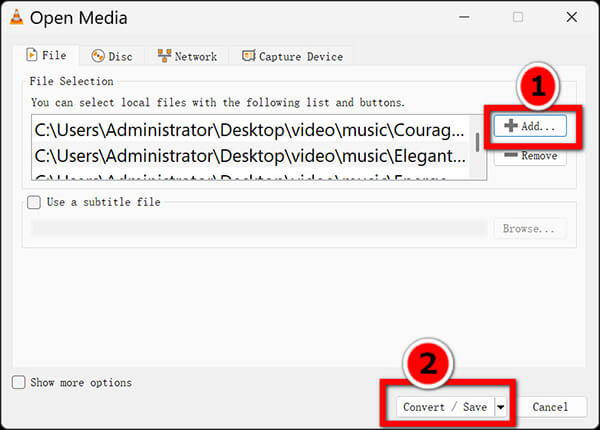
1. Open VLC. Click Media in the top menu bar, then choose Convert / Save (or press Ctrl + R on Windows).
2. Click the Add button to browse and select your pesky WMV file. Then click the Convert/Save button at the bottom.
3. In the new window, look at the Profile dropdown. Pick Video - H.264 + MP3 (MP4).
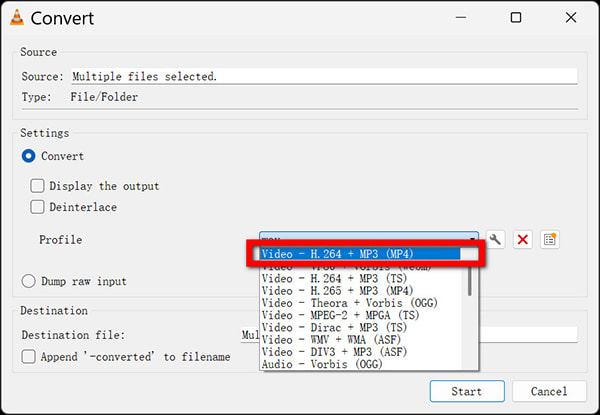
Click the wrench icon next to the profile if you want to tweak audio or video bitrates.
4. Click Browse to choose where your new file will go, and hit Start.
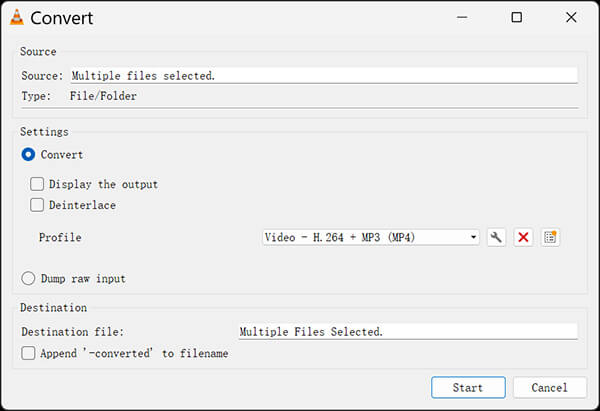
Do not forget to set the destination file extension to .mp4 manually in the save dialog box, otherwise, VLC sometimes saves the output as a raw .ts stream instead of a standard MP4 file.
While VLC is free and reliable, it is painfully slow compared to dedicated desktop converters. If you are converting a massive 4GB movie file, go grab a cup of coffee because you’ll be waiting a while.
Method 4. How to Convert WMV to MP4 with HandBrake
If you like open-source software with clean graphical controls and deep configuration options, HandBrake is a fantastic choice for Windows and Mac users alike.
1. Download and open HandBrake on your computer.
Drag and drop your WMV file directly into the application window.
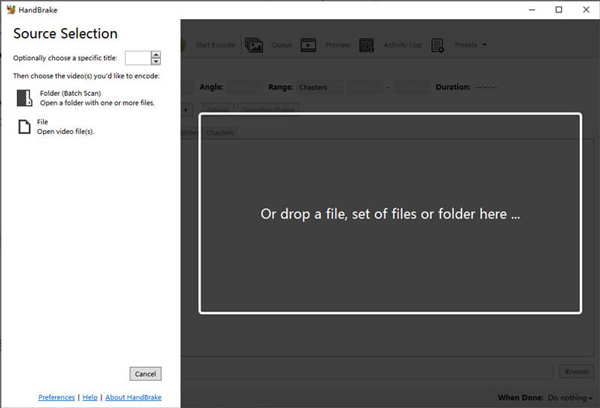
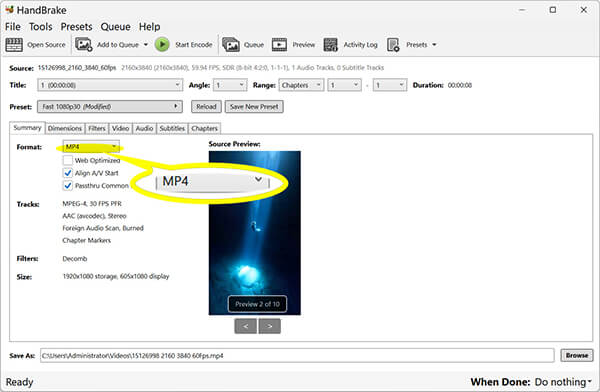
2. Under the Summary tab, make sure the container format is explicitly set to MP4.
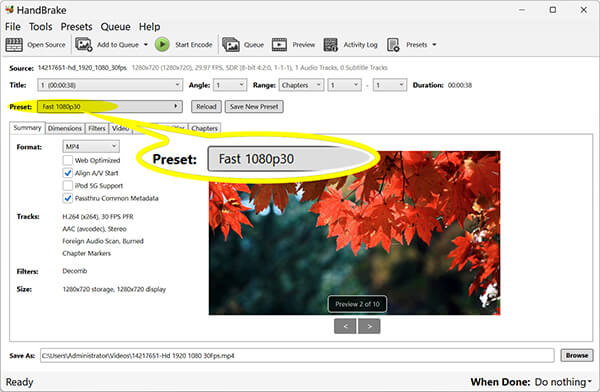
Go to the Presets panel on the right sidebar and pick Fast 1080p30.
Note
If you leave the container format set to MKV by default, your exported file won't play nicely with standard Apple QuickTime players. Always double-check that the summary tab says MP4.
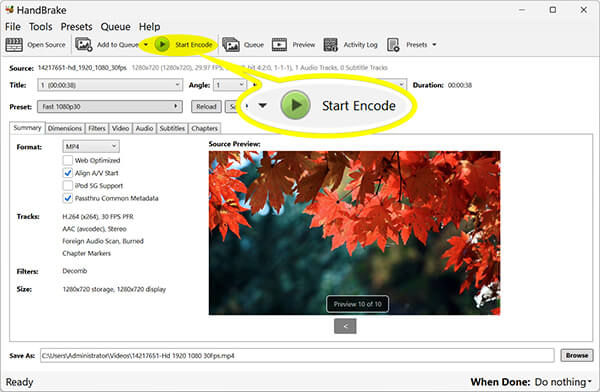
3. Once all the above settings are done, just click Start Encode at the top toolbar. Then this freeware will start changing WMV to MP4.
HandBrake gives you immense control over visual quality and file compression. It takes a little getting used to the interface, but the output results are always crisp.
More Knowledage about WMV and MP4
WMV vs MP4: Which Format Is Better?
Wondering why everyone pushes so hard for MP4? Let’s look at the facts based on real-world use.
| Feature |
WMV (Windows Media Video) |
MP4 (MPEG-4 Part 14) |
| Developer |
Microsoft |
MPEG Group |
| Container / Codec |
ASF container; WMV9 / VC-1 |
MP4 container; H.264 / H.265 / AV1 |
| Compatibility |
Great on Windows Media Player; blocked on Mac and iOS |
Universal: Windows, Mac, iOS, Android, Web |
| Quality |
Decent, but uses older tech |
Excellent, supports modern high-efficiency codecs |
| File Size |
Slightly smaller at older bitrates |
Comparable with H.264; much smaller with H.265 |
| Social Media |
Rare support |
Recommended by YouTube, TikTok, and Instagram |
How Big Is a WMV vs MP4 File? Size, Bitrate and Quality
A common question I get asked by friends is: "Will my video file balloon in size after I convert it?"
Usually, no. If you match the settings, the file size stays very close. Here is a quick reference table based on standard 1-hour video lengths:
| Resolution |
Typical WMV Bitrate |
WMV Size (1 Hour) |
MP4 H.264 Size (1 Hour) |
MP4 H.265 Size (1 Hour) |
| 480p SD |
~1.5 Mbps |
~675 MB |
~675 MB |
~400 MB |
| 720p HD |
~3 Mbps |
~1.35 GB |
~1.35 GB |
~800 MB |
| 1080p Full HD |
~6 Mbps |
~2.7 GB |
~2.7 GB |
~1.6 GB |
If you switch your output codec to H.265 inside a tool like AnyMP4 Video Converter Ultimate, you can shrink a bloated 1 GB WMV file down to about 400 MB without losing visible detail.
Warm Tip: If you are emailing a video clip to a client or a family member, always drop the bitrate slightly to keep the file small enough to pass email attachment limits.
How to Choose MP4 Output Settings: H.264 vs H.265, Bitrate, Resolution
When you fiddle with advanced converter settings, it is very easy to mess things up. Keep this simple cheat sheet handy:
- • Video Encoder: Pick H.264 if you want maximum compatibility with older TVs and legacy devices. Pick H.265 if you want to save maximum storage space on your phone or SSD. (H.264 vs H.265)
- • Resolution: Always match your source video. If your original WMV is 720p, don't upscale it to 1080p, and it won't make the picture look better, it will just bloat your file size.
- • Frame Rate: Keep it identical to your source (usually 24, 30, or 60 fps). Changing frame rates arbitrarily makes motion look jittery.
- • Audio: Set audio to AAC, 128 kbps or 192 kbps, with a 44.1 kHz or 48 kHz sample rate. That is the gold standard for MP4 compatibility.
FAQs about Converting WMV to MP4
Can Windows Media Player convert WMV to MP4?
No. Windows Media Player can play WMV files, but it lacks any built-in conversion tools. Use VLC, HandBrake, or AnyMP4 Video Converter Ultimate instead.
Is WMV still used?
Yes. You still run into WMV files on old backup hard drives and legacy enterprise software. But modern phones and web browsers completely ignore them.
How do I convert WMV to MP4 for free?
You can use VLC, HandBrake, or a free web tool like AnyMP4 Free Online Video Converter.
How do I convert WMV to MP4 without losing quality?
Use a desktop converter with high bitrate settings or GPU acceleration. AnyMP4 Video Converter Ultimate handles 1080p detail preservation seamlessly.
Will converting WMV to MP4 make the file bigger?
Usually not. At the same quality, H.264 MP4 matches WMV size, while H.265 can cut the file size almost in half.
How long does WMV to MP4 conversion take?
A 10-minute clip takes about 20 to 40 seconds on a hardware-accelerated desktop tool, or a few minutes using free online uploaders.
Why can’t I play WMV files on my iPhone or Mac?
Apple devices do not include built-in codecs for Windows Media files. Converting them to MP4 fixes this instantly. Learn from this guide to play WMV on iPhone.
Conclusion
Converting your old WMV files to MP4 is pretty easy. If you want a quick, one-click solution with no effort, free download AnyMP4 Video Converter Ultimate. If you just need a quick free fix right now, try VLC, HandBrake, or the online converter. Pick the method that fits your workflow and get your videos playing smoothly on every screen you own!








 Add your comments to join the discussion here