- Convert video, audio, and DVD over 500 formats.
- GPU acceleration to speed up the conversion process at 70X faster.
- More than 16 editor tools in the toolbox (Updating).
- Create videos for TikTok, YouTube, Facebook, etc.

Free Download100% Clear & Secure
Free Download100% Clear & Secure
Convert MOV to MP4 Online
Back to main page
Setting
Custom resolution:
| Core Features | Web Version | Pro Desktop |
| Max File Size | 50MB (Login: 100MB) | No Limit |
| Daily Limit | 2 Files (Login: 10 Files) | Unlimited |
| AI Video Upscaling | No | Yes (Up to 4K/8K) |
| GPU Acceleration | No | Yes (70X Faster) |
| Batch Processing | No | Yes |
Failed to upload media file! Please try again, or use AnyMP4 Video Converter Ultimate for Desktop.(Error code: 20015)

The original video resolution is higher than 1080p. If you want to output the original high resolution, you need to download the Pro Version. Or would you like to output the default 1080p resolution?

Quick Summary of Converting MOV to MP4 Online
When you shoot a video on a phone and then send it to a PC, it refuses to play. This happens a lot. A quick fix is to find a good MOV-to-MP4 converter. This changes the file, so it works on any screen. However, you do not want to download or install any software on your Windows or Mac, which is why you are looking for online solutions to transform MOV to MP4 before sending it to a friend. This guide shows you 4 tools to convert MOV to MP4 online. Keep reading to get the details.
| Free Limit | Conversion Speed | Advanced Settings | Ads | Watermark | Best For | |
|---|---|---|---|---|---|---|
| AnyMP4 Free Online Video Converter | 50 MB / 100 MB (Log in to unlock) | Fast | Yes | No | No | Quick, everyday file conversion |
| CloudConvert | 25 mins per day | Medium | Yes | No | No | Changing video resolution |
| FreeConvert | 1GB file size | Medium | Yes | Yes | No | Making huge videos smaller |
| Zamzar | 50MB file size | Slow | No | No | No | Mobile users on slow internet |
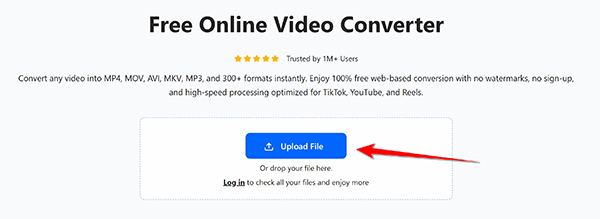
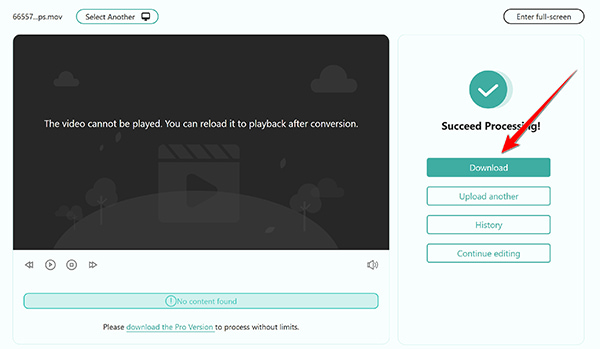
AnyMP4 Free Online Video Converter is simple and fast. It is a true free MOV to MP4 converter online with no watermark. You do not need to create an account. You just open the page and start the conversion without downloading any software. It handles uploads well. The site processes videos quickly without freezing. You can also batch convert MOV to MP4 online if you have many short clips.
1. Open your web browser and go to the AnyMP4 Free Online Video Converter page.
2. Click the Upload File button. You might need to download a small launcher file the first time you use it. Select your MOV video from your computer folder.
3. Check the bottom of the screen. Make sure MP4 is selected as the output. To ensure a high-quality output, you can adjust the video resolution, quality, frame rate, and any other information you need.
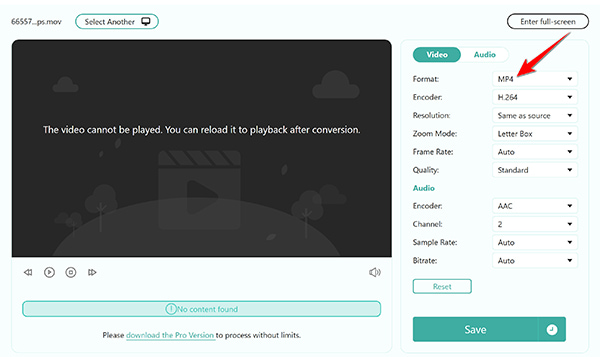
4. Click the Save button. Wait a few moments to download your new MP4 video on your computer.
Summary
The only drawback of this free online tool is it does not support batch conversion, but this tool is completely free for standard use and leaves no watermarks on your final video.
CloudConvert gives you buttons and dials to tweak. It is useful if you want full control. It is a great choice when you want to convert MOV to MP4 with exact settings. Many users pick this platform to convert MOV to MP4 without losing quality. It keeps the video crisp. It supports hundreds of formats, and the profile customization settings enable you to change video resolution or cut the video length.
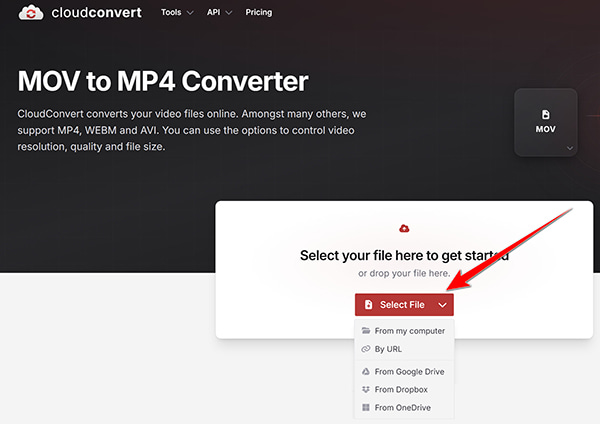
1. Go to the CloudConvert MOV to MP4 Converter website directly (https://cloudconvert.com/mov-to-mp4).
Click the red Select File button. Pick your video from a cloud service or a local computer.
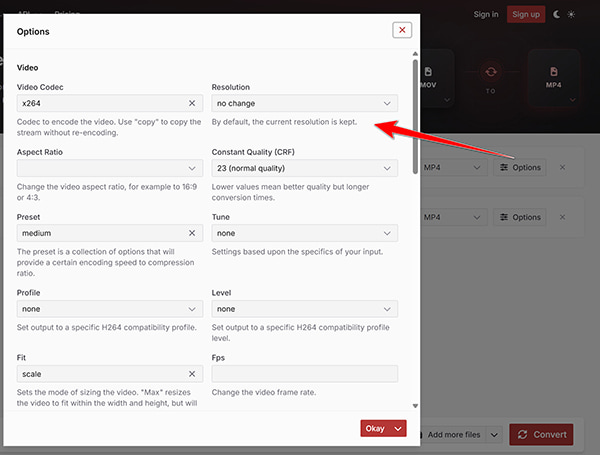
2. Once the MOV file is uploaded, then the output format MP4 is selected by default. Now, you can optionally click the Options button next to it to change the video codec, bitrate, resolution, screen size, etc.,if you need to. Click Okay to save the settings
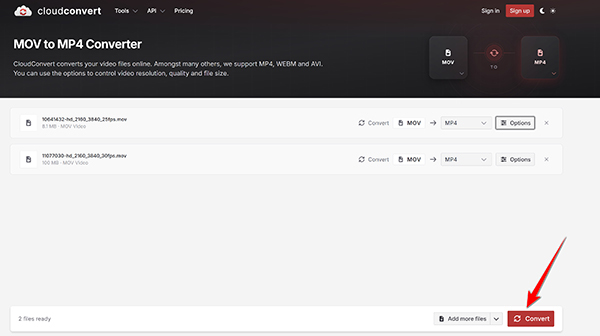
3. Finally, click the Convert button at the bottom to start the online MOV to MP4 conversion immediately.
Summary
The clean layout and custom settings work well if you want more control. Just keep in mind that the free tier caps you at 25 conversion minutes per day. Also, for the free users. You can feel it is slow to wait in the queue for the conversion. If you also need to pull a song from a video, this tool also lets you change MOV to MP3 fast.
Big files are hard to email. They take forever to send. FreeConvert helps you shrink them down. It is handy when you need to convert MOV to MP4 large file. You can even transcode a MOV to MP4 2 GB MP4 file if you sign up for their paid plan. Besides, it offers strong compression. It cuts file sizes without making the video look blurry.
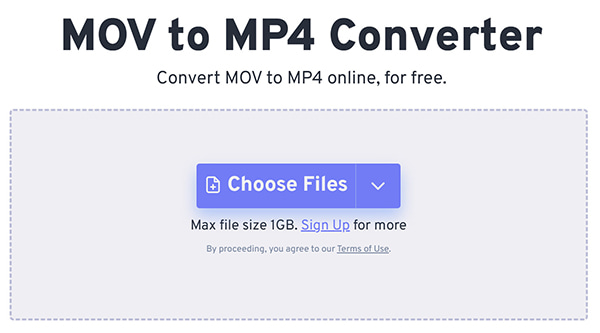
1. Drag your MOV file onto the FreeConvert web MOV to MP4 Converter page (https://www.freeconvert.com/mov-to-mp4).
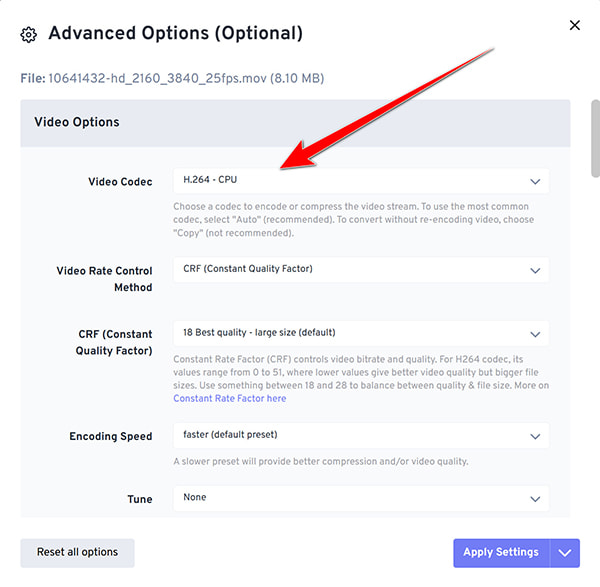
2. Here, MP4 is selected from the target format list. Click the gear icon to open advanced options. Set your video codec to H.264 - CPU in the settings. This offers the best playback support on older TVs.
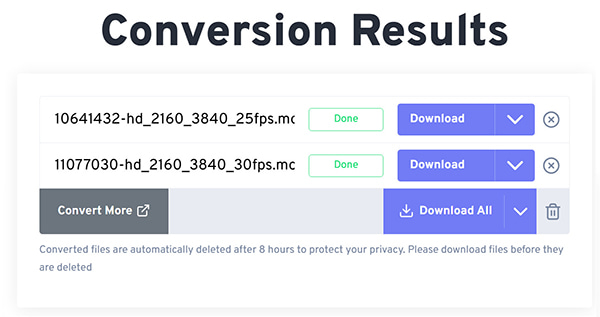
3. Click Convert and wait for the conversion process. Once it is done, you can click Download to save the new converted MP4 videos to your computer.
Summary
You get solid file size reduction and higher free limits compared to most competitors. You just have to put up with some ads on the page while the tool works. Sometimes, users just want a dedicated MOV player if they decide not to convert the file at all.
Zamzar has been around for years. It is very straightforward. It works nicely on phone screens. You can use it to convert MOV to MP4 on an iPhone or Android phone directly. For mobile users, reading a quick guide to convert MOV on iPhone can also save time. It can email you the file when it finishes. This is great if your internet is slow and you want to walk away.
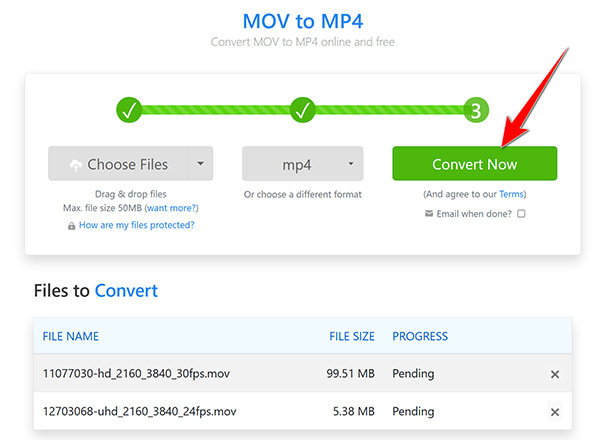
1. Tap the Choose Files button on the Zamzar MOV to MP4 Converter site (https://www.zamzar.com/convert/mov-to-mp4/).
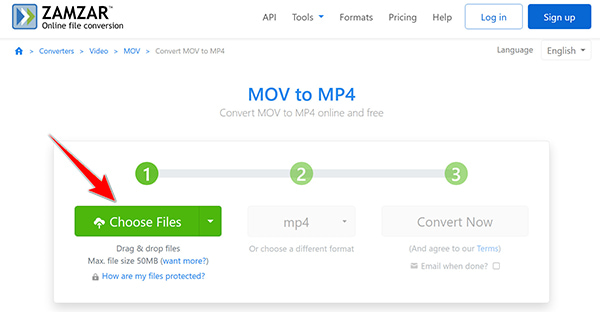
2. Then you just need to tap Convert Now to start the conversion process. Here, you can optionally enter your email address in the box to receive the conversion status. This step is different from other online tools.
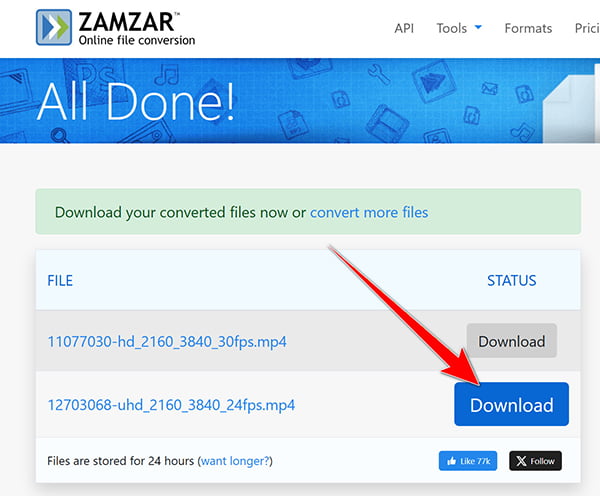
3. Once the MOV to MP4 conversion is completed, you can download the converted MP4 files to your computer.
Summary
It is simple to use with no confusing technical menus to dig through. The downside is the strict 50MB file limit on the free plan, which makes it useless for anything but short clips. It is a decent MOV to MP4 converter, free with no watermark for small clips. People working with voice notes also use it to turn MOV into WAV when they just need the audio.
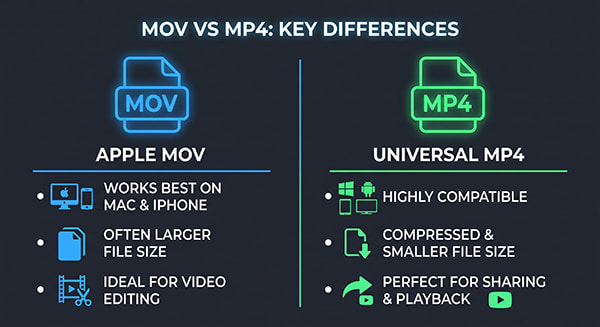
You might wonder why these two formats fight. Both are just boxes for your video and audio. We call these boxes containers.
MOV is the QuickTime container. Apple made it. It works great on Macs and iPhones. MP4 is MPEG-4 Part 14. It is an industry standard. Almost everything can play it.
Apple MOV files often fail on non-Apple media players. Windows and Android devices might not have the right code to read them. You get an error message instead of your video. That is why people look for ways to convert QuickTime to MP4. It just works everywhere. It saves you a headache.
You could try to convert MOV to MP4 in VLC. But that takes time to learn the menus. Online tools are usually faster and easier to grasp.
| Feature | MOV | MP4 |
|---|---|---|
| Creator | Apple | Industry Standard |
| Default Player | QuickTime | Almost any player |
| File Size | Usually larger | Highly compressed, smaller |
| Compatibility | Best on Mac/iPhone | Works on Windows, Android, TVs |
Will converting MOV to MP4 decrease the video quality?
Usually, no. Changing the container from QuickTime to MP4 keeps the main video untouched. You can convert MOV to MP4 without a watermark and keep the same sharpness. If you lower the file size settings on purpose, then it will look worse.
Why won't my MOV file play on Windows 10/11?
Windows PC systems do not always have Apple codecs built-in. The file format is missing instructions for the computer. That is why you have to convert it first. You might face similar issues with voice memos and need to change M4A to MP4 for video editors to read them.
How long does it take to convert a MOV file to MP4 online?
It depends on the file size and your Wi-Fi speed. A short 50MB file takes less than a minute. A huge video might take ten minutes or more.
Is it safe to upload private MOV videos to an online converter?
Most reliable tools delete your files after two hours. You can read their privacy page if you worry. If the video is highly private, downloading a desktop program is safer. You might also want to look up how to convert MPEG4 to MP4 securely offline.
MOV video playback errors are annoying. You do not have to be stuck with broken Apple files on your PC. Using a web tool fixes the format gap fast. This post shares 4 methods to convert MOV to MP4 online, along with the most compatible formats, all of which are very easy to access.
Pick a tool that matches your video size. If you want speed and no limits, open AnyMP4 Free Online Video Converter. If you have a huge video that needs shrinking, try FreeConvert. Now you know how to fix this format issue. Try the best tool right now.
 Updated by Alice Thorne to Convert Video
More readings
 10 Best MOV to MP4 Converters in 2026 (Fast & Lossless)
MOV files are unplayable? Read our honest, hands-on review of the top 10 MOV to MP4 converters, including desktop, online, and mobile tools to get the best one.
 Convert MOV to MP4 on iPhone (4 Methods That Actually Work)
Struggling with iPhone video compatibility? Master how to convert MOV to MP4 on iPhone using native apps, third-party apps, web tools, and desktop software.
 3 Best Ways to Convert M4A to MP3 Without Quality Loss
Learn how to convert M4A to MP4 without losing audio quality. Discover the fastest free online tools and pro desktop methods to add custom podcast images.
 How to Convert MPEG4 to MP4 Without Losing Quality (2026)
Need to convert MPEG4 to MP4? Discover the truth about video codecs vs. containers, protect your data privacy, and find the best method for lossless output.
 Add your comments to join the discussion here