
 Store
Store- Multimedia
For Windows
- Converter Tools
- Video Converter Ultimate

- Video Converter
- 4K Converter
- MP4 Converter
- Audio Converter
For Mac
- BD/DVD
For Windows
- DVD Tools
- DVD Ripper
- DVD Copy
- DVD Creator
- DVD Converter
- DVD Toolkit
For Mac
- Mobile
For Windows
For Mac
- Utility
- Freeware

 Buy Now
Quick Start
- 1. iDevices to PC/iTunes
- 2. Transfer among iDevices
- 3. PC to iOS Devices
-
 1
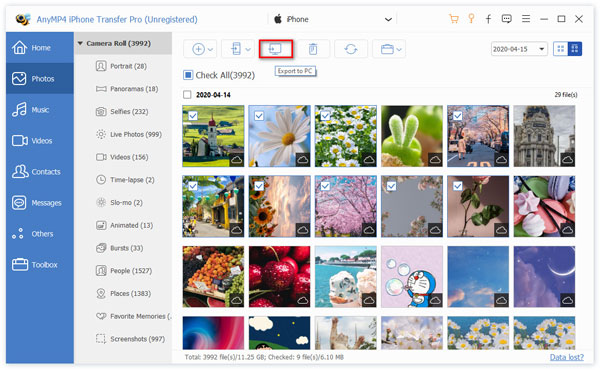
1Connect your iOS device to the program. After scanning, all the aggregate categories will be listed on the left panel of the interface.
Check the files you want to transfer and click the drop-down menu of "Export to PC/iTunes" and select "Export to PC" or " Export to iTunes".
Go to Tutorial -
 2
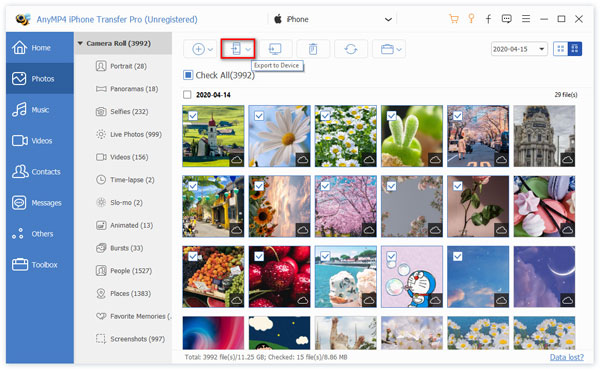
2Connect your iOS device to the program one by one. After scanning, transferable files of will be shown on the left panel under every iDevice.
Select files in one iOS devices, then click "Export to Device" and select another iOS device to transfer the files to.
Go to Tutorial -
 3
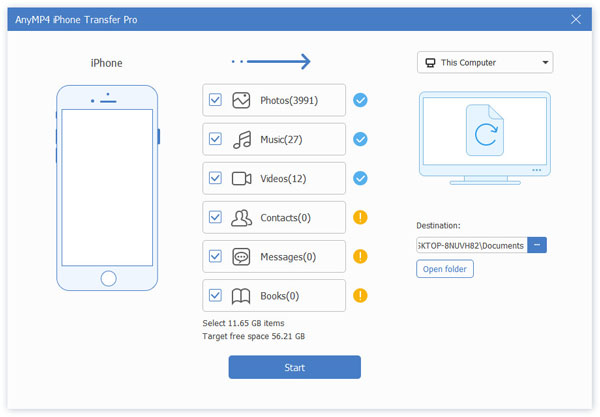
3Connect your iOS device to the program and check the file category to which you want to import files or create a new category to import to.
Check the category, and click "Add" button on the right panel to add files to your iOS device.
Go to Tutorial
Big Discount for Hot Bundle
11-in-One Bundle 77% OFF – Save more than $515.35

Related Hot Articles
- Easy Way to Transfer MOV Files from iPhone to Computer How to Transfer CD Music to Your iPhone with or without iTunes 5 Simple Ways to Transfer Photos from iPhone to Computer 3 Ways to Transfer PDF to iPad without iTunes Quickly and Safely How to Transfer Files from Your Old Computer to a New One (PC & Mac) [Updated] How to Transfer Music from One iPhone to Another iPhone [Tutorial] How to Transfer Music from iPhone to iTunes on Windows and Mac Top 7 Methods to Transfer Videos from iPhone/iPad to Computer Quickly and Easily How to Transfer Videos from Windows/Mac Computer to iPhone Easily How to Sync Your Contacts from Gmail to iPhone or from iPhone to Gmail
- How to Sync Messages and iMessages from iPhone to macOS 6 Best Alternatives of Fujifilm Kiosk Photo Transfer App on Desktop and Mobile How to Transfer Apps from One iPhone to Another iOS Device How to Transfer Text Messages from Old iPhone to New iPhone [Solved] How to Transfer Photos from Computer to iPhone How to Transfer Music from Computer to iPhone with/without iTunes 2 Simple Ways to Transfer Music from iPhone to Computer with or without iTunes How to Transfer Photos from iPhone to iPhone/iPad [4 Simple Ways] How to Solve the Issue that iMessages Are Not Syncing between iPhone and Mac How to Transfer Files from a Computer to iPhone without Losing Data