How to Slow a Video Down on iPhone in 3 Ways (2026)
iOS devices are popular for their camera quality, which is even enough for mobile photography, basic video projects, or intermediate-level work. To supplement this feature, Apple added practical editing tools to these devices, making simple editing easier. In this article, we will explore three ways to learn how to slow down a video on an iPhone. We will explore the built-in options in the Photos App and iMovie, as well as the third-party CapCut editor. To further help our readers, we will also provide simple tips to make slowing down video playback more seamless, as well as the best option for slowing down video on computers.
Part 1. Slow Down Video on iPhone with the Built-in Photos App (Easiest Way)
We will start this guide by featuring the most accessible and easiest option for learning how to slow videos down on iPhone: the basic edit option in the Photos App. Among the options on this list, this one is the most accessible, but it lacks more advanced options for more creative editing.
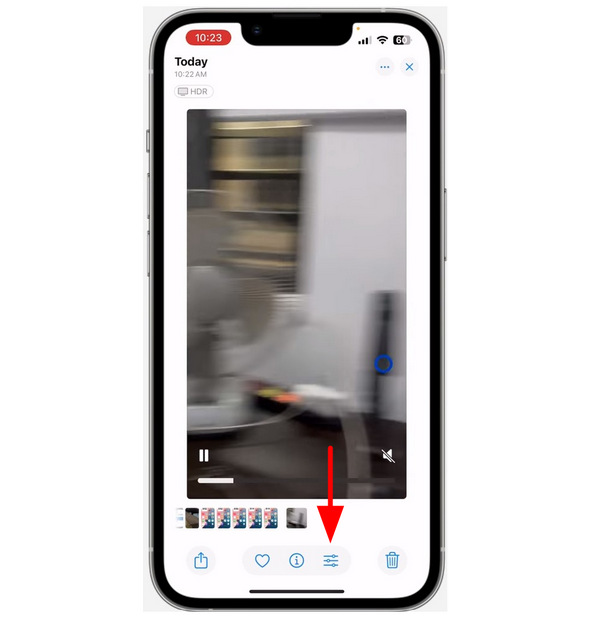
1 Open the Photos app, locate the video you want to slow down, then select the Edit button for the media file you want to edit.
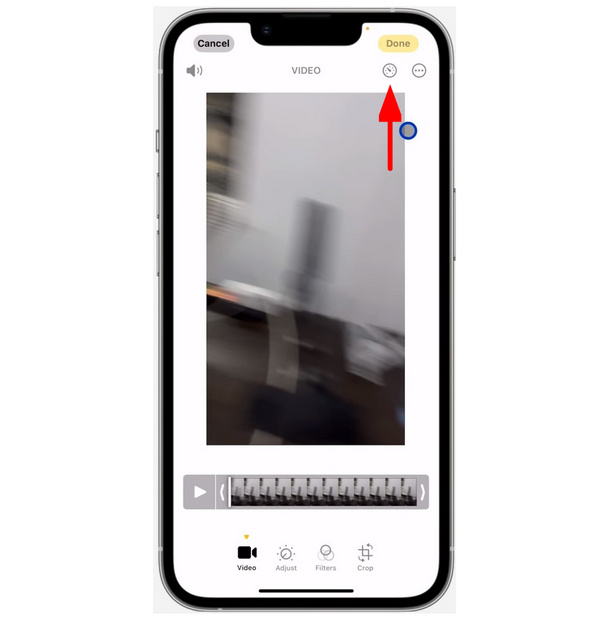
2 In the video editing menu, find the Speed button in the upper-right corner of the window. Then, tap on it.
3 Once the Speed button is selected, select the Playback Speed you want to use. The Photos app offers two options: 100% (2X) and 50% (.5X).
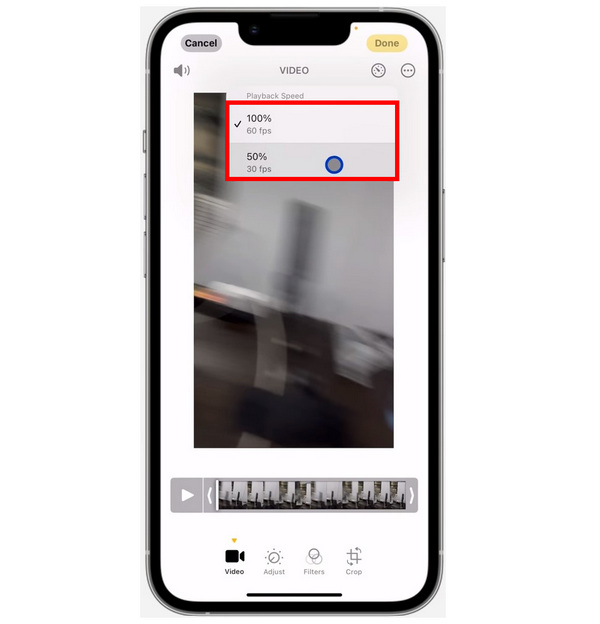
Since the available playback speed isn't expressed as a multiplier, the 100% option effectively doubles your video's speed. Meanwhile, the 50% option halves it. Additionally, these playback adjustments also edit the frame rate of your video to 100% at 60 FPS and 50% at 30 FPS.
What Users Say:
Most users of the Photos App’s built-in editor advise using it only if you plan to quickly edit your video or if you want to learn how to make slow-motion videos. Otherwise, it is more advisable to use more advanced editing tools.
Part 2. Slow Down Video on iPhone with iMovie
For users looking for a slowing-down option that offers more control, partial clip editing, and overall smoother results, iMovie Video Editor may be the better option. In addition to these benefits, this tool is built into iOS devices, making it an ideal option for users who want to upgrade from the Photos App.
1 Open iMovie and then import the video file you want to edit into the editing window. Once done, select the video file, then click the Speed tool.
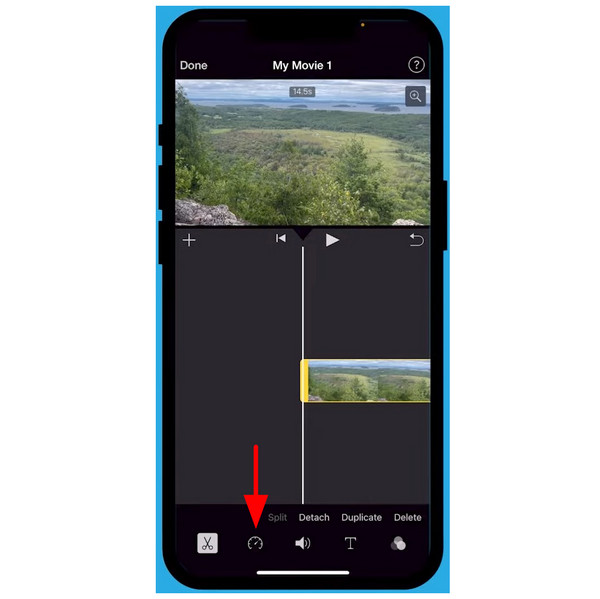
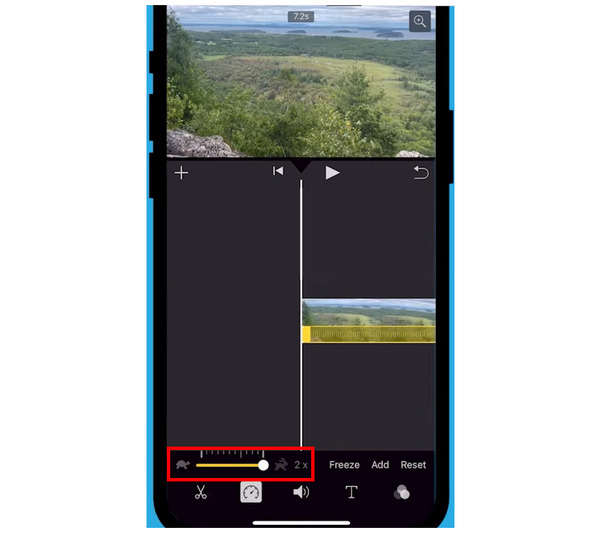
2 After selecting the Speed tool, you can access the software's Speed Multiplier bar. To adjust the speed of your video, drag the slider to the Tortoise icon to slow it down. To speed up, move the slider to the Rabbit icon.
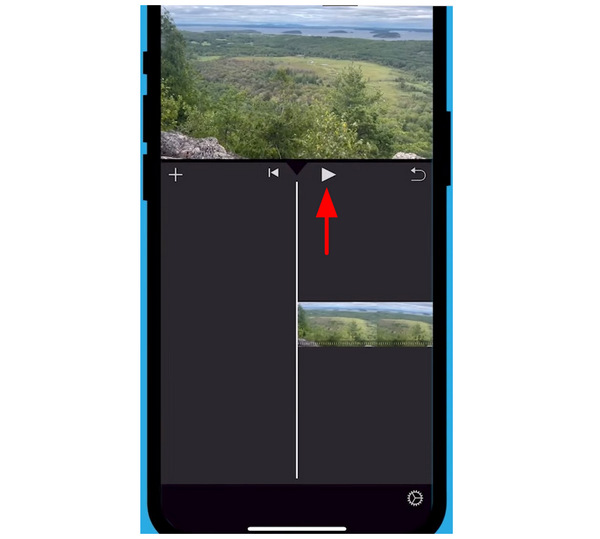
3 To check whether the video slowdown is sufficient, select the Play button for the video you are editing to watch it in the Preview window.
Compared to Photos App, iMovie offers so many more editing options, even in the playback speed mode. With that in mind, we highly recommend exploring the software to discover more options within the program.
What Users Say:
For iOS users, the convenience of a built-in video editor is hard to ignore. As such, iMovie became one of the most trusted options for basic video editing because it is already available by default and functions well on its own.
Part 3. Slow Down Video on iPhone with CapCut
Finally, iOS users can also use third-party video editing apps, especially popular mobile video editors like CapCut. Among the options previously highlighted, CapCut offers the most advanced video slowdown options, making it a better tool for experienced editors.
1 Open CapCut, then add the video you want to edit. Then, select the Edit option in the app’s main video editing window.
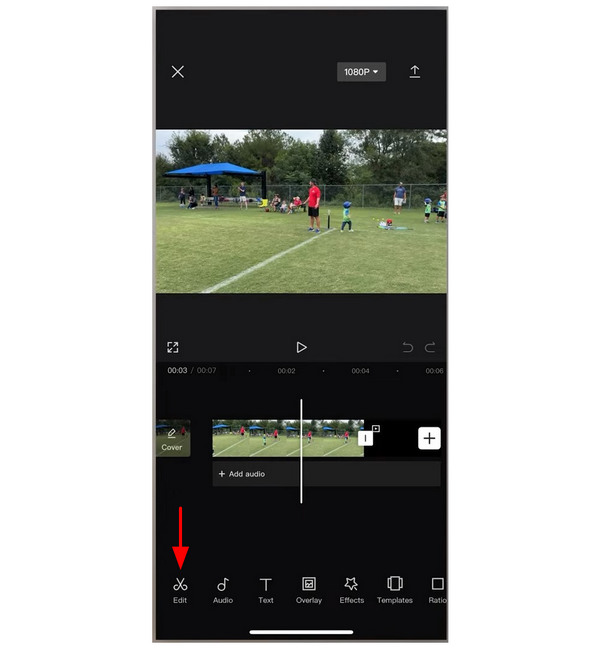
2 Among the available editing tools, select Speed.
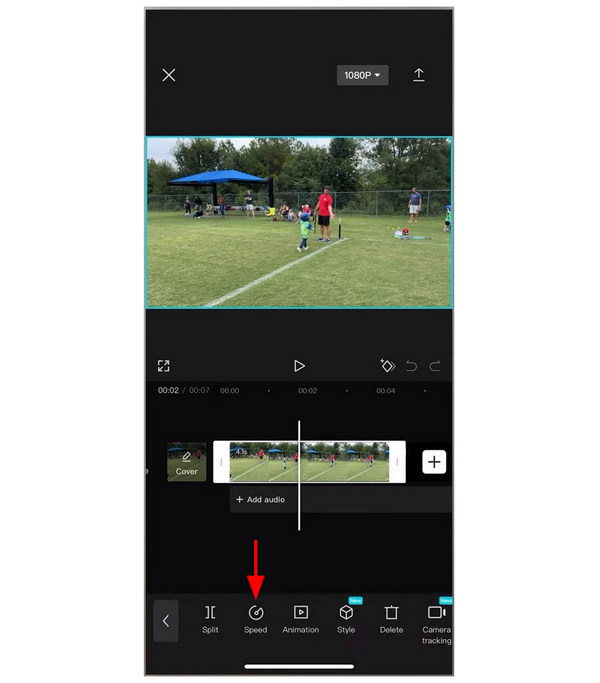
Then, choose the speed adjustment option you want to use. You can select either the Normal or the Curve mode. For constant speed up, select Normal mode. For more technical and creative speed-ups, use the Curve mode.
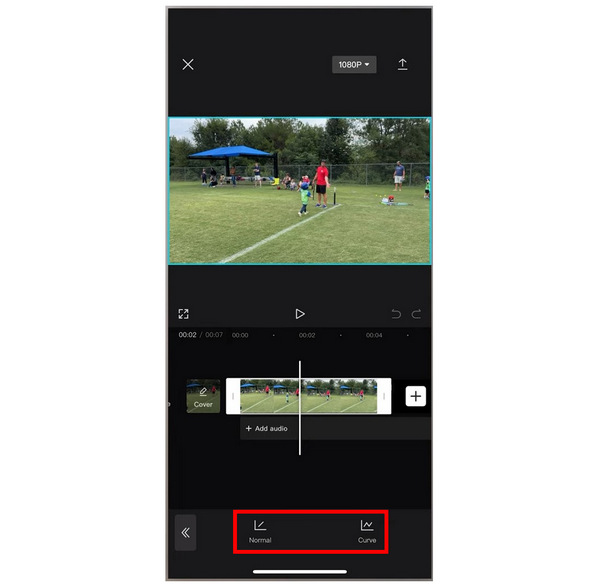
3 Regardless of the video speed mode you selected, you can use different speed-editing tools in the app. Once you are done, simply tap the Check button to confirm your adjustment.
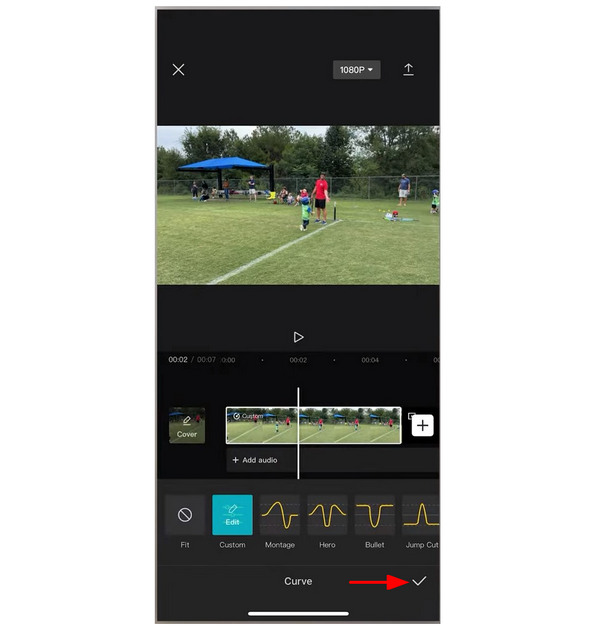
Because of the Curve option, CapCut offers the most advanced video speed adjustment. This makes the program a good choice for experienced editors. Unfortunately, it may also make the tool less welcoming for beginners.
What Users Say:
Due to CapCut's advanced features and relatively easy-to-use interface, it is a top pick among mobile editors seeking a convenient editing tool. However, it is still more challenging to use, especially when compared to the built-in editors in iOS devices.
Part 4. Warm Tips for Slowing Down Video on iPhone
Keep Slowdown Moderate
Make sure your adjusted speed is neither too slow nor too fast, and still pleasant to watch at its current speed. If you change the video speed too slow, it may negatively affect the overall watchability of your video.
Export at Original Resolution and Frame Rate
Since you will only adjust the video’s playback speed, there is no need to change its resolution or frame rate. As such, make sure to export its edited version using the file’s original resolution and frame rate.
Use HEVC Format
Since modern iOS devices have migrated to the HEVC format, make sure the video you are editing is saved in HEVC. This will ensure your video does not encounter issues such as unsupported formats or playback errors.
Keep a Copy of the Original Clip
Even though you are editing a video clip, it is still recommended to keep an original copy of the video. This will make the comparison much more accessible, and future editing of the asset will be easier.
Part 5. Bonus: How to Slow Down Videos on Computers
Although mobile devices are better for quick editing, computers remain the better option for stability. In this case, we still recommend using desktop apps such as AnyMP4 Video Converter Ultimate if you plan to slow down your video.
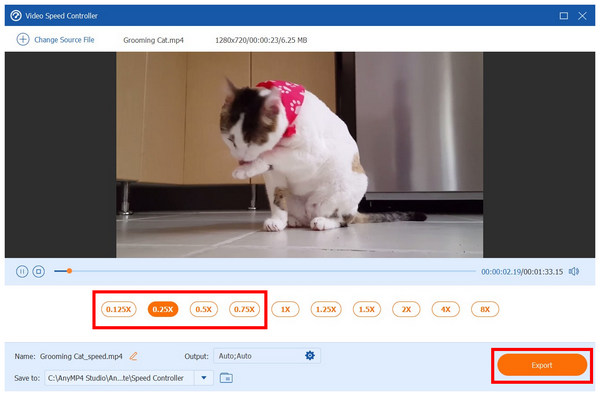
Equipped with an exclusive Video Speed Controller tool, AnyMp4 Video Converter Ultimate can slow down videos as easy as a few clicks. These speed multiplier also has a wide range from 0.125X to 8X the original speed.
To ensure you can edit your video regardless of its format, AnyMP4 Video Converter Ultimate supports 500+ formats, including popular ones such as MP4, MOV, WMV, AVI, MKV, and GIF. For experienced editors, advanced output settings like format, resolution, frame rate, quality, bitrate, and more are also adjustable.
To discover the convenience of using AnyMP4 Video Converter Ultimate to slow down or speed up video, read our three-step guide below and download the software using the provided link.
1 Open AnyMP4 Video Converter Ultimate and go to the Toolbox section. Among the tools, scroll down to find the Video Speed Controller, then select it.
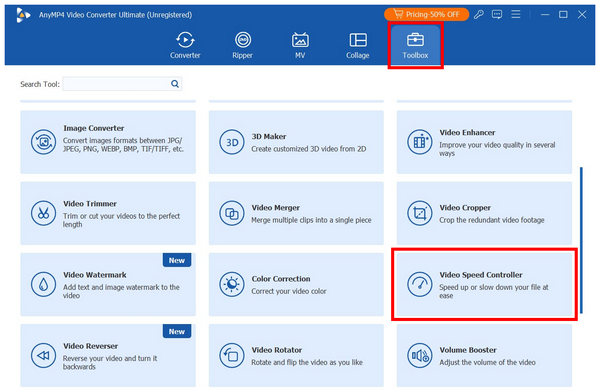
2 Before editing the speed of your video, you may adjust video output settings by clicking the Output Options. Among these options, you may edit the video’s Format, Resolution, Frame Rate, Quality, and other options. Click on OK to confirm your adjustments.
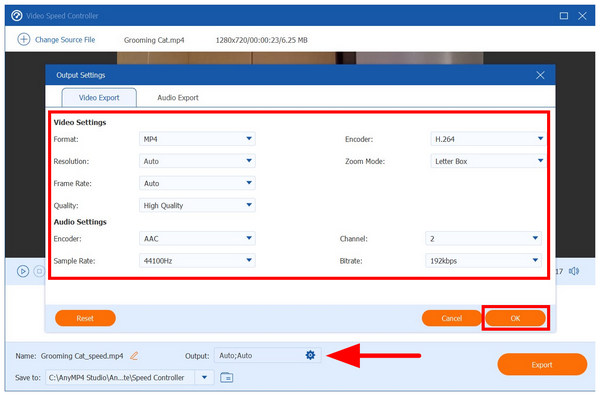
3 Once you have edited your output options, or if you are not interested in editing them, you may directly change your video speed by choosing a multiplier from 0.125X to 8X. To slow down, select an option under 1X. Then, click on Export to produce the slow-mo video.
Among the options on this list, AnyMP4 Video Converter Ultimate offers the perfect balance of performance, stability, and ease of use. As such, we highly recommend using this desktop-based alternative instead to ensure that your videos are edited with precision.
Part 6. FAQs About Slowing Down iPhone Videos
Can I slow down only a portion of a video on an iPhone?
Yes, you can. Editing tools on iPhone offer portion-based slowdowns. This includes iMovie and other third-party editors, such as CapCut.
Do I need iMovie to slow down video on iPhone, or is Photos enough?
Photos are usually enough for basic slowdowns. However, it is limited since it can only double or halve your video’s speed. For more specific speed multipliers, use iMovie.
Will slowing down a video affect the audio?
Yes, it will. Your video’s audio and pitch will sound much lower than the original. Words will be way harder to understand.
Can I slow down a video on an iPhone?
Yes, you can. In fact, there are multiple options on iPhone to slow down videos. You may use the Photos App, iMovie, or a third-party option.
Is slowing down a video on an iPhone hard?
No, it is not. Slowing down videos on iPhone is actually very easy. You can also use multiple options, such as the built-in tools Photos App and iMovie.
Conclusion
Now that the best option for slowing down videos on iPhone has been discussed, we hope this article will be enough to help you understand that slowing down videos on iOS devices is easy. However, if you still want better stability, make sure to use desktop-based options like AnyMP4 Video Converter Ultimate, which you can download using the link below.




 Add your comments to join the discussion here