How to Use Zamzar to Convert MOV to MP4: A Detailed Tutorial
Quick Summary:
Converting MOV to MP4 on Zamzar is a solid solution if you are handling video files smaller than the tool's 50MB limit. However, if you are handling larger MOV videos, desktop-based solutions such as AnyMP4 Video Converter Ultimate are a better choice for conversion speed and performance.
Have you encountered a scenario where you just finished recording high-quality video on your iPhone or Mac, only to find that your Windows PC, TV, or editing software refuses to play the MOV file? This problem is a classic problem rooted in Apple’s complex compatibility wall. Whether you're a content creator facing upload errors or just trying to share a family video, converting MOV to MP4 shouldn't feel too complicated. In this guide, we’ll master the most popular web-based solution for MOV to MP4 conversions with Zamzar Online File Conversion and explore when you might need a more powerful desktop engine.
Part 1. Why Choose Zamzar for MOV to MP4
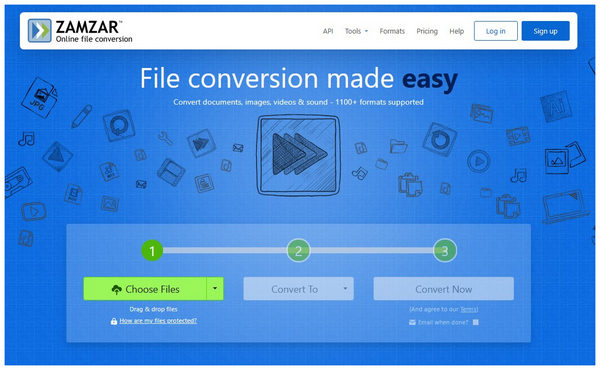
When it comes to convenience, using online conversion tools, such as Zamzar Online Tool, is one of the best solutions if you are looking for software to handle small MOV videos. The file size limit is the biggest catch for these tools, since most web-based solutions have severely restricted upload limits. With Zamzar, the free version has a 50 MB file size limit.
If you are looking to convert smaller MOV videos to more versatile MP4s, Zamzar is the best option, as it is one of the most reliable online tools on the market. Although it is limited to smaller videos, Zamzar still has its niche for quick conversions.
Main Features
- Simple three-step conversion process.
- No registrations or signups needed for conversion tasks.
- Supports cloud-based uploads from Google Drive, Dropbox, OneDrive, and other cloud storage.
- It can convert files on a Chromebook, tablet, or work PC where admin rights are limited.
PROS
- Easy to use and accessible.
- No installation required, fully web-based.
- Supports 1200+ file types, including videos and other media files.
CONS
- Very limited file size: only 50 MB.
- File upload, download, and conversion performance is 100% reliant on the internet.
- Zero editing controls for advanced settings such as bitrate, codecs, and other compression options.
Part 2. Step-by-Step Tutorial: Converting MOV to MP4 via Zamzar
With the features, pros, and cons of the Zamzar Online Converter now discussed, let us proceed to the main topic of this guide: a step-by-step tutorial on converting MOV to MP4 using the Zamzar online tool.
1. Uploading Your Source File
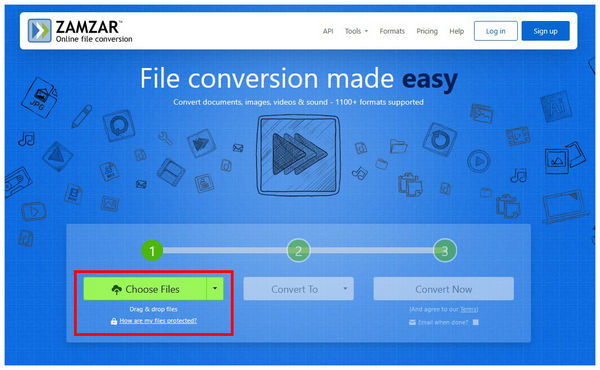
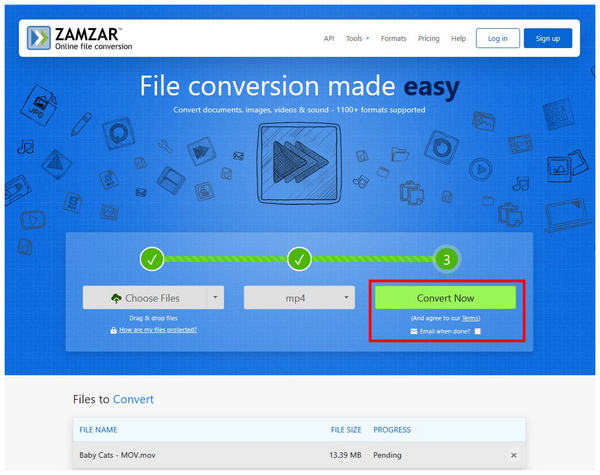
Go to Zamzar Online Converter and select the Choose Files option to upload the MOV file you want to convert. When using the free version of the software, keep in mind that it has a 50MB upload limit.
2. Selecting the MP4 Output Container
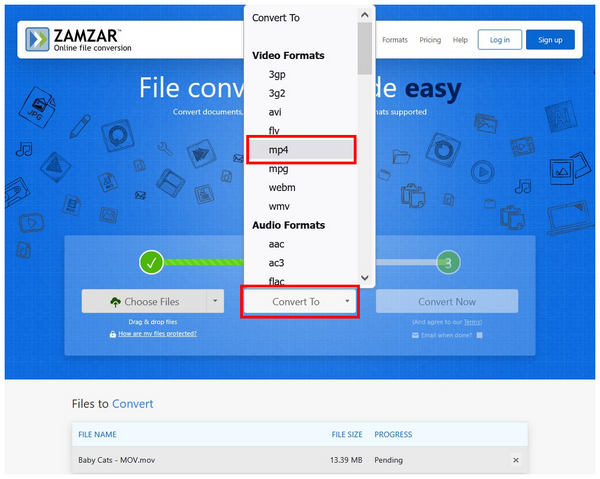
Once your MOV file is uploaded, select the Convert To option and set the output format to MP4.
3. The "Convert Now" vs. "Email when Done" Feature
With the MOV file uploaded and the output format set to MP4, you can select Convert Now to proceed with the conversion, or check the Email When Done to have Zamzar email the converted file to you.
4. Securely Downloading Your File
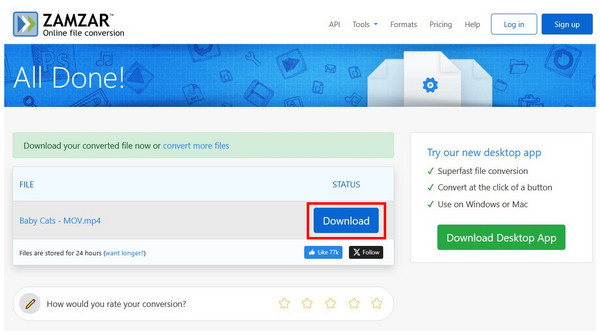
If you selected the Convert Now option, you will be redirected to the file conversion page. Simply wait a few seconds during the conversion process, then select Download once it's done.
Now that we have provided a detailed Zamzar video conversion guide, we hope you can use the program reliably to convert smaller video files saved in MOV format. To learn the basics of software troubleshooting, as well as the best desktop-based alternative for converting larger videos, make sure to read the following sections of the article.
Part 3. Troubleshooting: Why Your Conversion Failed
The Converted MP4 has No Sound
If your converted MP4 file is muted or cannot be played after conversion, the most likely cause is an AAC/AAC3 audio codec mismatch. To solve this issue, edit your MOV file’s audio codec to AAC before converting it to MP4 to maintain the same audio quality.
Zamzar Says my File is Too Large
Since Zamzar has a small file size limit of 50 MB, the best solution is to use an alternative desktop-based tool. If you want to stick with Zamzar, you can create an account and upgrade to a premium plan to increase your file size limit to 200MB, 400MB, or 2GB, depending on your selected plan.
The Upload is Stuck at 99%
Since Zamzar is browser-based, upload problems, such as getting stuck at 99%, may be resolved by clearing your browser cache. Cleaning your web browser's temporary data may fix this issue. Otherwise, use desktop-based alternatives such as AnyMP4.
Part 4. Optimization Tips for a Perfect Conversion
To optimize your format conversion process, you need to adjust specific video settings embedded in your file. Some of the most notable options are the video codecs, frame rate, and bitrate.
When it comes to codecs, H.264 is the best as it is more compatible and safer to use than modern H.265. In terms of frame rate, 30 FPS should be enough for regular videos. Finally, a bitrate setting of 15-20 Mbps is the most stable and safe threshold.
To learn the best Zamzar alternative for batch video conversion and advanced technical setting adjustments, please read the next section of the article.
Part 5. The "Pro" Alternative: AnyMP4 Video Converter Ultimate
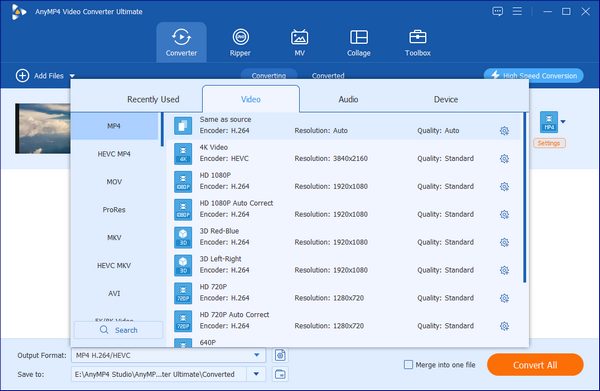
Now that we have discussed the features that make Zamzar excellent for small, one-off files, we also concluded that the program is limited and struggles with larger MOV files or batch conversions. Fortunately, desktop-based options such as AnyMP4 Video Converter Ultimate perfectly solve this issue.
On top of handling large video files, AnyMP4’s format converter software is designed to preserve the original bitrate and resolution of converted MOV files. This is a direct solution to the lack of advanced video setting options in Zamzar and other online tools.
In addition to these technical adjustments, video-based editing tools such as a trimmer, a cropper, subtitle options, and more are available. For users who want to apply basic editing adjustments, these are very practical since they can be added during the format conversion process.
Moreover, the program is more efficient in terms of conversion speed, as it is equipped with a Hardware Acceleration system that processes video 70x faster than standard video format converters. This allows the program to convert MOV videos up to 2GB in a few seconds, rather than a few minutes.
To use one of the best video format converter software in the market, make sure to download AnyMP4 Video Converter Ultimate using the download link below.
For a quick AnyMP4 Video Converter Ultimate review and comparison versus Zamzar, make sure to read our comparison table below.
| Zamzar Online Converter |
VS |
AnyMP4 Video Converter Ultimate |
| Web Browsers |
Compatibility |
Windows, macOS |
| Easy to Use |
Ease of Use |
Easy to Use |
50MB (Free)
200MB (Basic)
400MB (Pro)
2GB (Business)
|
File Size Limit |
None |
| None |
Watermark |
None |
●Wide Compatibility up to 1200 media formats.
●Optional upgrade plans.
●Email download option.
|
Other Features |
●Video trimmer
●Video cropper
●Other basic video editing tools.
●GPU acceleration
●Unlimited file size uploads.
|
Part 6. FAQs About Converting MOV to MP4 on Zamzar
Is Zamzar safe to use?
Yes, it is. Zamzar is relatively safe to use when handling MOV, MP4, M4V, or other video formats. It has strong data privacy, and files uploaded to its servers are subject to auto-deletion policies.
Does converting MOV to MP4 lose quality?
It depends on how the MOV file was converted. If the conversion process uses transcoding, your video file will have lower quality. If your program uses file remuxing, the quality and data of your media file will be preserved.
Can I convert MOV to MP4 on an iPhone without an app?
Yes, you can. iMovie can save MOV files as MP4 during editing. You can also set your camera to the most compatible format, saving iPhone videos in MP4 instead of the default MOV.
What is the difference between MOV and MP4?
Both formats are popular video options. However, MOV is the default video file of Apple devices. Meanwhile, MP4 is the most versatile video format across different platforms.
How to convert large MOV files to MP4 without losing quality?
You have to use desktop-based options for large MOV files. A good option is AnyMP4 Video Converter Ultimate. In addition to format conversion, it also maintains strong video quality.
Why does my MOV file not have sound after conversion?
This may be rooted in the audio codec you used for your MOV file. To avoid muted videos, make sure that you are using the AAC audio codec. This is also supported by the MP4 files, making it a good option for video files.
Conclusion
Converting MOV to MP4 using Zamzar is the key to making your media accessible across all platforms. If you want to convert small files, Zamzar should be one of your top options. However, for managing large videos and content libraries, AnyMP4 Video Converter Ultimate is the most reliable professional choice.
Stop struggling with incompatible MOV files. Download AnyMP4 Video Converter Ultimate for a free trial today, or head to Zamzar to convert your first file now.





 Add your comments to join the discussion here