Convert MOV to MP4 Using HandBrake: 2026 Step-by-Step Guide
Quick Answer:
To convert MOV to MP4 using Handbrake, open the software and drag your MOV file into the interface. Under the Summary tab, set the Format to MP4. Go to the Video tab to ensure the Video Codec is set to H.264. Finally, click Browse to choose where to save the file, and hit Start Encode.
Looking for a faster method with no loss in quality? Skip down to see how AnyMP4 Video Converter Ultimate does it up to 70x faster using hardware acceleration.
In my experience, MOV files are great for Apple devices but often trigger frustrating compatibility issues on Windows or Android. To solve this problem that many people may encounter, I conducted a hands-on test and found the best way to achieve lossless conversion. This step-by-step tutorial will show you exactly how to convert MOV to MP4 using Handbrake, an industry-standard open-source video transcoder. In addition, we will share better alternatives for those who need quicker batch processing. Read on!

Part 1. Why You Might Need to Convert MOV to MP4
While MOV is the standard for Apple devices, its large file size and limited compatibility often cause headaches on Windows, Android, or older smart TVs. Converting to MP4 ensures your videos play anywhere while maintaining excellent visual quality and smaller storage footprints.
Part 2. Step-by-Step Guide: How to Use Handbrake for MOV to MP4 Conversion
HandBrake is a powerful, open-source, and free converter loved by professionals for its granular control. This MOV-to-MP4 converter can convert videos from nearly any format to a selection of widely supported codecs. Strictly speaking, it is not only a video converter but also a video transcoder that can re-encode the video for optimization.
Step 1: Load Your MOV Video
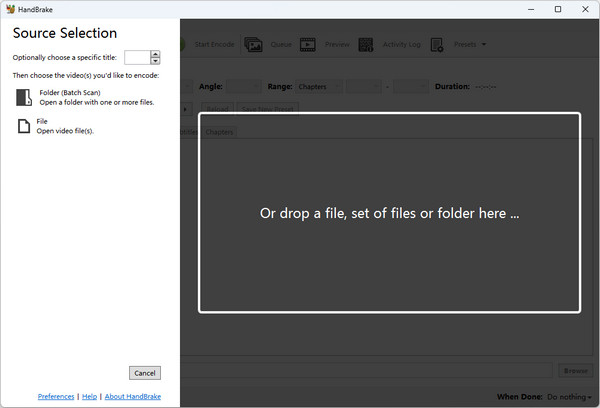
Open HandBrake and drag your MOV file/folder directly into the main window, or click File/Folder (Batch Scan) to load.
Step 2: Select the MP4 Format
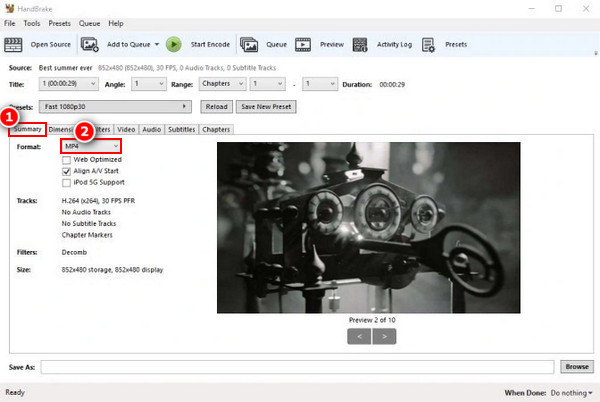
Choose MP4 as the output format from the Format dropdown list under the Summary tab. You can also set a preset (e.g., Fast 1080p30) on the right side for quick configuration.
Step 3: Optimize Video and Audio Settings (Expert Tips)
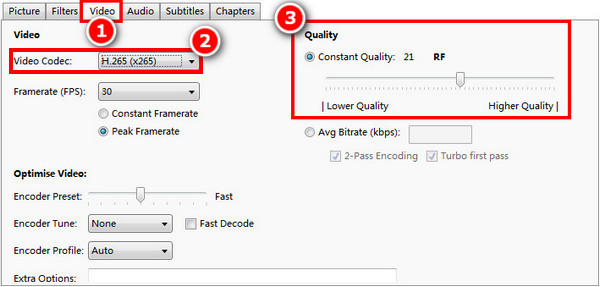
Select H.264 or H.265 (standard) under the Video tab. For lossless quality, set the RF slider between 18 and 22.
Step 4: Choose Output Destination and Start Encoding
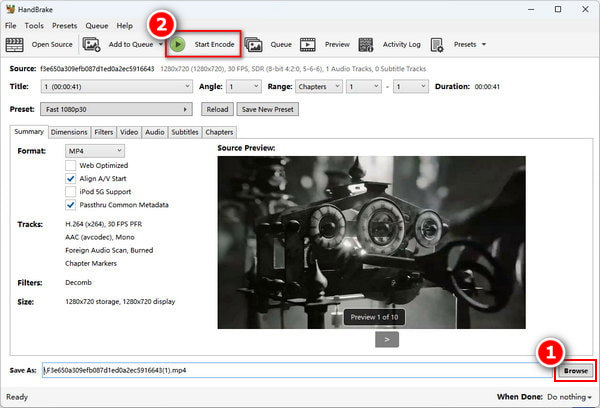
Click Browse to choose your output destination at the bottom right, then click Start Encode to start MOV-to-MP4 conversion.
Part 3. The Downside: Why Handbrake Isn't Always the Best Choice
- • Steep Learning Curve: The interface can be overwhelming for beginners.
- • No Editing Tools You cannot trim, merge, or add effects within the app.
- • Slow Speeds: Software-based encoding can be time-consuming without advanced GPU knowledge.
Part 4. Top 2 Alternatives to Handbrake (Tested & Ranked)
1. AnyMP4 Video Converter Ultimate (Best Overall & Fastest)
If you find HandBrake difficult to use, AnyMP4 Video Converter Ultimate is the premium upgrade you need. It improves the speed by using full GPU hardware acceleration, reaching speeds up to 70x faster while maintaining true lossless quality. Unlike HandBrake's complex menus, its intuitive UI makes it easier to complete high-end tasks, such as one-click batch processing or using the built-in AI video enhancer.
1. Download and install this best alternative to HandBrake. Then, click Add Files or drag your MOV directly into the interface.

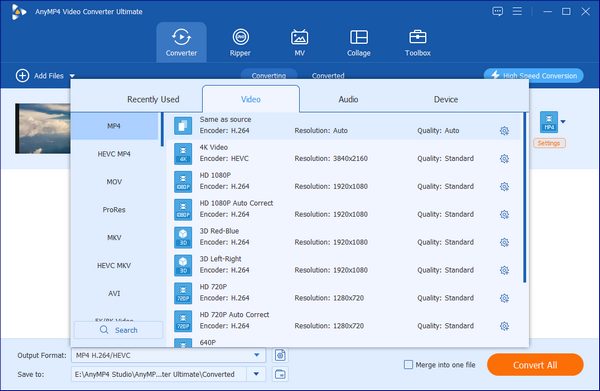
2. Click Output Format and choose MP4 under the Video tab. Then, you can select Same as Source to maintain lossless quality.
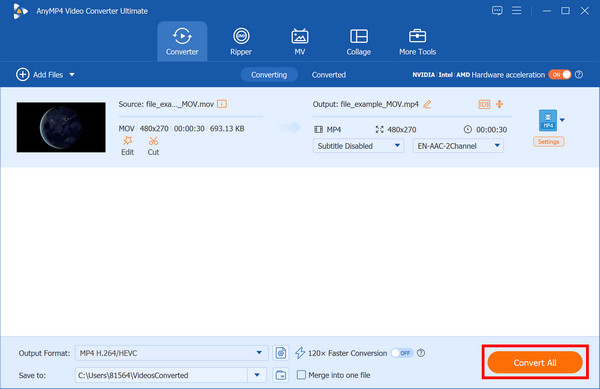
3. Select a path for the converted files. And then click Convert All to start converting MOV to MP4 at ultra-high speed.
2. CloudConvert (Best Premium Cloud Converter)
CloudConvert is the top choice for users who prefer cloud-based processing without installing software. It offers a clean interface and supports high-quality conversions directly from Google Drive or Dropbox. However, keep in mind that free users face strict file size limits, making it better suited to shorter clips than to large 4K projects.
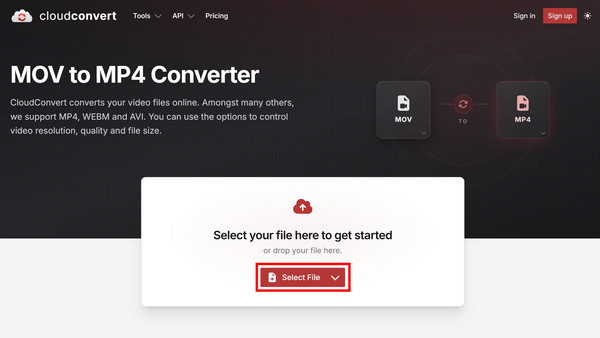
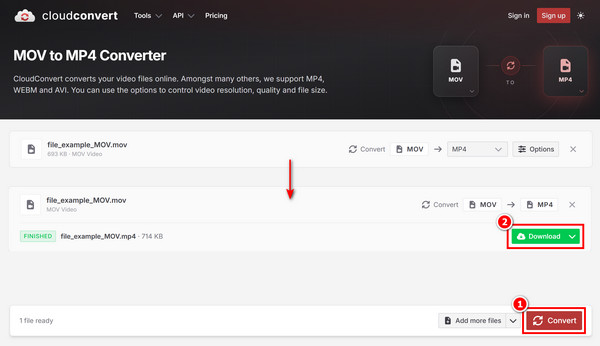
1. Visit the website of CloudConvert and click Select Files to select the MOV file you want to convert to MP4.
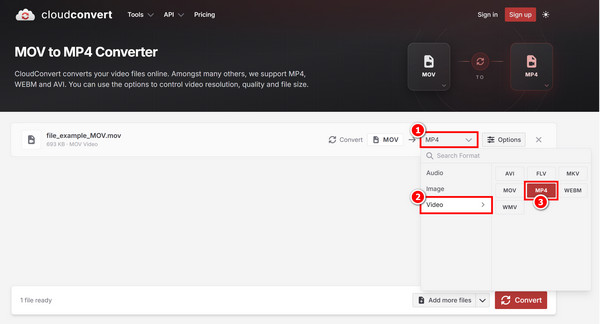
2. Choose MP4 as the target format from the dropdown menu of a button with a down arrow > Video.
Tip
You can also optionally click Options to customize the video codec, resolution, quality, etc.
3. Click Convert in the lower-right corner to start the conversion process. Once finished, click Download to save the converted MP4 file.
Part 5. Tool Comparison: Handbrake vs. Alternatives
| Tool |
Price |
Speed |
Ease of Use |
Batch Processing |
| HandBrake |
Free |
Average |
Moderate |
Yes (Complex) |
| AnyMP4 Video Converter Ultimate |
Paid (Free Trial) |
Ultra-Fast (GPU) |
Very Easy |
Yes (Simple) |
| CloudConvert |
Subscription/Credits |
Internet Dependent |
Very Easy |
Yes |
- • Speed & Performance: AnyMP4 utilizes GPU hardware acceleration to finish tasks in seconds. HandBrake is reliable but slower because it relies heavily on your CPU, whereas CloudConvert is entirely dependent on your internet bandwidth.
- • User Experience: AnyMP4 and CloudConvert offer modern, streamlined interfaces that require zero technical knowledge. In contrast, HandBrake features a steeper learning curve with dense menus that may intimidate casual users.
- • Pricing: HandBrake is the undisputed winner for budget-conscious users, offering professional features for free. AnyMP4 requires an investment but pays for itself in time saved, while CloudConvert is convenient but can become expensive with high-volume usage.
Part 6. FAQs
Why does Handbrake save my MP4 as an M4V file?
This is because Handbrake defaults to M4V for Apple compatibility, but it can be changed in the Preferences menu.
Does converting MOV to MP4 reduce video quality?
Whether converting MOV to MP4 reduces video quality depends entirely on the method you use. If you only change the container and keep the internal video and audio data exactly as it is, there is zero quality loss.
Is Handbrake safe to download and use?
Yes, Handbrake is safe to download and use, provided you get it from the official source.
How can I batch convert multiple MOV files to MP4?
HandBrake and several other tools, such as AnyMP4, can all batch convert multiple MOV files to MP4 with the batch conversion feature.
What is the fastest way to convert a 4K MOV file to MP4?
The fastest way to convert a 4K MOV file to MP4 depends on whether the video inside the container is already compatible with MP4. If it is, you can remux it instantly; if not, you must use hardware-accelerated transcoding.
Conclusion
Generally speaking, converting MOV to MP4 using HandBrake is a fantastic choice for those who enjoy tweaking technical settings. My final recommendation depends heavily on your workflow. If you handle high-resolution 4K files, a professional and advanced tool like AnyMP4 is better for its superior hardware acceleration. You can refer to this tutorial and test it yourself to see which fits your needs!





 Add your comments to join the discussion here