Adobe Express MOV to MP4 Converter: Is It Really Worth It
Quick Answer:
Adobe Express MOV to MP4 Converter is a fast, browser-based tool for quick, simple video conversions without installation. It supports basic editing but has limits on file size, quality control, and advanced features. For heavy 4K workflows and batch processing, AnyMP4 Video Converter Ultimate is a stronger alternative.
You've just captured the perfect cinematic clip on your iPhone. However, your Windows-based editing suite or a specific social platform is giving you the File Format Not Supported cold shoulder. MOV files work smoothly within Apple's ecosystem, but MP4 remains the universal standard across the web, devices, and editors. This creates a common dilemma for creators: should you install heavy software to convert a simple file? Adobe Express promises a one-click solution for converting MOV to MP4. But is it a professional-grade solution or just a quick patch? In this 2026 review, we put Adobe Express MOV to MP4 Converter to the test to see where it shines and where it falls short. We break down its features, conversion process, performance, quality output, pros, and cons. We also provide an alternative to help you choose the right conversion solution.
Part 1. Adobe Express MOV to MP4 Converter: An Overview
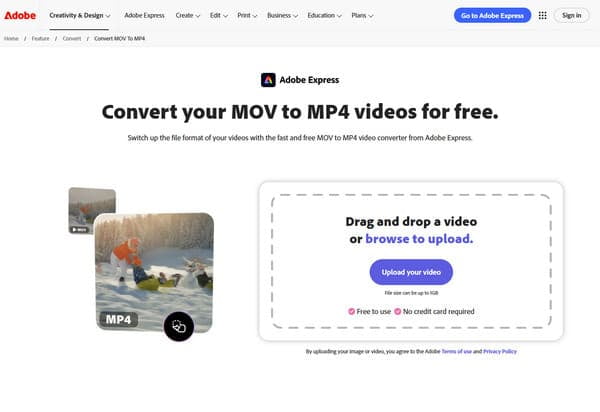
Adobe Express MOV to MP4 Converter is Adobe's modern, cloud-based creative platform for quick, accessible content editing. It is originally known for tools like Flash, but later evolved into a complete online creative ecosystem. It now supports video editing, graphic design, and even lets you convert MOV to MP4 online. It allows you to edit and convert media without installing advanced desktop software.
What to Know More About Adobe Express:
- • Allows video trimming before conversion.
- • Supports muting or removing original audio.
- • Converts MOV videos to MP4 directly online.
- • Offers aspect ratio resizing for social media platforms.
Part 2. The Step-by-Step Conversion Process from MOV to MP4
Adobe Express Video Converter simplifies conversion with a clean, browser-based interface. It uses a drag-and-drop upload system that makes importing files quick and intuitive. Additionally, it allows basic editing directly in the browser before exporting the final MP4 version. However, the conversion speed depends largely on the internet connection and file size.
Here's how to convert MOV to MP4 using Adobe Express:
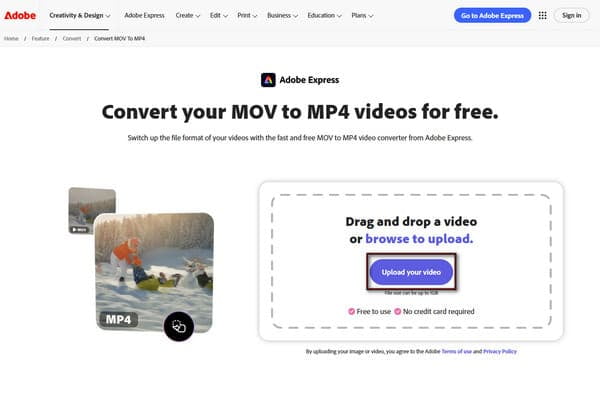
1. On the Adobe Express homepage, click Upload Your Video and browse your files to upload. Alternatively, drag and drop your MOV file directly into the upload area.
2. Before you export MOV to MP4 in Adobe Express, it lets you explore quick actions using basic editing tools:
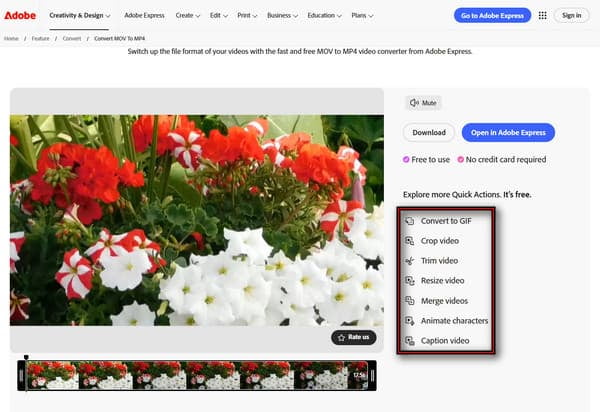
- • Convert to GIF.
- • Crop video to a square or other aspect ratio.
- • Trim video.
- • Resize video.
- • Merge video.
- • Animate characters.
- • Caption video.
3. After editing the video, click Download to save it as an MP4. Adobe Express will automatically save the video in MP4 format, ready for playback and sharing.
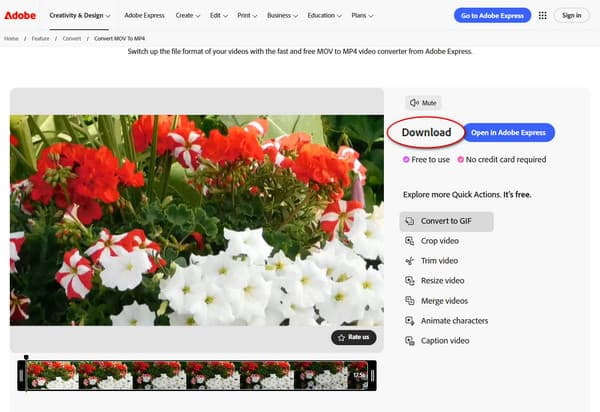
The free MOV-to-MP4 converter in Adobe Express is convenient for quick online conversions. However, it has a maximum upload limit of 1GB per video file. It means large MOV files from professional cameras or lengthy recordings may exceed this restriction, making the tool less suitable for high-resolution or long-form projects.
Part 3. Performance Review: The Pros and Cons
Before deciding to use Adobe Express to convert MOV to MP4, it is important to understand both its strengths and limitations. Knowing the pros helps you maximize convenience and speed. Meanwhile, understanding the cons helps you avoid issues such as upload failures, slow processing, or privacy risks.
What You'll Like:
- No software installation required.
- Zero-cost access for Creative Cloud members.
- Basic editing tools are included before exporting MP4.
- Cloud-based (no strain on your device's CPU or memory).
- Clean, ad-free interface compared to free conversion sites.
What to Consider:
- No connection means no conversion.
- Struggle with 4K/8K 60fps footage over 1GB.
- Files are uploaded to the cloud, which isn't ideal for sensitive content.
Part 4. Technical Analysis: Quality & Compression
Bitrate & Resolution
Adobe Express file conversion compresses MOV files when converting them to MP4. This means you don’t get much control over settings like bitrate or encoding. For high-resolution videos, it applies stronger compression or lowering the resolution to reduce the size.
Metadata Preservation
When it comes to metadata, Adobe Express removes or reduces it during conversion. This is to protect user privacy when sharing videos online. It also simplify or remove the original capture date, camera settings, or device information. Still, it keeps the basic playback data needed so the MP4 file plays properly without issues.
Part 5. Adobe Express Alternative: AnyMP4 Video Converter Ultimate
Why the Pros Move Offline
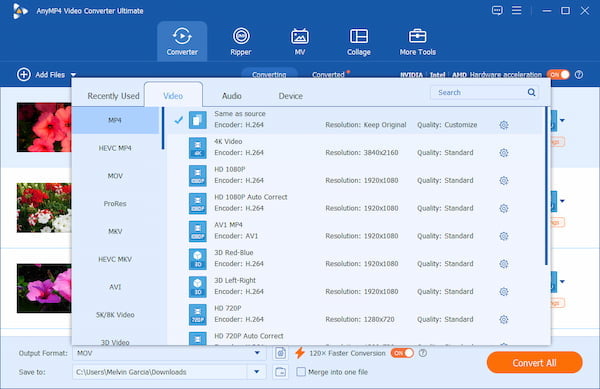
Sometimes, a browser tool is just too weak for heavy work. You can convert MOV to MP4 using Adobe Express, but it may struggle with big files, advanced settings, and batch conversion. In contrast, AnyMP4 Video Converter Ultimate is built for heavier workloads and professional use. It is an all-around media software bundle compatible with Windows 11/10/8 and macOS 10.12-15. It can convert MOV files to H.264/H.265 MP4 and 500+ other media formats. It also allows custom output settings, letting you adjust encoder type, resolution, bitrate, frame rate, and other technical parameters.
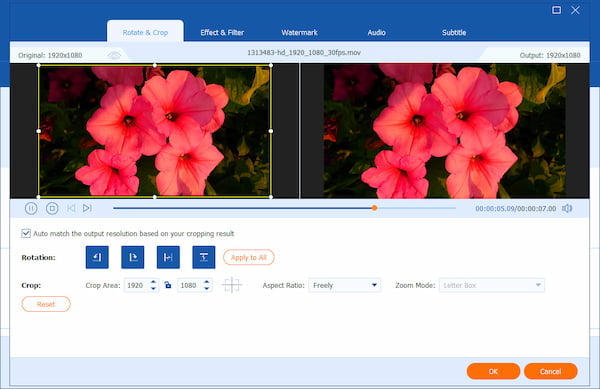
In addition to media file conversion, it includes a full suite of editing tools. It comes with a tool for cropping, rotating, applying filters/effects, adjusting subtitles, and managing audio tracks. The software also uses hardware acceleration technology, significantly improving conversion speed. Notably, it features a Media Metadata Editor that allows users to edit file metadata, unlike Adobe Express.
The AnyMP4 Advantage
- • Built-in DVD Ripper for converting physical media into digital formats.
- • Supports 8K video processing for high-resolution professional workflows.
- • Lossless Copy codec option that changes the container without re-encoding.
- • 120× hardware acceleration using NVIDIA/AMD/Intel GPUs for ultra-fast conversion.
- • Includes a Video Enhancer tool for improving brightness, contrast, and overall quality.
- • Batch processing support, allowing conversion of 50+ MOV files to MP4 simultaneously.
Use Case Comparison
Adobe Express is best for quick, one-off social media tasks. It’s made for people who want to convert a MOV file to MP4 without complicated settings. Since it runs in a browser, it’s better for light, occasional use rather than heavy video work.
On the other hand, AnyMP4 Video Converter Ultimate is built for more serious work. It’s better for handling large video files, batch conversions, and higher-quality output. It is a better choice for long-term and video editing needs where quality and efficiency matter most.
Part 6. FAQs about Adobe Express MOV to MP4 Converter
Is Adobe Express MOV to MP4 free?
Adobe Express file conversion is free for basic use, especially when you use its online editor. However, advanced tools and features need an Adobe account or a paid Creative Cloud plan. The free version is mainly for quick, small-file conversions and simple editing.
Can I convert MOV to MP4 without losing quality?
You can use Adobe Express to convert MOV to MP4, but it is not fully lossless. It usually compresses the video so it’s easier to use online. This can lower sharpness, bitrate, and overall video quality. For a true lossless or copy-protected codec, use AnyMP4.
How long does a 1GB MOV file take to convert?
A 1GB MOV file takes hours to convert in Adobe Express. However, the exact time depends on your internet speed, server load, and video complexity. For ultra-fast MOV-to-MP4 conversion, use AnyMP4 Video Converter Ultimate.
Does Adobe Express support 4K conversion?
Adobe Express can handle 4K videos, but it is not fully optimized for professional 4K editing. In many cases, it reduces 4K video quality during export, making the file play more smoothly and smaller.
CONCLUSION
Adobe Express MOV to MP4 Converter is a handy tool for quick video conversion. It works well for those 'I need this ready for Instagram in the next 30 seconds' moments. But if you work with 4K videos, upload many files, or need smooth and fast performance, an online tool may not be enough. If you need stronger tools for large files and faster work, you can try downloading AnyMP4 Video Converter Ultimate.




 Add your comments to join the discussion here