How to Convert M2TS to MP4 on Windows and Mac: 4 Easy Ways
Quick Summary:
To convert M2TS to MP4 quickly:
1. Use a desktop converter like AnyMP4 Video Converter Ultimate for batch processing without quality loss.
2. Use VLC player for a quick free solution.
3. Use FreeConvert for small M2TS files online.
If you’ve ever tried playing an M2TS file on an iPhone or smart TV, you probably know the hassle. Great quality, sure, but compatibility is terrible. Whether you're dealing with raw footage from a Sony or Panasonic camera, or extracted video from a PS3 or Blu-ray, M2TS just isn't built for everyday sharing or editing.
Converting M2TS to MP4 fixes pretty much all of these issues. In this guide, we will introduce you to the 4 easy ways, both free and paid, to help you turn your M2TS videos into playable MP4s in just a few minutes.

How We Test & Quick Comparison: 4 Ways to Convert M2TS to MP4
M2TS Information You Should Know
M2TS files are usually encoded in older AVCHD formats, which are super bulky. When converting to MP4, you'll often see options like H.264 and H.265 (HEVC).
Here's the deal: H.264 gives you the absolute best device compatibility (it’ll play on practically anything), while H.265 shrinks file sizes even more without losing quality—great if you're dealing with massive 4K footage.
Also, notice the Bitrate and Resolution. Keeping your video at its original 1080p or 4K resolution is usually fine, but cranking up the bitrate too high will make your new MP4 almost as huge as the original M2TS. For audio, sticking with AAC is always a safe bet for clean sound and zero playback issues.
How We Tested These Ways
To see how these tools actually hold up under real conditions, we ran a quick benchmark test using a 1.2 GB AVCHD M2TS clip recorded from an old Sony Handycam (1080p at 60fps).
We ran all the desktop tests on a mid-range PC (Intel i7, 16GB RAM) and used a standard home Wi-Fi connection for the web tools. For every test, I kept the target settings consistent: H.264 codec, AAC audio, and "Same as Source" resolution/framerate.
During testing, I mainly looked at three things:
- • Conversion speed: Did it finish in seconds, or did I have time to go grab a coffee?
- • Visual & Audio Quality: Did the exported MP4 look pixelated, or suffer from annoying audio sync delays?
- • Ease of Use: How many confusing menus or pop-up ads did I have to fight through?
Comparison Matrix: Which Method is the Best
| Converter / Method |
Conversion Speed |
Output Quality |
File Size Limit |
Best Suited For |
| AnyMP4 Video Converter Ultimate |
Blazing Fast (~40 sec with GPU acceleration) |
100% Original Quality (No visible loss) |
No Limit |
Large video libraries & high‑quality AVCHD footage. |
| VLC Media Player |
Slow (~3.5 min for 1.2GB file) |
Decent (Occasional minor frame skips) |
No Limit |
Quick, one‑off conversions without installing new apps. |
| AnyMP4 Free Online Converter |
Moderate (~2 min upload + render) |
Good (Slight compression) |
Unlimited |
Small camera clips on a borrowed or guest computer. |
| FreeConvert |
Moderate (~3 min total) |
Good (Customizable bitrate) |
1 GB (Free tier) |
Medium‑sized files when you want tweaking options without desktop apps. |
Method 1: AnyMP4 Video Converter Ultimate - Best for Batch & Editing
AnyMP4 Video Converter Ultimate is the all‑in‑one video converter that enables you to convert M2TS videos in batch. It can batch input and convert M2TS files to MP4 videos to save time. You are allowed to choose various MP4 profiles and even customize the encoder, resolution, and bitrate of the output MP4 files. In addition, it supports over 500 formats, transcoding M2TS/MTS to MOV, WMV, AVI, WebM, and more. Its toolbox lets you compress large M2TS file sizes, edit M2TS file metadata information, enhance low‑quality M2TS files to high‑quality videos, and do more.
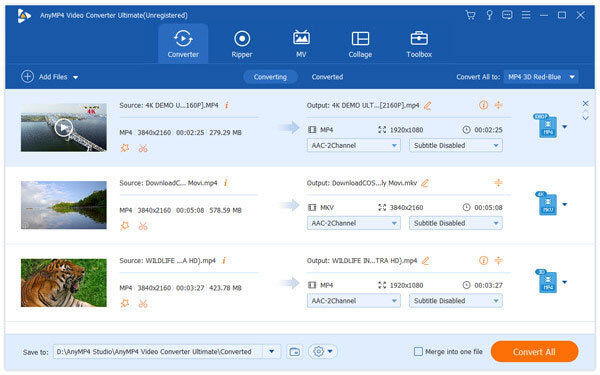
1. Add M2TS files
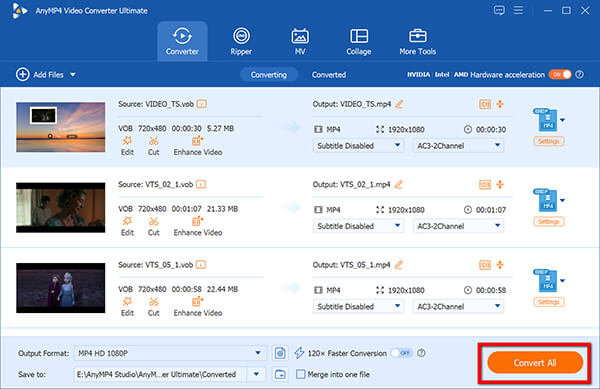
Launch AnyMP4 Video Converter Ultimate. Click the 'Add Files' button to import your M2TS videos. It also lets you drag and drop the M2TS videos into this software directly.
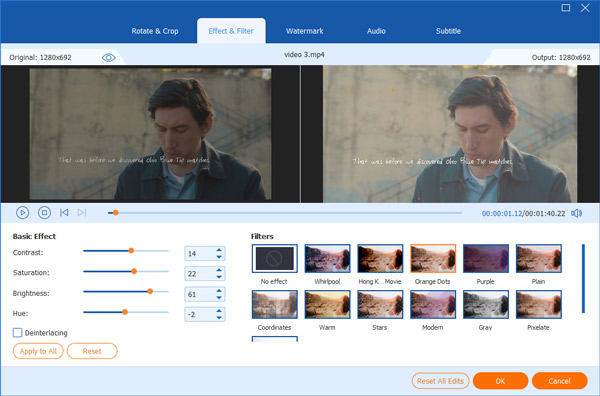
2. Edit M2TS video effects optionally
This M2TS to MP4 converter also lets you edit the video effects before converting. You are able to tap 'Edit' or 'Cut' icon to rotate, trim video length, crop video, adjust video brightness, and do other video‑editing tasks. There are the original preview and output preview you can compare with.
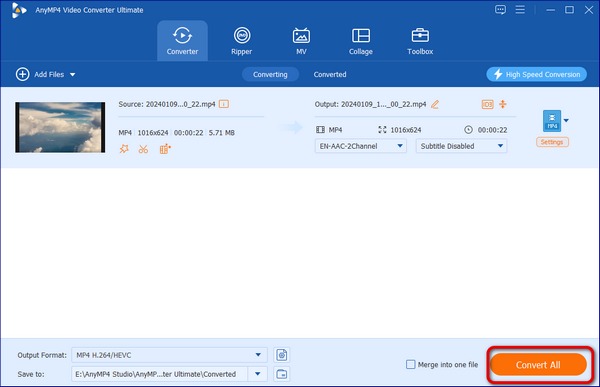
3. Convert M2TS to MP4
Select 'MP4' as the output format from the Output Format drop‑down menu. Set the Destination folder and then click 'Convert All' to start converting M2TS to MP4 on Mac or PC.
Note
Honestly, you don't need to mess around with crazy parameters. Set your Video Codec to H.264 (it has the best compatibility) and Audio to AAC. For the Frame Rate, just choose Keep Original Frame Rate—there’s no reason to bump it up or down unless you're intentionally aiming for slow‑mo. These default tweaks will get you smooth playback on pretty much any phone or TV.
This desktop converter excels in its batch conversion feature. With GPU acceleration, you can enjoy a fast and smooth video conversion experience. When converting files, the 'Same as Source' preset guarantees zero loss in video quality.
Method 2: VLC Media Player – Free Tool for Easy and Quick Conversion
If you have installed VLC on your computer, it is also a good choice to convert M2TS to MP4. It has a unique Convert/Save section for you to convert files, even batch convert files. While its interface looks a bit stuck in 2005, it gets the job done without forcing you to download extra software or spend a penny.
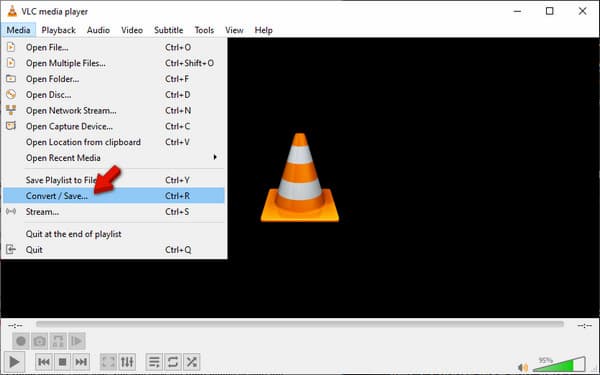
1. After opening VLC, click Media > Convert/Save to enter the new window.
2. Under the File section, click +Add to import the M2TS file you want to convert. Then, click the bottom Convert/Save to proceed.
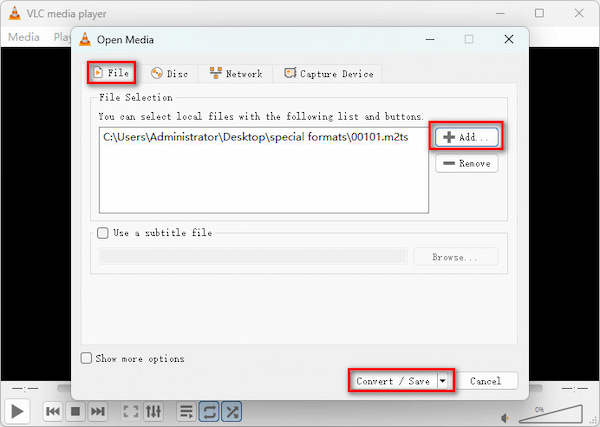
3. Next, select MP4 as the output format from the Profile option. Finally, click the Start button at the bottom to initiate the M2TS to MP4 conversion.
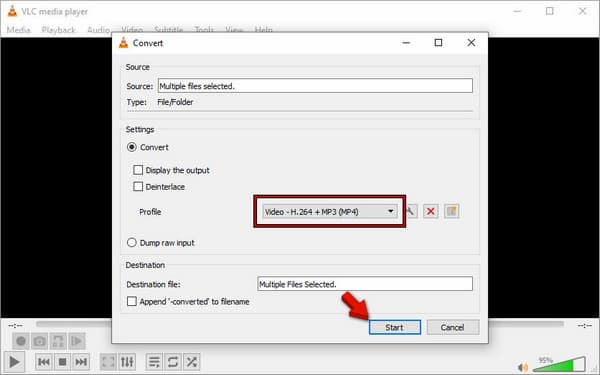
VLC is a fantastic tool that is suitable for quick, one‑off conversions when you don't want to install a new app. Just keep in mind that its conversion speed is a bit slow for huge files, and double‑check your audio settings if the output video turns out silent.
Method 3: AnyMP4 Free Online Video Converter - No Install Needed
AnyMP4 Free Online Video Converter is a free M2TS to MP4 converter online. It can free convert batch M2TS/MTS files to MP4 videos online at one time. Moreover, it lets you adjust the parameters of MP4 to choose the video encoder, resolution, frame rate, and more. It highly supports 1080p HD M2TS files, which can complete the whole conversion for free.
1.Click “Upload File” to select and add the M2TS files to this site online.
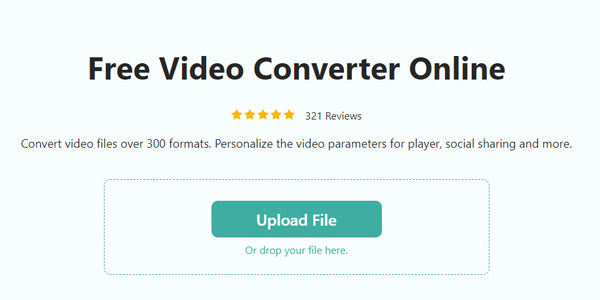
2.Select 'MP4' under the 'Video' Tab, and click 'Save' to start converting and downloading the MP4 video.
The parameters are available for you to change the video codec, resolution, frame rate, quality, and more for free.
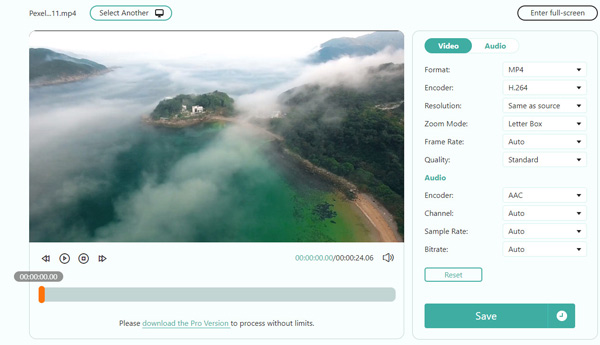
This online tool is a lifesaver when you're on a borrowed computer and can't install software. It handles basic M2TS clips surprisingly fast, but stick to smaller home clips since browser uploads depend heavily on your internet speed.
Method 4: FreeConvert - Quick Online Fallback
FreeConvert is one of the top‑rated online converters out there. It allows you to upload M2TS files up to 1GB for free and convert M2TS to MP4 in several clicks. It’s slick, modern, and gives you surprisingly deep control over advanced settings like video codecs, aspect ratios, and volume boost right inside your web browser. If you want to convert files on phones, this online tool is good for you.
Now, let's see how to use it to convert M2TS to MP4.
Note
Do not upload sensitive or personal home videos to public online converters. Use desktop tools for privacy.
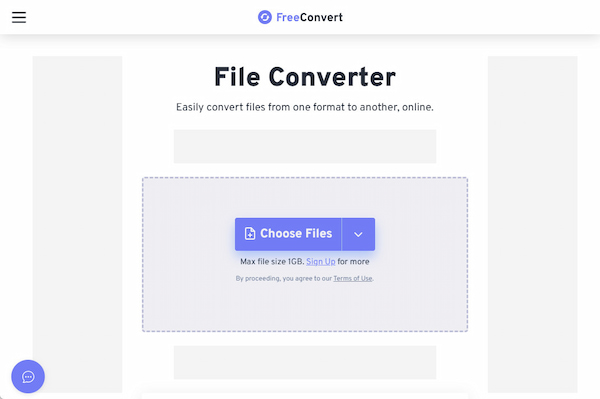
1. Access FreeConvert on your browser and open it. Click the central Choose Files button to import an M2TS file from your computer, Dropbox, URL, and others.
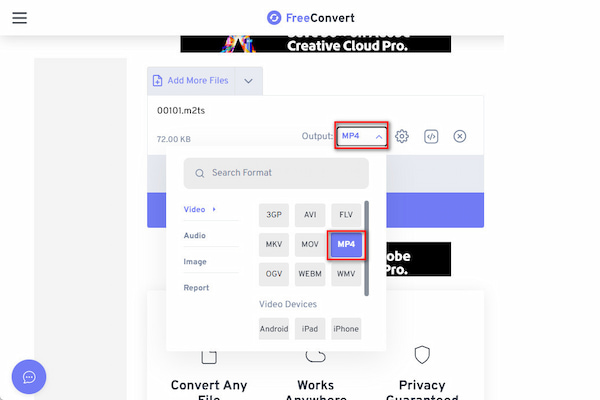
2. After the file is uploaded, click Output and choose MP4 as the output format.
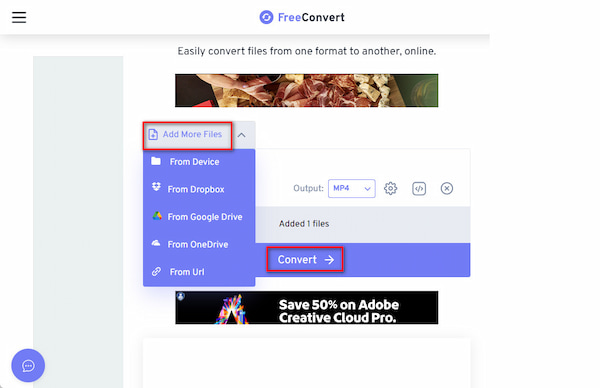
3. If you want to convert more M2TS files, you can click Add More Files. After that, click Convert to begin the conversion. Once done, click the Download button to save it to your computer.
FreeConvert is ideal for medium‑sized camera files under 1GB. However, avoid uploading private or sensitive family footage to free web servers. For confidential clips, an offline desktop tool like AnyMP4 Video Converter Ultimate is always the safer bet.
FAQs of M2TS to MP4
Can VLC convert MTS to MP4?
Yes. VLC is not only the media player to open MTS files, but also a video converter to convert MTS to MP4.
How do I play an M2TS file?
Currently, the M2TS files can be played by Picture Motion Browser, ALLPlayer, MPlayer, VLC, PotPlayer, AnyMP4 Blu-ray Player, and other media players. Moreover, you can convert M2TS files into the most popular MP4 videos for playback on more devices.
What is the difference between MTS and M2TS files?
M2TS file is primarily used for high-definition video on Blu-ray disc and AVCHD. MTS file is the file extension of M2TS when M2TS file is imported into computer.
What is the fastest free way to convert large M2TS videos to MP4 on Windows 11?
HandBrake and VLC are two good free choices for you to convert large M2TS files to MP4.
Can I use VLC or HandBrake to batch convert M2TS to MP4 on Mac?
Yes. They both have batch conversion features and are able to convert M2TS to MP4.
Why won't my M2TS videos play on my iPad/iPhone, and how do I fix it?
Because these iOS devices don't natively support the .m2ts container format and you can convert M2TS to MP4, MOV, and other formats for playback.
M2TS vs MP4: What's the difference in file size and video quality?
M2TS files are huge because they carry raw, uncompressed transport data straight from Blu-rays or camcorders, whereas MP4s compress that same footage into a much smaller, lightweight file. In terms of quality, you won't notice any real visual difference—MP4 gives you the exact same crisp picture while saving tons of storage space.
Is it safe to upload private home M2TS videos to free online converters?
Generally, online converter tools would delete the uploaded files in time. However, there are still privacy risks.
Conclusion:
From the above overviews and step-by-step guide of how to convert M2TS to MP4 online and offline, you can find the proper video converter to manage M2TS videos more easily. Using an online video converter to convert M2TS to MP4 online is simple with no registration or download. For people who need to convert and edit videos frequently, you should definitely choose AnyMP4 Video Converter Ultimate. You are able to not only use it as the professional M2TS converter, but also as a comprehensive video editor that offers more filters and features. Through this post, you can convert M2TS to MP4 files without data loss on Windows and Mac flexibly.






 Add your comments to join the discussion here