
Love your DVD collection, but frustrated that your sleek Android tablet lacks a disc drive? You're not alone. The gap between physical media and modern mobile OS often leaves users stuck with unreadable discs. Whether you want to connect a physical external drive or prefer the convenience of a digital library, this guide covers everything you need to know. We’ll show you how to bypass Android's hardware limitations to play DVDs on Android tablets anywhere, without losing a single frame of original quality.
| Feature | External DVD Drive | DVD Ripping (Recommended) |
|---|---|---|
| Portability | Low. Requires carrying a drive, OTG cables, and physical discs. | High. Movies stay on your tablet/SD card for anytime, anywhere access. |
| Hardware Cost | $30 - $60+ for a compatible drive and powered OTG hub. | $0 (Software trial) or a one-time software investment. |
| Setup Complexity | High. Requires troubleshooting power supply and driver compatibility. | Low. One-click conversion on a PC/Mac, then transfer to Android. |
| Battery Impact | Severe. The external drive drains the tablet's battery rapidly. | Minimal. Playing digital files is optimized for mobile battery life. |
| Viewing Experience | Real-time playback but prone to skipping if moved. | Smooth playback; supports 4K upscaling and subtitle customization. |
| Long-term Value | Fragile physical discs are still prone to scratches. | Creates a permanent, lossless digital backup of your collection. |
Android tablets cannot play DVDs directly because their hardware is incompatible with DVD drives, and most Android tablets do not have built-in optical drives. However, users can use indirect methods to realize the purpose of playing DVD content on Android tablets. Two of the best ways are in the following:
Next, we will introduce these two methods in two parts in detail.
In this part, we will realize the purpose of playing DVDs on Android tablets by using a DVD external USB drive and DVD player software compatible with Android tablets.
Connecting a DVD drive to an Android tablet is more complex than connecting it to a standard PC. To ensure a successful connection, you must have the following:
You might wonder why the native Video Player app on your Samsung or Lenovo tablet won't play DVD files. The reason lies in the Android Kernel limitations:
Now, let's see the detailed steps of using VLC for Android to play DVDs on Android tablets.
Standard Android video players lack the MPEG-2 and AC3 codecs required for DVD playback. VLC for Android is the essential 'Universal Key' because it carries its own internal codec library.
1. Download VLC for Android from the Google Play Store.
2. Go to Settings > Extra Settings > Video and ensure Hardware Acceleration is set to 'Automatic' or 'Full' to save battery during playback.
3. Since Android does not natively 'mount' UDF-formatted DVD discs, you have two ways to play content:
To watch DVD movies on your portable tablets, you must first digitize them on a PC. You can easily do this by using a reliable free DVD ripper on Windows 10/11 to extract the videos in advance.
As discussed in Part 2, connecting physical hardware to an Android tablet is often unstable due to system limitations. We highly recommend the 'Rip to Digital' method as the primary solution. By converting your DVD to a digital file on your computer and then transferring it to your tablet, you eliminate hardware compatibility issues and battery drain.
The playback formats supported by Android tablets are quite extensive, covering a wide range of video and audio formats. Here we list some formats supported by Android tablets for your reference:
| Video Formats | MP4, 3GP, AVI, MKV, MOV, WMV, TS/M2TS, etc. |
| Audio Formats | MP3, WAV, Ogg, FLAC, AAC, MIDI, etc. |
| Video Encoding Formats | H.264/AVC, H.265/HEVC, MPEG-4, AV1, etc. |
MP4 remains the most compatible video container for Android tablets, as it is natively supported by virtually all mobile operating systems and hardware. When paired with the H.264 codec, it ensures smooth, universal playback on any device, while the more modern H.265 (HEVC) provides the best balance of high-definition quality and significantly smaller file sizes—perfect for saving storage space on your tablet without sacrificing visual clarity.
AnyMP4 DVD Ripper is one of the best DVD rippers for Windows and Mac. It can convert any DVD to more than 500 digital formats, including MP4, MKV, AVI, MOV, and other digital formats mentioned above that are more compatible with Android tablets. Or if you are using a specific Android tablet you can directly choose to rip to those devices, such as the Huawei Pad series, LG G Tablet series, etc. Meanwhile, it also provides customizable format profile options that match the output format. In addition, it is equipped with the latest CPU and GPU acceleration technology, as well as advanced video processing technology, which can provide you with faster DVD ripping speeds than other competitors, while still maintaining the original image and sound quality.
Here are the exact steps for it:
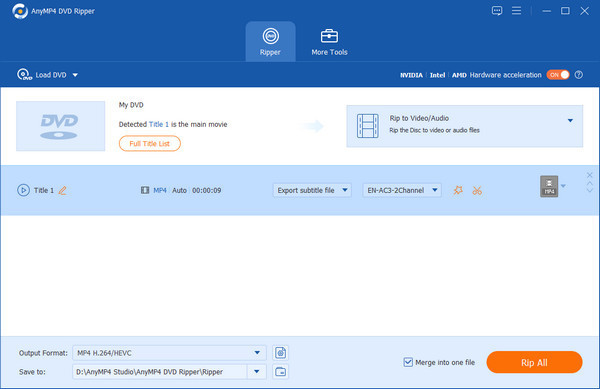
1. Download and install AnyMP4 DVD Ripper on your computer. After the successful installation, launch it.
Secure Download
Secure Download
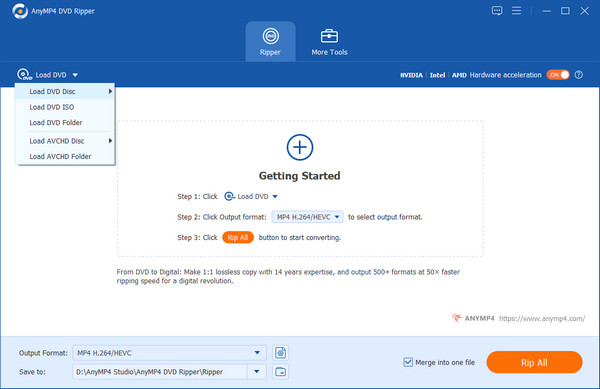
2. Insert the DVD you want to play on the Android tablet into the DVD drive. Click the down arrow of the Load DVD button to choose the corresponding option from the drop-down option.
3. The DVD ripper will load the main title of the DVD files automatically. Moreover, you can also load the selected titles by clicking Full Title List. Then, it will show all the titles. Click OK to confirm it.
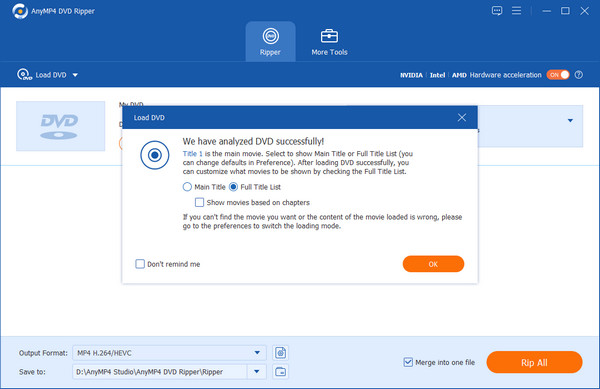
Tips: You can also rip every title into a different format by selecting the output format for every separate title. However, you will not keep all the DVD subtitles, audio tracks, and quality with the ripping speed.
4. Click the Output Format option to select H.264 MP4 from the drop-down, which is good for easy playback on Android tablets.
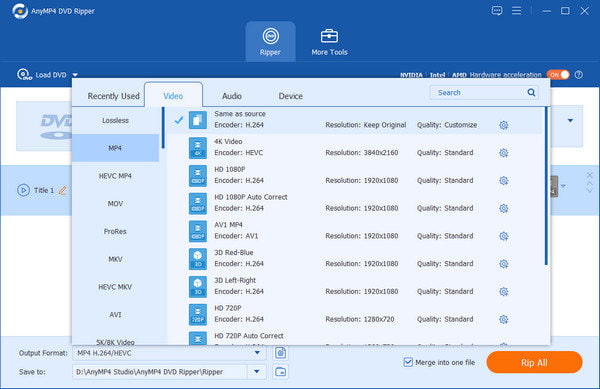
5. When the output format is customized, you can click Rip All at the bottom right corner to rip the DVD to the Android tablet.
1. Why doesn't my Samsung tablet recognize my external DVD drive via OTG?
Most Android tablets, including Samsung's, lack the native drivers and file system support to read optical discs (ISO9660/UDF). Additionally, standard OTG cables often fail to provide the high peak current required to spin the motor and power the laser, causing the drive to either not show up or click repeatedly.
2. Can VLC for Android play physical DVD discs directly?
No. While the desktop version of VLC is famous for this, the Android app cannot communicate directly with a physical optical drive. It can play DVD ISO files (digital copies) stored on your tablet or an SD card, but it won't 'see' a disc inserted into a USB drive.
3. Is there an Android tablet with a built-in DVD player?
No. Major manufacturers have completely phased out internal optical drives in favor of slim designs and streaming. You may find 'Portable DVD Players' that run on a very old version of Android, but these are niche products with poor performance and are not standard tablets.
4. Do I need an external power source to run a DVD drive on a tablet?
Yes, usually. A tablet's USB port typically outputs 0.5A to 1A, while a DVD drive often needs 1.5A to 2.0A to function properly. You should use a 'Y-cable' (which draws power from a second USB port/wall brick) or a powered USB hub to ensure the drive has enough juice to operate.
These are the two ways to play DVDs on an Android tablet, now you can choose one of them according to your situation and enjoy your favorite DVD movies on your Android tablet anytime and anywhere. Personally speaking, it's easier and more convenient than using an external DVD drive for Android tablets to connect to the device, and then use a proper DVD player software and a good DVD ripper to rip DVDs directly in one step, AnyMP4 DVD Ripper is a good choice, click the free download button below to download it and try it out now!
Secure Download
Secure Download
 Posted by Ted Klarso to Play Blu-ray&DVD & Rip DVD
More readings
 10 Best External DVD Player to Watch DVD Movies on Mac/Windows
External DVD player reviews, with the guide to play DVD on PC or Mac easily, even though the DVD drive is eliminated to chase thinner personal computer.
 3 Proven Ways to Copy DVD to Hard Drive in Digital Format
Transferring a DVD to a hard drive has never been an easy task. But with our comprehensive guide, you will learn how to copy DVDs to hard drives in no sweat.
 How to (Free) Play DVD on Laptop on Windows 11/10 and Mac
Looking for a way to play DVDs on your laptop with Windows 11/10? Read this post to learn how to do it through free downloaded DVD player software or hardware.
 Best Tool to Watch a DVD on a Laptop Without a DVD Player
Discover the comprehensive guide on how to play DVDs on a laptop without a DVD player. Explore various methods in this guide post, including the amazing tool.
 Add your comments to join the discussion here